
Introduction
This manual provides detailed instructions for the Fintie Ultra-Thin Bluetooth Keyboard, Model DEK0017-C. Please read this manual carefully before use to ensure proper operation and to maximize the lifespan of your device. This keyboard is designed for seamless compatibility with various iOS devices, offering a comfortable and efficient typing experience.
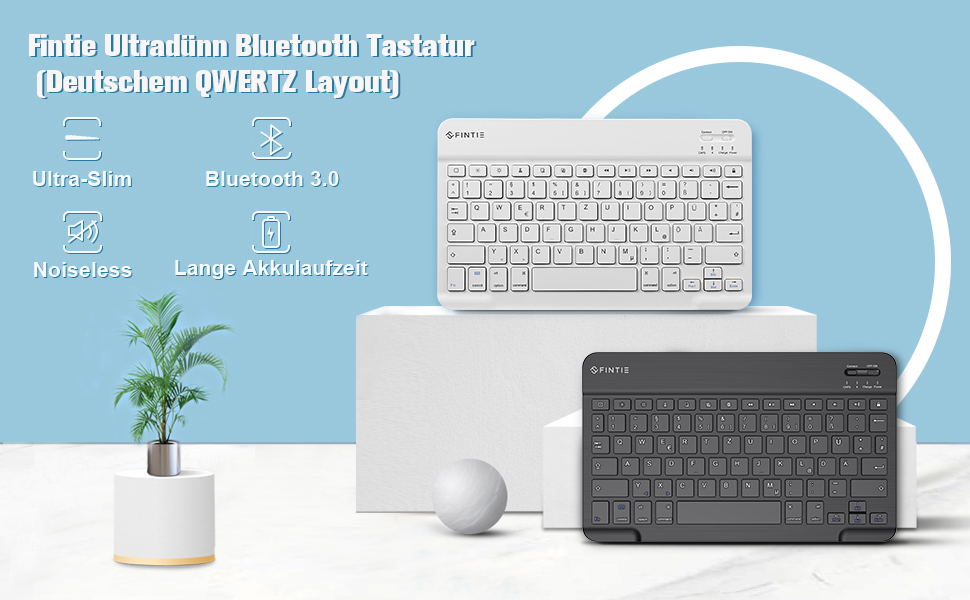
Image: The Fintie Ultra-Thin Bluetooth Keyboard shown in use with a tablet and a smartphone, demonstrating its multi-device compatibility.
Setup
1. Charging the Keyboard
The keyboard features a built-in rechargeable lithium battery. Before first use, fully charge the keyboard using the provided USB charging cable. Connect the Type-C end of the cable to the keyboard's charging port and the USB-A end to a power source (e.g., computer USB port, USB wall adapter).

Image: A close-up view of the Fintie Bluetooth keyboard, highlighting the Type-C charging port located on the side, next to the power switch and indicator lights.
2. Powering On/Off
Locate the ON/OFF switch on the top right side of the keyboard. Slide it to the 'ON' position to power on the keyboard. The power indicator light will briefly illuminate. To turn off the keyboard, slide the switch to the 'OFF' position.
3. Bluetooth Pairing
To pair the keyboard with your device (iPad, iPhone, etc.):
- Ensure the keyboard is charged and powered on.
- Press the 'Connect' button on the keyboard. The Bluetooth indicator light will start blinking, indicating it is in pairing mode.
- On your device, go to Settings > Bluetooth.
- Search for available devices and select 'Bluetooth Keyboard' or a similar name from the list.
- Follow any on-screen prompts to complete the pairing process. The Bluetooth indicator will stop blinking once successfully paired.

Image: An illustration showing the Fintie Bluetooth keyboard wirelessly connecting to an iPad, a Mac computer, and an iPhone, emphasizing its broad compatibility with Apple devices.
Operating Instructions
Keyboard Layout and Special Keys
This keyboard features a QWERTZ layout, optimized for German-speaking users. It includes a range of function keys that provide quick access to common tasks on your iOS device.

Image: A detailed diagram of the Fintie Bluetooth keyboard, highlighting and numbering its optimized multimedia keys with corresponding functions for quick access to device controls.
The following special keys are available:
- 1 Return/Home: Returns to the home screen.
- 2 Brightness Down/Up: Adjusts screen brightness.
- 3 Search: Opens the device's search function.
- 4 Virtual Keyboard: Toggles the on-screen virtual keyboard.
- 5 Screenshot: Captures a screenshot.
- 6 Previous Song / Play or Pause / Next Song: Media playback controls.
- 7 Mute / Volume Down / Volume Up: Audio volume controls.
- 8 Lock Screen: Locks the device screen.
- 9 Delete: Deletes characters.
- 10 Power Indicator: Shows the keyboard's power status.
Automatic Sleep Mode
To conserve battery life, the keyboard will automatically enter sleep mode after a period of inactivity. To wake it up, simply press any key. The keyboard will reconnect to your paired device automatically.
Maintenance
Proper care and maintenance will extend the life of your Fintie Bluetooth Keyboard.
- Cleaning: Use a soft, dry, lint-free cloth to clean the keyboard surface. Do not use liquid cleaners or abrasive materials.
- Storage: When not in use, store the keyboard in a cool, dry place away from direct sunlight and extreme temperatures.
- Protection: Avoid dropping the keyboard or exposing it to excessive force, which can damage internal components.
- Moisture: Keep the keyboard away from water and other liquids. This product is not waterproof.
Troubleshooting
If you encounter issues with your keyboard, please refer to the following common solutions:
Keyboard Not Connecting/Pairing
- Ensure Bluetooth is enabled on your device.
- Make sure the keyboard is charged and powered on.
- Press the 'Connect' button on the keyboard to enter pairing mode.
- On your device, try forgetting the keyboard from your Bluetooth device list and then re-pairing it.
- Restart both the keyboard and your device.
Keys Not Responding
- Check the keyboard's battery level. Recharge if necessary.
- Ensure the keyboard is properly paired and connected to your device.
- Clean around the keys to remove any debris that might be obstructing them.
Short Battery Life
- Ensure the keyboard is fully charged before each use.
- Turn off the keyboard using the ON/OFF switch when not in use to conserve battery.
- The automatic sleep function helps save energy; ensure it is functioning correctly.
Specifications

Image: A diagram illustrating the dimensions of the Fintie Ultra-Thin Bluetooth Keyboard, showing its length, width, and thickness in inches.
| Feature | Detail |
|---|---|
| Brand | FINTIE |
| Model Number | DEK0017-C |
| Connectivity Technology | Bluetooth V5.1 |
| Operating Range | Up to 10 meters (33 feet) |
| Battery Type | Built-in Rechargeable Lithium-polymer |
| Continuous Use Time | Up to 140 hours |
| Standby Time | Up to 180 days (with BLE) |
| Keyboard Layout | QWERTZ (German Layout) |
| Number of Keys | 78 |
| Dimensions (L x W x H) | 24.6 cm x 15 cm x 0.6 cm (9.68 x 5.9 x 0.23 inches) |
| Material | Premium ABS |
| Special Feature | Rechargeable, Ultra-thin, Portable |
| Compatible Operating System | iOS |
| Switch Type | Mechanical (Scissor-switch mechanism) |
Warranty and Support
For warranty information or technical support, please refer to the Fintie official website or contact their customer service directly. Keep your purchase receipt for warranty claims.
Package Contents
- 1 x Fintie Ultra-Thin Wireless Keyboard
- 1 x USB Charging Cable
- 1 x User Manual


