
Introduction
The Miccus Home RTX 2.0 is a versatile Bluetooth audio adapter designed to enhance your home audio experience. It functions as both a Bluetooth transmitter (TX) and receiver (RX), allowing you to wirelessly stream audio to and from your devices over long distances. Featuring aptX Low Latency technology, it ensures synchronized audio for TV, movies, and gaming. This manual provides detailed instructions for setup, operation, and troubleshooting to help you get the most out of your device.

Image: The Miccus Home RTX 2.0 unit, its retail packaging, and various audio cables (Micro USB, Optical, 3.5mm, RCA) included in the box.
Safety Information
- Avoid using Wi-Fi near the device to prevent potential signal interference.
- Allow the device to cool down before handling, especially after extended use, to prevent burns.
- Unplug the USB power adapter when the device is not in use.
- Keep the device and its power adapter away from water or any liquids to prevent electrical hazards.
What's in the Box
Upon opening your Miccus Home RTX 2.0 package, please ensure all the following components are present:
- Miccus Home RTX 2.0 Unit (MHRTX-20)
- Gold-tipped 3.5mm to 3.5mm Audio Cable (6ft)
- Gold-tipped RCA to 3.5mm Cable (1M)
- Optical TOSLINK Audio Cable (6ft)
- Micro USB Cable
- USB to AC Wall Adapter
- Removable Dipole Antenna
- User Manual and Troubleshooting Guide (this document)
Product Overview
The Miccus Home RTX 2.0 features a compact design with clearly labeled ports and indicators for easy operation.

Image: Rear view of the Miccus Home RTX 2.0 showing its various input/output ports and the TX/RX mode switch.
Ports and Indicators:
- Antenna Port: For connecting the included dipole antenna to maximize range.
- Micro USB Port: For power supply using the provided USB cable and AC adapter.
- 3.5mm Audio In/Out: Standard auxiliary audio connection for various devices.
- Optical (TOSLINK) In/Out: Digital audio connection for high-quality sound.
- TX/RX Switch: Toggles between Transmitter (TX) and Receiver (RX) modes.
- CH1/CH2 LEDs: Indicate connection status for two paired Bluetooth devices.
- Optical/3.5mm LEDs: Indicate the active audio input/output type.
Setup Instructions
Before beginning, ensure the Miccus Home RTX 2.0 is placed on a stable surface and the dipole antenna is securely attached to its port.
1. Powering On:
- Connect the Micro USB cable to the Miccus Home RTX 2.0.
- Plug the other end of the USB cable into the provided USB to AC wall adapter, then plug the adapter into a power outlet. The device will power on automatically.
2. Transmitter (TX) Mode Setup:
Use TX mode to send audio wirelessly from your TV, PC, or stereo system to Bluetooth headphones or speakers.

Image: Visual guide for connecting the device to a TV, pairing Bluetooth headphones, and enjoying audio.
- Set the TX/RX switch on the Miccus Home RTX 2.0 to TX mode.
- Connect an audio cable (Optical, 3.5mm, or RCA) from your audio source (e.g., TV, PC, stereo) to the corresponding Input port on the Miccus Home RTX 2.0.
- Put your Bluetooth headphones or speaker into pairing mode.
- The Miccus Home RTX 2.0 will automatically search for and connect to your device. The CH1 LED will illuminate once connected.
- To connect a second device, put the second Bluetooth headphone/speaker into pairing mode. The CH2 LED will illuminate upon successful connection.
3. Receiver (RX) Mode Setup:
Use RX mode to receive audio wirelessly from your smartphone, tablet, or other Bluetooth-enabled device and play it through your home stereo system or wired speakers.
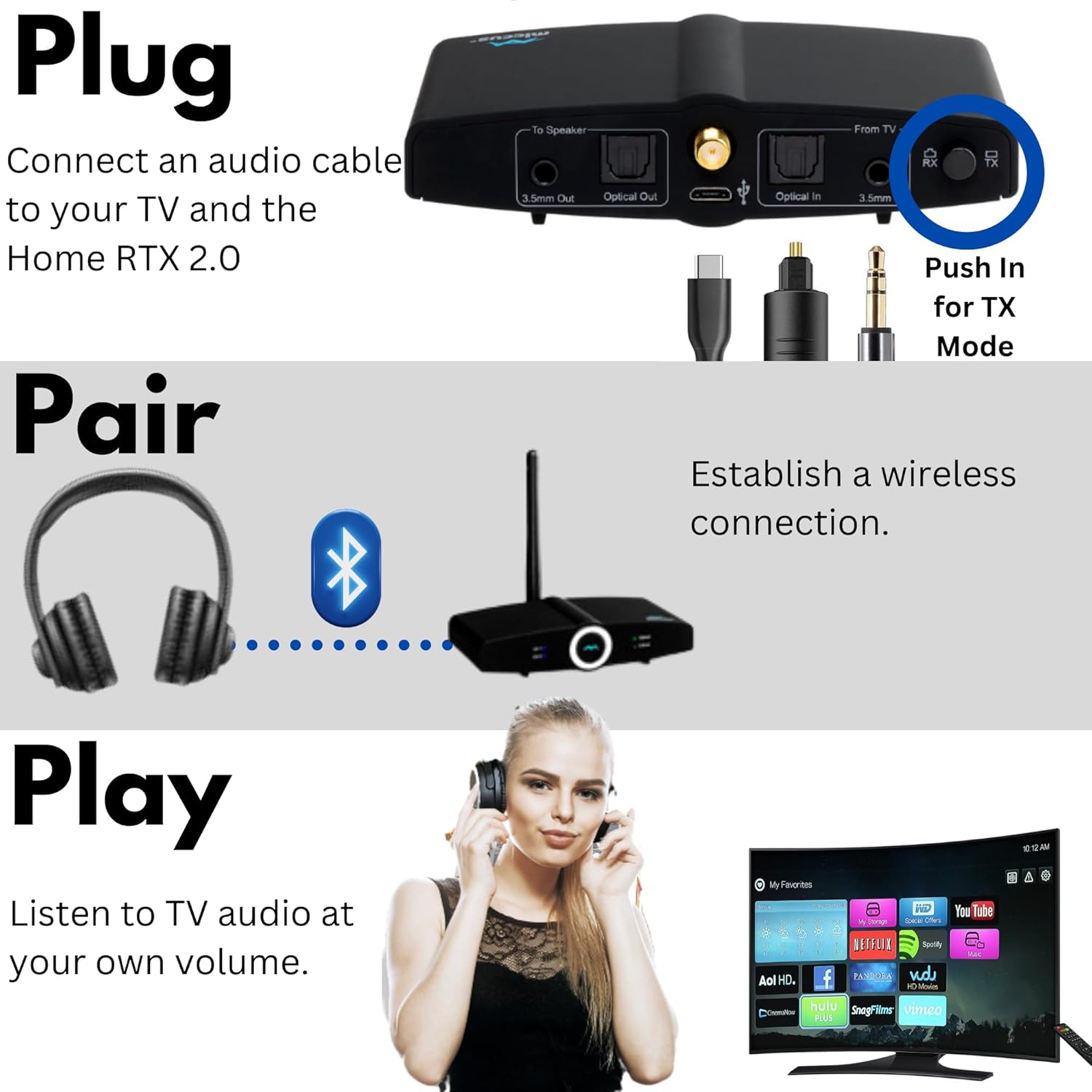
Image: Illustrates how TX mode sends audio from a TV to headphones, and RX mode receives audio from a phone to a stereo system.
- Set the TX/RX switch on the Miccus Home RTX 2.0 to RX mode.
- Connect an audio cable (Optical or 3.5mm) from the Output port on the Miccus Home RTX 2.0 to the corresponding audio input on your home stereo system or wired speakers.
- Enable Bluetooth on your smartphone, tablet, or other audio source device.
- Search for "Miccus Home RTX 2.0" in your device's Bluetooth settings and select it to pair. A voice prompt will guide you through the pairing process.
- Once connected, the CH1 LED will illuminate, and you can begin streaming audio.
Operating Instructions
Audio Connections:
The Miccus Home RTX 2.0 supports multiple audio connection types:
- Optical (TOSLINK): For digital audio input/output, offering high-fidelity sound.
- 3.5mm (AUX): For standard analog audio input/output, compatible with most devices.
- RCA: Via the included 3.5mm to RCA adapter cable, for connecting to devices with RCA audio ports.

Image: Detailed view of the device's rear panel showing 3.5mm and Optical input/output ports, along with the Micro USB, Optical S/PDIF, 3.5mm headphone jack, and RCA cables.
aptX Low Latency Technology:
The Miccus Home RTX 2.0 supports aptX Low Latency, which minimizes audio delay (lip-sync issues) when watching videos or playing games. For this feature to work, your paired Bluetooth headphones or speaker must also support aptX Low Latency. If your paired device does not support aptX-LL, the connection will default to a standard aptX or SBC codec, which may introduce a slight delay.

Image: A user enjoying gaming audio wirelessly through headphones connected to the Miccus Home RTX 2.0, highlighting its use with TV, PC, PS4, or Nintendo.
Long Range Performance:
The device is designed for extended range, offering up to 300 feet outdoors and 160 feet indoors under optimal conditions. Environmental factors such as walls, furniture, and Wi-Fi interference can affect the actual range.

Image: An illustration demonstrating the extensive wireless audio coverage provided by the Miccus Home RTX 2.0 across multiple rooms and outdoor areas.
Note on Wi-Fi Interference: Wi-Fi signals can sometimes interfere with Bluetooth range. If you experience range issues, try temporarily turning off Wi-Fi on nearby devices during Bluetooth setup, then re-enable Wi-Fi once the Bluetooth connection is established and streaming.
Dual Device Pairing: The Miccus Home RTX 2.0 can connect to two Bluetooth headphones or speakers simultaneously in TX mode, allowing two individuals to listen to the same audio source. In RX mode, it connects to one source device (e.g., smartphone).
Troubleshooting
If you encounter issues with your Miccus Home RTX 2.0, please refer to the following common problems and solutions:
| Problem | Solution |
|---|---|
| No Audio / No Connection |
|
| Audio Delay (Lip-Sync Issues) |
|
| Poor Range / Signal Dropouts |
|
| Low Volume Output |
|
| Humming Noise / Interference |
|
Specifications
| Feature | Detail |
|---|---|
| Model Number | MHRTX-20 |
| Bluetooth Version | v4.2 (compatible with v2.0 or higher) |
| Bluetooth Profiles | A2DP, AVRCP (HFP, HSP in USB Mode) |
| Audio Codecs | SBC, AAC, aptX, aptX-LL |
| Operating Range | Up to 300 ft (90M) outdoors, 160 ft indoors (approximate) |
| Operating Frequency | 2.4 GHz |
| Audio Inputs/Outputs | 3.5mm Stereo Audio, TOSLINK Digital Optical |
| Power Source | USB (5 Volts) |
| Item Weight | 4 ounces |
| Product Dimensions | 4.25 x 2 x 0.8 inches |
| Material | Polycarbonate (PC) |
Care and Maintenance
- Cleaning: Use a soft, dry cloth to clean the exterior of the device. Do not use liquid cleaners or aerosols.
- Storage: Store the device in a cool, dry place away from direct sunlight and extreme temperatures.
- Handling: Avoid dropping the device or subjecting it to strong impacts.
- Antenna: Handle the dipole antenna with care to prevent bending or breaking.
Warranty and Support
For information regarding product warranty, technical support, or to purchase replacement parts, please visit the official Miccus website or contact Miccus customer service directly. Contact details are typically available on the product packaging or the brand's official online presence.
Miccus Official Website: Visit the Miccus Store on Amazon


