
1. Product Overview
Key Features
- Anti-glare and Anti-static screen for comfortable viewing.
- Language selection for on-screen controls.
- LED backlights for vibrant visuals.
- Intuitive On-screen controls for easy adjustments.
- Plug and Play functionality for quick setup.
- User programmable settings for personalized experience.
- 31.5-inch ADS display with LED backlight.
- FHD (1920 x 1080) resolution for clear images.
Product Description
The HP 32s Display Monitor offers an expansive 31.5-inch diagonal display, designed to enhance home entertainment and multitasking. It delivers vibrant visuals and provides versatile connectivity options, ensuring clarity and immersion for various content.
2. Setup Instructions
Unpacking the Monitor
Carefully remove all components from the packaging. Ensure the following items are present:
- HP 32s Display Monitor
- AC power cord
- HDMI cable
- Documentation (including Warranty card)
Connecting the Monitor
- Place the monitor on a stable, flat surface.
- Connect the AC power cord to the monitor's power input and then to a power outlet.
- Connect the HDMI cable from your computer or compatible device to the HDMI port on the monitor. Alternatively, use a VGA cable if your device supports it.
- The monitor is compatible with devices featuring VGA, HDMI, or DisplayPort outputs.
- Connect any USB devices to the available USB ports on the monitor (2 USB 2.0 ports, 1 USB 3.0 port).
Physical Adjustments
The HP 32s Display Monitor features an adjustable stand allowing for optimal viewing comfort. You can adjust the monitor's height, tilt, and even rotate it to a vertical position. This flexibility helps in reducing strain during prolonged use.
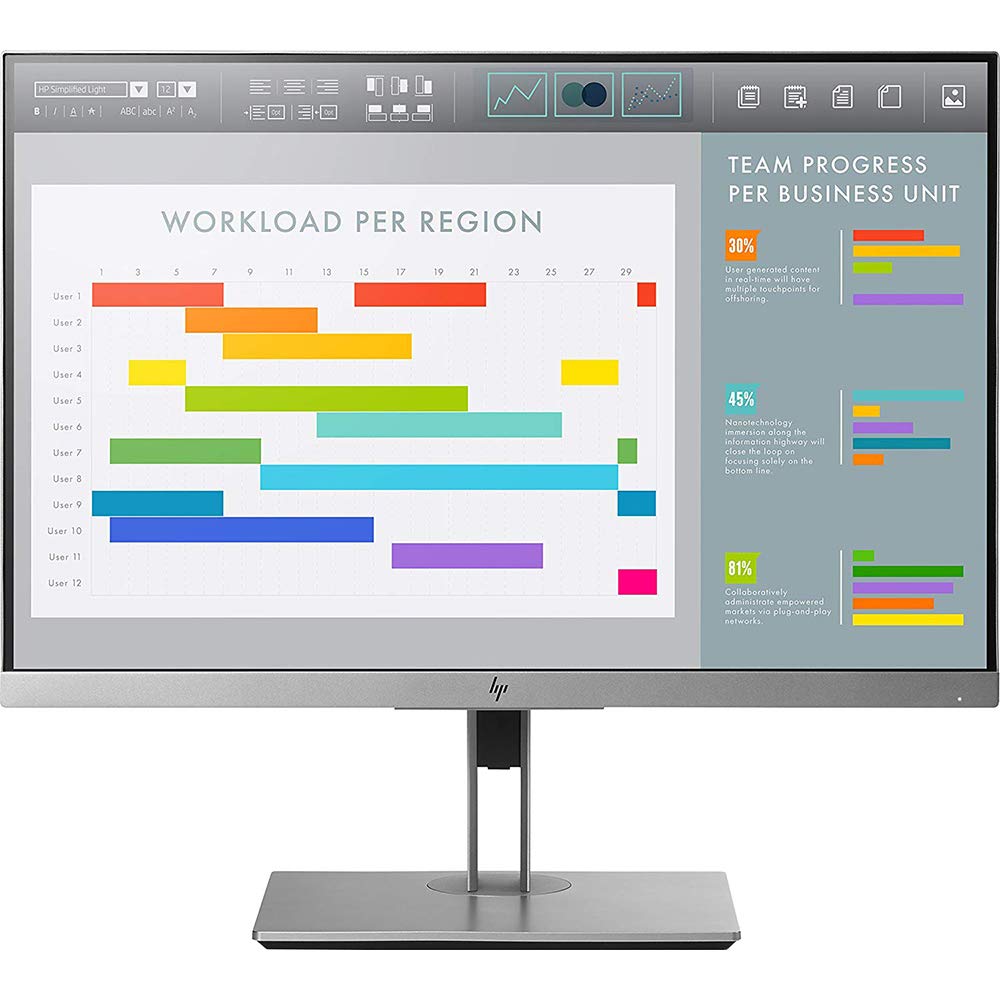
Figure 1: HP 32s Display Monitor with approximate dimensions (Width: 28.72", Height: 17.04", Depth: 2.3").
3. Operating Instructions
Power On/Off
Press the power button, usually located on the bottom right bezel, to turn the monitor on or off. The LED indicator will illuminate when the monitor is active.
On-Screen Controls (OSD)
Access the On-Screen Display (OSD) menu using the buttons on the monitor's bezel. From the OSD, you can:
- Select your preferred language.
- Adjust display settings such as brightness, contrast, and color temperature.
- Configure user-programmable settings.
- Manage input sources (HDMI, VGA).
Display Settings
The monitor supports a native resolution of 1920x1080 (FHD) and a refresh rate of 60 Hz. It features an anti-glare screen to minimize reflections and enhance viewing comfort. Ensure your connected device is configured to output at the optimal resolution for the best visual experience.
4. Maintenance and Care
To ensure the longevity and optimal performance of your HP 32s Display Monitor, follow these maintenance guidelines:
- Cleaning the Screen: Gently wipe the screen with a soft, lint-free cloth. For stubborn marks, slightly dampen the cloth with water or a non-abrasive screen cleaner. Avoid using harsh chemicals or abrasive materials.
- Cleaning the Casing: Use a soft, dry cloth to clean the monitor's casing.
- Anti-static Properties: The monitor is designed with anti-static properties. However, regular dusting helps maintain a clean display surface.
- Ventilation: Ensure proper ventilation around the monitor to prevent overheating. Do not block the ventilation openings.
- Power Off When Not in Use: Turn off the monitor when not in use for extended periods to conserve energy and prolong its lifespan.
5. Troubleshooting
If you encounter issues with your HP 32s Display Monitor, refer to the following common troubleshooting steps:
- No Power: Ensure the power cord is securely connected to both the monitor and a working power outlet. Check if the power outlet is functional.
- No Image/Signal: Verify that the video cable (HDMI or VGA) is correctly connected to both the monitor and your computer. Ensure the correct input source is selected via the OSD menu. Restart your computer.
- Image is Distorted or Unclear: Check your computer's display settings to ensure the resolution is set to 1920x1080. Adjust brightness, contrast, and color settings via the OSD menu.
- Monitor Does Not Wake Up from Sleep: If the monitor fails to display an image after waking from sleep mode, try powering the monitor off and then on again using the power button. Ensure your computer's power management settings are configured correctly.
- On-Screen Controls Not Responding: If the OSD buttons are unresponsive, power cycle the monitor. If the issue persists, contact support.
6. Technical Specifications
| Feature | Specification |
|---|---|
| Brand | HP |
| Model Name | HP 32s Display |
| Model Number | 1FH49A8#ABA |
| Screen Size | 31.5 Inches |
| Resolution | FHD (1920 x 1080) |
| Aspect Ratio | 16:9 |
| Display Type | ADS with LED backlight |
| Refresh Rate | 60 Hz |
| Response Time | 5 Milliseconds |
| Brightness | 250 Candela |
| Contrast Ratio | 1200:1 |
| Viewing Angle | 178 Degrees |
| Connectivity | 1 HDMI 2.0 (with HDCP support), 1 VGA |
| USB Ports | 2 USB 2.0, 1 USB 3.0 |
| Power Consumption | 39 Watts |
| Item Weight | 17.03 Pounds |
| Color | Black |
| Adaptive Sync | FreeSync |
7. Warranty and Support
Warranty Information
The HP 32s Display Monitor comes with a Limited 1-year warranty. Certain restrictions and exclusions apply. Please refer to the warranty card included in the product packaging for full details regarding coverage and terms.
Customer Support
For technical assistance, troubleshooting beyond this manual, or warranty claims, please contact HP Customer Support. Contact information can be found on the official HP website or in the documentation provided with your monitor.


