
Introduction
The Beats Studio3 Wireless headphones, featuring the Apple W1 chip, redefine your listening experience with seamless connectivity and advanced audio technology. Designed for all-day comfort and superior sound, these headphones offer Active Noise Cancelling (Pure ANC) to block external distractions, ensuring a premium audio experience. With extended battery life and Fast Fuel charging, your music is always ready when you are. Compatible with both iOS and Android devices, the Beats Studio3 provides versatile and high-performance audio.
What's in the Box
- Beats Studio3 Wireless headphones
- Carrying case
- 3.5mm RemoteTalk cable
- Universal USB charging cable
- Quick Start Guide
- Warranty Card

Image: Beats Studio3 Wireless Headphones, carrying case, RemoteTalk cable, and USB charging cable.
Product Overview
Key Features
- High-performance wireless noise cancelling headphones.
- Compatible with iOS and Android devices.
- Pure Adaptive Noise Cancelling (Pure ANC) actively blocks external noise.
- Real-time Audio calibration preserves a premium listening experience.
- Up to 22 hours of battery life with noise cancelling on, and up to 40 hours with noise cancelling off.
- Apple's W1 chip and Class 1 Bluetooth technology ensure extended range and fewer drop-outs.
- Fast Fuel: A 10-minute charge provides 3 hours of playback when battery is low.
- Multifunction on-ear controls and microphone for calls, music control, and Siri activation.
- Ergonomic pivoting ear cups and advanced venting for comfort.
Controls and Indicators
The Beats Studio3 headphones feature intuitive on-ear controls for managing audio playback, volume, and phone calls. The main 'b' button on the ear cup allows for play/pause, track skipping, and call management. Volume controls are integrated around this button. A power button with LED indicators for battery life is located on the bottom of one ear cup.

Image: Side view of the Beats Studio3 headphones, highlighting the main control button.
Setup
Charging the Headphones
Connect the universal USB charging cable to the Micro USB port on the headphone and to a power source. The LED fuel gauge lights will indicate the charging status. For quick power, use Fast Fuel technology: a 10-minute charge provides 3 hours of playback.
Pairing with Devices
- Power On: Press and hold the power button on the right ear cup for 1 second to turn on the headphones. The LED fuel gauge lights will illuminate.
- iOS Devices (Apple W1 Chip): Hold the Beats Studio3 headphones near your unlocked iOS device. Follow the on-screen prompts to connect. Once paired, the headphones will automatically connect to other Apple devices signed into your iCloud account.
- Android and Other Bluetooth Devices: Press and hold the power button for 5 seconds until the LED fuel gauge lights flash, indicating pairing mode. Go to your device's Bluetooth settings and select "Beats Studio3" from the list of available devices.

Image: Close-up of the Beats Studio3 ear cup, showing the power button and battery indicator lights.
Operating Instructions
Active Noise Cancelling (Pure ANC)
Pure ANC is automatically enabled when you power on the Beats Studio3 headphones, continuously calibrating audio to block external noise. To turn Pure ANC off for low power mode (extending battery life up to 40 hours), double-press the power button. Double-press again to re-enable Pure ANC.
Music Playback and Volume
- Play/Pause: Press the 'b' button once.
- Skip Forward: Press the 'b' button twice.
- Skip Backward: Press the 'b' button three times.
- Volume Up: Press the top part of the ring around the 'b' button.
- Volume Down: Press the bottom part of the ring around the 'b' button.
Phone Calls
- Answer/End Call: Press the 'b' button once.
- Decline Call: Press and hold the 'b' button for 2 seconds.
- Switch Between Calls: Press the 'b' button once to switch between two active calls.
Activate Voice Assistant (Siri/Google Assistant)
Press and hold the 'b' button for 2 seconds to activate your device's voice assistant.
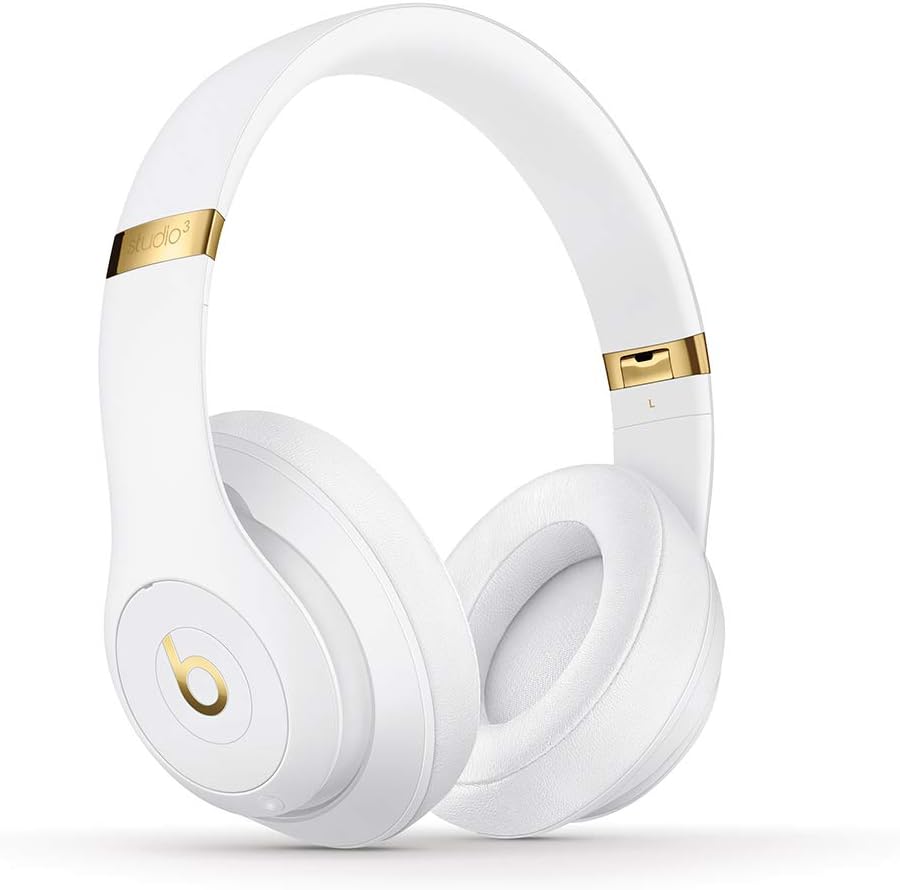
Image: Front view of the Beats Studio3 Wireless Headphones.
Maintenance
- Cleaning: Use a soft, dry, lint-free cloth to clean the headphones. Do not use abrasive cleaners or solvents.
- Storage: When not in use, store the headphones in their provided carrying case to protect them from dust and damage. The headphones fold easily for compact storage.
- Battery Care: To prolong battery life, avoid fully discharging the headphones frequently. Charge them regularly, even if not in constant use.

Image: Beats Studio3 headphones folded, demonstrating their compact storage capability.
Troubleshooting
| Problem | Possible Solution |
|---|---|
| Headphones won't turn on. | Ensure the headphones are charged. Connect to a power source using the USB charging cable. |
| Cannot pair with device. | Make sure Bluetooth is enabled on your device. Place headphones in pairing mode (hold power button for 5 seconds until LEDs flash). Ensure headphones are not already connected to another device. Try restarting both devices. |
| No audio or poor sound quality. | Check volume levels on both headphones and your device. Ensure headphones are properly paired. If using the RemoteTalk cable, ensure it is fully inserted into both the headphones and your device. |
| Active Noise Cancelling not working. | Ensure Pure ANC is enabled (double-press power button). Check for any obstructions around the microphones. |
Specifications
- Model Name: Beats Studio3 - White (Previous Model)
- Item Model Number: MQ572LL/A
- Connectivity Technology: Bluetooth (Class 1 Wireless)
- Noise Control: Active Noise Cancellation (Pure ANC)
- Battery Life: Up to 22 hours (with ANC), Up to 40 hours (without ANC)
- Charging Time (Fast Fuel): 10-minute charge for 3 hours playback
- Headphones Jack: USB 2.0 (for charging), 3.5mm (for RemoteTalk cable)
- Form Factor: On Ear / Over Ear
- Item Weight: 9.17 oz / 260 g
- Product Dimensions: 6.3 x 4.7 x 8.9 inches
- Manufacturer: Apple Computer (Direct)
- UPC: 190198447128
Warranty and Support
For detailed warranty information and customer support, please refer to the Warranty Card included in your product packaging or visit the official Beats website. You can also find additional support and product information on the Beats Store on Amazon.