
D-Link DCS-8000LH/E
D-Link DCS-8000LH mydlink Mini HD Wi-Fi Camera User Manual
Model: DCS-8000LH/E
1. Introduction
Thank you for choosing the D-Link DCS-8000LH mydlink Mini HD Wi-Fi Camera. This compact and powerful camera is designed to provide high-definition surveillance for your home or office, offering features like motion detection, night vision, and smart home integration. This manual will guide you through the setup, operation, and maintenance of your new camera.
Package Contents
- D-Link Mini HD Camera (1 unit)
- Power Adapter (Electric Cable)
- Mounting Kit (for wall mounting)
- Quick Installation Guide
2. Product Overview
Familiarize yourself with the key components of your D-Link DCS-8000LH camera.
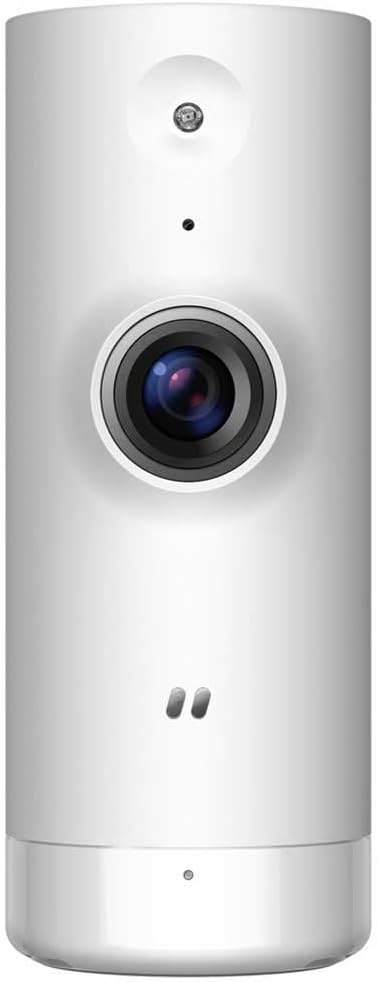
Figure 2.1: Front view of the D-Link DCS-8000LH camera, showing the lens, microphone, and status LED.

Figure 2.2: Back view of the D-Link DCS-8000LH camera, highlighting the power input port.
3. Setup Guide
Follow these steps to set up your D-Link DCS-8000LH camera.
- Download the mydlink App: Search for "mydlink" on the App Store (iOS) or Google Play Store (Android) and install the application on your smartphone.
- Create a mydlink Account: Open the mydlink app and follow the on-screen instructions to create a new account or log in if you already have one.
- Power On the Camera: Connect the provided power adapter to the camera's power port and plug it into a wall outlet. Wait for the camera's status LED to indicate it's ready for setup (usually blinking orange or green).
- Add Camera to mydlink App: In the mydlink app, tap the "Add Device" or "+" icon. Scan the QR code located on the camera or its packaging. Follow the app's prompts to connect the camera to your Wi-Fi network. Ensure your Wi-Fi network is 2.4 GHz.
- Placement: Position the camera in your desired location. It supports desk or wall mounting. Ensure it has a clear line of sight to the area you wish to monitor and is within range of your Wi-Fi signal.
Note: For optimal performance, place the camera away from direct sunlight or strong light sources that could affect image quality.
4. Operating Your Camera
Once set up, you can access and control your camera through the mydlink app.
Key Features:
- HD Video Streaming: View live video in 720p HD resolution directly from your smartphone.
- Motion Detection: The camera can detect movement and send instant notifications to your phone. You can customize detection zones and sensitivity within the app.
- AI-based Person Detection: Distinguish between people and other moving objects to reduce false alarms.
- Night Vision: Equipped with infrared LEDs, the camera provides clear video up to 5 meters in low-light or complete darkness.
- Integrated Microphone: Listen to audio from the camera's surroundings.
- Cloud Storage: Securely store recorded video clips in the mydlink cloud (subscription may be required).
- Smart Home Integration: Compatible with Google Assistant, Amazon Alexa, and IFTTT for voice control and automation.
Using the mydlink App:
The mydlink app provides a comprehensive interface for managing your camera. From the app, you can:
- View live feed and playback recorded videos.
- Adjust video quality and settings.
- Configure motion detection alerts and schedules.
- Manage cloud recording settings.
- Access camera settings and firmware updates.
5. Maintenance
Proper maintenance ensures the longevity and optimal performance of your camera.
- Cleaning: Use a soft, dry cloth to clean the camera lens and body. Do not use liquid cleaners or abrasive materials, as they may damage the camera.
- Firmware Updates: Regularly check for and install firmware updates through the mydlink app. Updates often include performance improvements and security enhancements.
- Environmental Conditions: Ensure the camera is used within its specified operating temperature and humidity ranges. Avoid exposing it to extreme temperatures, direct water, or high humidity.
6. Troubleshooting
If you encounter issues with your D-Link DCS-8000LH camera, refer to the following common solutions.
- Camera Offline:
- Check if the camera is properly powered on and the power adapter is securely connected.
- Ensure your Wi-Fi router is working and the camera is within Wi-Fi range.
- Restart the camera by unplugging and re-plugging the power adapter.
- Restart your Wi-Fi router.
- Poor Video Quality:
- Ensure the camera lens is clean and free from dust or smudges.
- Check your internet connection speed. A slow connection can affect streaming quality.
- Adjust video resolution settings in the mydlink app.
- Motion Detection Not Working:
- Verify that motion detection is enabled in the mydlink app.
- Adjust motion detection sensitivity and detection zones.
- Ensure there are no obstructions blocking the camera's view.
- Cannot Connect to Wi-Fi:
- Ensure you are connecting to a 2.4 GHz Wi-Fi network. The camera does not support 5 GHz networks.
- Double-check your Wi-Fi password.
- Move the camera closer to your Wi-Fi router during setup.
- Perform a factory reset on the camera (refer to the Quick Installation Guide for instructions) and try setup again.
For more detailed troubleshooting or persistent issues, please refer to the D-Link support website or contact customer service.
7. Specifications
| Feature | Detail |
|---|---|
| Model Number | DCS-8000LH/E |
| Brand | D-Link |
| Color | White |
| Connectivity Technology | Wireless (Wi-Fi) |
| Video Recording Resolution | 720p HD |
| Effective Video Resolution | 720 pixels |
| Frame Rate | 30 frames per second |
| Viewing Angle | 112 degrees |
| Night Vision Range | 5 meters |
| Special Features | Motion Detector, HD Resolution |
| Indoor/Outdoor Usage | Indoor |
| Compatible Devices | Smartphone |
| Power Source | Electric Cable |
| Item Dimensions (L x W x H) | 35 x 38 x 92 millimeters (3.5 x 3.8 x 9.2 cm) |
| Item Weight | 57.7 grams (2.04 Ounces) |
| Mounting Type | Wall Mount, Desk |
| Included Components | D-Link Mini HD Camera (1) |
| Battery Required | No |
| Manufacturer | D-LINK |
8. Warranty and Support
For warranty information, please refer to the warranty card included with your product or visit the official D-Link website. D-Link provides technical support and resources to assist you with any questions or issues you may have.
- Online Support: Visit the D-Link support portal for FAQs, troubleshooting guides, and firmware downloads.
- Contact Support: Contact D-Link customer service for direct assistance. Contact details can be found on the D-Link website.
Disclaimer: The product originates from the European Economic Area (EEE). The product is genuinely sourced from manufacturer-authorized distributors.
Related documentsDCS-8000LH/E


Ask a question about this manual
Ask about setup, troubleshooting, compatibility, parts, safety, or missing instructions. Manuals+ will review the question and use this page’s manual context to help answer it.