
RCA RT2412
RCA RT2412 24-Inch LED TV Instruction Manual
Model: RT2412
Introduction
This instruction manual provides essential information for the safe and efficient operation of your RCA RT2412 24-Inch LED TV. Please read this manual thoroughly before using the television and retain it for future reference. This television is designed to provide high-definition entertainment with a clear display and multiple connectivity options.
Important Safety Information
Always follow basic safety precautions when using this product to reduce the risk of fire, electric shock, and injury to persons. Keep these instructions in mind:
- Do not expose this apparatus to rain or moisture.
- Do not block any ventilation openings. Install in accordance with the manufacturer's instructions.
- Do not install near any heat sources such as radiators, heat registers, stoves, or other apparatus (including amplifiers) that produce heat.
- Protect the power cord from being walked on or pinched, particularly at plugs, convenience receptacles, and the point where they exit from the apparatus.
- Only use attachments/accessories specified by the manufacturer.
- Unplug this apparatus during lightning storms or when unused for long periods of time.
- Refer all servicing to qualified service personnel. Servicing is required when the apparatus has been damaged in any way, such as power-supply cord or plug is damaged, liquid has been spilled or objects have fallen into the apparatus, the apparatus has been exposed to rain or moisture, does not operate normally, or has been dropped.
Package Contents
Please check to ensure all items are present and in good condition:
- RCA RT2412 24-Inch LED TV
- Remote Control
- Power Cord
- User Manual (this document)
- TV Stand (if included, may vary by package)
Setup
Unpacking and Placement
Carefully remove the TV from its packaging. Place the TV on a stable, flat surface or mount it on a wall using a compatible VESA 100mm x 100mm wall mount (not included). Ensure adequate ventilation around the TV.

Image: The RCA RT2412 24-Inch LED TV, shown with its stand, displaying a vibrant image of three football players on a grassy field.
Connecting Power
Connect the power cord to the AC input on the back of the TV, then plug the other end into a wall outlet. The TV will enter standby mode.
Connecting External Devices
Your RCA RT2412 TV offers various connection ports:
- HDMI: For high-definition audio and video from devices like Blu-ray players, game consoles, or cable/satellite boxes.
- VGA: For connecting a computer.
- YPBPR (Component Video): For analog high-definition video.
- AV Audio/Video (Composite): For standard definition analog video and audio.
- RF (Antenna/Cable): For connecting an antenna for over-the-air broadcasts or a cable TV connection.
- PC Audio: For audio input when using the VGA connection.
- Headphone: For connecting headphones.
- Coaxial Out: For digital audio output to an external audio system.
- USB (FOR SERVICE): This port is primarily for service updates and is not intended for general media playback.
Ensure the TV and external devices are powered off before making connections. After connecting, power on the TV and select the appropriate input source using the remote control.
Initial Setup Wizard
Upon first power-on, the TV may guide you through an initial setup wizard. This typically includes:
- Language selection.
- Time zone and time settings.
- Channel scan (for antenna/cable connections).
Follow the on-screen prompts to complete the setup.
Operating the TV
Remote Control Overview
The included remote control allows you to access all TV functions. Familiarize yourself with the buttons:
- POWER: Turns the TV on or off (standby mode).
- INPUT/SOURCE: Cycles through available input sources (HDMI, VGA, AV, etc.).
- VOL +/-: Adjusts the volume level.
- CH +/-: Changes channels (for antenna/cable input).
- MUTE: Mutes or unmutes the sound.
- MENU: Opens the main menu for picture, sound, and system settings.
- NAVIGATION (Arrow) Buttons: Used to navigate through menus and options.
- OK/ENTER: Confirms selections in menus.
- EXIT: Exits the current menu or on-screen display.
- INFO: Displays current channel information.
- NUMBER Buttons: Directly enter channel numbers.
Basic Functions
- Power On/Off: Press the POWER button on the remote or the TV's control panel.
- Adjusting Volume: Use the VOL +/- buttons.
- Changing Channels: Use the CH +/- buttons or the number buttons.
- Selecting Input Source: Press the INPUT/SOURCE button repeatedly to cycle through connected devices, or use the menu to select directly.
Menu Navigation
Press the MENU button to access the TV's settings. Use the navigation arrows to move between categories and options, and the OK/ENTER button to select. Common menu categories include:
- Picture: Adjust brightness, contrast, color, tint, sharpness, and picture mode (e.g., Standard, Dynamic, Movie).
- Sound: Adjust bass, treble, balance, sound mode (e.g., Standard, Music, Movie), and enable/disable built-in speakers.
- Channel: Perform auto-scan, manual scan, or edit channels.
- Time: Set sleep timer, auto-off, and clock.
- Setup/System: Change language, restore factory defaults, update software (via service USB port).
Maintenance
Cleaning the TV
Before cleaning, unplug the TV from the power outlet. Use a soft, dry cloth to wipe the screen and cabinet. For stubborn marks, lightly dampen the cloth with water or a mild, non-abrasive screen cleaner. Never spray cleaner directly onto the screen or cabinet.
Storage
If storing the TV for an extended period, disconnect all cables and store it in a cool, dry place, preferably in its original packaging to protect it from dust and physical damage.
Troubleshooting
Before contacting customer support, try the following solutions for common issues:
| Problem | Possible Solution |
|---|---|
| No power | Ensure the power cord is securely plugged into the TV and the wall outlet. Check if the outlet has power. |
| No picture, but sound is present | Check the input source selection. Ensure the external device is powered on and connected correctly. Try a different HDMI cable if applicable. |
| No sound, but picture is present | Check the volume level and ensure the TV is not muted. Verify audio cable connections for external devices. Check sound settings in the TV menu. |
| Remote control not working | Check and replace the batteries. Ensure there are no obstructions between the remote and the TV's IR sensor. Point the remote directly at the TV. |
| Poor picture quality | Adjust picture settings (brightness, contrast, sharpness) in the menu. For antenna, reposition the antenna or rescan channels. Ensure the source content is high quality. |
If the issue persists after trying these steps, please refer to the support section.
Specifications
| Feature | Detail |
|---|---|
| Model | RT2412 |
| Screen Size | 24 Inches |
| Display Technology | LED Flat Panel |
| Resolution | 720p (1280 x 720) |
| Refresh Rate | 60 Hz |
| Aspect Ratio | 16:9 |
| Response Time | 8.5 ms |
| Viewing Angle | 176°(H) / 176°(V) |
| Tuner | NTSC/ATSC |
| Connectivity | HDMI, VGA, YPBPR, USB (FOR SERVICE), PC AUDIO, AV AUDIO/VIDEO, COAXIAL OUT, HEADPHONE, RF |
| Wall Mount Compatibility | VESA 100mm x 100mm |
| Product Dimensions (L x W x H) | 23.6 x 4.9 x 16.1 inches |
| Item Weight | 8.6 Pounds |
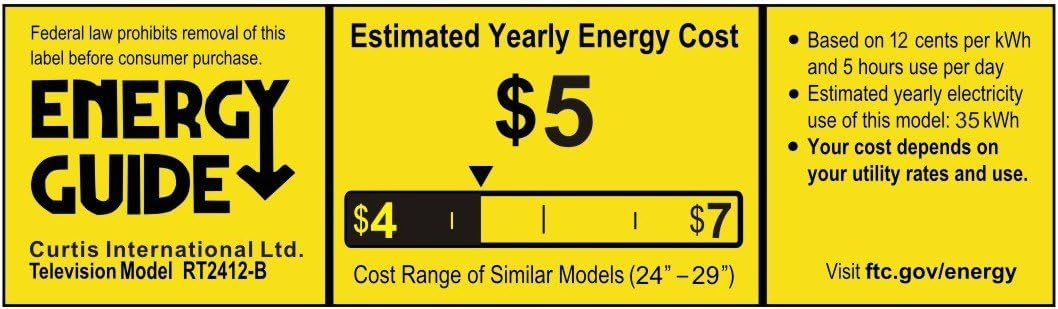
Image: Energy Guide label indicating an estimated yearly energy cost of $5 for the Curtis International Ltd. Television Model RT2412-B, based on 12 cents per kWh and 5 hours use per day.
Warranty and Support
For warranty information and technical support, please refer to the warranty card included with your product or visit the official RCA support website. Keep your purchase receipt as proof of purchase for warranty claims.
For general inquiries or to find authorized service centers, please contact RCA customer service. Contact details are typically available on the manufacturer's website or in the product packaging.
Ask a question about this manual
Ask about setup, troubleshooting, compatibility, parts, safety, or missing instructions. Manuals+ will review the question and use this page’s manual context to help answer it.