
Epson WF-M1560
Epson Workforce WF-M1560 User Manual
Monochrome Multifunction Printer with Wi-Fi
1. Introduction
Welcome to the user manual for your Epson Workforce WF-M1560 Monochrome Multifunction Printer. This document provides essential information for setting up, operating, maintaining, and troubleshooting your device. The WF-M1560 is designed for efficient monochrome printing, copying, and scanning, featuring Wi-Fi and Ethernet connectivity for versatile use in home or office environments.

Figure 1: Front view of the Epson Workforce WF-M1560 Monochrome Multifunction Printer.
2. Setup Guide
2.1 Unpacking and Placement
Carefully remove the printer from its packaging. Ensure all protective tapes and materials are removed from the exterior and interior of the device. Place the printer on a stable, flat surface with adequate space around it for ventilation and access to connections.
2.2 Initial Power On
- Connect the power cord to the printer and then to a grounded electrical outlet.
- Press the power button on the printer's control panel.
- Follow the on-screen prompts to select your language and region settings.
2.3 Software Installation
To utilize all printer functions, install the necessary drivers and software on your computer. You can typically find these on the included installation CD or by downloading them from the official Epson support website.
- Insert the installation CD into your computer's CD/DVD drive, or navigate to the Epson support website for the WF-M1560 model.
- Run the installer program and follow the on-screen instructions to complete the installation.
2.4 Network Connection
The WF-M1560 supports both Wi-Fi and Ethernet connectivity.
- Wi-Fi Setup: Use the printer's control panel to navigate to the network settings. Select Wi-Fi Setup Wizard and choose your network from the list. Enter your Wi-Fi password if prompted. Alternatively, use Wi-Fi Protected Setup (WPS) if your router supports it.
- Ethernet Setup: Connect an Ethernet cable from the printer's Ethernet port to your network router or switch. The printer should automatically obtain an IP address.
3. Operating Instructions
3.1 Printing
To print a document or image:
- Load paper into the paper tray. Adjust the paper guides to fit the paper size.
- Open the document or image on your computer or mobile device.
- Select the print option (e.g., File > Print).
- Choose the Epson WF-M1560 from the list of available printers.
- Adjust print settings (e.g., paper size, quality) as needed, then click Print.
3.2 Copying
To make a copy:
- Place the original document face-down on the scanner glass or face-up in the Automatic Document Feeder (ADF).
- On the printer's control panel, press the Copy button.
- Use the arrow keys to select the number of copies and adjust settings like copy quality or paper type.
- Press the Start button to begin copying.
3.3 Scanning
To scan a document or photo:
- Place the original document face-down on the scanner glass or face-up in the ADF.
- On your computer, open the Epson Scan software or a compatible scanning application.
- Select the Epson WF-M1560 as your scanner.
- Choose scan settings such as document type, resolution, and destination folder.
- Click Scan to begin the scanning process.
4. Maintenance
4.1 Ink Cartridge Replacement
The WF-M1560 uses a single black ink cartridge. Replace the cartridge when the printer indicates low ink or print quality degrades significantly.
- Ensure the printer is powered on.
- Open the printer cover to access the ink cartridge compartment.
- Press the tab on the empty cartridge and lift it out.
- Unpack the new ink cartridge and remove any protective tape or film.
- Insert the new cartridge firmly into its slot until it clicks into place.
- Close the printer cover. The printer will initiate an ink charging cycle.
4.2 Cleaning
- Exterior: Wipe the exterior of the printer with a soft, damp, lint-free cloth. Avoid using abrasive cleaners.
- Scanner Glass: Clean the scanner glass with a soft, lint-free cloth dampened with a small amount of glass cleaner. Ensure no residue is left.
- Print Head Cleaning: If print quality issues persist (e.g., streaks, missing lines), perform a print head cleaning using the printer's utility software on your computer or through the printer's control panel.
5. Troubleshooting
This section addresses common issues you might encounter with your WF-M1560 printer.
5.1 Common Issues and Solutions
- Printer Does Not Power On:
Check that the power cord is securely connected to both the printer and a working electrical outlet. Try plugging another device into the outlet to confirm it has power. - Paper Jam:
Turn off the printer and carefully open all covers and trays. Gently pull out any jammed paper in the direction of the paper path. Avoid tearing the paper. Close all covers and turn the printer back on. - Poor Print Quality (Streaks, Faded Prints):
Check the ink cartridge level. If low, replace it. Perform a nozzle check and print head cleaning using the printer's maintenance utility. Ensure you are using appropriate paper for your print settings. - Cannot Connect to Network/Print Wirelessly:
Verify that the printer is connected to the correct Wi-Fi network and that the network password is entered correctly. Restart your printer, router, and computer. Ensure the printer's firmware is up to date. For Ethernet, check the cable connection. - Printer is Offline:
Ensure the printer is powered on and connected to your computer or network. On your computer, check the printer status in your operating system's printer settings and ensure it is not set to "Use Printer Offline."
6. Specifications
| Feature | Description |
|---|---|
| Brand | Epson |
| Model | WF-M1560 |
| Printer Output | Monochrome |
| Printing Technology | Inkjet |
| Connectivity Technology | Ethernet, USB, Wireless |
| Max Print Speed (Monochrome) | 34.00 ppm |
| Item Weight | 11 Pounds (approx. 4.99 kg) |
| Manufacturer Part Number | C11CC80201-N |
| UPC | 887401055040 |
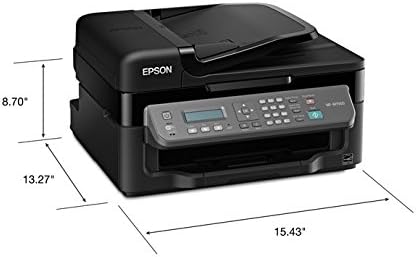
Figure 2: Dimensions of the Epson Workforce WF-M1560 printer (Height: 8.70", Depth: 13.27", Width: 15.43").
7. Warranty and Support
This Epson Workforce WF-M1560 printer, being a renewed product, is typically covered by a specific Amazon Renewed Guarantee. Please refer to the terms and conditions provided at the time of purchase for details regarding your warranty coverage, including replacement or refund eligibility.
For technical support, driver downloads, or further assistance, please visit the official Epson support website or contact Epson customer service directly. Have your printer's model number (WF-M1560) and serial number ready when contacting support.
Epson Support Website: epson.com/support
Related documentsWF-M1560


Ask a question about this manual
Ask about setup, troubleshooting, compatibility, parts, safety, or missing instructions. Manuals+ will review the question and use this page’s manual context to help answer it.