1. Introduction
This manual provides detailed instructions for the installation, setup, operation, and maintenance of your Kwikset Obsidian 99530-001 Keyless Touchscreen Electronic Deadbolt. The Obsidian deadbolt offers a keywayless, low-profile design with a one-touch locking motorized deadbolt, providing convenient keyless entry and enhanced security features.
2. Product Overview
The Kwikset Obsidian is an advanced electronic deadbolt designed for modern homes. Its sleek, low-profile design features a glass-like touchscreen surface. Key features include:
- Keyless Convenience: Enter your home using personalized user codes, eliminating the need for physical keys.
- User Codes: Supports up to 16 customizable user codes. A master code option is available for increased security.
- Auto Lock: The door can be configured to automatically lock after 30 seconds (optional feature).
- SecureScreen™ Technology: Patented technology helps prevent code detection from fingerprints left on the touchscreen surface.
- 9V Backup Power: In case the primary AA batteries are depleted, a 9V battery can be used to temporarily power the lock for emergency access.
- Non-Connected Model: This specific version of the Kwikset Obsidian does not feature wireless connectivity.

Figure 2.1: Front view of the Kwikset Obsidian Keyless Touchscreen Electronic Deadbolt.
Video 2.1: An overview of the Kwikset Obsidian Touchscreen Electronic Deadbolt, highlighting its design and key features.
3. Package Contents
Verify that all components are present in your Kwikset Obsidian package:
- Exterior Touchscreen Assembly
- Interior Assembly
- Latch
- Mounting Plate
- Strike Plate
- Adapter Ring
- Fasteners (Screws)

Figure 3.1: Exploded view of the Kwikset Obsidian deadbolt components.
Video 3.1: An unboxing video for the Kwikset Obsidian, showing all included components.
4. Installation
Before beginning installation, ensure your door thickness is between 1 3/8 to 2 inches. Follow these general steps for installing your Kwikset Obsidian deadbolt:
- Prepare the door: Ensure the door bore hole and backset are correctly sized and positioned.
- Install the latch: Insert the latch into the door edge and secure it with screws.
- Install the exterior assembly: Route the cable through the door and position the exterior touchscreen.
- Install the interior mounting plate: Secure the mounting plate to the door using the provided screws.
- Connect the cable and install the interior assembly: Connect the cable from the exterior assembly to the interior assembly. Secure the interior assembly to the mounting plate.
- Perform door handing process: This step is crucial for the lock to learn the orientation of your door (left-hand or right-hand).
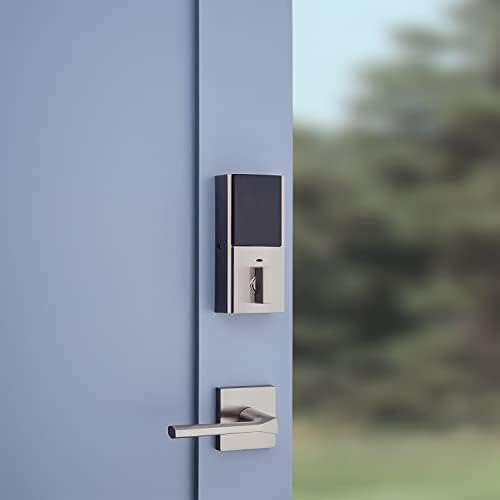
Figure 4.1: Kwikset Obsidian deadbolt installed on a door, showcasing its sleek appearance.
Video 4.1: A detailed video guide on the installation process for the Kwikset Obsidian deadbolt.
Video 4.2: Instructions for performing the manual door handing process, essential for correct lock operation.
5. Setup and Programming
After installation, you will need to program your lock with user codes. The Kwikset Obsidian supports both master code and non-master code programming methods.
5.1. Programming Without a Mastercode
This method allows you to add or delete user codes directly. Refer to the video below for a step-by-step guide.
Video 5.1: A guide on how to program user codes on the Kwikset Obsidian without using a master code.
5.2. Programming With a Mastercode
Using a master code provides an additional layer of security, preventing unauthorized programming. The master code must be programmed first, and then all subsequent user codes are added using the master code. Refer to the video below for detailed instructions.
Video 5.2: A guide on how to program user codes on the Kwikset Obsidian using a master code for enhanced security.
6. Operating Instructions
6.1. Unlocking the Door
To unlock the door, touch the touchscreen to activate it. The numbers will illuminate. Enter your 4-8 digit user code. The deadbolt will retract, and the door can be opened.
6.2. Locking the Door
To lock the door, simply touch the touchscreen. The deadbolt will extend. If the Auto Lock feature is enabled, the lock will automatically engage 30 seconds after unlocking.
6.3. SecureScreen™ Technology
To prevent fingerprint analysis, the lock will display two random digits before you enter your code. Press these two random digits first, then enter your user code. This disperses fingerprints across the screen, making it harder to guess your code.
6.4. 9V Backup Power
If the internal AA batteries are completely drained, you can use a standard 9V battery to temporarily power the lock. Hold the 9V battery to the two terminals located at the bottom of the exterior touchscreen. While holding the battery, enter your user code to unlock the door. Replace the internal AA batteries immediately after gaining access.
Video 6.1: Demonstrates how to power the Kwikset Obsidian touchscreen with a 9-volt battery for emergency access.
7. Maintenance
7.1. Battery Replacement
The Kwikset Obsidian requires 4 AA batteries (not included). When the batteries are low, the lock will provide a low battery warning (e.g., a red light or audible alert). Replace all four batteries promptly to ensure continuous operation. Use high-quality alkaline batteries for best performance.
7.2. Cleaning
Clean the touchscreen with a soft, damp cloth. Avoid abrasive cleaners or solvents that could damage the finish or touchscreen functionality.
8. Troubleshooting
| Problem | Possible Cause | Solution |
|---|---|---|
| Lock does not respond to touchscreen input. | Dead batteries. | Replace all 4 AA batteries. Use a 9V battery for temporary power if needed. |
| Deadbolt does not extend or retract fully. | Misalignment of lock components or door frame. | Check for proper alignment of the latch and strike plate. Ensure the door handing process was completed correctly. |
| User code not working. | Incorrect code entered; code not programmed; master code issue. | Verify the correct user code. Reprogram the user code. If using a master code, ensure it is correctly programmed and used. |
| Auto Lock feature not working. | Feature disabled; door not fully closed. | Ensure the Auto Lock feature is enabled in the lock settings. Verify the door is fully closed and latched. |
9. Specifications
- Brand: Kwikset
- Model Name: 99530-001
- Special Feature: Keyless, Touchscreen
- Lock Type: No Cylinder
- Material: Metal (Handle Material: Glass)
- Color: Satin Nickel
- Finish Type: Satin Nickel
- Item Dimensions (L x W x H): 3.49 x 5.37 x 9.87 inches
- Item Weight: 3.01 Pounds
- Power Source: 4 AA batteries (required, not included)
- Battery Cell Type: Alkaline
- Controller Type: Hand Control
- Control Method: Touch
- Connectivity Protocol: Wi-Fi (Note: This version is Non-Connected)
- Recommended Uses: Security
10. Warranty Information
Specific warranty details for the Kwikset Obsidian 99530-001 are typically provided with the product packaging or can be found on the official Kwikset website. Please refer to these resources for the most accurate and up-to-date warranty coverage information.
11. Customer Support
For further assistance, technical support, or to inquire about replacement parts, please contact Kwikset customer service. You can typically find contact information on the Kwikset website or in the documentation included with your product.
Kwikset Official Website: www.kwikset.com


