1. Introduction
Thank you for purchasing the Genius GX Wired Gaming Keyboard, Scorpion K220. This manual provides detailed instructions for setting up, operating, and maintaining your new gaming keyboard. Designed for PC gaming, the Scorpion K220 features a sleek design, compact construction, and vibrant backlighting for an enhanced gaming experience.

Figure 1.1: Front view of the Genius GX Wired Gaming Keyboard Scorpion K220, showcasing its design and colorful backlighting.
2. Safety Information
Please read the following safety precautions carefully before using the device to ensure optimal performance and prevent damage.
- Do not expose the keyboard to water or other liquids.
- Avoid extreme temperatures (hot or cold) and high humidity.
- Do not attempt to disassemble or modify the keyboard. This will void the warranty.
- Keep the keyboard away from strong magnetic fields.
- Use only a dry, soft cloth for cleaning.
- Ensure the USB cable is not pinched or damaged during setup and use.
3. Package Contents
Verify that all items are present in the package:
- Genius GX Wired Gaming Keyboard (Scorpion K220)
- User Manual (this document)
4. Setup
4.1 Connecting the Keyboard
The Scorpion K220 keyboard uses a standard USB connection for compatibility with PCs and Laptops. No additional drivers are typically required for basic functionality.
- Locate an available USB port on your computer (PC or Laptop).
- Carefully insert the USB connector of the Scorpion K220 keyboard into the USB port.
- Your operating system should automatically detect and install the necessary drivers. This process may take a few moments.
- Once installation is complete, the keyboard will be ready for use. The backlighting should illuminate.

Figure 4.1: The Genius GX Wired Gaming Keyboard Scorpion K220, ready for connection to a PC or laptop via its integrated USB cable.
5. Operating Instructions
5.1 Basic Keyboard Functions
The Scorpion K220 functions as a standard QWERTY keyboard. All standard keys (alphanumeric, function keys, navigation keys, and numeric keypad) operate as expected.
5.2 Backlight Control
The Scorpion K220 features vibrant backlighting to enhance your gaming and typing experience. The backlighting is always on when the keyboard is connected and powered.
- Brightness Adjustment: Look for dedicated keys or key combinations (often Fn + Scroll Lock or similar) to adjust backlight brightness. Refer to the keyboard's key legends for specific controls.
- Lighting Modes: Some models may offer different lighting effects or static color modes. Experiment with function key combinations (e.g., Fn + F1-F12 or dedicated lighting keys) to cycle through available modes.
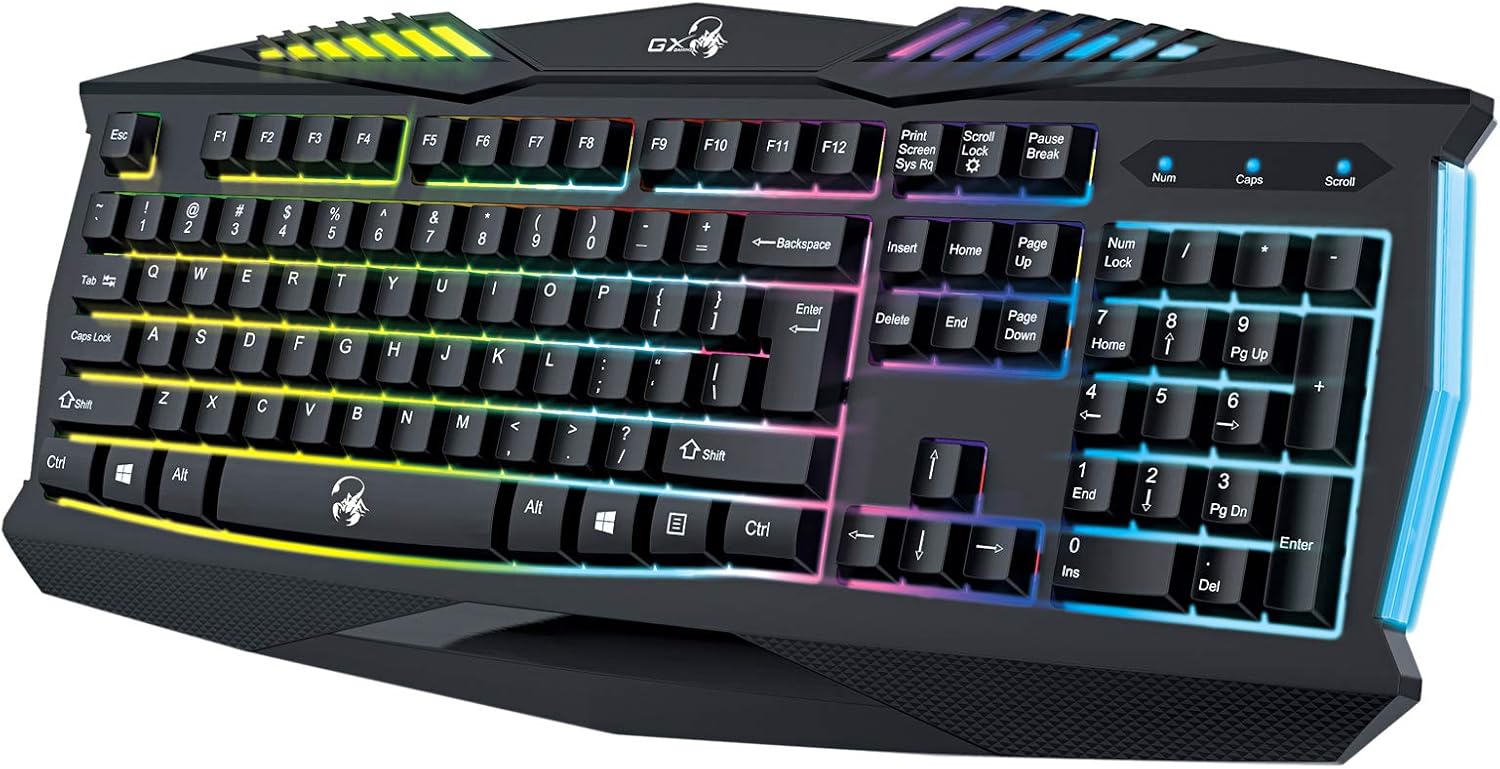
Figure 5.1: Close-up view of the Genius GX Wired Gaming Keyboard Scorpion K220, highlighting the illuminated keys and vibrant backlighting.
5.3 Gaming Features
The Scorpion K220 is designed for gaming with a responsive membrane switch type and a comfortable layout. While it does not feature programmable macro keys, its robust design and anti-ghosting capabilities (where applicable) ensure reliable performance during intense gaming sessions.
6. Maintenance
Proper maintenance ensures the longevity and optimal performance of your keyboard.
- Cleaning:
- Disconnect the keyboard from your computer before cleaning.
- Use a soft, dry, lint-free cloth to wipe down the surface of the keyboard.
- For dust and debris between keys, use compressed air.
- Do not use harsh chemicals, abrasive cleaners, or solvents.
- Storage: Store the keyboard in a cool, dry place away from direct sunlight and extreme temperatures when not in use for extended periods.
7. Troubleshooting
If you encounter issues with your Scorpion K220 keyboard, refer to the table below for common problems and solutions.
| Problem | Possible Cause | Solution |
|---|---|---|
| Keyboard not responding | Loose USB connection, faulty USB port, driver issue. |
|
| Backlighting not working | Keyboard not powered, specific lighting mode selected. |
|
| Keys are sticky or unresponsive | Dirt or debris under the keys. |
|
8. Specifications
Detailed technical specifications for the Genius GX Wired Gaming Keyboard Scorpion K220:
| Feature | Detail |
|---|---|
| Brand | Genius |
| Model Number | K220 |
| Product Dimensions | 23 x 49 x 4 cm |
| Item Weight | 980 g |
| Manufacturer | Genius |
| Power Source | Corded Electric |
| Batteries Included | No |
| Compatible Devices | PC, Laptop |
| Connectivity Technology | USB |
| Keyboard Description | Gaming |
| Special Features | Backlit |
| Material | Mixed Materials |
| Switch Type | Membrane |
| Keyboard Layout | QWERTY |
| Hand Orientation | Ambidextrous |
9. Warranty and Support
Genius products are manufactured to the highest quality standards. For information regarding warranty coverage, technical support, or service, please refer to the warranty card included with your product or visit the official Genius website.
For further assistance, you may contact Genius customer support through their official channels. Please have your product model number (K220) and purchase details ready when contacting support.
Official Website: www.geniusnet.com


