
1. Introduction and Overview
The Logickeyboard Astra 2 Backlit Keyboard is specifically designed to enhance the workflow for Blackmagic DaVinci Resolve 17 users on Windows 7-11. This keyboard features color-coded keys with graphical icons, providing quick visual access to essential shortcuts and functions within the software. Its integrated backlighting ensures visibility in various lighting conditions, making it an indispensable tool for professional video editing environments.

Image 1.1: The Logickeyboard Astra 2 Backlit Keyboard, showcasing its full layout with color-coded keys.
2. Setup
The Astra 2 keyboard is designed for plug-and-play functionality, requiring no additional drivers for basic operation. Follow these steps to connect your keyboard:
- Connect USB Cables: The keyboard comes with two USB cables. One cable powers the keyboard itself, and the other powers the integrated USB hub. Connect both USB-A connectors to available USB ports on your computer.
- Utilize Integrated USB Ports: The keyboard features two additional USB ports located on the back. These ports can be used to connect other low-power USB devices, such as a mouse or a USB flash drive.
- System Recognition: Your operating system (Windows 7-11) should automatically recognize the keyboard upon connection. No special software installation is typically required for the keyboard's core functions.

Image 2.1: Close-up of the two USB-A connectors, one for keyboard power and one for the integrated USB hub.

Image 2.2: A side view of the keyboard highlighting one of the two integrated USB ports available for connecting additional peripherals.
3. Operating Instructions
The Astra 2 keyboard is optimized for use with Blackmagic DaVinci Resolve 17, but also functions as a standard keyboard for general computer use.
3.1. DaVinci Resolve Shortcuts
The keys are color-coded and feature graphical icons to represent specific functions and shortcuts within DaVinci Resolve. This visual system allows for faster identification and execution of commands, streamlining your editing process.
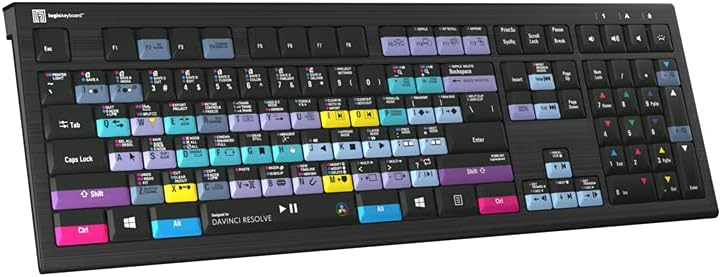
Image 3.1: A detailed top-down view of the keyboard, showing the various color-coded keys and their corresponding DaVinci Resolve functions and icons.
3.2. Backlighting Control
The keyboard features customizable backlighting with five adjustable brightness levels. This allows you to work comfortably in dimly lit environments. Use the dedicated backlight control keys (usually F3 and F4 or similar function keys) to adjust the intensity or turn the backlighting on/off.

Image 3.2: The keyboard with its keys illuminated by the adjustable backlighting, enhancing visibility in low-light conditions.
3.3. Standard Keyboard Functionality
When not actively using DaVinci Resolve or any other software for which the keyboard has dedicated shortcuts, the Astra 2 functions as a standard QWERTY keyboard. All standard typing and system commands will operate as expected.
Video 3.3: An overview of the Logickeyboard Astra 2, demonstrating its features including the color-coded keys and backlighting. This video provides a visual guide to the keyboard's design and functionality.
4. Maintenance
Proper care and maintenance will ensure the longevity and optimal performance of your Logickeyboard Astra 2.
- Cleaning: Use a soft, dry, lint-free cloth to wipe down the keyboard surface. For stubborn dirt, slightly dampen the cloth with water or a mild, non-abrasive cleaning solution. Avoid spraying liquids directly onto the keyboard.
- Dust Removal: Use compressed air to remove dust and debris from between the keys. Hold the can upright and spray in short bursts.
- Avoid Spills: Keep liquids away from the keyboard to prevent damage to internal components.
- Storage: When not in use for extended periods, store the keyboard in a clean, dry place away from direct sunlight and extreme temperatures.
5. Troubleshooting
If you encounter issues with your Logickeyboard Astra 2, refer to the following common solutions:
- Keyboard Not Responding:
- Ensure both USB cables are securely connected to your computer.
- Try connecting the keyboard to different USB ports on your computer.
- Restart your computer.
- Backlighting Not Working:
- Check if the backlighting is turned off or set to the lowest brightness level using the dedicated function keys (e.g., F3/F4).
- Ensure both USB cables are connected, as one powers the backlighting.
- Shortcuts Not Working in DaVinci Resolve:
- Verify that DaVinci Resolve 17 is the active application.
- Ensure your DaVinci Resolve installation is up to date.
- Consult the official DaVinci Resolve documentation for specific shortcut mappings if you suspect a conflict or customization.
- Connected USB Devices Not Working:
- Ensure the USB cable for the keyboard's integrated hub is connected to your computer.
- Test the connected device directly on your computer's USB port to rule out device issues.
- Note that the integrated USB ports are generally for low-power devices.
6. Specifications
| Model Number | LKBU-RES14-APBH-US |
| Product Dimensions | 17.56 x 5.91 x 1.18 inches (44.6 x 15.0 x 3.0 cm) |
| Item Weight | 3.95 pounds (1.79 kg) |
| Brand | Logickeyboard |
| Compatible Devices | Laptop, Desktop PC (Windows 7-11) |
| Connectivity Technology | USB |
| Keyboard Description | Multimedia, Backlit |
| Recommended Uses | Professional Video Editing (DaVinci Resolve 17) |
| Special Feature | Customizable Backlighting (5 levels), Color-coded keys, Integrated USB Hub |
| Color | Black |
| Keyboard Backlighting Color Support | Single Color (White) |
| Style | Modern |
| What's in the Box | Logickeyboard Astra 2 Keyboard, USB Cable |
7. Warranty Information
This Logickeyboard product is covered by a manufacturer's warranty. For detailed information regarding warranty terms, conditions, and duration, please refer to the warranty card included with your product or visit the official Logickeyboard website. Keep your proof of purchase for warranty claims.
8. Support
For technical assistance, product inquiries, or further support, please contact Logickeyboard customer service. You can find contact information, FAQs, and additional resources on the official Logickeyboard website (www.logickeyboard.com). Please have your model number (LKBU-RES14-APBH-US) and purchase details ready when contacting support.


