
1. Introduction
Welcome to the Yuneec Breeze Compact Smart Drone user manual. This guide provides essential information for the safe and effective operation, maintenance, and troubleshooting of your Yuneec Breeze drone. Please read this manual thoroughly before operating the drone to ensure optimal performance and safety.
2. Product Overview
The Yuneec Breeze is a compact and lightweight smart drone designed for easy portability and intuitive flight. It features Ultra HD 4K video recording and 13 MP still image capture, making it ideal for capturing aerial photos and videos. The drone can be controlled via a Bluetooth controller and a dedicated mobile application.
2.1 Components
- Yuneec Breeze Drone
- Rechargeable Lithium Polymer Battery
- Bluetooth Controller (optional, may be included in some packages)
- Propeller Guards
- Charger
- USB Cable
2.2 Key Features
- Ultra HD 4K Video Recording
- 13 Megapixel Still Photos
- Compact and Lightweight Design
- Bluetooth Connectivity for Controller and App Control
- Multiple Flight Modes (e.g., Pilot, Selfie)
- Digital Image Stabilization

Figure 1: Yuneec Breeze drone and its Bluetooth controller with a smartphone holder.

Figure 2: The Yuneec Breeze drone paired with its controller and the mobile app.

Figure 3: The Yuneec Breeze drone with protective propeller guards.

Figure 4: Underside view of the Yuneec Breeze, highlighting the camera and sensors.
3. Setup
3.1 Battery Charging
Before first use, fully charge the drone's Lithium Polymer battery using the provided charger. The battery typically charges in under 60 minutes, often around 30 minutes. Ensure the battery is securely inserted into the drone before flight.
3.2 App Installation and Connection
- Download and install the "Breeze Cam" application on your smartphone.
- Power on the Yuneec Breeze drone.
- Go to your smartphone's Wi-Fi settings and select the "Breeze" network.
- Once connected via Wi-Fi, open the Breeze Cam app.
- If using the Bluetooth controller, select the controller within the app, and it will connect via Bluetooth.
3.3 Compass Calibration
For stable flight, especially outdoors, perform a compass calibration. The app will guide you through a 3-step calibration process. Ensure sufficient battery charge before attempting calibration. If calibration fails, repeat the process.
4. Operating the Drone
4.1 Flight Modes
- Pilot Mode: Provides full manual control over the drone.
- Selfie Mode: Simplifies controls for easy self-portraits and videos.
- Other intelligent flight modes may be available via the app (e.g., Return Home, Follow Me, Orbit Me).
4.2 Flight Environment
For outdoor flights, ensure the drone has acquired signals from more than 10 satellites for stable GPS positioning. When flying indoors, it is crucial to disable GPS and operate in Pilot mode to prevent unexpected movements or crashes.

Figure 5: The Yuneec Breeze drone in flight during dusk.
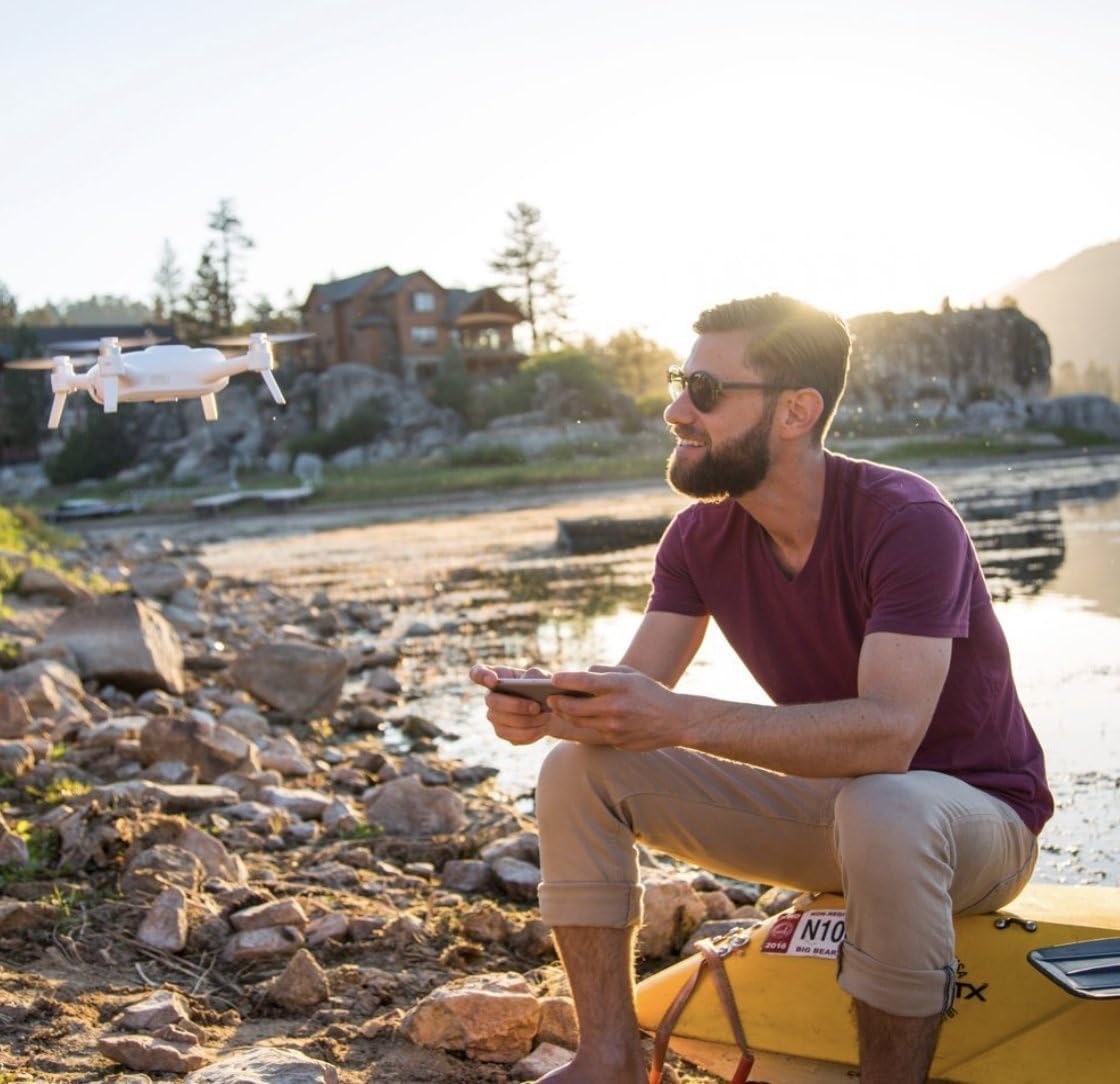
Figure 6: Operating the Yuneec Breeze drone outdoors.

Figure 7: The Yuneec Breeze drone can also be flown indoors.

Figure 8: The Yuneec Breeze drone capturing aerial views of a coastline.
5. Camera Features
The Yuneec Breeze is equipped with a high-quality camera capable of capturing stunning visuals:
- Video Resolution: Ultra HD 4K (3840x2160)
- Still Image Resolution: 13 Megapixels
- Digital Stabilization: Improves video smoothness during flight. For best results, consider setting video to 1080p with digital stabilization.
- Adjustable Camera: The camera can swivel 90 degrees for versatile shooting angles.
6. Maintenance
Regular maintenance ensures the longevity and safe operation of your Yuneec Breeze drone:
- Propeller Inspection: Regularly check propellers for any damage (cracks, chips). Replace damaged propellers immediately using the included spare parts and appropriate tools (e.g., small screwdriver).
- Battery Care: Store batteries in a cool, dry place. Do not overcharge or completely drain the battery. Land the drone when the power is less than 25% to preserve battery health.
- Cleaning: Keep the drone body and camera lens clean from dust and debris.
7. Troubleshooting
If you encounter issues with your Yuneec Breeze, consider the following common problems and solutions:
- Connection Problems (Wi-Fi/Bluetooth):
- Ensure the drone is powered on.
- Verify your smartphone's Wi-Fi is connected to the "Breeze" network.
- Turn off your home Wi-Fi's auto-connect feature, as it may interfere with the drone's Wi-Fi signal.
- Try restarting both the drone and your smartphone.
- Ensure your smartphone is not in a case that might weaken the signal. - Calibration Issues:
- Ensure the battery is sufficiently charged before attempting compass calibration.
- Follow the on-screen instructions in the app precisely for the 3-step calibration. - Unstable Flight/Drifting:
- Perform compass calibration.
- Ensure adequate GPS satellite lock (more than 10 satellites for outdoor flight).
- Check for any physical damage to propellers or motors. - Battery Not Charging:
- Verify the charger and cable are properly connected.
- Ensure the battery is correctly inserted into the charger.
- If the battery is old or damaged, it may need replacement.
For further assistance, consult the Yuneec Breeze Cam app for detailed instructions and troubleshooting tips.
8. Specifications
| Feature | Specification |
|---|---|
| Brand | Yuneec |
| Model Name | YUNFCAUS Breeze |
| Item Model Number | YUNFCAEUWAL |
| Color | White |
| Video Capture Resolution | 4K |
| Effective Still Resolution | 13 MP |
| Connectivity Technology | Bluetooth |
| Control Type | App Control |
| Item Weight | 0.39 Kilograms (13.6 ounces) |
| Battery Capacity | 2000 Milliamp Hours (1 Lithium Polymer battery included) |
| Product Dimensions | 7.72 x 7.72 x 2.56 inches |
| Material | Plastic |
| Skill Level | Beginner |
9. Safety Guidelines
WARNING: Failure to follow these safety guidelines may result in injury or damage to property.
- Always operate the drone in clear, open areas, away from people, animals, and obstacles.
- Do not fly near airports, restricted airspace, or in adverse weather conditions (strong winds, rain).
- Maintain visual line of sight with the drone at all times.
- Ensure propellers are securely attached and undamaged before each flight.
- Never attempt to catch the drone while its propellers are spinning.
- Monitor battery levels and land the drone safely before the battery is critically low.
- Adhere to all local regulations and laws regarding drone operation.
10. Warranty and Support
For detailed warranty information, product registration, and further technical support, please visit the official Yuneec website or contact their customer service. Keep your proof of purchase for warranty claims.

