
1. Introduction
This manual provides detailed instructions for the installation, configuration, and operation of your Multilaser RE058 150Mbps Wireless Router. Please read this manual carefully before using the device to ensure proper setup and optimal performance. This router offers wireless connectivity at 150Mbps, features a detachable antenna, and includes four LAN ports for wired connections.
2. Package Contents
Verify that all items are present in your package:
- 1x Multilaser RE058 150Mbps Wireless Router
- 1x Power Adapter (Bivolt)
- 1x RJ45 Ethernet Cable
- 1x Detachable Antenna (5 dBi)
- 1x Quick Installation Guide
3. Product Overview
Familiarize yourself with the router's ports and indicators.
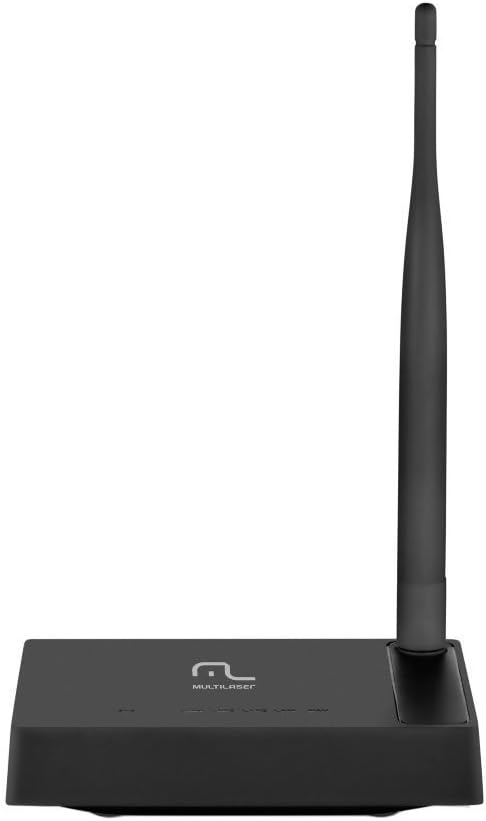
Image 3.1: Rear view of the Multilaser RE058 router, highlighting the WAN port (blue), four LAN ports (yellow/orange), and the power input. The detachable antenna is connected on the left side.
3.1. Front Panel Indicators
- PWR: Power indicator. Lit when the device is powered on.
- WAN: Wide Area Network indicator. Lit when connected to the internet. Blinks during data transmission.
- LAN1-LAN4: Local Area Network indicators. Lit when a device is connected to the corresponding LAN port. Blinks during data transmission.
3.2. Rear Panel Ports
- WAN Port (Blue): Connects to your modem or internet service provider's network.
- LAN Ports (1-4): Connects to wired devices such as computers, gaming consoles, or smart TVs.
- Power Input: Connects to the provided power adapter.
- Antenna Connector: For attaching the detachable antenna.
- Reset Button: Used to restore factory default settings. Press and hold for approximately 5-10 seconds while the router is powered on.
4. Setup
Follow these steps to set up your Multilaser RE058 router:
- Connect the Antenna: Screw the detachable antenna clockwise onto the antenna connector at the back of the router until it is secure.
- Connect to Modem: Use the provided RJ45 Ethernet cable to connect your modem's LAN port to the blue WAN port on the router.
- Power On: Connect the power adapter to the router's power input and then plug the adapter into an electrical outlet. The PWR indicator should light up.
- Connect Devices (Optional Wired): For wired connections, use additional Ethernet cables to connect your computers or other devices to the yellow LAN ports (1-4) on the router.
- Wait for Initialization: Allow a few minutes for the router to power on and initialize. The WAN indicator should light up, indicating an internet connection.
- Access Router Interface: Open a web browser on a connected computer or device. In the address bar, type the router's default IP address (usually
192.168.0.1or192.168.1.1) and press Enter. Refer to the Quick Installation Guide for the exact default IP and login credentials. - Initial Configuration: Follow the on-screen instructions in the router's web interface to set up your internet connection type (DHCP, Static IP, PPPoE, etc.) and configure your wireless network (SSID and password). The router software is available in Portuguese for easier setup.
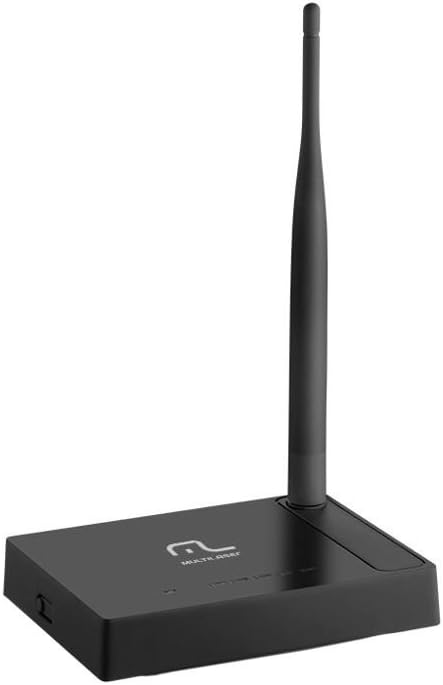
Image 4.1: Side view of the Multilaser RE058 router, showing the detachable antenna securely connected and standing upright.
5. Operating
This section covers the basic operation and features of your router.
5.1. Wireless Network (Wi-Fi)
After initial setup, your wireless network will be active. To connect devices:
- On your device (smartphone, laptop, tablet), search for available Wi-Fi networks.
- Select the Network Name (SSID) you configured during setup.
- Enter the Wi-Fi password (security key) when prompted.
5.2. Wired Network
Devices connected to the LAN ports will automatically obtain an IP address from the router and gain internet access (if the WAN connection is active).
5.3. Repeater Function
The Multilaser RE058 can function as a wireless repeater to extend the range of an existing Wi-Fi signal. This mode needs to be configured via the router's web interface. Consult the full user manual or the router's online help for detailed steps on configuring repeater mode.
5.4. Advanced Features
The router's web interface provides access to advanced settings, including:
- WAN Type: DHCP, Static IP, PPPoE, L2TP, PPTP, Dual Access, WISP.
- Virtual Servers, Port Triggering, UPnP, DMZ: For advanced network configurations and port forwarding.
- Access Control: IP/MAC/Domain Filtering to manage network access.
- VPN Pass-through: PPTP, L2TP, IPSec for VPN connections.
- Dynamic DNS, Static Routing, WOL (Wake-on-LAN): Additional network utilities.
- Firmware Update: Keep your router's software up-to-date for improved performance and security.
6. Maintenance
To ensure the longevity and optimal performance of your router:
- Keep the router in a cool, dry place, away from direct sunlight and heat sources.
- Ensure proper ventilation around the device.
- Clean the exterior with a soft, dry cloth. Do not use liquid cleaners.
- Regularly check for and install firmware updates from the Multilaser website to enhance security and features.
- Periodically restart the router (unplug and replug the power adapter) to refresh its connection and clear temporary issues.
7. Troubleshooting
If you encounter issues, try these common solutions:
7.1. No Internet Access
- Check all cable connections (WAN, LAN, Power). Ensure they are securely plugged in.
- Verify that your modem is working correctly and has an active internet connection.
- Restart both your modem and router. Unplug their power adapters, wait 30 seconds, then plug the modem back in. Once the modem is fully online, plug the router back in.
- Log into the router's web interface and check the WAN status. Ensure your internet connection type (DHCP, PPPoE, etc.) is correctly configured.
7.2. Cannot Connect to Wi-Fi
- Ensure the router is powered on and the wireless indicator is active.
- Verify you are selecting the correct Wi-Fi network (SSID) and entering the correct password.
- Move closer to the router to rule out range issues.
- Try restarting the router.
7.3. Slow Internet Speed
- Ensure your router is placed in a central location, away from obstructions and interference sources (e.g., microwaves, cordless phones).
- Check if multiple devices are heavily using the network.
- Update your router's firmware.
- Contact your Internet Service Provider (ISP) to check your internet line speed.
7.4. Forgot Router Login Password
If you forget the router's login password, you can perform a factory reset. Locate the Reset button on the rear panel. With the router powered on, use a paperclip or similar pointed object to press and hold the Reset button for approximately 5-10 seconds until the indicators flash. The router will restart with factory default settings, and you can then log in using the default credentials (usually found on a sticker on the router or in the Quick Installation Guide).
8. Specifications
| Feature | Detail |
|---|---|
| Brand | Multilaser |
| Model | RE058 |
| Wireless Standards | IEEE 802.11b, IEEE 802.11g, IEEE 802.11n |
| Frequency Band | 2.4 - 2.4835 GHz (Single-Band) |
| Data Transfer Rate | Up to 150 Mbps |
| Antenna | 1x Detachable, 5 dBi |
| Ethernet Ports | 1x 10/100Mbps Auto MDI/MDIX RJ45 WAN Port, 4x 10/100Mbps Auto MDI/MDIX RJ45 LAN Ports |
| Power Supply | DC 9V/500mA (Output), Bivolt input |
| Transmission Power | 20dBm (MAX) |
| Compatible Devices | Notebook, Smartphone, Tablet |
| Software Features | DHCP, Static IP, PPPoE, L2TP, PPTP, Dual Access, WISP, Virtual Servers, Port Triggering, UPnP, DMZ, FTP Private Port, Access Control (IP/MAC/Domain Filtering), VPN Pass-through, Dynamic DNS, Static Routing, WOL, Backup & Restore, Firmware Update. |
9. Warranty and Support
This Multilaser RE058 Wireless Router comes with a 7-year warranty provided by the manufacturer. Please retain your proof of purchase for warranty claims.
For technical support, troubleshooting assistance, or warranty inquiries, please contact Multilaser customer service. Refer to the official Multilaser website or the Quick Installation Guide for up-to-date contact information.


