
Introduction
This manual provides detailed instructions for the installation, configuration, and operation of your Multilaser RE085 Dual Band Wireless Router. Please read this guide carefully to ensure proper setup and optimal performance of your device. The RE085 router offers dual-band connectivity (2.4GHz and 5GHz) with speeds up to 750 Mbps, featuring three external antennas and four LAN ports for reliable network access.
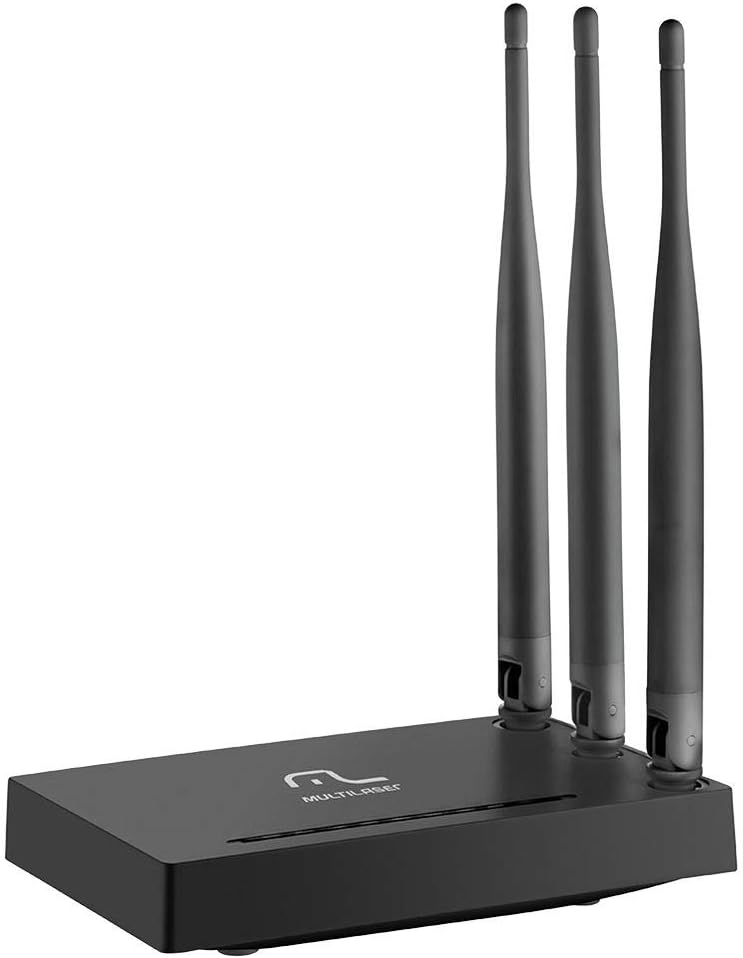
Image: Front view of the Multilaser RE085 router with its three external antennas in an upright position, showcasing its compact design.
Package Contents
Before proceeding with the installation, please verify that your package contains the following items:
- Multilaser RE085 Dual Band Wireless Router
- Power Adapter
- Ethernet Cable
- Quick Installation Guide (this document serves as a comprehensive guide)
Setup and Installation
Follow these steps to set up your Multilaser RE085 router:
1. Physical Connection
- Positioning: Place the router in a central location in your home or office, away from obstructions and devices that may cause interference (e.g., cordless phones, microwaves).
- Connect the Antennas: Ensure the three external antennas are securely attached and oriented for optimal signal coverage.
- Connect to Power: Plug the power adapter into the router's power port and then into a wall outlet. The power indicator LED on the router should light up.
- Connect to Modem: Connect one end of the provided Ethernet cable to the WAN port (often colored differently, e.g., blue) on the Multilaser RE085 router. Connect the other end to the LAN port on your modem or existing internet source.
- Connect Devices (Optional): For wired connections, connect one end of an Ethernet cable to any of the four LAN ports (usually yellow) on the router and the other end to your computer or other network device.

Image: Rear view of the Multilaser RE085 router, highlighting the WAN port (typically blue) and four yellow LAN ports for wired connections.
2. Initial Configuration (Web Interface)
- Connect to Router: Connect your computer to the router either via an Ethernet cable (to a LAN port) or wirelessly using the default Wi-Fi network name (SSID) printed on the router's label.
- Access Web Browser: Open a web browser (e.g., Chrome, Firefox, Edge) and type the default IP address of the router into the address bar. This is typically
192.168.0.1or192.168.1.1. Refer to the label on your router for the exact address. - Login: Enter the default username and password. Common defaults are
adminfor both username and password. If these do not work, check the router's label or the quick installation guide. - Run Setup Wizard: Upon successful login, you will likely be prompted to run a Quick Setup Wizard. Follow the on-screen instructions to configure your internet connection type (e.g., PPPoE, Dynamic IP, Static IP). Your Internet Service Provider (ISP) can provide this information if you are unsure.
- Configure Wireless Settings:
- SSID (Network Name): Change the default Wi-Fi network names for both 2.4GHz and 5GHz bands to something unique and easily identifiable.
- Password (Security Key): Set a strong, secure password for each Wi-Fi network. Use a combination of uppercase and lowercase letters, numbers, and symbols.
- Security Type: WPA2-PSK (AES) is recommended for optimal security.
- Save Settings: After configuring, save your settings. The router may restart to apply the changes.
Operating Instructions
Once your Multilaser RE085 router is set up, you can connect your devices and manage your network.
Connecting Devices
- Wireless Devices: On your smartphone, tablet, laptop, or smart TV, search for available Wi-Fi networks. Select the SSID you configured (e.g., "MyHomeNetwork_2.4GHz" or "MyHomeNetwork_5GHz") and enter the password.
- Wired Devices: Connect devices like desktop computers, gaming consoles, or smart TVs directly to the router's LAN ports using Ethernet cables for a stable and fast connection.
Dual Band Functionality
The RE085 supports both 2.4GHz and 5GHz wireless bands:
- 2.4GHz Band: Offers wider coverage and better penetration through walls, suitable for general internet use, browsing, and devices further away from the router.
- 5GHz Band: Provides faster speeds and lower latency, ideal for bandwidth-intensive activities like online gaming, 4K video streaming, and devices closer to the router.
You can connect different devices to the band that best suits their needs and location.
Guest Network
The router allows you to create up to 6 additional guest networks. This feature provides internet access to guests while isolating them from your main network, enhancing security. Access the router's web interface to configure guest networks.
Repeater Function
The Multilaser RE085 can also function as a wireless repeater, extending the range of an existing Wi-Fi network. Refer to the advanced settings in the router's web interface for repeater mode configuration.
Maintenance
Regular maintenance helps ensure the longevity and optimal performance of your router.
- Regular Restart: Periodically restart your router (unplug from power for 10 seconds, then plug back in) to clear its memory and refresh network connections. This can resolve minor performance issues.
- Firmware Updates: Check the Multilaser official website for firmware updates. Keeping your router's firmware up-to-date can improve performance, add new features, and enhance security. Follow the instructions provided by Multilaser carefully when performing updates.
- Physical Cleaning: Keep the router free from dust. Use a soft, dry cloth to gently clean the exterior. Ensure ventilation holes are not blocked.
- Password Management: Change your Wi-Fi and router login passwords periodically for enhanced security.
Troubleshooting
If you encounter issues with your Multilaser RE085 router, try the following troubleshooting steps:
No Internet Connection
- Check Cables: Ensure all Ethernet cables (WAN, LAN) are securely connected to both the router and your modem/devices.
- Check Modem: Verify that your modem is working correctly and has an active internet connection. Try restarting your modem.
- Router Status Lights: Check the LED indicators on the front of the router. The internet/WAN light should be solid or blinking, indicating an active connection.
- Restart Router: Power cycle the router (unplug, wait 10 seconds, plug back in).
- ISP Settings: Confirm your internet connection type and settings (PPPoE, Dynamic IP, Static IP) in the router's web interface match those provided by your ISP.
Weak or Unstable Wi-Fi Signal
- Router Placement: Move the router to a more central location, away from walls, large metal objects, and other electronic devices that may cause interference.
- Antenna Orientation: Adjust the antennas for better signal direction.
- Band Selection: For devices closer to the router, try connecting to the 5GHz band for faster speeds. For devices further away, the 2.4GHz band might offer better range.
- Interference: Identify and minimize sources of interference (e.g., microwaves, cordless phones, Bluetooth devices).
- Channel Selection: In the router's web interface, try changing the Wi-Fi channel for both 2.4GHz and 5GHz bands to a less congested one.
Forgotten Wi-Fi Password or Router Login Password
- Check Router Label: The default Wi-Fi password and router login credentials are often printed on a label on the bottom or back of the router.
- Reset to Factory Defaults: If you cannot access the router's web interface or have forgotten your Wi-Fi password and cannot retrieve it, you may need to perform a factory reset. Locate the small reset button (often recessed) on the router. With the router powered on, use a paperclip or pin to press and hold the reset button for about 10-15 seconds until the lights flash. The router will restart with its factory default settings, including default Wi-Fi names and passwords. You will then need to reconfigure it from scratch.
Specifications
Key technical specifications for the Multilaser RE085 Dual Band Wireless Router:
| Feature | Specification |
|---|---|
| Brand | Multilaser |
| Model Number | RE085 |
| Wireless Communication Standard | 802.11ac |
| Frequency Band Class | Dual-Band (2.4GHz & 5GHz) |
| Data Transfer Rate | Up to 750 Megabits Per Second |
| Number of Ports | 4 (LAN) |
| Connectivity Technology | Wi-Fi |
| Compatible Devices | Gaming Consoles, Tablets, Smart Televisions |
| Recommended Use | Home |
Warranty and Support
For warranty information, technical support, or further assistance, please refer to the official Multilaser website or contact their customer service directly. Keep your purchase receipt as proof of purchase for warranty claims.
Multilaser Official Website: www.multilaser.com.br