
Epson ET-7750
Epson Expression Premium ET-7750 EcoTank Printer User Manual
Model: ET-7750
1. Introduction
The Epson Expression Premium ET-7750 EcoTank All-in-One Supertank Printer offers revolutionary cartridge-free printing with easy-to-fill, supersized ink tanks. Designed for both high-quality documents and photos, this printer is an ideal solution for various printing needs, from 4x6 photos to 11x17 marketing materials. It combines printing, scanning, and copying functionalities with versatile connectivity options.
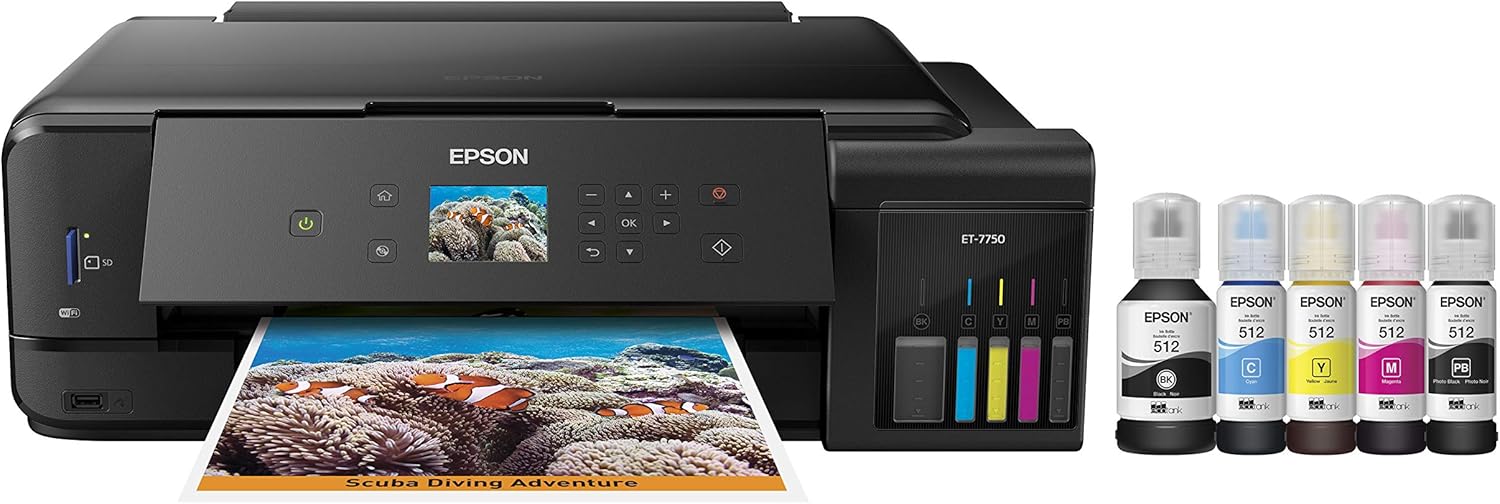
Figure 1: Epson Expression Premium ET-7750 EcoTank Printer and included ink bottles.
Key Features:
- Cartridge-Free Printing: Comes with up to 2 years of ink in the box.
- High Page Yield: Includes enough ink to print up to 14,000 pages black and 9,000 pages color.
- Cost Savings: Save up to 80 percent on ink with low-cost replacement bottles and easy-to-fill, supersized ink tanks.
- 5-Color Inks: Utilizes five color inks for high-quality documents and photos up to 11" x 17".
- Versatile Paper Handling: Features dedicated paper and photo trays, plus a rear specialty feed.
- Connectivity: Supports Hi-Speed USB 2.0, Wi-Fi (802.11n only), Wi-Fi Direct, and Ethernet.
- PC-Free Printing: Built-in USB and memory card slots allow direct printing.
- Intuitive Display: A 2.7-inch color LCD provides easy setup and navigation.
2. What's in the Box
Upon unboxing your Epson Expression Premium ET-7750, ensure all the following components are present:
- Epson Expression Premium ET-7750 EcoTank All-in-One Printer
- Manual
- CD-ROM for product setup
- Power cord
- Included ink in the box: 2x bottles 512 Black (140 mL) and 2x bottles each 512 Cyan, Magenta, Yellow, Photo Black (70 mL)

Figure 2: Contents typically found in the product packaging.
3. Setup
Before using your printer, follow these steps for initial setup:
- Unpack the Printer: Carefully remove the printer from its packaging and remove all protective materials.
- Connect Power: Plug the power cord into the printer and then into a wall outlet. Turn on the printer.
- Fill Ink Tanks: The ET-7750 uses supersized ink tanks. Open the ink tank unit cover. Each ink bottle is uniquely keyed to fit only the corresponding color tank, preventing misfilling. Invert the ink bottle and insert it into the tank. The ink will automatically stop flowing when the tank is full. Repeat for all five colors (Black, Cyan, Yellow, Magenta, Photo Black).

Figure 3: Demonstrating the clean and easy ink refilling process with uniquely keyed auto-stop ink bottles.
- Load Paper: Load paper into the dedicated paper tray or photo tray. The printer supports various sizes, including up to 11" x 17" via the rear specialty feed.
- Install Software: Insert the CD-ROM into your computer and follow the on-screen instructions to install the printer drivers and software. Alternatively, download the latest software from the official Epson support website.
- Connect to Network: Follow the on-screen prompts on the printer's 2.7-inch color LCD to connect the printer to your Wi-Fi network or via Ethernet. Wi-Fi Direct is also supported for direct connection from compatible devices.
For detailed setup instructions, refer to the Installation Manual (PDF).
4. Operating the Printer
The Epson ET-7750 offers a range of functions including printing, copying, and scanning. Its intuitive controls and versatile connectivity make it easy to use.
4.1 Printing
You can print documents and photos from various sources:
- From a Computer: Send print jobs from your Windows or Mac computer after installing the necessary drivers.
- Wireless Printing: Print directly from your iPad, iPhone, Android tablets, and smartphones using compatible Epson apps or AirPrint/Google Cloud Print.

Figure 4: Overview of printer features, including wireless printing from mobile devices.
- PC-Free Printing: Insert a USB drive or SD memory card into the built-in slots to print photos and documents directly from the printer's control panel.
Video 1: An overview of the Epson Expression Premium ET-7750 EcoTank printer, highlighting its features such as wide-format printing, cartridge-free ink tanks, PC-free printing via USB/SD card, and wireless connectivity. The video demonstrates printing various documents and photos, emphasizing the high print quality and cost savings on ink.
- Paper Trays: Utilize the dedicated paper and photo trays for different media types. The rear specialty feed accommodates thicker or larger media up to 11" x 17".
4.2 Copying
Use the printer's flatbed scanner to make copies of documents or photos. Adjust settings such as number of copies, color/black & white, and paper type directly from the 2.7-inch color LCD.
4.3 Scanning
The ET-7750 features a high-resolution scanner for digitizing documents and photos. You can scan to a computer, memory card, or cloud services depending on your setup and installed software.
5. Maintenance
Regular maintenance ensures optimal performance and longevity of your Epson ET-7750 printer.
- Ink Refilling: Monitor ink levels through the transparent ink tanks. Refill tanks when levels are low using genuine Epson 512 ink bottles. The auto-stop feature prevents overfilling and spills.
- Nozzle Check and Head Cleaning: If print quality declines (e.g., missing lines, streaks), perform a nozzle check and head cleaning from the printer's maintenance menu or through the printer software on your computer.
- Firmware Updates: Periodically check for and install firmware updates to ensure your printer has the latest features and bug fixes.
- Cleaning the Printer: Gently wipe the exterior of the printer with a soft, damp cloth. For the scanner glass, use a lint-free cloth and a mild glass cleaner.
6. Troubleshooting
This section addresses common issues you might encounter with your printer.
- Printer Not Responding:
- Ensure the printer is powered on and connected to the computer or network.
- Check network connectivity (Wi-Fi or Ethernet).
- Restart the printer and your computer/router.
- Poor Print Quality:
- Perform a nozzle check and head cleaning (see Maintenance section).
- Ensure genuine Epson inks are used and ink tanks are sufficiently filled.
- Check print settings for correct paper type and quality.
- Paper Jams:
- Carefully remove any jammed paper from the paper trays or inside the printer.
- Ensure paper is loaded correctly and not overfilled.
- For two-sided printing, ensure the paper is suitable and allow sufficient drying time if issues persist.
- Connectivity Issues:
- Verify Wi-Fi password and network name.
- Ensure the printer is within range of your wireless router.
- Temporarily disable firewall software on your computer to test connectivity.
For more comprehensive troubleshooting, consult the User Guide (PDF) or Epson's online support resources.
7. Specifications
| Feature | Specification |
|---|---|
| Product Dimensions | 20.7"D x 29.3"W x 17.8"H |
| Controller Type | Windows |
| Maximum Media Size | 11 x 17 inch |
| Power Consumption | 13 Watts (On-mode) |
| Print Media | Paper (plain) |
| Scanner Type | Photo, Sheetfed |
| Max Input Sheet Capacity | 300 |
| Display Type | LCD (2.7-inch color) |
| Compatible Devices | PC, Laptops |
| Maximum Color Print Resolution | 5760 x 1440 optimized dpi |
| Sheet Size | 4 x 6 Inches, 11 x 17 Inches |
| Maximum Black and White Print Resolution | 5760 x 1440 dpi |
| Dual-sided printing | Yes (Automatic) |
| Hardware Interface | Ethernet |
| Ink Color | CMYK + Photo Black (5-color inks) |
| Additional Printer Functions | Copy, Scan |
| Connectivity Technology | Hi-Speed USB 2.0, Wi-Fi (802.11n only), Wi-Fi Direct, Ethernet |
| Item Weight | 24.3 pounds |
| Model Number | ET-7750 |
8. Warranty and Support
Your Epson Expression Premium ET-7750 EcoTank printer comes with a comprehensive warranty and access to support resources.
- Limited Warranty: The printer includes a 12-month standard limited warranty or 50,000 plain paper sheets (whichever happens first).
- Extended Warranty: For an additional 12 months (total of 24 months or 50,000 plain paper sheets, whichever happens first), register your product and use Epson genuine ink bottles.
- Official Documentation:
- Online Support: Visit the official Epson support website for drivers, FAQs, and further assistance.

Figure 5: Epson's commitment to quality with genuine ink and warranty programs.
Related documentsET-7750


Ask a question about this manual
Ask about setup, troubleshooting, compatibility, parts, safety, or missing instructions. Manuals+ will review the question and use this page’s manual context to help answer it.