1. Introduction
This manual provides detailed instructions for the BENFEI HDMI to DisplayPort adapter. This device is designed to convert an HDMI signal from a source device (such as a laptop, PC, or gaming console) to a DisplayPort signal for display on a monitor, projector, or HDTV. It is a uni-directional converter, meaning it only transmits signals from HDMI to DisplayPort, not the other way around. For optimal performance, the adapter requires external power via a USB connection.

Figure 1: BENFEI HDMI to DisplayPort Adapter (Front View)
2. Key Features
- Uni-Directional Conversion: Converts HDMI TMDS signal to DisplayPort digital signal. Note: This is NOT a bi-directional converter.
- High Resolution Support: Supports resolutions up to 3840x2160@60Hz (4K@60Hz), 2560x1600@144Hz, and 1080P@165Hz.
- Audio Support: Supports 8 channels digital audio with sampling rate up to 192kHz and sample size up to 24 bits, including HBR audio.
- External Power Required: Features a built-in advanced IC chip that requires power via a USB port for stable operation and to prevent flickering.
- Broad Compatibility: Compatible with various HDMI source devices such as computers, laptops, gaming consoles (PS3, PS4, Xbox One, Xbox 360), Blu-ray players, and more. Connects to DisplayPort enabled monitors, projectors, and HDTVs.
- Compact Design: Portable and lightweight, ideal for business presentations or extending desktop screens.
3. Setup Guide
Follow these steps to connect your BENFEI HDMI to DisplayPort adapter:
- Connect the HDMI male connector of the BENFEI adapter to the HDMI output port of your source device (e.g., laptop, desktop PC, gaming console).
- Connect the USB-A male connector of the BENFEI adapter to an available USB port on your source device or a USB power adapter. This provides the necessary power for the adapter's internal chip.
- Connect a DisplayPort cable (not included) from the DisplayPort female port of the BENFEI adapter to the DisplayPort input on your display device (monitor, projector, HDTV).
- Ensure your display device is set to the correct DisplayPort input.

Figure 2: Connection Diagram - HDMI Source to DisplayPort Monitor with USB Power

Figure 3: Illustrates HDMI Host Devices (Laptop, Desktop PC, Graphics Card) and DisplayPort Target Screens (Projector, TV, Display). Confirms uni-directional signal flow.
4. Operating Instructions
Once connected, your display should automatically detect the signal. You can configure your display settings on your source device for various modes:
- Mirror Mode: Duplicates your source device's screen onto the external display.
- Extended Mode: Extends your desktop, allowing you to have different content on each screen, increasing productivity.
Adjust display settings through your operating system's display preferences (e.g., Windows Display Settings, macOS System Preferences).

Figure 4: Demonstrates the adapter working perfectly in both Extended Mode and Mirror Mode.
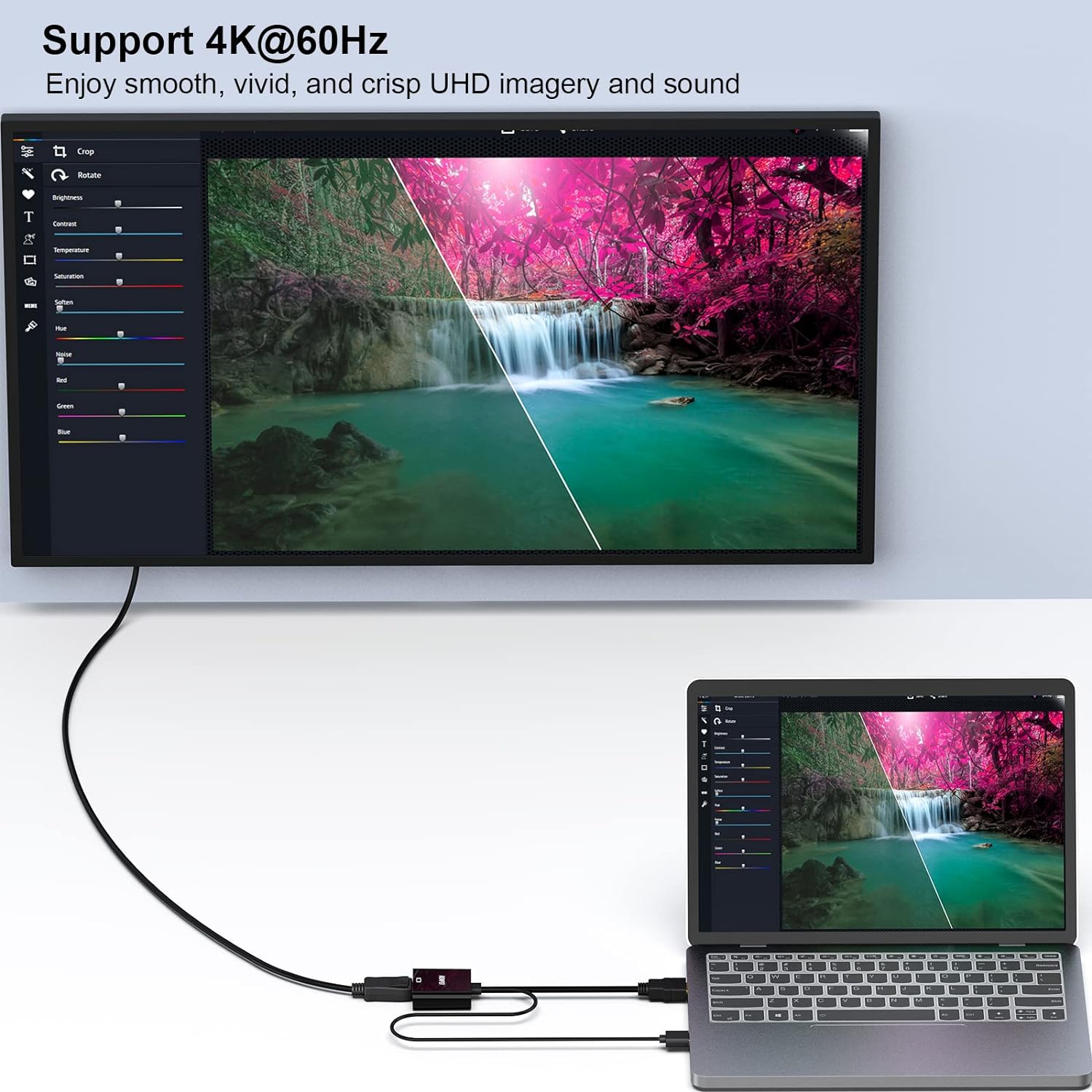
Figure 5: Illustrates the adapter's capability to support 4K@60Hz resolution for smooth, vivid, and crisp UHD imagery and sound.
5. Compatibility
The BENFEI HDMI to DisplayPort adapter is broadly compatible with a range of devices:
- HDMI Source Devices: Computers, PCs, desktops, laptops, ultrabooks, notebooks, Chromebooks, Raspberry Pi, Intel Nuc, Roku, PS3, Xbox One, Xbox 360, Wii U, Set Top Box, TV BOX, Blu-ray players, SONY PS4, Apple MacBook Pro with Retina Display, Mac mini, and Apple TV.
- DisplayPort Target Devices: Monitors, projectors, HDTVs.
Important Compatibility Warning:

Figure 6: This uni-directional HDMI-to-DP adapter does NOT work with KVM switches, Docking Stations, VR headsets, Video Capture devices, USB Hubs, Switches/Splitters, HDMI/DP extension cables, and HDM Cables. Direct connection is required.
6. Technical Specifications
| Feature | Specification |
|---|---|
| Model Number | 000152black |
| Product Dimensions | 0.79 x 1.18 x 0.79 inches; 1 ounces |
| Connector Type | HDMI (Male) to DisplayPort (Female) with USB-A (Male) for power |
| Max Resolution | 3840x2160@60Hz (4K@60Hz) |
| Other Supported Resolutions | 2560x1600@144Hz, 1080P@165Hz |
| Audio Support | 8 channels digital audio, up to 192kHz sampling rate, 24 bits sample size, HBR audio |
| Compatibility | DisplayPort 1.2a, HDCP 1.3/1.4/2.2, HDMI 2.0, HBR2 |
| Color | Black |
7. Troubleshooting
- No Signal / Flickering Display:
- Ensure the USB-A cable is connected to a powered USB port. The adapter requires external power for stable signal conversion.
- Verify that all cables (HDMI, USB, DisplayPort) are securely connected to their respective ports.
- Check if your display is set to the correct DisplayPort input source.
- Test with different HDMI and DisplayPort cables to rule out cable issues.
- Adapter Not Working with KVM/Docking Station:
- This adapter is designed for direct connection between an HDMI source and a DisplayPort display. It is not compatible with KVM switches, docking stations, USB hubs, or other signal intermediaries. Please refer to Figure 6 in the Compatibility section for a list of unsupported devices.
- Resolution/Refresh Rate Issues:
- Ensure your source device and display both support the desired resolution and refresh rate. The adapter cannot improve the native resolution or refresh rate capabilities of your devices.
- Check your source device's display settings to ensure the output resolution and refresh rate are configured correctly for the connected display.
- No Audio:
- Verify that your display device has built-in speakers or is connected to external audio output.
- Check your source device's audio output settings to ensure audio is being sent via HDMI.
8. Warranty and Support
BENFEI offers an exclusive 18-month warranty for this product, ensuring long-term satisfaction with your purchase. This warranty covers manufacturing defects and ensures the product performs as described.
For any questions, technical assistance, or warranty claims, please contact BENFEI customer service. Our friendly and easy-to-reach customer service team is available to help solve your problems timely.
Please retain your proof of purchase for warranty validation.


