
1. Introduction
This manual provides essential instructions for the Michael Kors Access MKT5028 Smartwatch. This touchscreen smartwatch, powered by Wear OS, features a full-resolution circular display and is designed for compatibility with Android OS 4.3+ and iPhone 5/iOS 9+ devices.
Key features include a fitness and sleep monitor, and a customizable touchscreen watch face. The watch has a case diameter of 47 mm.
2. Setup
2.1 Initial Charging
Before first use, fully charge your smartwatch using the provided charging cable. Connect the charger to a power source and place the watch on the magnetic charging puck. The watch display will indicate charging status.
2.2 Pairing with a Smartphone
- Ensure your smartphone is running Android OS 4.3+ or iOS 9+ (iPhone 5 or newer).
- Download and install the Wear OS by Google app from your smartphone's app store.
- Open the Wear OS app on your smartphone and follow the on-screen instructions to pair your Michael Kors Access MKT5028 smartwatch.
- Accept all necessary permissions on both your watch and smartphone to enable full functionality.
2.3 Initial Configuration
During the pairing process, you will be guided to set up language, time zone, and notification preferences. Customize these settings to your preference.
3. Operating Instructions
3.1 Touchscreen Navigation
The Michael Kors Access MKT5028 features a full-resolution touchscreen display. Swipe left, right, up, or down to navigate through menus, notifications, and quick settings. Tap to select items.

Image: The smartwatch display showing various data points including time, location, daily step count, and battery level. This demonstrates the customizable watch face and data tracking capabilities.
3.2 Using Buttons
The watch includes a rotating crown and two pushers on the side for additional control. The crown can be used to scroll through lists and menus, while the pushers can be assigned to quick-launch specific applications or functions.

Image: A side profile of the smartwatch, highlighting the functional crown and two additional buttons. These controls allow for physical interaction with the watch's interface.
3.3 Accessing Features
- Notifications: Receive and view smartphone notifications directly on your watch. Swipe down from the watch face to access your notification stream.
- Fitness Tracking: The watch monitors your activity, including steps taken and sleep patterns. Access fitness data through the pre-installed fitness applications.
- Customizable Watch Faces: Personalize your watch face by long-pressing the current watch face and swiping through available options.
- Google Assistant: Use voice commands with Google Assistant for various tasks.
- Applications: Access and manage applications such as the Calendar directly from your watch.
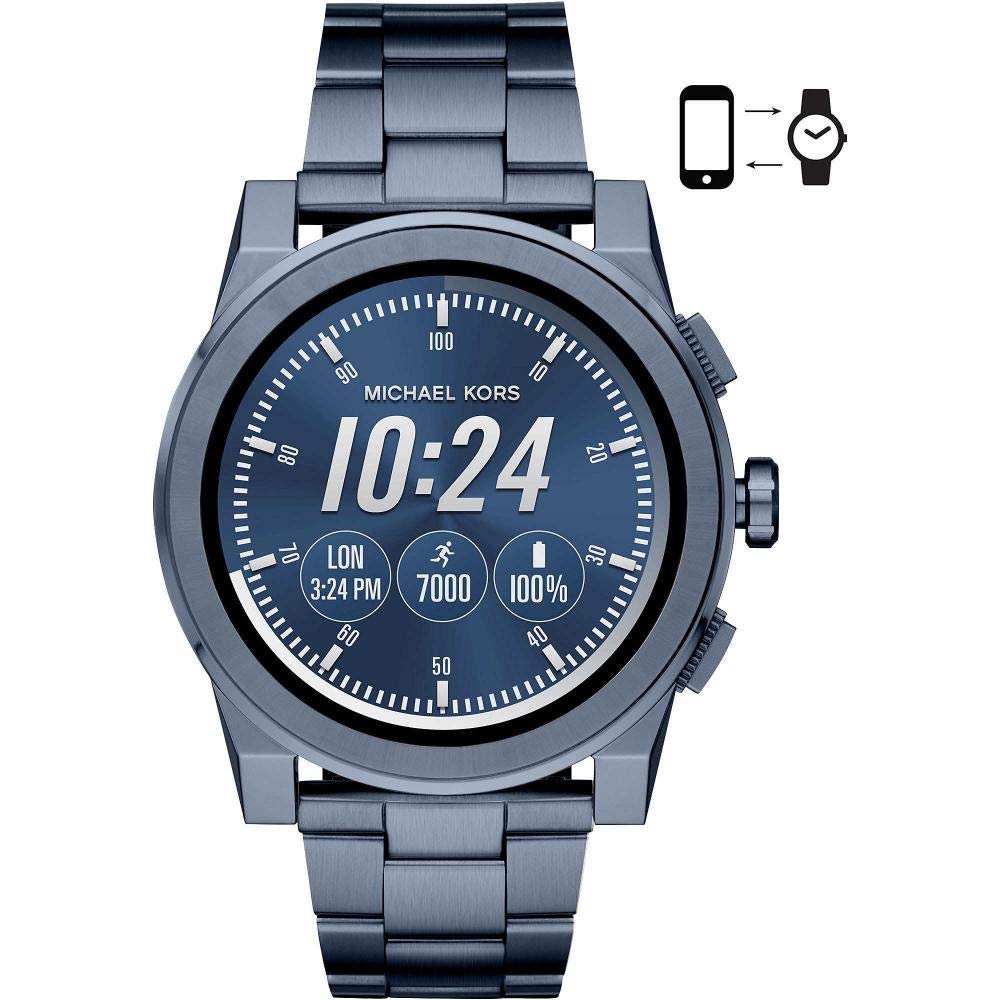
Image: The smartwatch display showing an incoming message notification from 'Emily'. This illustrates the watch's ability to display real-time alerts and communications.
3.4 Connectivity
The smartwatch connects to your smartphone via Bluetooth and can also utilize Wi-Fi for certain functions, such as app updates or data synchronization when not connected to your phone.
4. Maintenance
4.1 Cleaning the Watch
To clean your smartwatch, gently wipe the screen and case with a soft, damp, lint-free cloth. Avoid using abrasive materials or harsh chemicals, which can damage the finish.
4.2 Battery Care
The watch uses a Lithium Ion battery. To prolong battery life, avoid exposing the watch to extreme temperatures. Charge the watch regularly, but avoid leaving it fully discharged for extended periods.
4.3 Band Care
The stainless steel band can be cleaned with a soft cloth. For deeper cleaning, a mild soap solution can be used, ensuring the watch head is not submerged. Dry thoroughly after cleaning.

Image: The rear view of the smartwatch, displaying the stainless steel watch band and the Michael Kors branded clasp. This view is relevant for band maintenance and adjustment.
5. Troubleshooting
5.1 Connectivity Issues
- Watch not connecting to phone: Ensure Bluetooth is enabled on both devices. Restart both the watch and the phone. Check if the Wear OS app is running in the background on your phone.
- Wi-Fi connection problems: Verify that the Wi-Fi network is active and the password is correct. Try reconnecting to the network from the watch's settings.
5.2 App Syncing Problems
If applications or data are not syncing correctly, ensure your watch is connected to your phone and has an active internet connection. Force close and reopen the Wear OS app on your phone. You may also try restarting both devices.
5.3 Short Battery Life
Battery life can be affected by frequent use of features like GPS (though this model does not have built-in GPS), high screen brightness, and numerous notifications. Adjust these settings to conserve battery. Ensure background apps are closed.
5.4 Watch Not Responding
If the watch becomes unresponsive, perform a soft reset by pressing and holding the main crown button for approximately 10-15 seconds until the device restarts.
6. Specifications
| Model Name | MKT5028 |
| ASIN | B074W98W9X |
| UPC | 796483350885 |
| Operating System | Wear OS |
| Display Type | Digital, Touchscreen |
| Case Diameter | 47 mm |
| Band Width | 24 mm |
| Material | Stainless Steel |
| Color | Blue |
| Connectivity | Bluetooth, Wi-Fi (802.11b) |
| Battery Type | Lithium Ion (1 required, included) |
| Compatible Devices | Smartphones (Android OS 4.4+, iOS 7+, iPhone 4s+, iPhone 5+) |
| Sensors | Activity Monitor, Step Counter, Sleep Duration Monitor |
| Controller Type | Google Assistant |
| Dimensions (Item) | 10 x 10 x 10 millimeters (0.99 x 0.99 x 0.99 cm) |
| Weight | 226.8 g |
7. Warranty & Support
7.1 Warranty Information
This Michael Kors Access MKT5028 Smartwatch is covered by a manufacturer's warranty. Please refer to the warranty card included in your product packaging for specific terms, conditions, and duration. The manufacturer of this product is Fossil Group.
7.2 Customer Support
For further assistance, technical support, or service inquiries, please visit the official Michael Kors website or contact their customer service department. Keep your purchase receipt and model number (MKT5028) available when seeking support.