
Epson ET-2750
Epson EcoTank ET-2750 All-in-One Printer User Manual
Model: ET-2750 | Brand: Epson
Introduction
The Epson EcoTank ET-2750 is a wireless all-in-one supertank printer designed for cartridge-free printing. It offers a cost-effective solution with high page yields and convenient features for home and office use.
Key Features
- Cartridge-Free Printing: Utilizes large, refillable ink tanks instead of traditional cartridges, significantly reducing ink costs.
- High Page Yield: Includes enough ink to print up to 6,500 black pages or 5,200 color pages, equivalent to approximately 30 ink cartridge sets.
- Low-Cost Replacement Ink: Save up to 80 percent on ink with affordable replacement bottles.
- Auto-Stop Ink Bottles: Uniquely keyed bottles for each color ensure easy and mess-free filling.
- Wireless Connectivity: Seamlessly print from tablets, smartphones, and computers via Wi-Fi and Wi-Fi Direct.
- Auto 2-Sided Printing: Conserve paper with automatic double-sided printing.
- Multi-Functionality: Print, scan, and copy capabilities in one device.
- Memory Card Slot: Directly print photos and documents from an SD card.
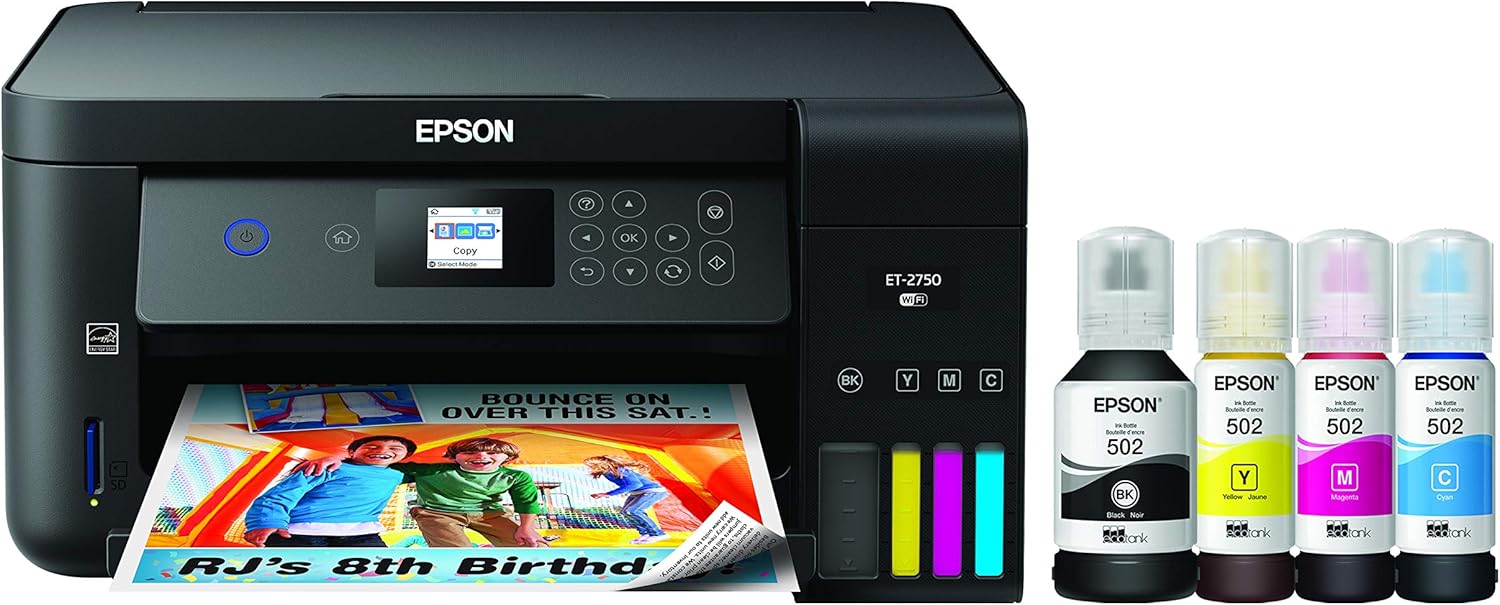
Figure 1: Epson EcoTank ET-2750 All-in-One Printer with included ink bottles.
What's in the Box
Verify that all components are present before proceeding with setup:
- Epson Expression ET-2750 EcoTank All-in-One Printer
- User Manual
- CD-ROM for Product Setup
- Power Cord
- 1x 127 mL Bottle of 502 Black Ink
- 1x 70 mL Bottle of 502 Cyan Ink
- 1x 70 mL Bottle of 502 Magenta Ink
- 1x 70 mL Bottle of 502 Yellow Ink

Figure 2: All items included in the Epson EcoTank ET-2750 packaging.
Setup
1. Unpacking and Placement
Remove all packaging materials, tapes, and protective films from the printer. Place the printer on a stable, flat surface with adequate space for paper loading and output.
2. Power Connection
Connect the power cord to the printer and then to a grounded electrical outlet. Press the power button to turn on the printer.
3. Initial Ink Filling
Carefully open the ink tank unit cover. Open the cap for each color ink tank. Unpack the corresponding ink bottles. The unique keying of each bottle ensures it only fits into the correct color tank. Invert the bottle and insert it into the filling port. The ink will automatically fill the tank. Once full, the flow will stop. Remove the bottle and securely close the tank cap and unit cover.

Figure 3: Demonstrating the mess-free ink filling process for the magenta tank.

Figure 4: Filling the black ink tank, showing the large capacity.
4. Software Installation
Insert the provided CD-ROM into your computer's CD drive. Follow the on-screen instructions to install the printer drivers and software. If your computer does not have a CD drive, download the latest drivers from the official Epson support website (www.epson.com/support/et2750).
5. Network Connection (Wi-Fi)
On the printer's control panel, navigate to the Wi-Fi setup menu. Select your wireless network (SSID) from the list and enter your network password. Once connected, the Wi-Fi indicator light will illuminate.
Operating the Printer
1. Loading Paper
Open the paper support and pull out the extension. Fan the paper stack and load it into the rear paper feed slot, print side up. Adjust the edge guides to fit the paper width.
2. Printing Documents
From your computer or mobile device, open the document or image you wish to print. Select the Epson ET-2750 as your printer. Adjust print settings such as paper size, print quality, and color/monochrome. Click "Print".
Wireless Printing
Ensure your mobile device or computer is connected to the same Wi-Fi network as the printer. Use the Epson iPrint app (available for iOS and Android) or your device's native print function (e.g., Apple AirPrint, Mopria Print Service) to send print jobs wirelessly.

Figure 5: Wireless printing in action, showing ease of use from a laptop.
3. Scanning Documents
Place the document face down on the scanner glass, aligning it with the corner mark. Close the scanner lid. On the printer's control panel, select "Scan" and choose your desired destination (e.g., computer, memory card). Alternatively, use the Epson Scan software on your computer for more advanced scanning options.
4. Copying Documents
Place the document face down on the scanner glass. On the printer's control panel, select "Copy". Choose the number of copies and whether you want color or black & white. Press the "Start" button to begin copying.
Maintenance
Ink Refilling
Monitor ink levels through the transparent ink tanks on the front of the printer. When an ink tank is low, purchase genuine Epson 502 replacement ink bottles. Follow the initial ink filling steps outlined in the Setup section.
Important: Epson strongly recommends the use of Genuine Epson inks for optimal print quality and to avoid damage not covered by the warranty.
Print Head Cleaning
If print quality declines (e.g., missing lines, streaking), perform a print head cleaning. This can be done through the printer's control panel or the Epson printer utility software on your computer. Refer to the user manual for detailed steps.
Regular Usage
To prevent ink from drying in the print head, it is recommended to print at least a few pages regularly, ideally once a week, even if it's just a test page.
Troubleshooting
Printer Not Responding
- Check power connections and ensure the printer is turned on.
- Verify Wi-Fi connection (printer and device).
- Restart the printer and your computer/device.
- Ensure paper is loaded correctly and there are no paper jams.
Poor Print Quality
- Check ink levels and refill if necessary.
- Perform a print head cleaning.
- Run a nozzle check to identify clogged nozzles.
- Ensure you are using genuine Epson ink.
- Check paper type and quality settings in your print driver.
Paper Jams
- Turn off the printer and carefully remove any jammed paper from the paper feed or output tray.
- Ensure paper is loaded correctly and not overloaded.
Wireless Connection Issues
- Restart your wireless router.
- Re-run the Wi-Fi setup wizard on the printer.
- Ensure the printer is within range of your router.
Specifications
| Feature | Detail |
|---|---|
| Model Name | EcoTank ET-2750 |
| Product Dimensions | 14.8"D x 22.3"W x 10.2"H |
| Item Weight | 12.1 pounds |
| Printing Technology | Inkjet |
| Printer Output | Color, Monochrome |
| Maximum Print Resolution | 5760 x 1440 optimized dpi |
| Max Print Speed (Monochrome) | 10.5 ppm |
| Max Print Speed (Color) | 10.5 ppm |
| Connectivity Technology | Wi-Fi, Ethernet, USB |
| Duplex Printing | Automatic (2-sided) |
| Scanner Type | Flatbed |
| Display Type | LCD |
| Power Consumption | 13 Watts (On-mode) |
| Compatible Operating Systems | Windows 10, 8, 8.1 (32/64-bit), 7 (32/64-bit), Mac OS X 10.6 – Mac OS 10.12.x |
Warranty & Support
Warranty Information
The Epson EcoTank ET-2750 comes with a 12-month standard limited warranty or 50,000 plain paper sheets (whichever happens first). For an additional 12 months (total of 24 months or 50,000 plain paper sheets, whichever happens first), register your product and use Epson genuine ink bottles. Refer to the included warranty documentation for full details.
Customer Support
For further assistance, technical support, or to access the full user manual, please visit the official Epson support website or contact Epson customer service.
Related documentsET-2750


Ask a question about this manual
Ask about setup, troubleshooting, compatibility, parts, safety, or missing instructions. Manuals+ will review the question and use this page’s manual context to help answer it.