
1. Product Overview
The Epson 502 EcoTank Ink Bottle (T502120-S) contains ultra-high capacity black ink designed for use with compatible Epson EcoTank printers. This ink is formulated to deliver smudge- and water-resistant documents, ensuring clear and long-lasting prints. The bottle features an autostop technology and a unique key for each color, preventing incorrect filling and ensuring a mess-free experience.
This product is intended for refilling the ink tanks of specific Epson EcoTank printer models, offering an alternative to traditional ink cartridges.

Image 1.1: Epson 502 EcoTank Black Ink Bottle (127 mL) in its retail packaging.
2. Compatible Printer Models
The Epson 502 EcoTank Black Ink Bottle is compatible with the following Epson EcoTank printer models:
- ET-2700, ET-2750, ET-2760, ET-2850
- ET-2980, ET-2988, ET-3930, ET-3943, ET-3950
- ET-3700, ET-3710, ET-3750, ET-3760
- ET-3830, ET-3843, ET-3850
- ET-4750, ET-4760, ET-4850, ET-4950, ET-4958
- ET-15000
- ST-2000, ST-3000, ST-4000, ST-C2100, ST-C4100
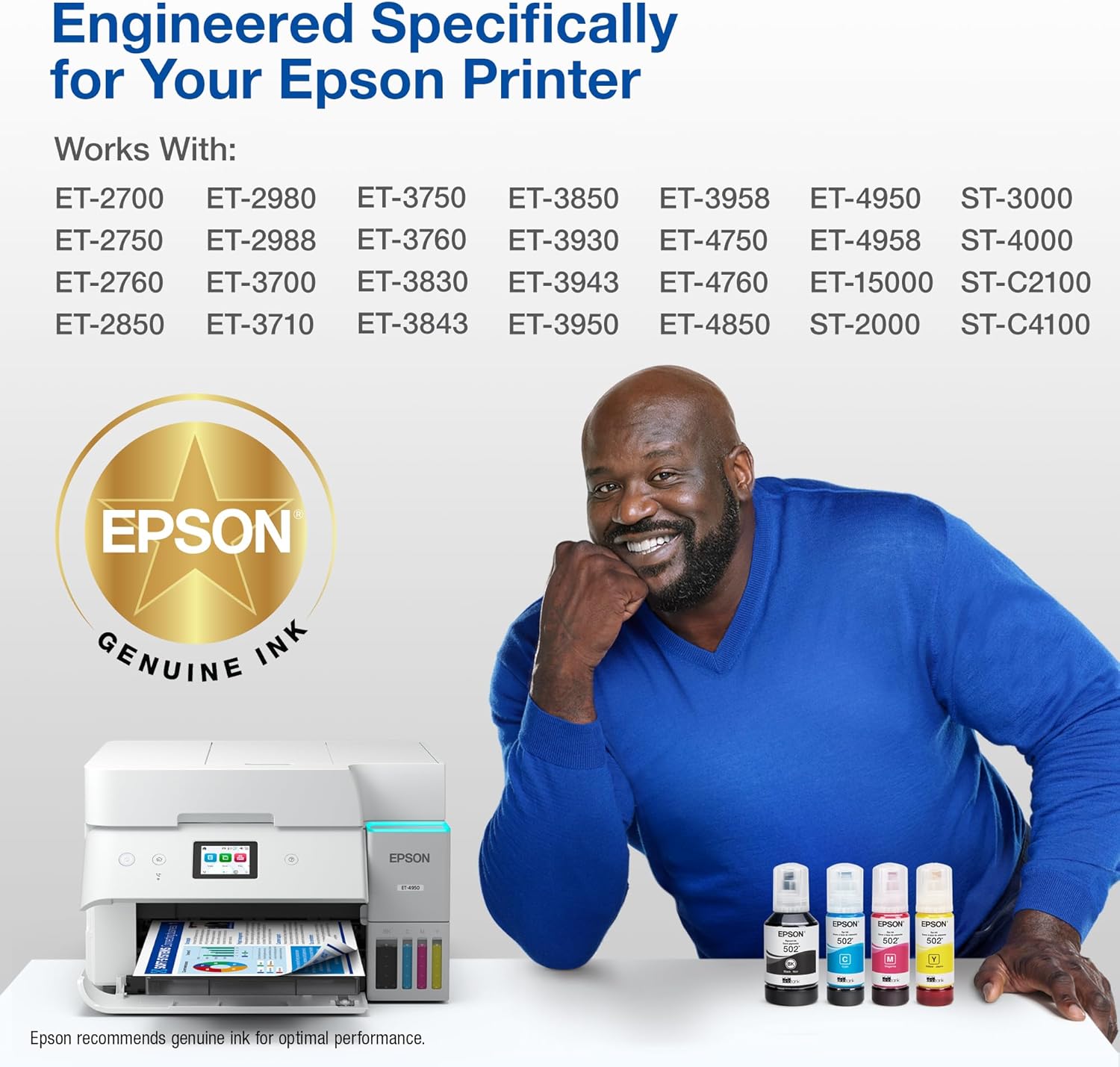
Image 2.1: Visual representation of compatible Epson EcoTank printer models for the 502 ink series.
3. Setup and Ink Filling Procedure
Follow these steps to correctly fill your Epson EcoTank printer with the 502 Black Ink:
- Prepare Your Workspace: Place your printer on a flat, stable surface. Ensure you have adequate lighting. It is recommended to place a protective sheet or paper towels under the printer to catch any potential spills, although the EcoFit bottles are designed to minimize this.
- Locate Ink Tanks: Open the ink tank unit cover on your EcoTank printer. The location varies by model, but it is typically on the front or side of the printer. Identify the black ink tank, usually marked with "BK" or a black color indicator.
- Open the Ink Tank Cap: Carefully open the cap of the black ink tank. Do not force it.
- Prepare the Ink Bottle: Remove the Epson 502 Black Ink Bottle from its packaging. Twist off the bottle cap. Do not squeeze the bottle.
- Insert the Bottle: Align the nozzle of the ink bottle with the filling port of the black ink tank. The unique keying of the bottle ensures it will only fit into the correct color tank. Gently push the bottle down to seat it firmly. The ink will begin to flow automatically into the tank.
- Monitor Ink Level: Observe the ink level in the tank. The ink will stop flowing automatically when the tank is full. Do not overfill.
- Remove the Bottle: Once the ink tank is full, carefully lift the ink bottle straight up to remove it. Do not tilt or squeeze the bottle.
- Secure the Caps: Replace the cap on the ink tank and securely close the ink tank unit cover. Replace the cap on the ink bottle if there is any remaining ink for future use.
- Initial Ink Charge (if applicable): If this is the first time filling the printer, follow your printer's on-screen instructions or manual for the initial ink charge process. This primes the print head with ink.
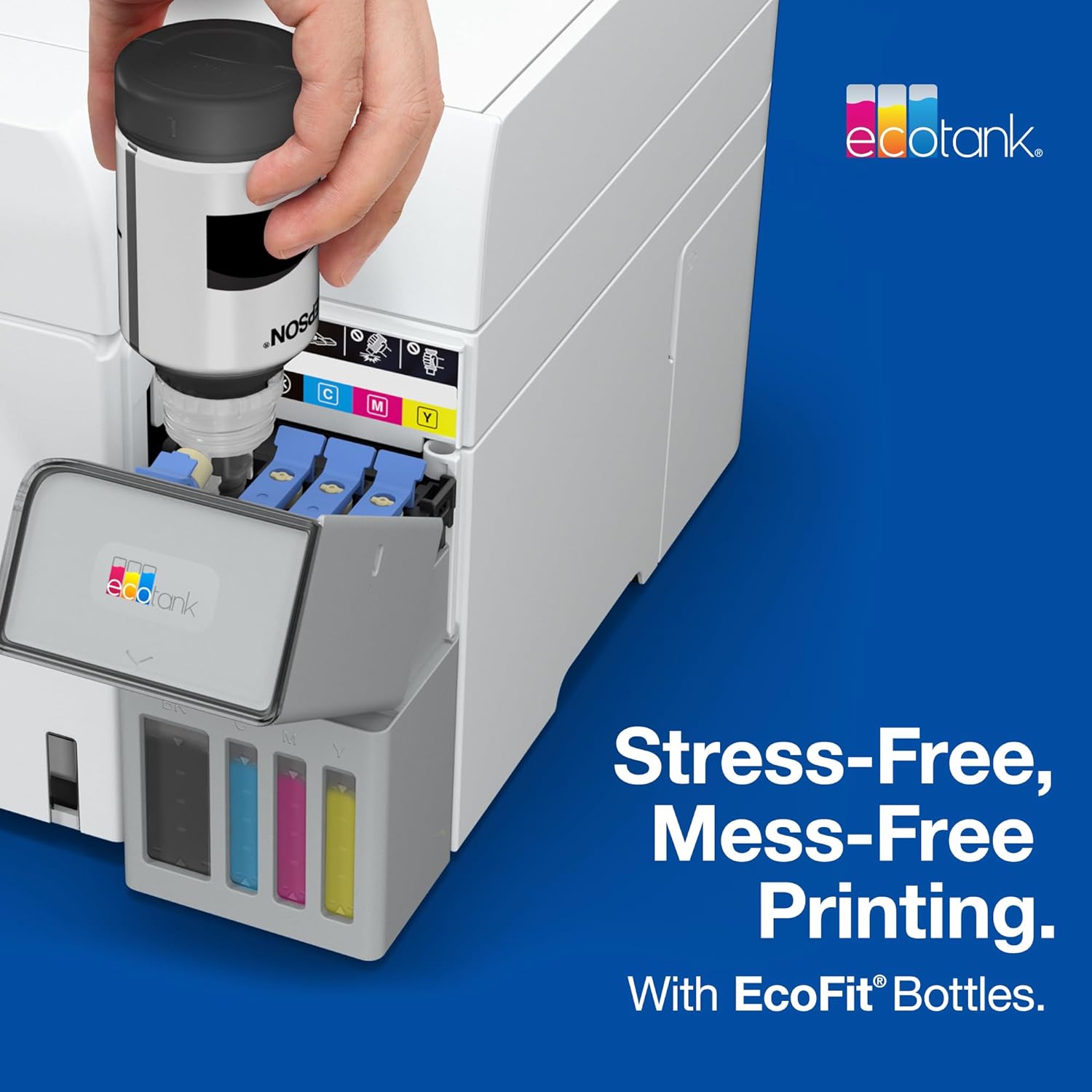
Image 3.1: Illustration of the mess-free ink filling process using an Epson EcoFit bottle.
4. Operating Considerations
Once the ink tanks are filled, the printer is ready for operation. The Epson 502 ink is designed for everyday printing tasks, producing sharp black text and graphics.
- Print Quality: For optimal print quality, use genuine Epson paper.
- Ink Yield: The 502 Black Ink Bottle provides a high page yield, reducing the frequency of refills. Actual yields may vary based on images printed, print settings, and environmental conditions.
- Storage: Store unused ink bottles upright in a cool, dark place.
5. Maintenance
Proper maintenance of your EcoTank printer and ink system ensures longevity and consistent print quality.
- Regular Printing: Print regularly to prevent ink from drying in the print head nozzles. If you don't print often, perform a nozzle check and head cleaning from your printer's utility software or control panel.
- Check Ink Levels: Periodically check the ink levels in your printer's tanks. Refill ink before it drops below the minimum line to avoid air entering the ink system.
- Clean Exterior: Keep the exterior of your printer clean with a soft, damp cloth. Avoid using harsh chemicals.
6. Troubleshooting
If you encounter issues related to ink or print quality, consider the following:
- Poor Print Quality (Streaks, Fading):
- Check ink levels. Refill if low.
- Perform a nozzle check to identify clogged nozzles.
- Run a print head cleaning cycle from your printer's utility software. You may need to run it multiple times.
- If issues persist, perform a print head alignment.
- Ink Not Flowing During Refill:
- Ensure the ink bottle is correctly seated in the filling port. The bottle's unique keying prevents incorrect insertion.
- Verify you are using the correct color ink bottle for the corresponding tank.
- Check if the ink tank is already full. The autostop feature prevents overfilling.
- Error Messages Related to Ink:
- Refer to your printer's user manual or on-screen display for specific error code interpretations and solutions.
- Ensure all ink tank caps are securely closed.
For further assistance, consult your printer's comprehensive user manual or visit the Epson support website.
7. Specifications
| Feature | Detail |
|---|---|
| Product Name | EPSON 502 EcoTank Ink Ultra-high Capacity Bottle Black |
| Model Number | T502120-S |
| Brand | Epson |
| Ink Color | Black |
| Ink Type | Pigment-based (for black) |
| Bottle Capacity | 127 mL (4.29 fl oz) |
| Estimated Page Yield | Up to 7,500 pages (ISO/IEC 24712 pattern) |
| Special Features | Autostop technology, uniquely keyed bottle for mess-free filling, smudge and water-resistant ink. |
| Material Type | Plastic |
| Item Weight | 6.4 ounces |
| Product Dimensions | 2.3 x 2.3 x 6.4 inches |
8. Safety Information
- Keep out of reach of children.
- Do not drink the ink.
- If ink gets in your eyes, flush immediately with water. If discomfort persists, consult a medical professional.
- Store ink bottles upright and away from direct sunlight or extreme temperatures.
9. Recycling and Environmental Information
Epson is committed to environmental responsibility. The 502 EcoTank ink bottles are part of a recycling solution designed to encourage the diversion of materials from landfills. Please check local regulations for proper disposal or recycling of empty ink bottles.
10. Support and Further Information
For detailed product support, warranty information, or to access additional resources, please visit the official Epson support website or refer to the user manual provided with your Epson EcoTank printer.
You can also find more information and support at the Epson Store on Amazon.


