
1. Introduction
The FUERAN 4K HDMI Dummy Plug is a virtual monitor emulator designed to simulate the presence of a connected display. This device is particularly useful for systems operating without a physical monitor, often referred to as 'headless' systems. It ensures that the computer's graphics processing unit (GPU) remains active and functional, preventing issues such as resolution drops or performance limitations that can occur when no display is detected.
This manual provides instructions for the proper setup, operation, and maintenance of your FUERAN HDMI Dummy Plug, along with technical specifications and troubleshooting guidance.
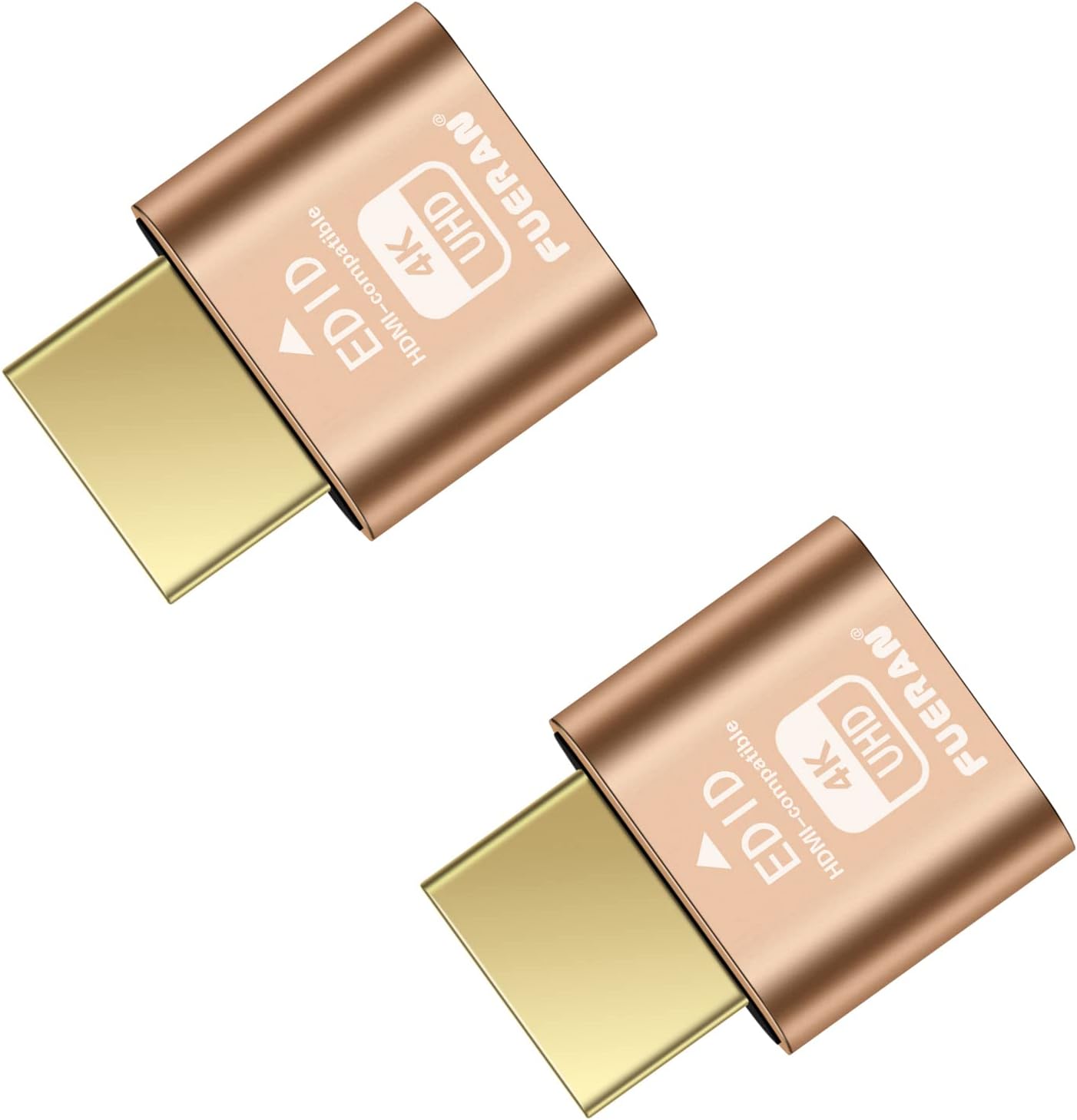
Figure 1.1: Two FUERAN 4K HDMI Dummy Plugs. These compact devices simulate a connected display for headless computer operations.
2. Setup
The FUERAN 4K HDMI Dummy Plug is designed for simple, plug-and-play installation. No drivers or complex software configurations are required.
2.1 Installation Steps
- Identify an Available HDMI Port: Locate an unused HDMI output port on your computer, server, or graphics card.
- Insert the Dummy Plug: Gently insert the FUERAN 4K HDMI Dummy Plug into the identified HDMI port. Ensure a secure connection.
- Power On/Restart System: If your system is off, power it on. If it is already running, a restart may be beneficial for the system to properly detect the virtual display.
The system will now detect a virtual display, allowing for high-resolution hardware-accelerated remote desktop and GPGPU operations.

Figure 2.1: The HDMI Dummy Plug connects directly to an HDMI output on a graphics card or computer.

Figure 2.2: Example of the dummy plug connected to a Mac Mini, enabling headless operation with high-resolution display emulation.
3. Operation
Once installed, the FUERAN 4K HDMI Dummy Plug operates automatically, simulating a connected display to keep your GPU active and enable various functionalities.
3.1 Monitor Simulation
The primary function of the dummy plug is to simulate a monitor, ensuring that your computer's GPU remains fully functional even when no physical monitor is connected. This is crucial for:
- Remote Desktop Access: Maintain high resolutions and smooth performance when accessing your system remotely via VNC, TeamViewer, AnyDesk, or similar software.
- GPGPU Operations: Facilitate tasks such as cryptocurrency mining, video rendering, and simulations that require an active GPU.
- Server Management: Prevent resolution drops or performance issues in server environments.
3.2 Supported Resolutions
The dummy plug supports a wide range of resolutions, allowing for versatile applications. The maximum supported resolutions include:
- 4096x2160@60Hz (4K Ultra HD)
- 3840x2160@60Hz (4K Ultra HD)
- 1920x1080@120Hz (Full HD)
- 1920x1200@60Hz
- 1280x800@60Hz
- 1024x768@60Hz
The device can also emulate other resolutions as needed by your system. Compatibility extends to PC Windows, Mac, Mac Mini OSX, and Linux operating systems.

Figure 3.1: Resolution compatibility chart for the FUERAN HDMI Dummy Plug.

Figure 3.2: Display settings interface demonstrating resolution options available with the dummy plug.
4. Maintenance
The FUERAN 4K HDMI Dummy Plug is a passive device and requires minimal maintenance.
- Cleaning: If necessary, gently wipe the exterior of the dummy plug with a dry, soft cloth. Avoid using liquid cleaners or abrasive materials.
- Storage: When not in use, store the dummy plug in a clean, dry environment away from extreme temperatures.
- Connection: Ensure the plug remains securely seated in the HDMI port to maintain consistent virtual display detection.
5. Troubleshooting
If you encounter issues while using your FUERAN 4K HDMI Dummy Plug, consider the following troubleshooting steps:
- No Virtual Display Detected:
- Ensure the dummy plug is fully inserted into the HDMI port.
- Restart your computer or graphics driver.
- Try a different HDMI port on your system, if available.
- Incorrect Resolution or Refresh Rate:
- Verify that your operating system's display settings are configured to the desired resolution and refresh rate. Refer to your OS documentation for instructions on adjusting display settings.
- Some systems or remote desktop software may have limitations on resolution.
- Performance Issues:
- Ensure your graphics drivers are up to date.
- Confirm that your system meets the requirements for the tasks you are performing (e.g., GPGPU operations).
- Compatibility with Specific Systems (e.g., Apple computers):
- While broadly compatible, some specific hardware or operating system versions may behave differently. For certain high-end or specific Apple computer setups, higher quality or 8K-capable adapters with appropriate cables might be required for optimal performance.
6. Specifications
The following are the technical specifications for the FUERAN 4K HDMI Dummy Plug (Model: 4328317061):
| Feature | Specification |
|---|---|
| Model Number | 4328317061 |
| Brand | FUERAN |
| Connector Type | HDMI |
| Supported Resolutions | Up to 4096x2160@60Hz, 3840x2160@60Hz, 1920x1080@120Hz, 1920x1200@60Hz, 1280x800@60Hz, 1024x768@60Hz |
| Compatible Devices | Desktops, Laptops, Servers, Graphics Cards (with HDMI output) |
| Operating Systems | Windows, Mac, Linux |
| Product Dimensions (L x W x H) | 0.43 x 0.31 x 0.13 inches |
| Item Weight | 0.035 ounces |
| Power Requirement | No external power required |

Figure 6.1: Overview of compatible ports and various headless adapter types.
7. Warranty and Support
Information regarding product warranty and customer support is not provided within this manual. For warranty details or technical assistance, please refer to the product packaging or contact the manufacturer directly through their official channels.
