
ezcap ezcap321C
USB3.1 Game Capture Card 4K30 User Manual
Model: ezcap321C | Brand: ezcap
1. Introduction
The ezcap USB3.1 Game Capture Card 4K30 is a versatile and powerful device designed for capturing and streaming high-quality video and audio from various HDMI sources. It offers advanced features such as 4K pass-through, high frame rate recording, and plug-and-play compatibility, making it an ideal solution for gamers, content creators, and professionals.
This manual provides detailed instructions on setting up, operating, and maintaining your ezcap Game Capture Card to ensure optimal performance and longevity.
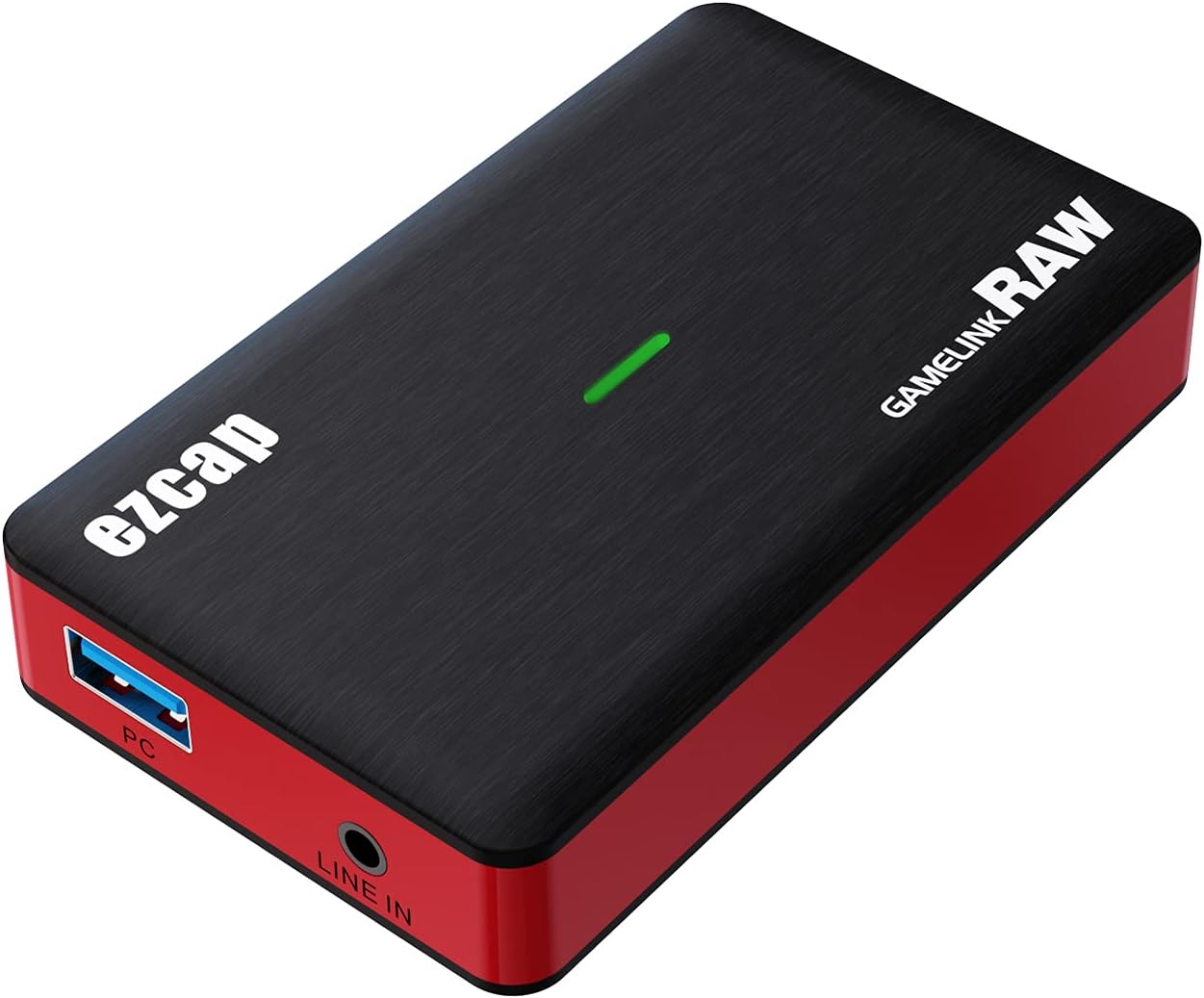
Figure 1.1: ezcap USB3.1 Game Capture Card 4K30
The image displays the ezcap USB3.1 Game Capture Card 4K30, a compact black device with red accents. The top surface features the 'ezcap' logo and 'GAMELINK RAW' branding, along with a green LED indicator. The front side shows a blue USB 3.0 port labeled 'PC' and a 3.5mm 'LINE IN' audio jack. The rear side, not fully visible, contains HDMI input and output ports.
2. Package Contents
Before you begin, please verify that all items are present in your package:
- ezcap USB3.1 Game Capture Card
- USB 3.0 Cable
- User Manual / Installation Guide
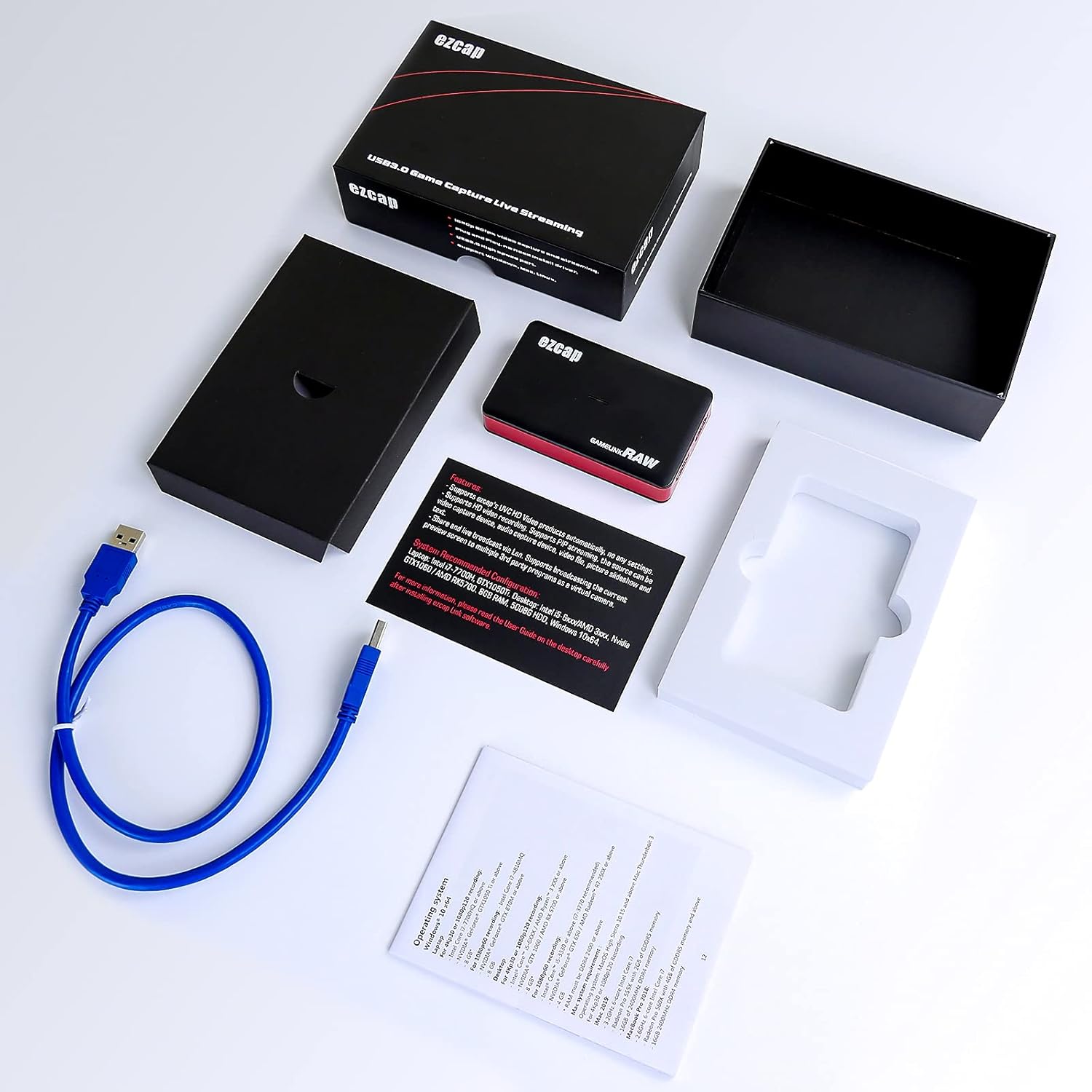
Figure 2.1: Package Contents
This image shows the unboxed contents of the ezcap Game Capture Card. It includes the black and red capture card device, a blue USB 3.0 cable, and the user manual/installation guide, all neatly arranged alongside the product packaging.
3. Device Overview
Familiarize yourself with the ports and indicators on your ezcap Game Capture Card:

Figure 3.1: Port Diagram
This diagram illustrates the various ports on the ezcap Game Capture Card. Labeled numerically, they are: 1. USB Port (for PC connection), 2. LINE IN (3.5mm audio input), 3. LED INDICATOR (status light), 4. HDMI IN (for source device), and 5. HDMI OUTPUT (for display pass-through).
- USB Port (PC): Connects to your computer for data transfer and power.
- LINE IN: 3.5mm audio input for external audio sources.
- LED Indicator: Shows the device's operational status.
- HDMI IN: Connect your video source (e.g., game console, camera) here.
- HDMI OUTPUT: Connect to a display (monitor, TV) for pass-through viewing.
4. Setup
The ezcap Game Capture Card is designed for plug-and-play operation, requiring no driver installation on compatible operating systems.
4.1. Connection Steps
- Connect the USB 3.0 cable from the capture card's USB port to an available USB 3.0 port on your computer.
- Connect your HDMI video source (e.g., game console, DSLR camera, camcorder) to the HDMI IN port on the capture card using an HDMI cable.
- (Optional) For low-latency pass-through, connect an HDMI cable from the HDMI OUTPUT port on the capture card to your TV or monitor.
- (Optional) If you wish to input external audio, connect a 3.5mm audio cable from your audio source to the LINE IN port.
Video 4.1: Connecting the ezcap Game Capture Card
This video demonstrates the physical connection process for the ezcap Game Capture Card. It shows how to connect the USB cable to a laptop, and then how to connect HDMI input and output cables to the device, illustrating the setup for capturing and passing through video from a game console.

Figure 4.2: Compatible Devices
This image displays the ezcap Game Capture Card at its center, surrounded by various compatible devices it can capture from. These include a Set-top box, GoPro camera, DSLR camera, computer, Gamebox (Nintendo Switch), and a Video Conference Camera, illustrating its broad compatibility.

Figure 4.3: 3.5mm TRS Line In Port Connection
The image shows the ezcap Game Capture Card connected to a laptop and a PlayStation 5 console, with an external microphone connected to the 3.5mm TRS Line In port. This setup demonstrates how to integrate external audio into the capture or stream, with the game displayed on a large monitor.

Figure 4.4: Mobile Device Connection Note
This image highlights that an MHL to HDMI converter cable is required to connect mobile devices to the capture card. It shows a smartphone connected via such a cable to the capture card, which is then connected to a laptop and a large display, enabling mobile content capture.
5. Operating Instructions
5.1. Software Compatibility
The ezcap Game Capture Card is UVC (USB Video Class) standard compliant, meaning it works with most popular video capture and streaming software without the need for proprietary drivers. Compatible software includes:
- OBS Studio
- Mimo Live
- VMix
- VLC
- ezcap Link (self-developed software)
5.2. Recording and Streaming
Once connected, open your preferred video capture software (e.g., OBS Studio). The capture card will appear as a video input device. Select it as your video source and configure your desired resolution, frame rate, and audio settings. The device supports various video formats including YUY2, NV12, and RGB.

Figure 5.1: ezcap Link Software Interface
This image displays the interface of the ezcap Link software running on a laptop. It shows a table of video format options and their corresponding maximum FPS, including resolutions like 3840x2160, 1920x1080, and 2560x1440, with various YUY2, NV12, and XRBG formats. The software also indicates recording status and audio capture device information.
The HDMI loop-out feature allows you to play games or view content on a separate display with virtually no latency (less than 50ms), while simultaneously capturing the feed on your computer.
Figure 5.2: Low Latency Pass-through
This image shows two ezcap Game Capture Cards, emphasizing their low latency performance (less than 50ms). The devices are depicted in a sleek, modern setting, highlighting their compact design and suitability for professional setups where minimal delay is crucial.
6. Maintenance
To ensure the longevity and optimal performance of your ezcap Game Capture Card, follow these general maintenance guidelines:
- Keep the device clean and free from dust. Use a soft, dry cloth for cleaning.
- Avoid exposing the device to extreme temperatures, humidity, or direct sunlight.
- Do not block the ventilation openings (if any) to prevent overheating.
- Handle cables and connectors carefully to prevent damage to the ports.
- Store the device in a cool, dry place when not in use.
7. Troubleshooting
If you encounter issues with your ezcap Game Capture Card, consider the following troubleshooting steps:
-
No Signal/Black Screen:
- Ensure all HDMI and USB cables are securely connected.
- Verify that your video source (e.g., game console) is powered on and outputting video.
- Check your capture software settings to ensure the correct video input device is selected.
- Try a different HDMI cable or USB port on your computer.
-
Low Resolution/Frame Rate:
- Ensure your computer's USB port is a USB 3.0/3.1 port. USB 2.0 ports may not provide sufficient bandwidth for higher resolutions/frame rates.
- Check your capture software settings to confirm the desired resolution and frame rate are selected.
- Firmware Update: Some users have reported that updating the device firmware resolved issues with resolution and FPS. Visit the official ezcap website (ezcap.com/ezcap321) to check for the latest firmware and update instructions. This often involves running a specific tool and selecting the correct firmware file for your model (e.g., "321X_A_B_C_1213_1.4.6_20220310.hex" for ezcap321X).
-
Audio Issues:
- Verify audio settings in your capture software.
- Ensure the audio source connected to the LINE IN port is functioning correctly.
-
Random Pauses/Disconnections:
- Ensure your computer meets the minimum system requirements.
- Try connecting the capture card to a different USB 3.0 port.
- Reduce the resolution or frame rate in your capture software to see if stability improves.
8. Specifications
| Feature | Detail |
|---|---|
| Brand | ezcap |
| Model Number | ezcap321C |
| Hardware Interface | USB 3.0 |
| Video Capture Resolution | Up to 4K@30fps, 1080p@120fps, 1440p@60fps |
| HDMI Pass-through | Up to 4K@30fps, 1080p@120fps, 1440p@60fps |
| Operating System Compatibility | Linux, Windows 8, Windows 10 |
| Recommended Uses | Video Recording, Live Streaming |
| Item Weight | 7.4 ounces |
| Package Dimensions | 6 x 4.2 x 3.4 inches |
9. Warranty Information
For detailed warranty information regarding your ezcap USB3.1 Game Capture Card 4K30, please refer to the warranty card included in the product packaging or visit the official ezcap website. Warranty terms and conditions may vary by region and retailer.
10. Support
If you require further assistance or have questions not covered in this manual, please visit the official ezcap support website or contact their customer service. Keep your product model number (ezcap321C) and purchase details ready when seeking support.
Official ezcap Website: www.ezcap.com
Related documentsezcap321C


Ask a question about this manual
Ask about setup, troubleshooting, compatibility, parts, safety, or missing instructions. Manuals+ will review the question and use this page’s manual context to help answer it.