
1. Introduction
The Arkscan AS500 is a versatile wireless mini barcode ring scanner designed for comfort and efficiency. Its ergonomic design allows for hands-free operation, making it ideal for various applications such as picking, sorting, inventory management in warehouses, distribution centers, retail stores, and libraries. This device supports both online wireless mode and offline memory mode, capable of storing up to 20,000 barcodes.
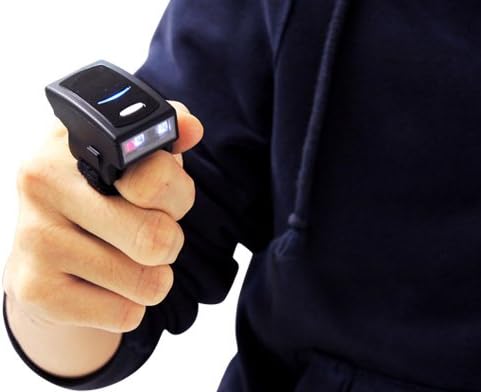
The Arkscan AS500 scanner is designed to be worn comfortably on a finger, enabling hands-free scanning.
2. Package Contents
- Arkscan AS500 Wireless Ring Mini Barcode Scanner Unit
- USB Charging Cable
- User Manual
3. Product Overview
Key Features
- Compatible with iOS, Android, Windows, PC, Mac, and Linux devices.
- Easy setup and pairing with devices.
- Dedicated iOS button for simultaneous on-screen keyboard typing and barcode scanning.
- Small, wearable, and lightweight design for hands-free scanning.
- Capable of scanning barcodes from both paper and computer screens.
- Long-lasting battery, supporting approximately 6000 scans per charge.
- Wireless range of up to 10 meters (33 feet) line of sight.
- Multiple scanning modes: continuous, manual/trigger, flash, toggle, and auto close.
- Offline memory mode with 2MB storage, capable of storing up to 20,000 barcodes.
- Supports wireless HID, wireless SPP, USB HID, and USB VCP profiles.
Supported 1D Symbologies
Codabar, Code 11, Code 32 (PARAF), Code 128, Code 2 of 5, Code 39, Code 93, EAN/JAN-13, EAN/JAN 8, EAN-UCC Emulation, IATA Code 2 of 5, Interleaved 2 of 5, Matrix 2 of 5, MSI, GS1 DataBar, TCIF Linked Code 39, UPC-A, UPC E, GS1 Databar, UPC-A/EAN-13 with Extended coupon Code, Coupon GS1, GS1 codebar.
4. Setup
4.1 Charging the Scanner
Before initial use, fully charge the scanner. Connect the provided USB charging cable to the scanner and a power source (e.g., computer USB port or USB wall adapter). The LED indicator will show charging status.
4.2 Powering On/Off
- To Power On: Press and hold the trigger button for approximately 1 second until you hear a beep and the indicator light turns on.
- To Power Off: Press and hold the trigger button for several seconds until the indicator light turns off and you hear a power-off tone.
5. Connectivity and Pairing
5.1 Bluetooth HID Mode (Recommended)
This mode allows the scanner to function as a wireless keyboard, sending scanned data directly to any text input field on your connected device without requiring special software.
- Ensure the scanner is powered on and fully charged.
- Scan the 'BT mode - HID' barcode from your user manual (or a configuration sheet if provided). The scanner will emit several beeps.
- On your host device (smartphone, tablet, PC), go to Bluetooth settings and enable Bluetooth.
- Search for available devices. The scanner should appear as 'Wireless Scanner' or similar.
- Select 'Wireless Scanner' from the discovered device list to initiate pairing.
- Once successfully paired, the scanner will beep twice to confirm the connection.
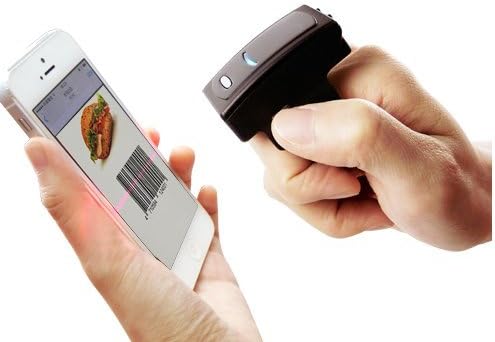
The Arkscan AS500 can scan barcodes directly from a smartphone screen.
For iOS Devices: The AS500 includes a secondary iOS button. Pressing this button enables the on-screen keyboard for typing while maintaining the scanner connection, eliminating the need to disconnect and reconnect.
5.2 Bluetooth SPP Mode
This mode is typically used for applications that require a serial port profile for data communication. It may require specific software or drivers on the host device to interpret the data. Scan the 'BT mode - SPP' barcode from your user manual to switch to this mode.
5.3 USB Connectivity
The scanner can also be connected directly to a computer via the USB cable. In USB HID mode, it functions as a wired keyboard. In USB VCP (Virtual COM Port) mode, it emulates a serial port, requiring appropriate drivers and software.
6. Operating the Scanner
6.1 Basic Scanning
To scan a barcode, aim the laser aimer at the center of the barcode and press the trigger button. A successful scan will be indicated by a beep and/or a change in the indicator light.

The AS500 scanner in use within a warehouse environment, scanning a package.
6.2 Scanning Modes
The AS500 supports various scanning modes to suit different operational needs:
- Continuous Mode: Scans continuously without needing to press the trigger for each barcode.
- Manual/Trigger Mode: Requires a press of the trigger for each scan.
- Flash Mode: Scans rapidly when the trigger is held down.
- Toggle Mode: Press once to start continuous scanning, press again to stop.
- Auto Close Mode: The scanner automatically powers off after a period of inactivity to conserve battery.
6.3 Offline Memory Mode (Data Collector)
When operating in offline memory mode, the AS500 can store up to 20,000 barcodes in its internal 2MB memory. This is useful for collecting data when out of range of a host device. To retrieve stored data, connect the scanner via USB and follow the instructions in your full user manual for data download.

The Arkscan AS500 scanner is used to efficiently scan barcodes on multiple books.
7. Maintenance
7.1 Cleaning
To maintain optimal performance, keep the scanner's scanning window clean. Use a soft, lint-free cloth, slightly dampened with water or a mild cleaning solution. Avoid abrasive materials or harsh chemicals that could scratch the window or damage the device.
7.2 Battery Care
The AS500 uses a Lithium Metal battery. To prolong battery life, avoid fully discharging the battery frequently. Store the scanner in a cool, dry place when not in use for extended periods. Recharge the battery regularly, even if the scanner is not in active use.
8. Troubleshooting
Common Issues and Solutions
- Scanner not pairing with device:
- Ensure the scanner is fully charged and powered on.
- Verify Bluetooth is enabled on your host device.
- Try turning your device's Bluetooth off and on again.
- Rescan the 'BT mode - HID' (or SPP) barcode to ensure the scanner is in the correct pairing mode.
- No data transmitted after scanning:
- Confirm the scanner is successfully paired and connected to your device.
- Ensure the cursor is in a text input field on your device.
- Check if the scanner is in offline memory mode; if so, switch to a real-time transmission mode.
- Scanner not turning on:
- The battery may be depleted. Connect the scanner to a power source using the USB cable and allow it to charge.
- Poor scanning performance:
- Ensure the barcode is clean and not damaged.
- Adjust the distance and angle between the scanner and the barcode.
- Clean the scanner's optical window.
9. Specifications
| Product Dimensions | 2 x 0.5 x 0.25 inches |
| Item Weight | 0.75 ounces |
| Batteries | 1 Lithium Metal battery (included) |
| Compatible Devices | Personal Computer, Smartphone, Tablet |
| Power Source | Battery Powered, Corded Electric |
| Connectivity Technology | Bluetooth, USB |
| Memory | 2MB (stores up to 20,000 barcodes in offline mode) |
| Wireless Range | Up to 10 meters / 33 feet (line of sight) |
10. Warranty and Support
10.1 Warranty Information
The Arkscan AS500 Wireless Ring Mini Barcode Scanner is covered by a manufacturer's warranty. Please refer to the warranty card included in your product packaging or visit the official Arkscan website for detailed warranty terms and conditions.
10.2 Customer Support
For technical assistance, troubleshooting, or any product-related inquiries, please contact Arkscan customer support. Contact information can typically be found on the Arkscan website or in your product documentation.