
Harman Kardon HKOMNI20PLSWHT
Harman Kardon Omni 20 Plus Wireless HD Stereo Speaker User Manual
Model: HKOMNI20PLSWHT
1. Important Safety Information
Please read all safety warnings and instructions carefully before using this product. Keep this manual for future reference.
- Do not expose this apparatus to dripping or splashing.
- Do not place objects filled with liquids, such as vases, on the apparatus.
- Ensure proper ventilation. Do not block any ventilation openings.
- Do not install near any heat sources such as radiators, heat registers, stoves, or other apparatus (including amplifiers) that produce heat.
- Only use attachments/accessories specified by the manufacturer.
- Unplug this apparatus during lightning storms or when unused for long periods of time.
- Refer all servicing to qualified service personnel.
2. Product Overview
The Harman Kardon Omni 20 Plus is a wireless HD stereo speaker designed to deliver rich, high-fidelity audio throughout your home. It features Chromecast built-in for seamless music streaming and supports 24-bit/192kHz HD audio.

Image: Harman Kardon Omni 20 Plus Speaker. This image shows the overall design of the Harman Kardon Omni 20 Plus wireless speaker in white, highlighting its sleek, oval shape and fabric grille.
2.1. Features
- Stream music from your phone to your speaker with Chromecast built-in.
- 24-bit/192kHz HD Audio streaming with digital and analog connectivity.
- Wireless connectivity via Bluetooth and Wi-Fi.
- Stereo pairing capability for an immersive sound experience.
2.2. Package Contents
Carefully unpack your Omni 20 Plus speaker. Ensure all items listed below are present and in good condition.
- 1 x Harman Kardon Omni 20 Plus Wireless HD Stereo Speaker
- 1 x Remote Control
- 1 x Power Cable
- 1 x Quick Start Guide
- 1 x Safety Sheet
Note: The product is designed as a single stereo speaker unit. While some documentation may refer to "2 Speakers" in component lists, this typically refers to the internal stereo drivers within the single unit.
2.3. Speaker Components and Controls

Image: Top Controls. This image displays the top panel of the Harman Kardon Omni 20 Plus speaker, highlighting the touch-sensitive control buttons for power, play/pause, and volume adjustment.

Image: Rear Panel. This image shows the rear of the Harman Kardon Omni 20 Plus speaker, detailing the power input and other potential connectivity ports.
3. Setup
3.1. Initial Placement
Place your Omni 20 Plus speaker on a stable, flat surface. For optimal sound quality, position it in a central location within the room, away from obstructions that might block the sound. Ensure it is within range of your Wi-Fi network if you plan to use wireless streaming.

Image: Speaker Placement. This image illustrates the Harman Kardon Omni 20 Plus speaker positioned on a wooden surface, demonstrating a typical home setup for optimal audio dispersion.
3.2. Power Connection
- Connect the power cable to the power input port on the rear of the Omni 20 Plus speaker.
- Plug the other end of the power cable into a wall outlet.
- The speaker will power on automatically or indicate readiness for setup.
3.3. Network Setup (Wi-Fi with Chromecast built-in)
The Omni 20 Plus uses Chromecast built-in for Wi-Fi audio streaming. You will need the Google Home app to set up the speaker on your Wi-Fi network.
- Download the Google Home app from the App Store (iOS) or Google Play Store (Android) on your smartphone or tablet.
- Ensure your mobile device is connected to the same Wi-Fi network you wish to connect the speaker to.
- Open the Google Home app and follow the on-screen instructions to set up a new device. The app should detect your Omni 20 Plus speaker.
- During setup, you will be prompted to select your Wi-Fi network and enter the password.
- Once connected, the speaker will be ready for casting audio from compatible applications.
Note: Some users have reported needing to download the Harman Kardon Controller app directly from the Harman Kardon website if the Google Play Store version is not available or causes issues. This app can also assist with setup and advanced features.
4. Operating the Speaker
4.1. Bluetooth Pairing
To stream audio via Bluetooth:
- Press the Bluetooth button (usually indicated by a Bluetooth icon) on the top panel of the Omni 20 Plus speaker. The indicator light will begin to flash, indicating pairing mode.
- On your mobile device, go to Bluetooth settings and select "Harman Kardon Omni 20 Plus" from the list of available devices.
- Once paired, the indicator light on the speaker will turn solid, and you can begin playing audio from your device.
4.2. Wi-Fi Streaming (Chromecast built-in)
After initial Wi-Fi setup, you can stream audio from any Chromecast-enabled app:
- Open a music streaming app (e.g., Spotify, Pandora, Google Play Music) on your mobile device.
- Look for the Cast icon (a rectangle with three curved lines emanating from the bottom-left corner) within the app.
- Tap the Cast icon and select your "Harman Kardon Omni 20 Plus" speaker from the list of devices.
- The audio will now play through your speaker.
4.3. Using the Remote Control
The included remote control allows for convenient operation of your speaker:
- Power Button: Turns the speaker on or off.
- Volume Up/Down: Adjusts the speaker's volume.
- Play/Pause: Controls media playback.
- Source Selection: Switches between input sources (e.g., Wi-Fi, Bluetooth, Aux).
- Other buttons may include track skip, mute, or preset selection depending on the remote model.
4.4. Stereo Pairing
If you have two Omni 20 Plus speakers, you can pair them for a true stereo sound experience. Refer to the Google Home app or Harman Kardon Controller app for specific instructions on creating a stereo pair or speaker group.
5. Maintenance
5.1. Cleaning
To maintain the appearance and performance of your speaker:
- Unplug the speaker from the power outlet before cleaning.
- Use a soft, dry cloth to wipe the exterior surfaces.
- Do not use liquid cleaners, aerosol sprays, or abrasive chemicals, as these may damage the finish or internal components.
5.2. Storage
If storing the speaker for an extended period, unplug it from the power source and store it in a cool, dry place, away from direct sunlight and extreme temperatures.
6. Troubleshooting
| Problem | Possible Cause | Solution |
|---|---|---|
| No power | Power cable not connected; outlet not active. | Ensure power cable is securely connected to speaker and a working wall outlet. |
| No sound | Volume too low; incorrect input source; device not connected. | Increase volume; select correct input source (Wi-Fi, Bluetooth); ensure device is paired/connected. |
| Cannot connect to Wi-Fi | Incorrect Wi-Fi password; speaker out of range; network issues. | Verify Wi-Fi password; move speaker closer to router; restart router and speaker; try Harman Kardon Controller app. |
| Bluetooth audio stuttering/poor quality | Interference; device too far; outdated firmware. | Move device closer to speaker; reduce interference from other wireless devices; check for firmware updates. |
| Speaker unresponsive | Temporary software glitch. | Unplug the speaker from power for 30 seconds, then plug it back in to perform a soft reset. |
7. Specifications
- Model Name: Omni 20
- Model Number: HKOMNI20PLSWHT
- Speaker Type: Stereo Speaker
- Connectivity: Bluetooth, Wi-Fi
- Audio Output Mode: Stereo
- Speaker Maximum Output Power: 150 Watts
- Product Dimensions (W x D x H): 14.29" x 7.8" x 8.66" (363mm x 198mm x 220mm approx.)
- Item Weight: 4.69 pounds (2.13 Kilograms)
- Color: White
- Power Source: Battery Powered
- Woofer Diameter: 8.5 Centimeters
- Speaker Size (Tweeter): 1 Inches
- Wireless Communication Technology: Bluetooth, Wi-Fi
- Control Method: Remote
- Recommended Uses: Music
- Compatible Devices: Smartphone, Tablet, Laptop, Television
- Indoor/Outdoor Usage: Indoor
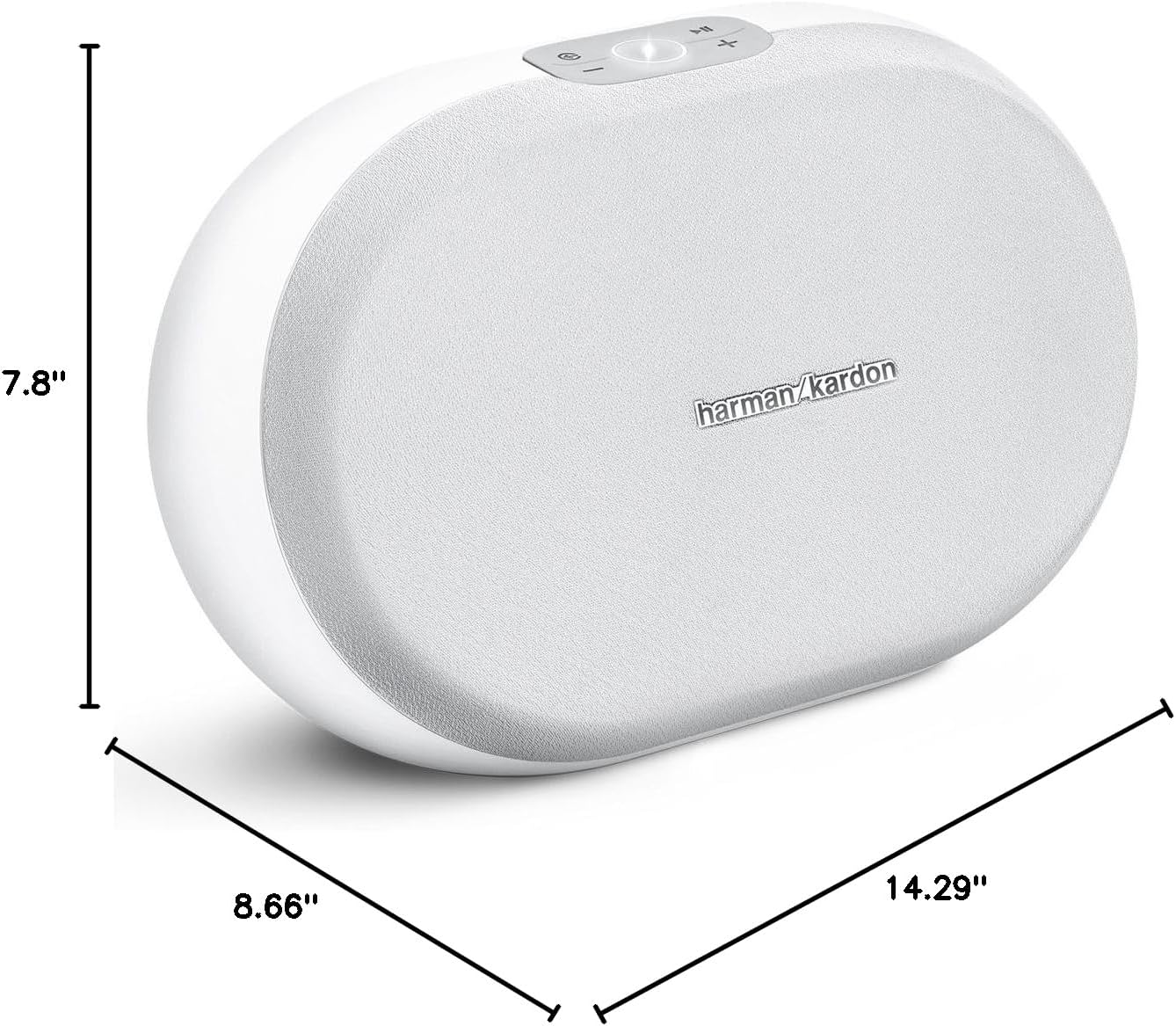
Image: Product Dimensions. This image provides a visual representation of the Harman Kardon Omni 20 Plus speaker's dimensions, including its depth, width, and height, for accurate placement and fit.
8. Warranty and Support
Harman Kardon products are designed for reliability and performance. For warranty information, technical support, or service inquiries, please visit the official Harman Kardon website or contact their customer service department.
- Official Website: www.harmankardon.com
- Customer Support: Refer to the website for regional contact information and support hours.
Keep your proof of purchase for warranty claims.
Ask a question about this manual
Ask about setup, troubleshooting, compatibility, parts, safety, or missing instructions. Manuals+ will review the question and use this page’s manual context to help answer it.