
DOOGEE BL5000
DOOGEE BL5000 Smartphone User Manual
Model: BL5000
Introduction
This user manual provides essential information for the safe and efficient operation of your DOOGEE BL5000 smartphone. Please read this manual thoroughly before using your device to ensure proper functionality and to avoid damage.
The DOOGEE BL5000 is a high-performance smartphone featuring a 5.5-inch FHD display, powered by an Octa-core processor, and equipped with 4GB RAM and 64GB internal storage. It runs on Android v7.0 (Nougat) operating system.
Device Overview
Familiarize yourself with the physical components of your DOOGEE BL5000 smartphone.

Figure 1: Front and side view of the DOOGEE BL5000 smartphone, highlighting its sleek design and button placement.
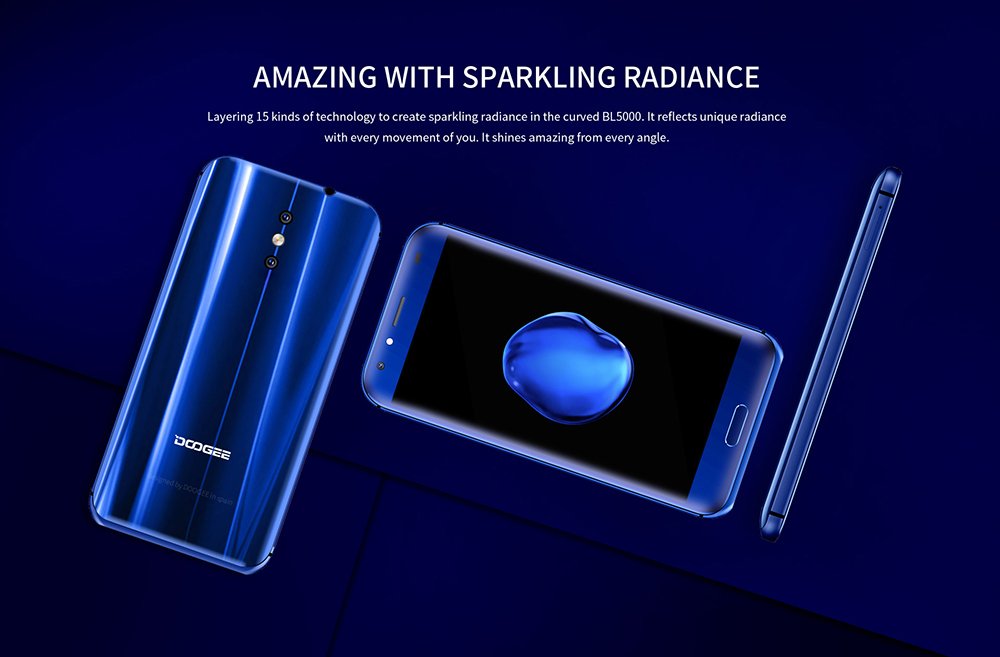
Figure 2: Rear and front view of the DOOGEE BL5000, showcasing its curved design and sparkling radiance achieved through 15 layers of technology.

Figure 3: A display of multiple DOOGEE BL5000 smartphones in blue, gold, and black, emphasizing the 8-sided curved design that provides an ergonomic grip.
Setup
1. Inserting SIM Cards and SD Card
The DOOGEE BL5000 supports dual SIM cards and an expandable memory card. Locate the SIM tray on the side of the device. Use the provided SIM ejector tool to open the tray. Carefully place your Nano-SIM cards and/or microSD card into the designated slots. Ensure the cards are correctly oriented as indicated on the tray. Gently push the tray back into the device until it clicks into place.
2. Initial Power On and Setup Wizard
Press and hold the Power button on the side of the phone until the DOOGEE logo appears. The phone will boot up and guide you through the initial setup wizard. Follow the on-screen prompts to select your language, connect to a Wi-Fi network, set up your Google account, and configure security settings (fingerprint, PIN, pattern, or password).
3. Charging the Battery
Before first use, it is recommended to fully charge the device. Connect the USB cable to the phone's charging port and the other end to a power adapter. Plug the adapter into a wall outlet. The battery indicator on the screen will show charging progress. The BL5000 features a 5050mAh battery and supports 12V-2A quick charging.

Figure 4: Illustration of the DOOGEE BL5000's large 5050mAh battery, designed for extended usage.

Figure 5: The DOOGEE BL5000 supports 12V-2A quick charging, allowing for significant battery charge in a short period, such as 40% in 10 minutes.
Operating Your Smartphone
Basic Navigation
- Power Button: Press to wake/sleep the screen. Press and hold to power on/off or restart.
- Volume Buttons: Adjust media volume during playback or ringtone volume.
- Home Button: Tap to return to the home screen.
- Back Button: Tap to go back to the previous screen.
- Recent Apps Button: Tap to view and switch between recently used applications.
Display and Brightness
The BL5000 features a 5.5-inch FHD (1920x1080) display with 650nit brightness, ensuring clear visibility even in bright sunlight. You can adjust the brightness manually or enable auto-brightness in the display settings.

Figure 6: The DOOGEE BL5000's 650nit display ensures excellent visibility and vivid colors, even under direct sunlight.
Camera Features
The DOOGEE BL5000 is equipped with a dual 13.0MP rear camera system that supports PDAF and a soft flashlight. It can create a blur effect for professional-looking portraits.

Figure 7: The DOOGEE BL5000's dual camera system can produce a natural blur effect, similar to DSLR cameras, enhancing portrait photography.
Connectivity
The device supports 4G and 4G+ networks with LTE Cat-6, offering faster download and upload speeds. It also includes Wi-Fi, Bluetooth, and USB connectivity options.

Figure 8: The DOOGEE BL5000 supports advanced 4G+ (LTE Cat-6) network technology, providing significantly faster internet speeds compared to standard 4G.
Maintenance
- Cleaning: Use a soft, lint-free cloth to clean the screen and body of the phone. Avoid using harsh chemicals or abrasive materials.
- Software Updates: Regularly check for system updates to ensure optimal performance and security. Go to Settings > About phone > System updates.
- Battery Care: To prolong battery life, avoid exposing the phone to extreme temperatures. Do not let the battery drain completely before recharging frequently.
- Storage Management: Periodically clear cache, uninstall unused apps, and transfer large files to external storage (SD card) to maintain sufficient free space. The BL5000 comes with 64GB of internal storage.
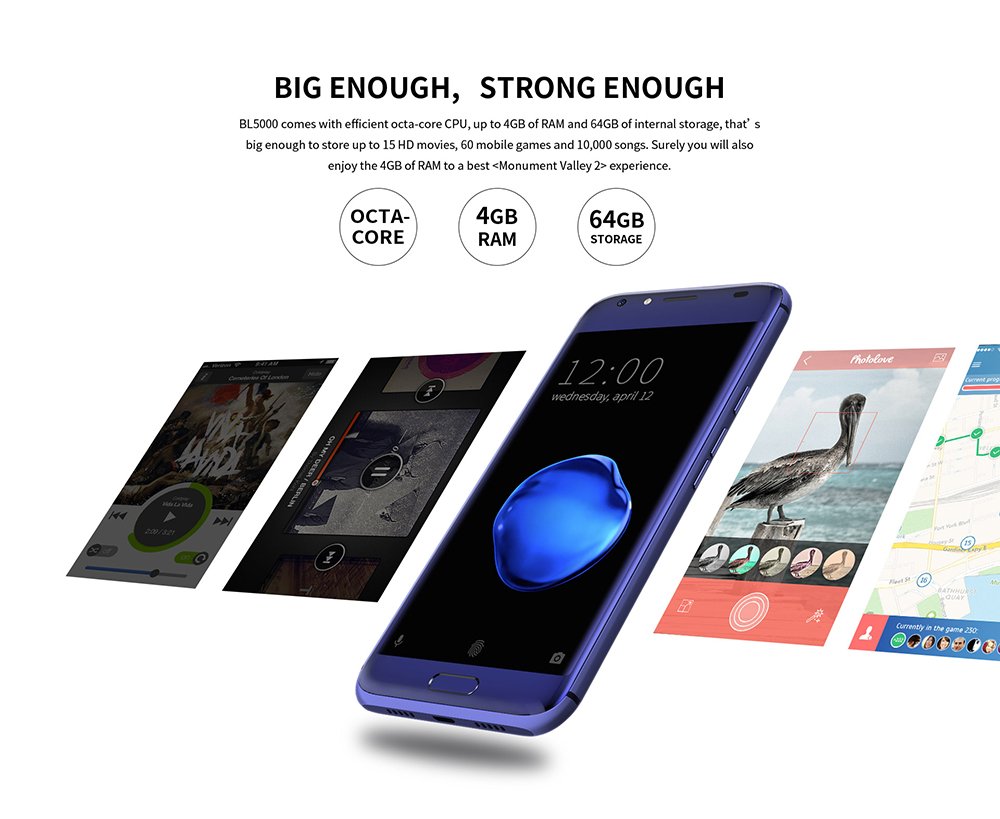
Figure 9: The DOOGEE BL5000 is powered by an efficient Octa-core CPU, 4GB RAM, and 64GB internal storage, providing ample power and space for applications and media.
Troubleshooting
| Problem | Possible Solution |
|---|---|
| Phone does not turn on | Ensure the battery is charged. Connect to a charger and wait a few minutes before attempting to power on. |
| Apps are crashing or freezing | Clear the app's cache (Settings > Apps > [App Name] > Storage > Clear cache). If the issue persists, try reinstalling the app or performing a factory reset (backup data first). |
| Poor network signal | Check if SIM card is properly inserted. Try restarting the phone. Ensure you are in an area with network coverage. |
| Battery drains quickly | Reduce screen brightness, disable unused features like Wi-Fi/Bluetooth when not in use, close background apps, and limit location services. |
Specifications
| Feature | Detail |
|---|---|
| Model | DOOGEE BL5000 |
| Operating System | Android v7.0 (Nougat) |
| Display | 5.5-inch FHD (1920 x 1080) LCD, 650nit brightness |
| Processor | Octa core (1.5 GHz Quad core + 1 GHz Quad core, Cortex A53) |
| RAM | 4 GB |
| Internal Storage | 64 GB |
| Rear Camera | Dual 13.0 MP with PDAF and soft flashlight |
| Battery | 5050 mAh, supports 12V-2A Quick Charge |
| Dimensions (LxWxH) | 15.5 x 7.6 x 1 cm |
| Weight | 210 g |
| Connectivity | 4G/4G+ (LTE Cat-6), Wi-Fi, Bluetooth, USB |
| GPS | GLONASS |
| Color | Blue |
Warranty and Support
For warranty information and technical support, please refer to the warranty card included with your product packaging or visit the official DOOGEE website. Keep your purchase receipt as proof of purchase for warranty claims.
For further assistance, you may contact DOOGEE customer service through their official channels. Details can typically be found on the manufacturer's website or in the product's original documentation.
Related documentsBL5000


Ask a question about this manual
Ask about setup, troubleshooting, compatibility, parts, safety, or missing instructions. Manuals+ will review the question and use this page’s manual context to help answer it.