Introduction
The RapidX PowX Wall Outlet with USB Charger is designed to enhance your standard electrical outlets by adding two USB charging ports without occupying the existing AC outlet. This compact device allows for simultaneous charging of mobile devices while keeping the AC outlet available for other electronics. Its design permits stacking two PowX units into a standard two-socket outlet.
Setup Instructions
- Unpacking: Carefully remove the PowX unit from its packaging.
- Placement: Identify a standard 2-prong or 3-prong wall outlet where you wish to install the PowX.
- Installation: Plug the PowX unit directly into one of the existing sockets of the wall outlet. Ensure it is firmly seated. The unit is designed to fit snugly and provide an additional AC outlet on its front face, along with two USB ports.
- Multiple Units: For a standard duplex outlet, two PowX units can be installed, one in each socket, to maximize charging capabilities.

Image: A single blue RapidX PowX unit plugged into a wall outlet, showing its compact design and available ports.
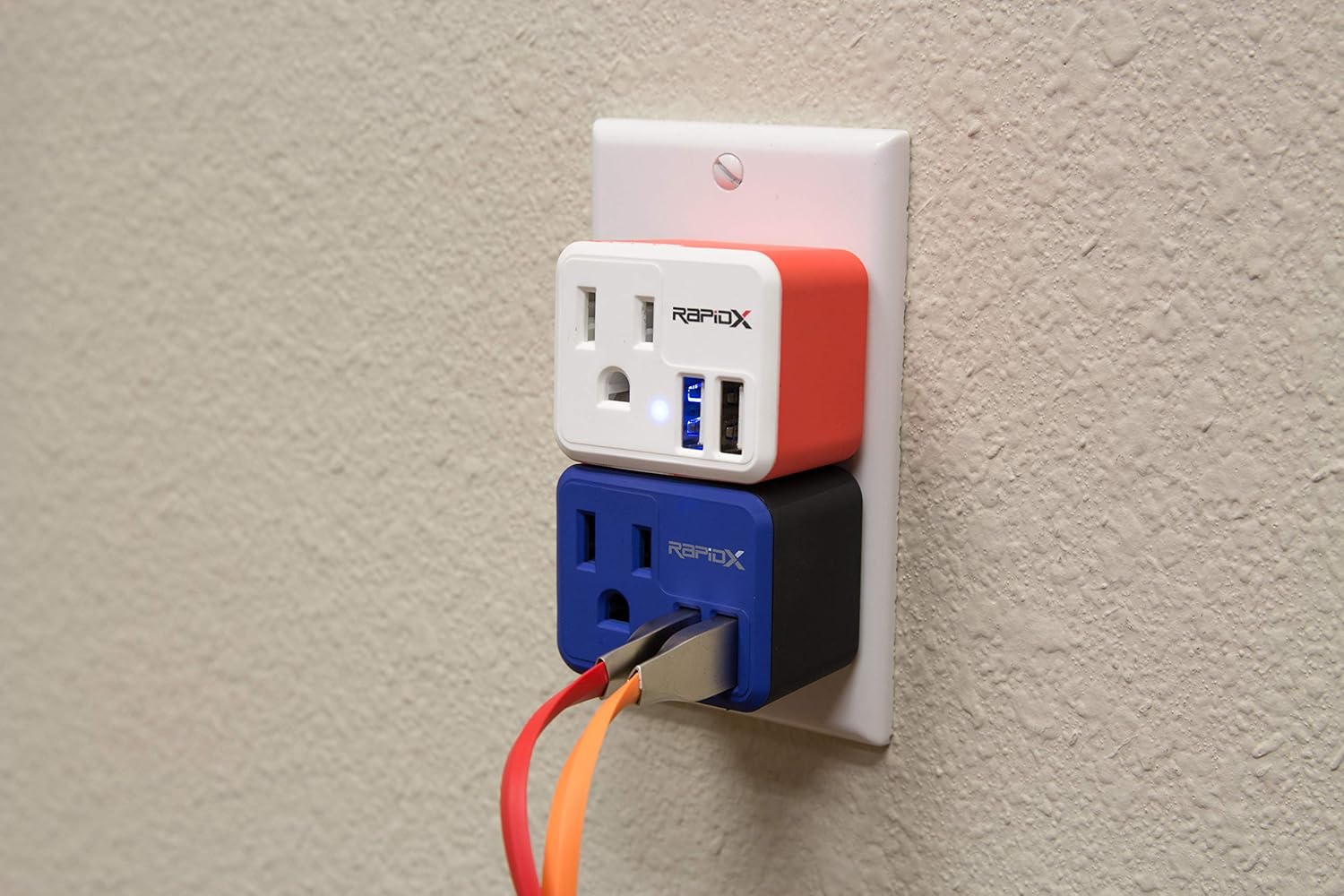
Image: Two RapidX PowX units, one red and one blue, stacked vertically in a standard duplex wall outlet, demonstrating how they can be used together.
Operating Instructions
The PowX unit provides both an AC outlet and two USB charging ports for your convenience.
- Using the AC Outlet: Plug any standard electrical device into the AC outlet located on the front of the PowX unit. Ensure the device's power requirements do not exceed the PowX's maximum output.
- Using the USB Ports: Connect your mobile devices (smartphones, tablets, etc.) to the USB ports using appropriate USB cables. The USB ports provide 5V/2.4A output, suitable for charging most USB-powered devices.
- Charging Indicator: The blue LED indicator on the PowX unit illuminates when power is supplied to the USB ports, indicating active charging capability.
Video: This video demonstrates the versatility of the RapidX PowX and DualX products, showing how they can be used to charge devices in various settings, including wall outlets and car chargers. It highlights the convenience of having both AC and USB charging options.
Maintenance
- Cleaning: Disconnect the PowX unit from the wall outlet before cleaning. Use a soft, dry cloth to wipe the exterior. Do not use liquid cleaners or aerosols.
- Storage: Store the unit in a cool, dry place when not in use.
- Safety: Do not attempt to disassemble or modify the unit. Avoid exposing the unit to moisture or extreme temperatures.
Troubleshooting
| Problem | Possible Cause | Solution |
|---|---|---|
| Device not charging via USB. | USB cable is faulty; device is not properly connected; PowX unit is not receiving power. | Try a different USB cable. Ensure the device is securely connected. Check if the PowX unit is firmly plugged into the wall outlet and the blue LED is illuminated. |
| AC outlet not providing power. | PowX unit is not receiving power; connected device is faulty. | Verify the PowX unit is securely plugged into a live wall outlet. Test the connected device in another outlet. |
| PowX unit feels loose in the wall outlet. | Worn wall outlet; improper insertion. | Ensure the unit is pushed in completely. If the outlet is worn, consider using a different outlet or having an electrician inspect it. |
Specifications
- Model: RX-POWXBL
- Brand: RapidX
- Product Dimensions: 1.75 x 1.5 x 1.38 inches
- Item Weight: 1.58 ounces
- USB Output: 5V/2.4A (total for both ports)
- AC Outlet Output: 110V-240V, 50-60Hz, 10A
- Connectivity: USB, AC
- Compatible Devices: iPhone, Android devices, and other USB-powered devices.
- Color: Blue (as per product variant)
Warranty Information
RapidX products are covered by a limited warranty against defects in materials and workmanship. For specific warranty terms and conditions, please refer to the warranty card included with your product or visit the official RapidX website. Keep your proof of purchase for warranty claims.
Customer Support
For technical assistance, product inquiries, or to report any issues, please contact RapidX customer support. Contact information can typically be found on the product packaging or on the official RapidX website.
- Online Support: Visit the RapidX Store on Amazon or the official RapidX website.
- Included in Box: The product package includes a user manual for additional information.


