
Introduction
Thank you for choosing the Trust Mydo Wireless Mouse. This manual provides detailed instructions for setting up, operating, maintaining, and troubleshooting your new wireless mouse. Designed for comfort and efficiency, the Mydo mouse features silent clicks, adjustable DPI, and an ambidextrous design, making it suitable for various computing needs.

Image: The Trust Mydo Wireless Mouse, a black, ergonomically designed mouse with a scroll wheel and DPI button visible on top.
Package Contents
Ensure all items are present in the package:
- Wireless mouse
- Micro USB Receiver
- 2 x AAA batteries

Image: The retail packaging for the Trust Mydo Silent Wireless Mouse, showing the mouse and key features.
Setup
- Insert Batteries: Open the battery compartment on the underside of the mouse. Insert the two AAA batteries, ensuring correct polarity (+/-). Close the compartment.
- Connect USB Receiver: Locate the micro USB receiver, usually stored within the battery compartment or a dedicated slot on the mouse. Plug the USB receiver into an available USB port on your computer (PC or Mac).
- Power On: Turn on the mouse using the power switch, typically located on the underside.
- Automatic Connection: The mouse should automatically connect to your computer. No additional drivers are usually required for Windows, macOS, or Chrome OS.

Image: A user's hand operating the Trust Mydo mouse on a mouse pad next to a laptop, illustrating the wireless connection via a small USB receiver plugged into the laptop.
Operating Instructions
Basic Operation
The Trust Mydo Wireless Mouse functions like a standard computer mouse. Use the left button for primary clicks, the right button for secondary clicks (context menus), and the scroll wheel for vertical navigation.
Silent Click Feature
The Mydo mouse is designed with silent click technology, reducing click sounds by at least 90%. This feature provides a quiet working environment without compromising tactile feedback.

Image: The Trust Mydo Wireless Mouse with text indicating "As quiet as a..." and icons for "Speed Select 1000-1800 DPI" and "Silent Buttons".
Adjusting DPI (Sensitivity)
The mouse features an adjustable DPI setting, allowing you to change cursor speed and sensitivity. Press the DPI button, located near the scroll wheel, to cycle through the available settings: 1000 DPI, 1400 DPI, and 1800 DPI. Select the sensitivity that best suits your task.
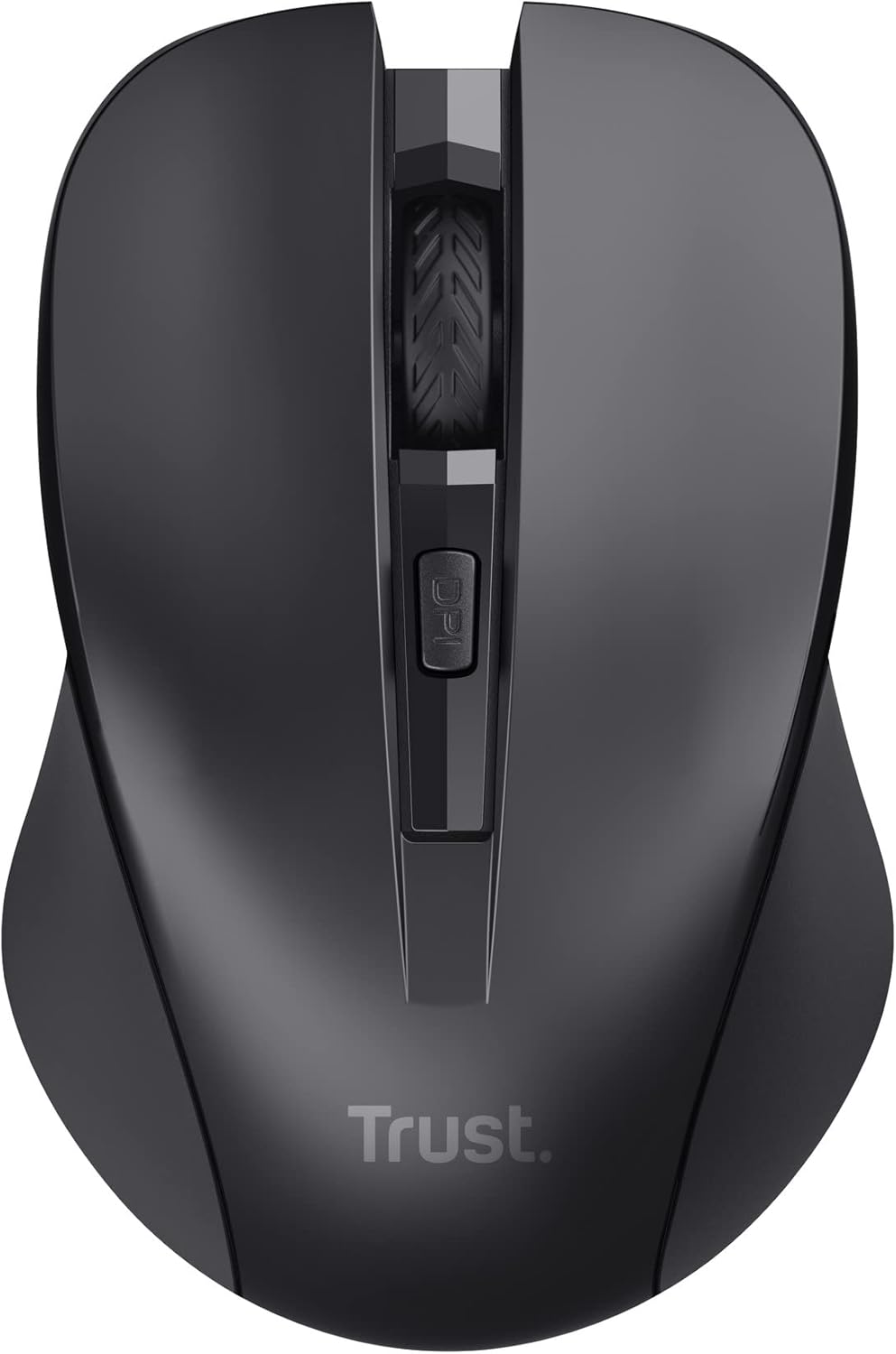
Image: A top-down view of the Trust Mydo Wireless Mouse, highlighting the scroll wheel and the DPI adjustment button located just behind it.
Ambidextrous Design
The Mydo mouse features an ambidextrous design, providing comfortable use for both left-handed and right-handed users.

Image: A close-up top view of the Trust Mydo Wireless Mouse, accompanied by an icon illustrating its suitability for both left and right-handed users.
Maintenance
- Cleaning: Use a soft, dry cloth to clean the mouse. For stubborn dirt, slightly dampen the cloth with water. Avoid using harsh chemicals or abrasive cleaners.
- Battery Replacement: When the mouse performance degrades or it stops responding, it's likely time to replace the AAA batteries. Follow the steps in the "Setup" section to replace them.
- Storage: When not in use for extended periods, turn off the mouse to conserve battery life. The USB receiver can be stored inside the mouse's battery compartment for safekeeping.
Troubleshooting
| Problem | Solution |
|---|---|
| Mouse not responding. |
|
| Cursor movement is erratic or jumpy. |
|
| DPI button does not change sensitivity. |
|
Specifications
| Feature | Detail |
|---|---|
| Brand | Trust |
| Model Number | 21869 |
| Connectivity Technology | Radio Frequency (2.4 GHz) |
| Wireless Range | Up to 10 meters |
| Movement Detection Technology | Optical |
| DPI Settings | 1000 / 1400 / 1800 DPI (Adjustable) |
| Special Features | Silent Click (reduces noise by at least 90%), Ambidextrous Design |
| Power Source | Battery Powered |
| Batteries Required | 2 x AAA (included) |
| Average Battery Life | 6 months |
| Product Dimensions | 4 x 5.5 x 9.5 cm |
| Item Weight | 60 g |
| Compatible Operating Systems | Chrome OS, Windows, Mac OS |
| Hardware Platform | PC, Mac |
Warranty and Support
For warranty information and technical support, please refer to the official Trust website or contact their customer service. Keep your proof of purchase for warranty claims.
You can find more information and support resources on the Trust Brand Store on Amazon.


