
Introduction
The Aubric LED WiFi Controller is designed to provide smart control over your RGB LED light strips. This device enables voice control through Amazon Alexa and Google Home, as well as comprehensive control via a free mobile application for iOS and Android smartphones. Enjoy features like music synchronization, group control, and customizable lighting effects.

Image: The Aubric LED WiFi Controller, a compact white device with a 4-pin connector and power input.
Setup Guide
What's Included
- WiFi Controller
- 4-pin Connector
- User Manual
Before You Begin
Please note the following important considerations before installation:
- This is a WiFi controller for RGB LED Strip Lights only; the LED strip lights are not included.
- This WiFi controller works exclusively with 4-pin LED strip lights. A 4-pin connector is included.
- You will need a 12V DC power supply for this WiFi controller. The power supply is not included. It works with 5-24V DC power supplies with a standard connector size of 5.5 x 2.1mm jack.

Image: Visual guide highlighting that the LED strip and power supply are not included, and the controller requires a 4-pin LED strip and 12V DC power supply.
Physical Connection
- Ensure all parts are connected correctly before plugging in the power supply to prevent damage to the light strip.
- Connect the WiFi controller to the LED light strip. Ensure the connection between the WiFi controller and the light strip is aligned according to the arrows on both connectors.
- Connect your 12V DC power supply to the WiFi controller.

Image: Detailed diagram showing how to correctly connect the 4-pin connector of the LED strip to the WiFi controller, emphasizing arrow alignment.

Image: Illustration of connecting the power supply to the WiFi controller, showing the 5.5 x 2.1mm jack compatibility.
App Installation and Network Setup
- Install the App: Search for "Magic Home Pro" on the App Store (iOS) or Google Play Store (Android), or scan the QR code below to download the app. Follow the in-app guide to create an account.
Scan this QR code to download the Magic Home Pro app.
- Connect to Home WiFi: Connect your phone to your home's 2.4GHz WiFi network. This device only works with 2.4GHz networks. If your router provides both 2.4G and 5G networks, temporarily turn off the 5G WiFi during setup.
- Power On Controller: Power on the LED light strip with the WiFi controller connected. The lights should begin to blink.
- Add New Devices in App: Open the Magic Home Pro app. Click the "+" button in the upper right corner, then select "Add New Devices".
- Connect to Controller's WiFi: Open your phone's WiFi settings interface and connect to the "LEDnetxxxxxx" signal. If prompted, allow Bluetooth functionality. Once connected, return to the Magic Home Pro app.

Image: Screenshots illustrating how to add a new device in the Magic Home Pro app and connect to the controller's temporary WiFi network.
- Connect to Home Network: Select your home network from the WiFi list within the app and enter the correct WiFi password. After this step, the "LEDnetxxxxxx" signal will disappear. If the WiFi router password you input is incorrect, the smart device will need to be reset before reconfiguration.
- Setting Completion: Enter the device name and click "complete". You can now use the app to change the light strip color or have the light dance with music.
Resetting the WiFi Controller
If you cannot find the "LEDnetxxxxxx" WiFi signal, you may need to reset the controller:
- Before Resetting: Please power off the WiFi strip controller.
- Start Resetting: Power on and off the controller three times (on-off-on-off-on-off-on), with approximately 2 seconds between each turn on and off.
- Reset Successful: The strip light will flash for a few seconds, indicating a successful reset.
After resetting, go back to your phone's WiFi settings, and you should find the "LEDnetxxxxxx" WiFi signal. If not, try restarting your phone's WiFi and wait for it to refresh automatically.

Image: Visual guide demonstrating the power cycle method to reset the WiFi controller.
Operating Instructions
Voice Control (Alexa & Google Home)
The Aubric WiFi LED Controller is compatible with Amazon Alexa and Google Home. After successful setup with the Magic Home Pro app, link the Magic Home skill/service in your Alexa or Google Home app to control your LED lights using voice commands.
- Example Commands: "Alexa, turn on the strip light," "Hey Google, change the strip light to green," "Alexa, set the strip light brightness to 50%."
- You can also create scenes within the Magic Home Pro app and activate them via voice commands through Alexa or Google Home.
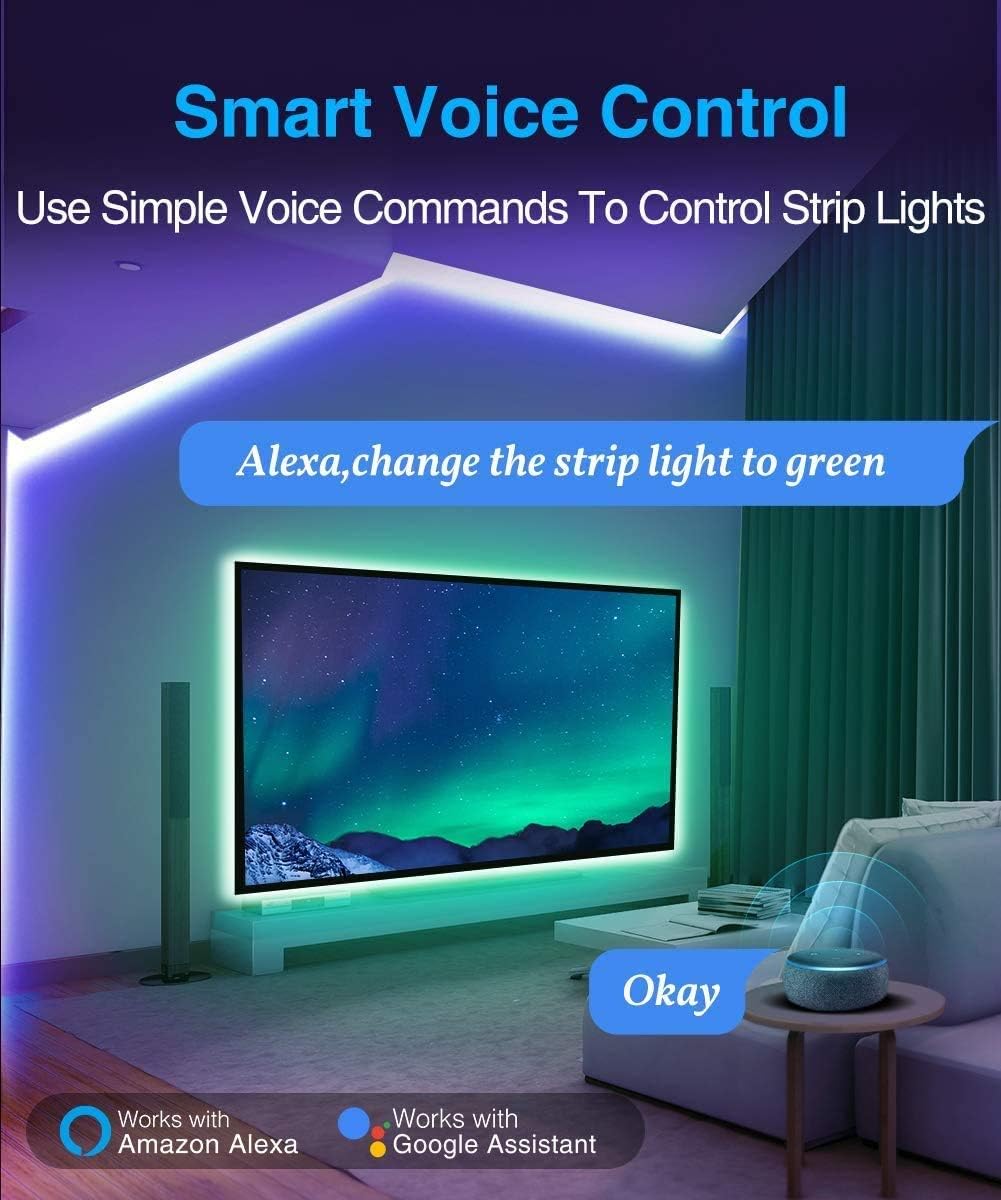
Image: Depiction of voice control functionality with Amazon Alexa and Google Assistant, showing a user commanding a color change.
Mobile App Control (Magic Home Pro)
The Magic Home Pro app provides comprehensive control over your LED strip lights from your smartphone:
- Color Selection: Choose from 16 million colors using the color wheel or adjust white light intensity.
- Brightness Control: Adjust the brightness level of your lights.
- Dynamic Modes: Select from various pre-programmed dynamic modes like strobe, fade, jumping, and more.
- DIY Modes: Create and save your own custom lighting effects.
- Timer Mode: Program the lights to turn on and off at specific times.
- Music Sync Mode: The lights can beat and change color with music played on your phone.
- Group Control: Control multiple LED strips simultaneously by grouping them within the app. You can name each LED strip and sort them into different groups for organized control.

Image: Multiple screenshots of the Magic Home Pro app interface, showcasing color selection, brightness, music mode, and various dynamic lighting effects.

Image: Scene depicting people enjoying a party with LED lights synchronizing to music, controlled via the Magic Home Pro app.
Maintenance
To ensure the longevity and optimal performance of your Aubric LED WiFi Controller, follow these maintenance guidelines:
- Keep the controller in a dry environment, away from moisture and extreme temperatures.
- Avoid exposing the controller to direct sunlight for prolonged periods.
- Clean the controller gently with a dry, soft cloth. Do not use liquid cleaners or abrasive materials.
- Ensure proper ventilation around the controller to prevent overheating.
- Regularly check all connections to ensure they are secure.
Troubleshooting
| Problem | Possible Cause | Solution |
|---|---|---|
| Lights do not turn on. | No power, incorrect connection, faulty power supply/LED strip. | Check power supply connection. Ensure the power supply is working. Verify the 4-pin connector is correctly inserted and aligned with arrows. Test the LED strip with another controller if possible. |
| Cannot find "LEDnetxxxxxx" WiFi signal. | Controller not powered on, controller needs reset, phone WiFi issue. | Ensure controller is powered on and lights are blinking. Perform a controller reset (power cycle 3 times). Restart your phone's WiFi. |
| Lights show incorrect colors (e.g., red instead of blue). | Incorrect wiring of the 4-pin connector. | If the light color turns out to be opposite (e.g., red for green), re-insert the 4-pin connector into the end side of the light strip, ensuring correct alignment. |
| App cannot connect to the controller after setup. | Incorrect WiFi password, router issues, controller disconnected. | Verify your home WiFi password. Ensure your phone is connected to the 2.4GHz network. Reset the controller and re-do the network setup if necessary. Check if the controller is within range of your WiFi router. |
| Voice control not working. | Magic Home skill not linked, incorrect device name, internet connectivity issue. | Ensure the Magic Home skill is correctly linked in your Alexa/Google Home app. Verify the device name used in voice commands matches the one in the app. Check your internet connection. |
Specifications
| Feature | Detail |
|---|---|
| Model Number | WIFI LED Controller |
| Brand | Aubric |
| Item Weight | 0.704 ounces |
| Product Dimensions | 5.12 x 3.54 x 0.79 inches |
| Color | White |
| Material | Plastic |
| Power Source | DC |
| Voltage | 12 Volts (DC) |
| Wattage | 100 watts |
| Type of Bulb | LED |
| Special Features | Voice Control |
| Included Components | WiFi controller, 4 pin connector, User manual |
Warranty Information
The Aubric LED WiFi Controller comes with a One Year Warranty from the date of purchase. This warranty covers manufacturing defects and malfunctions under normal use. Please retain your proof of purchase for warranty claims.
Customer Support
For any questions, technical assistance, or warranty claims, please contact Aubric customer support. Refer to the contact information provided with your product packaging or visit the official Aubric store on Amazon:

