
1. Introduction
Thank you for choosing the SAFFUN Classic N64 Wired USB Gamepad Controller. This controller is designed to provide a classic gaming experience on modern platforms, offering broad compatibility and ease of use. It connects via a standard USB port, making it suitable for various systems that support USB controller input.
This manual will guide you through the setup, operation, and troubleshooting of your new gamepad to ensure an optimal gaming experience.
2. Setup and Compatibility
2.1. Connecting the Controller
The SAFFUN Classic N64 Wired USB Gamepad Controller is designed for plug-and-play functionality. No additional drivers or software are typically required for basic operation. Simply connect the USB cable from the controller to an available USB port on your device.
Important Tip: For best results, plug in the controller first before opening your emulator software or powering on your Raspberry Pi. This ensures your device properly detects the controller upon startup.
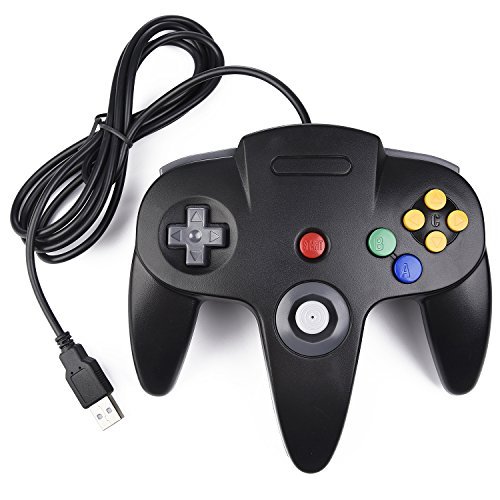
Figure 1: SAFFUN Classic N64 Wired USB Gamepad Controller in use with a laptop.
2.2. System Compatibility
This controller is compatible with a wide range of operating systems and devices:
- Operating Systems: Windows 98, ME, Vista, 2000, 2003, XP, 7, 8, 8.1, 10; Linux UBUNTU, Linux Mint, Android Linux (via USB OTG cable); Mac OS X and later.
- Retrogaming Operating Systems: RetroPie, Recalbox, Happi Game Center, Lakka, ChameleonPi, Piplay.
- Supported Devices: PC, Notebook Computer, Laptop Computer; Android Smartphone (via USB OTG cable); Raspberry Pi (RPI, Raspberry Pi 1 Model B, Model A, Raspberry Pi 1 Model B+, Raspberry Pi Zero, Raspberry Pi 2, Raspberry Pi 3 Model B, Raspberry Pi 3, Retro Pie).
Note: This controller does NOT support Android TV Box, C64 (Commodore 64), Google Chromebook, Amazon Fire TV, Steam, or Tesla Model. It also does not support online games due to button mapping limitations.
2.3. Supported Game Emulators
The controller is compatible with various N64 emulators:
- Current Emulators: Project64, 1964, MAME (MESS), Mupen64Plus, Sixtyforce, CEN64.
- Historical Emulators: Project Unreality, Corn, UltraHLE, Nemu64.
Project64 is a recommended emulator for Windows PC users.
3. Operating the Controller
3.1. Basic Usage
The controller features super sensitive buttons for precise control, replicating the feel of a classic N64 gamepad. Once connected and recognized by your system, you will need to configure the button mappings within your chosen emulator.
3.2. Button Configuration
After connecting the controller, navigate to the controller settings or input configuration menu within your emulator. From there, you can map each button on the SAFFUN controller to its corresponding function in the emulator. This process is typically straightforward and takes only a few minutes.
For advanced users who wish to program buttons for specific shortcut commands (e.g., CTRL+Z), third-party software such as Xpadder, AutoHotKey, or EventGhost can be used to map joystick buttons to keyboard controls.
4. Troubleshooting
This section addresses common issues and provides solutions to help you resolve them.
- Controller not recognized by PC or Raspberry Pi: Ensure the controller is plugged in before opening the emulator or powering on the Raspberry Pi. If the issue persists, try powering down and booting back up with the controller connected, or consider rebuilding your Retropie installation if applicable.
- Controller inputting both joystick and keyboard buttons: This issue is often related to emulator configuration. We recommend using Project 64 on PC, OpenEmu on Apple Mac, and Retropie on Raspberry Pi. Check your emulator's input settings to ensure proper mapping.
- Does not work with Steam games: This controller is not designed to support Steam games.
- Cannot play online games: This controller does not support online games due to limitations in button mapping for such applications.
- Difficulty configuring input: If you encounter persistent configuration issues, please contact customer support. Provide details about your device and the emulator you are using for assistance.
5. Specifications
| Feature | Detail |
|---|---|
| Model Number | 8541667119 |
| Product Dimensions | 6.5 x 4.3 x 2 inches |
| Item Weight | 7.2 ounces |
| USB Cable Length | Approximately 5.9 ft (1.8 meters) |
| Connectivity | Wired USB |
| Plug and Play | Yes |
6. Warranty and Support
For any product-related inquiries, technical support, or warranty information, please refer to the contact details provided with your purchase or visit the official SAFFUN website. Our support team is available to assist you with any questions or issues you may encounter.