
PRUNUS J-429
PRUNUS J-429 Portable Radio User Manual
Model: J-429 | Brand: PRUNUS
Introduction
Thank you for choosing the PRUNUS J-429 Portable Radio. This manual provides detailed instructions for the safe and efficient operation of your device. Please read it thoroughly before use and retain it for future reference.
Product Overview
The PRUNUS J-429 is a compact and versatile portable radio designed for ease of use and excellent sound quality. It supports multiple frequency bands and offers various playback options.
Key Features:
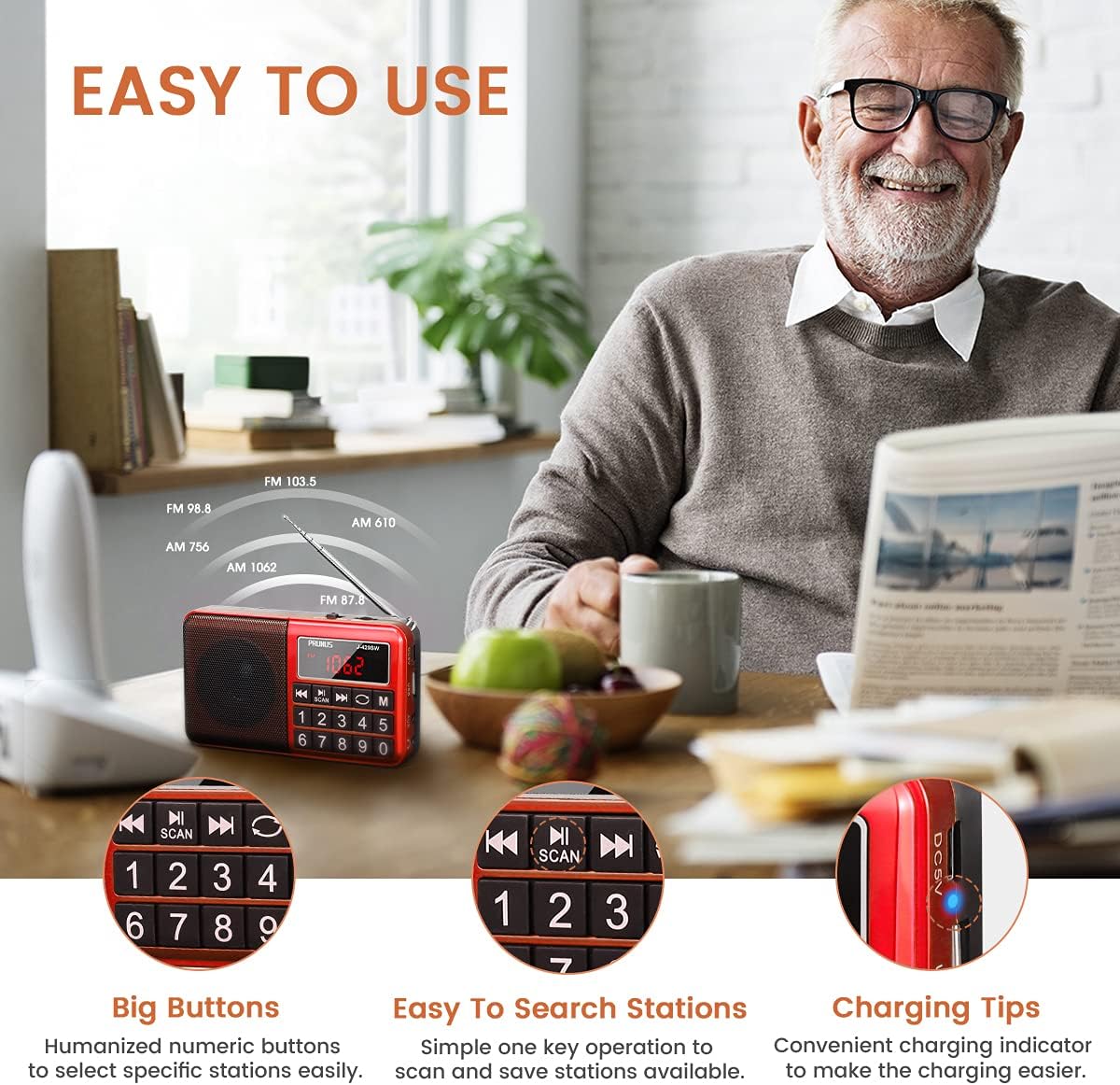
- Easy Operation: Large, rubber-textured buttons and a clear digital display for intuitive control.
- Automatic Station Storage: One-key search and storage for up to 297 radio stations (99 FM, 99 SW, 99 AM).
- Superior Sound: Equipped with a 3W neodymium speaker for clear audio with deep bass and smooth treble.
- Portable Design: Compact size (31 x 126 x 73mm, 233g) with a carrying strap for easy transport.
- Multi-Band Support: Receives FM (87.5-108MHz), AM (MW) (522-1710KHz), and SW (2300-21950KHz) frequencies.
- Multiple Charging Methods: Supports USB charging via adapter, computer, car, or power bank.
- AUX/SD/TF/MP3 Playback: Versatile media playback options.
Product Components:


Setup
1. Initial Charging
Before first use, fully charge the radio. Connect the supplied USB charging cord to the DC5V port on the radio and to a compatible USB power source (e.g., adapter, computer, car charger, power bank).
- The charging indicator light will be RED while charging.
- The charging indicator will remain RED even when fully charged.

2. Power On/Off
Locate the ON/OFF switch on the top of the radio. Slide it to the "ON" position to power on the device. Slide it to "OFF" to power off.
Operating Instructions
1. Radio Mode (FM/AM/SW)
To switch between FM, AM (MW), and SW bands, press the "M" button. The current band will be displayed on the screen.
2. Automatic Station Search and Storage
The PRUNUS J-429 features an automatic station search function. Press the "SCAN" button (often indicated by a play/pause icon with a scan symbol) to initiate an automatic search for all available stations in the current band. The radio will automatically store up to 99 stations for each band (FM, SW, AM).

3. Manual Station Selection (Direct Input)
To directly tune to a specific station, use the numeric keypad (0-9) on the front of the radio. Enter the desired frequency. For example, to tune to FM 103.5 MHz, press 1, 0, 3, . (if applicable, or the radio might automatically adjust), 5. The radio will tune to the entered frequency.

4. Navigating Stored Stations
Use the "Previous" (◀◀) and "Next" (▶▶) buttons to cycle through the automatically stored stations.
5. Volume Control
Adjust the volume using the dedicated volume knob or buttons (if present, typically on the side or top). Ensure the volume is at a comfortable level before placing the radio close to your ear.
6. AUX/SD/TF/MP3 Playback
The PRUNUS J-429 supports playback from various sources:
- AUX Input: Connect external audio devices (e.g., smartphone, MP3 player) using a 3.5mm audio cable to the AUX port.
- SD/TF Card: Insert a micro SD (TF) card containing MP3 audio files into the designated slot. The radio will automatically switch to MP3 playback mode.
- USB Drive: Insert a USB flash drive containing MP3 audio files into the USB port. The radio will automatically switch to MP3 playback mode.
Use the "Previous" (◀◀) and "Next" (▶▶) buttons to navigate between tracks. The "SCAN" button may function as Play/Pause in MP3 mode.

Maintenance
Cleaning
Wipe the radio with a soft, dry cloth. Do not use abrasive cleaners, waxes, or solvents as they may damage the finish.
Battery Care
The radio uses a built-in Lithium Ion battery. To prolong battery life:
- Avoid fully discharging the battery frequently.
- Charge the radio regularly, even if not in use, to maintain battery health.
- Store the radio in a cool, dry place when not in use for extended periods.
General Precautions
- KEEP AWAY FROM WATER: This device is not waterproof. Avoid exposure to rain, moisture, or liquids.
- Do not expose the radio to extreme temperatures (hot or cold).
- Do not disassemble or attempt to repair the radio yourself. This will void the warranty.
- Keep out of reach of small children.
Troubleshooting
| Problem | Possible Cause | Solution |
|---|---|---|
| No power / Radio does not turn on. | Battery is discharged. | Charge the radio fully using the provided USB cable. |
| Poor radio reception. | Antenna not extended or weak signal area. | Fully extend the telescopic antenna. Try moving the radio to a different location, preferably near a window or outdoors. |
| Cannot find desired station. | Incorrect band selected or station not available in area. | Press the "M" button to cycle through FM/AM/SW bands. Use the automatic scan function or manually enter the frequency. |
| MP3 playback not working. | USB drive/SD card not inserted correctly or unsupported file format. | Ensure the USB drive or SD/TF card is fully inserted. Verify that audio files are in MP3 format. |
| Charging indicator stays red. | Normal operation. | This is normal behavior; the indicator remains red even when fully charged. |
Specifications
| Brand | PRUNUS |
| Model | J-429 |
| Dimensions | 7.3L x 12.6W x 3.1H Centimetres (approx. 31 x 126 x 73mm) |
| Weight | 258.55 g |
| Tuner Technology | FM, AM (MW), SW |
| FM Frequency Range | 87.5-108 MHz |
| AM (MW) Frequency Range | 522-1710 KHz |
| SW Frequency Range | 2300-21950 KHz |
| Speaker Output Power | 3 Watts (Neodymium speaker) |
| Power Source | Battery Powered (Lithium Ion battery included) |
| Charging Interface | USB (DC5V) |
| Connectivity | Auxiliary (3.5mm), USB |
| Supported Media | SD/TF Card, USB Drive (MP3 format) |
| Display Type | LCD or LED Digital Display |
| Material | Plastic |
Warranty and Support
PRUNUS products are manufactured to high quality standards. For information regarding warranty coverage, technical support, or service, please refer to the warranty card included with your product or visit the official PRUNUS website. Please retain your proof of purchase for warranty claims.
For customer service inquiries, please contact the seller directly through the platform where you purchased the product.
Ask a question about this manual
Ask about setup, troubleshooting, compatibility, parts, safety, or missing instructions. Manuals+ will review the question and use this page’s manual context to help answer it.