
1. Introduction
Welcome to your Helect H1006 12-Digit Desktop Calculator. This manual provides detailed instructions for setup, operation, and maintenance to ensure optimal performance and longevity of your device. Please read this manual thoroughly before using the calculator.
2. Important Safety Information
- Keep the calculator away from water and other liquids to prevent electrical damage.
- Avoid exposing the calculator to extreme temperatures, direct sunlight for prolonged periods, or high humidity.
- Do not attempt to disassemble or modify the calculator. This may void the warranty and cause damage.
- Use only the specified battery type (AA) for replacement.
- Keep batteries out of reach of children.
3. Product Overview
The Helect H1006 is a standard function desktop calculator designed for business and general use. It features a large 12-digit display and dual power sources for reliable operation.
3.1. Package Contents
- 1 x Helect H1006 Calculator (AA battery not included)
3.2. Key Features
- Bidirectional power: Solar and battery (one AA battery NOT included)
- Rounding functionality and decimal point setting
- Large 12-digit display
- Tax and currency conversion functions
- Function and command signs
- Dedicated On and Off buttons
- Profit Margin (%) key
- +/- (Sign Change) key
- Square Root (√) key
- Key Rollover for fast input

Figure 1: Front view of the Helect H1006 calculator, showing the 12-digit display and all function keys.
4. Setup
4.1. Power Supply
The Helect H1006 calculator operates using a dual power system: solar power and a single AA battery. For continuous and reliable operation, especially in low light conditions, battery installation is recommended.
4.1.1. Battery Installation
- Locate the battery compartment cover on the back of the calculator.
- Slide the cover off in the direction indicated.
- Insert one AA battery (not included) into the compartment, ensuring correct polarity (+/-) as marked.
- Replace the battery compartment cover, sliding it back until it clicks into place.

Figure 2: Image illustrating the battery compartment on the back of the calculator, with the cover removed, ready for AA battery insertion.
4.1.2. Solar Power
The calculator will automatically switch to solar power when sufficient ambient light is available. For optimal performance, ensure the solar panel, located above the display, is exposed to light. If the display is dim in bright light, the battery may be low or absent.

Figure 3: A diagram illustrating the dual power source of the calculator, highlighting the solar panel and the AA battery compartment.
5. Operating Instructions
5.1. Basic Operations
- AC/ON: Turns the calculator on. When the calculator is on, pressing this key clears all entries, calculations, and memory.
- CE/C: Clear Entry / Clear. Press once to clear the last entered number. Press twice to clear the entire calculation without affecting memory.
- +/-: Changes the sign of the displayed number from positive to negative, or negative to positive.
- Backspace (→): Deletes the last digit entered on the display.
- %: Percentage key. Used for percentage calculations (e.g., 100 + 10% = 110).
- √: Square root function. Calculates the square root of the displayed number.
- 00: Enters two zeros at once.
- .: Decimal point key.
5.2. Memory Functions
- MU (Mark Up/Down): Used for profit margin calculations.
- MC (Memory Clear): Clears the value stored in the memory register.
- MR (Memory Recall): Recalls and displays the value currently stored in the memory register.
- M- (Memory Minus): Subtracts the displayed value from the memory register.
- M+ (Memory Plus): Adds the displayed value to the memory register.
5.3. Advanced Functions
- GT (Grand Total): Displays the grand total of all results accumulated since the last GT clear or calculator power-on.
- EX (Exchange): This key may swap the current displayed value with a value in a temporary register or memory, depending on the specific calculation context. Refer to specific calculation examples for detailed use.
- OFF: Turns the calculator off to conserve power.
5.4. Decimal and Rounding Settings
The calculator features slide switches, typically located above the main keypad, to adjust decimal point and rounding settings. These switches allow you to control the number of decimal places and how results are rounded.

Figure 4: A visual guide pointing out key features such as the 12-digit display, memory read function, sensitive buttons, general total, percentage, and backspace key.
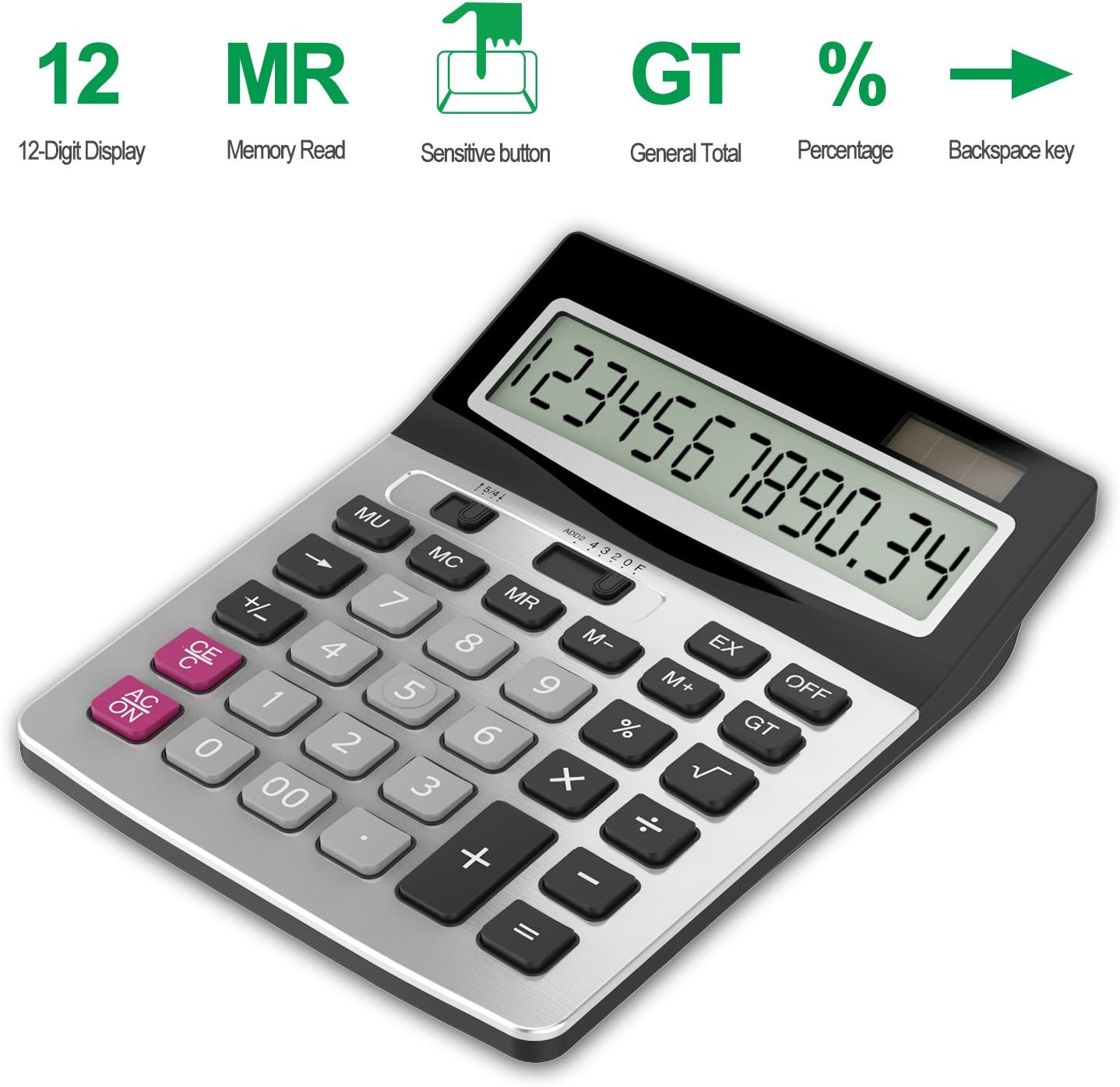
Figure 5: Close-up view of the calculator emphasizing the large, easy-to-read numbers on the display and the generously sized buttons for comfortable input.
6. Maintenance
6.1. Cleaning
To clean the calculator, gently wipe the surface with a soft, dry cloth. For stubborn marks, a slightly damp cloth can be used, followed by a dry cloth. Do not use abrasive cleaners, solvents, or chemical sprays, as these can damage the casing or internal components.
6.2. Storage
When not in use for extended periods, store the calculator in a cool, dry place away from direct sunlight and extreme temperatures. This helps preserve the battery life and the integrity of the display.
6.3. Battery Replacement
Replace the AA battery when the display becomes dim, flickers, or the calculator becomes unresponsive, even in good lighting conditions. Follow the battery installation steps outlined in Section 4.1.1.
7. Troubleshooting
7.1. Display is blank or dim
- Check Battery: Ensure the AA battery is installed correctly and has sufficient charge. Replace if necessary.
- Check Solar Panel: Make sure the solar panel is exposed to adequate light. Move the calculator to a brighter area.
- Power On: Press the AC/ON button to ensure the calculator is turned on.
7.2. Incorrect calculations
- Clear All: Press AC/ON to clear all previous entries and memory before starting a new calculation.
- Verify Settings: Check the decimal and rounding settings switches to ensure they are set as desired.
- Key Press Accuracy: Ensure all numbers and operations are entered correctly.
7.3. Keys are unresponsive
- Reset Calculator: Press AC/ON to perform a soft reset.
- Check Power: Verify battery power and solar light exposure. Replace battery if needed.
8. Specifications

Figure 6: Image showing the calculator with its dimensions (length, width, height) and highlighting its ergonomic design with a 20-degree tilt for comfortable use.
| Feature | Detail |
|---|---|
| Brand | Helect |
| Model Name | H1006 |
| Item Model Number | H-1006-Calculator-Basic-SL |
| Color | Silver |
| Calculator Type | Desktop |
| Display Type | LCD |
| Screen Size | 12.5 Centimeters |
| Power Source | Solar powered |
| Number of Batteries | 1 AA battery required (not included) |
| Product Dimensions | 19.1L x 14.7W centimeters |
| UPC | 815000022910 |
9. Warranty and Support
Specific warranty information for the Helect H1006 calculator is not provided in the product details. For support, warranty inquiries, or further assistance, please contact the manufacturer, Helect, directly. Refer to the product packaging or the retailer's website for the most current contact details and warranty terms.