
Introduction
This manual provides instructions for the setup, operation, maintenance, and troubleshooting of your Blackweb BWA17HO003 Gaming Mouse. This mouse is designed for an enhanced gaming experience, featuring an adjustable optical sensor, customizable RGB lighting, and programmable buttons.
Package Contents
- Blackweb BWA17HO003 Gaming Mouse
- User Manual (this document)
- Software CD (or download instructions)
System Requirements
- Operating System: Windows XP or newer
- Hard Disk Space: 180 MB for software installation
- Available USB Port
Setup
1. Connecting the Mouse
- Locate an available USB port on your computer.
- Plug the USB connector of the Blackweb BWA17HO003 Gaming Mouse into the USB port.
- Your operating system will typically detect and install the necessary drivers automatically.
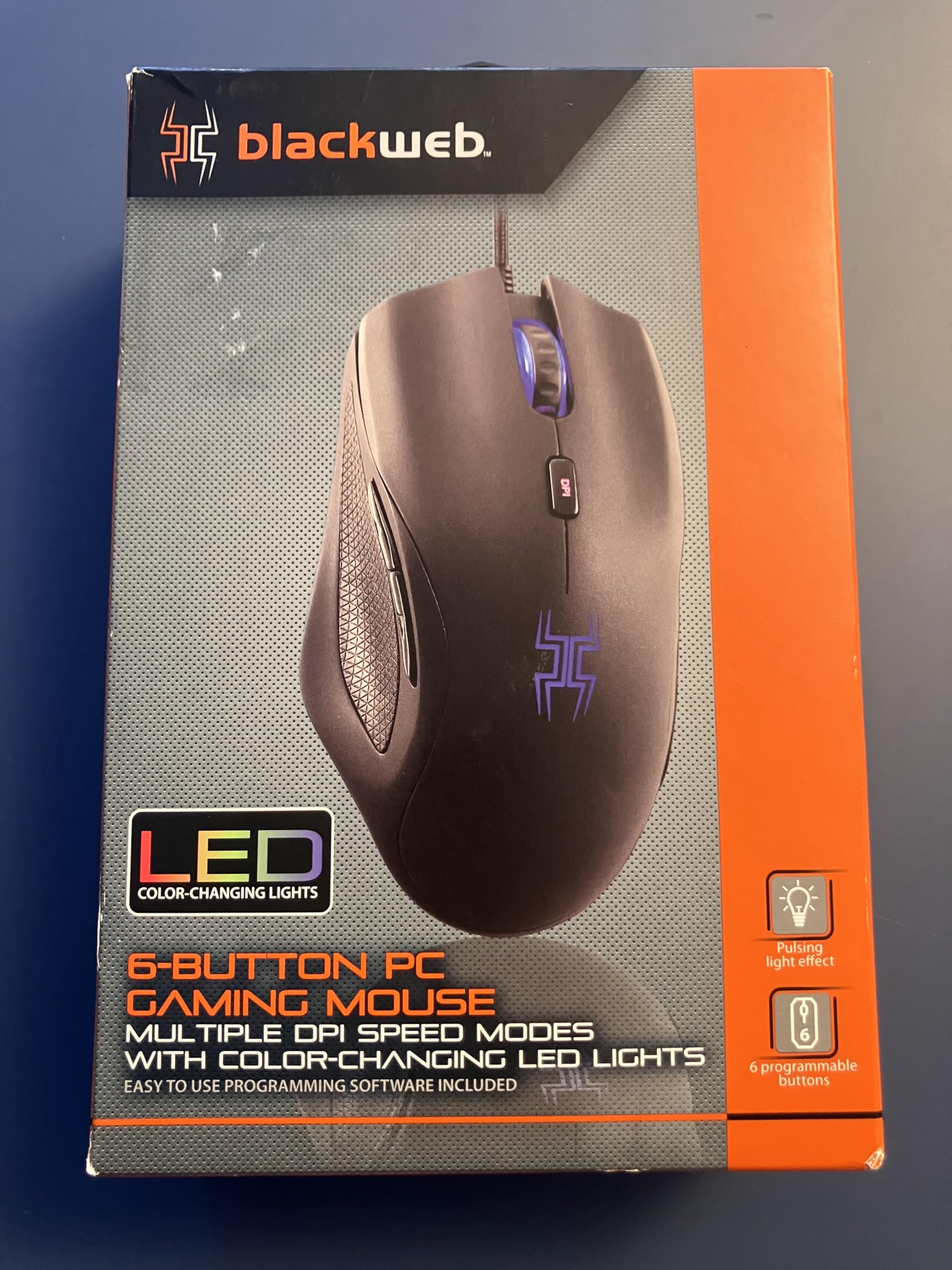
Figure 1: Blackweb BWA17HO003 Gaming Mouse connected to a computer. The image shows the mouse from a top-down perspective, highlighting its ergonomic design and the USB cable extending from the front.
2. Software Installation
For full customization options, including programmable buttons and RGB lighting effects, install the Blackweb Gaming Mouse software.
- Insert the provided software CD into your computer's CD/DVD drive, or download the latest software from the official Blackweb support website (refer to packaging for URL).
- Follow the on-screen instructions to complete the installation.
- Once installed, launch the software to configure your mouse settings.
Operating Instructions
Basic Functions
- Left Click: Primary action button.
- Right Click: Secondary action button, typically for context menus.
- Scroll Wheel: Scroll up or down in documents and web pages. Can also be pressed for a middle-click function.
DPI Adjustment
The mouse features an adjustable DPI switch to change cursor sensitivity on the fly. DPI (Dots Per Inch) determines how far the cursor moves on screen relative to the physical movement of the mouse.
- Locate the DPI switch button, typically positioned behind the scroll wheel.
- Press the DPI switch button to cycle through available DPI settings (200-3200 DPI).
- The current DPI setting may be indicated by a change in the mouse's LED lighting color or pattern, depending on your software configuration.
Figure 2: Location of the DPI switch button on the Blackweb BWA17HO003 Gaming Mouse. The image highlights the button positioned centrally on the mouse body, behind the scroll wheel.
Programmable Buttons
The Blackweb BWA17HO003 Gaming Mouse includes 6 programmable buttons. These can be customized using the Blackweb Gaming Mouse software.
- Open the Blackweb Gaming Mouse software.
- Navigate to the "Button Assignment" or "Macro" section.
- Select the button you wish to program.
- Assign a function, macro, or key combination to the selected button.
- Save your changes. Up to 5 customized profiles can be stored.
RGB Lighting Customization
Personalize your mouse with custom colors and lighting effects (pulsing, blinking) through the Blackweb Gaming Mouse software.
- Launch the Blackweb Gaming Mouse software.
- Go to the "Lighting" or "RGB Effects" section.
- Choose your desired color, effect type (e.g., static, breathing, spectrum cycling), and speed.
- Apply the settings to your mouse.
Maintenance
Cleaning the Mouse
Regular cleaning helps maintain optimal performance and extends the lifespan of your mouse.
- Disconnect the mouse from your computer before cleaning.
- Use a soft, lint-free cloth slightly dampened with water or a mild cleaning solution to wipe the exterior of the mouse.
- For crevices and around buttons, use a cotton swab or compressed air to remove dust and debris.
- Avoid using harsh chemicals, abrasive cleaners, or submerging the mouse in liquid.
- Ensure the mouse is completely dry before reconnecting it to your computer.
Figure 3: Illustrative image of cleaning the Blackweb BWA17HO003 Gaming Mouse. The image shows a hand gently wiping the mouse surface with a soft cloth, emphasizing careful maintenance.
Troubleshooting
| Problem | Possible Cause | Solution |
|---|---|---|
| Mouse not responding | Loose USB connection, faulty USB port, driver issue. |
|
| Cursor movement is erratic or slow | Dirty optical sensor, incorrect DPI setting, uneven mouse pad surface. |
|
| Programmable buttons not working | Software not installed, incorrect button assignment, software conflict. |
|
| RGB lighting not functioning | Software settings, power issue. |
|
Specifications
| Brand | Blackweb |
| Model | BWA17HO003 |
| Movement Detection Technology | Optical |
| DPI Sensitivity | Adjustable from 200-3200 DPI |
| Number of Buttons | 6 (Programmable) |
| Hand Orientation | Ambidextrous |
| Compatible Devices | Personal Computer |
| Operating System Compatibility | Windows XP and newer |
| Power Source | USB Powered |
| Item Weight | 7.84 ounces |
| Special Feature | Ergonomic Design |
Warranty and Support
Specific warranty information for the Blackweb BWA17HO003 Gaming Mouse is typically provided with the product packaging or available on the official Blackweb website. Please refer to those resources for details regarding warranty coverage and terms.
For technical support or further assistance, please visit the Blackweb support website or contact their customer service department. Contact details are usually found on the product packaging or the official brand website.


