
Introduction
Welcome to the Zhiyun Smooth Q2 instruction manual. This document provides comprehensive guidance on how to set up, operate, and maintain your Smooth Q2 smartphone gimbal stabilizer. Please read this manual carefully before use to ensure proper functionality and to maximize your user experience.
Product Overview
The Zhiyun Smooth Q2 is a compact and portable 3-axis smartphone gimbal designed to provide stable and smooth video footage. Its robust construction and intelligent features make it an ideal tool for mobile videography, whether for travel, vlogging, or everyday use.

Image: The Smooth Q2 (left) is shown alongside other smartphone gimbals, highlighting its compact design and a payload capacity of up to 260g. Its dimensions are approximately 194mm in height.

Image: A close-up view of the Smooth Q2's handle, showcasing its durable aluminum alloy construction and a comfortable silicone grip for enhanced stability and handling.
Setup
1. Mounting the Smartphone
The Smooth Q2 features a quick-release phone holder for easy attachment and detachment of your smartphone.
- Ensure the gimbal is powered off.
- Open the phone clamp and carefully insert your smartphone.
- Adjust the phone's position to ensure it is centered and securely held.

Image: An illustration demonstrating the quick-release mechanism of the phone holder, allowing for rapid attachment and removal of the smartphone from the gimbal.
2. Balancing the Gimbal
Proper balancing is crucial for optimal performance and battery life. After mounting your smartphone:
- Adjust the phone's position within the clamp until it remains level when the gimbal is powered off.
- Fine-tune the balance by sliding the phone slightly left or right, or by adjusting the tilt axis arm.
3. Powering On/Off
- To power on: Press and hold the power button until the indicator light illuminates.
- To power off: Press and hold the power button until the indicator light turns off.
4. App Connection
For full functionality and advanced features, connect your Smooth Q2 to the ZY Play app via Bluetooth.
- Download the ZY Play app from your smartphone's app store.
- Enable Bluetooth on your smartphone.
- Open the ZY Play app and follow the on-screen instructions to connect to your Smooth Q2.

Image: This graphic illustrates the Smooth Q2's compatibility and integration with various popular social media and camera applications, including Instagram and TikTok, allowing for direct control and enhanced shooting experiences.
Operating Instructions
1. Gimbal Modes
The Smooth Q2 offers several operating modes to suit different shooting scenarios:
- Pan Follow Mode (PF): The pan axis follows your movement, while the tilt and roll axes are locked.
- Lock Mode (L): All three axes are locked, keeping the camera pointing in a fixed direction.
- Point of View (POV) Mode: All three axes follow your movement, providing a dynamic first-person perspective.
- Vortex Mode (V): The camera rotates 360 degrees on the roll axis, creating a 'barrel roll' effect.
2. Controls
Utilize the joystick and buttons on the handle to control the gimbal's movement and functions:
- Joystick: Controls pan and tilt movements.
- Mode Button: Single press to switch between modes. Double press to recenter the gimbal.
- Record Button: Press to start/stop recording in the connected app.
3. Vertical Shooting
The Smooth Q2 supports quick switching to vertical shooting mode, ideal for social media content.
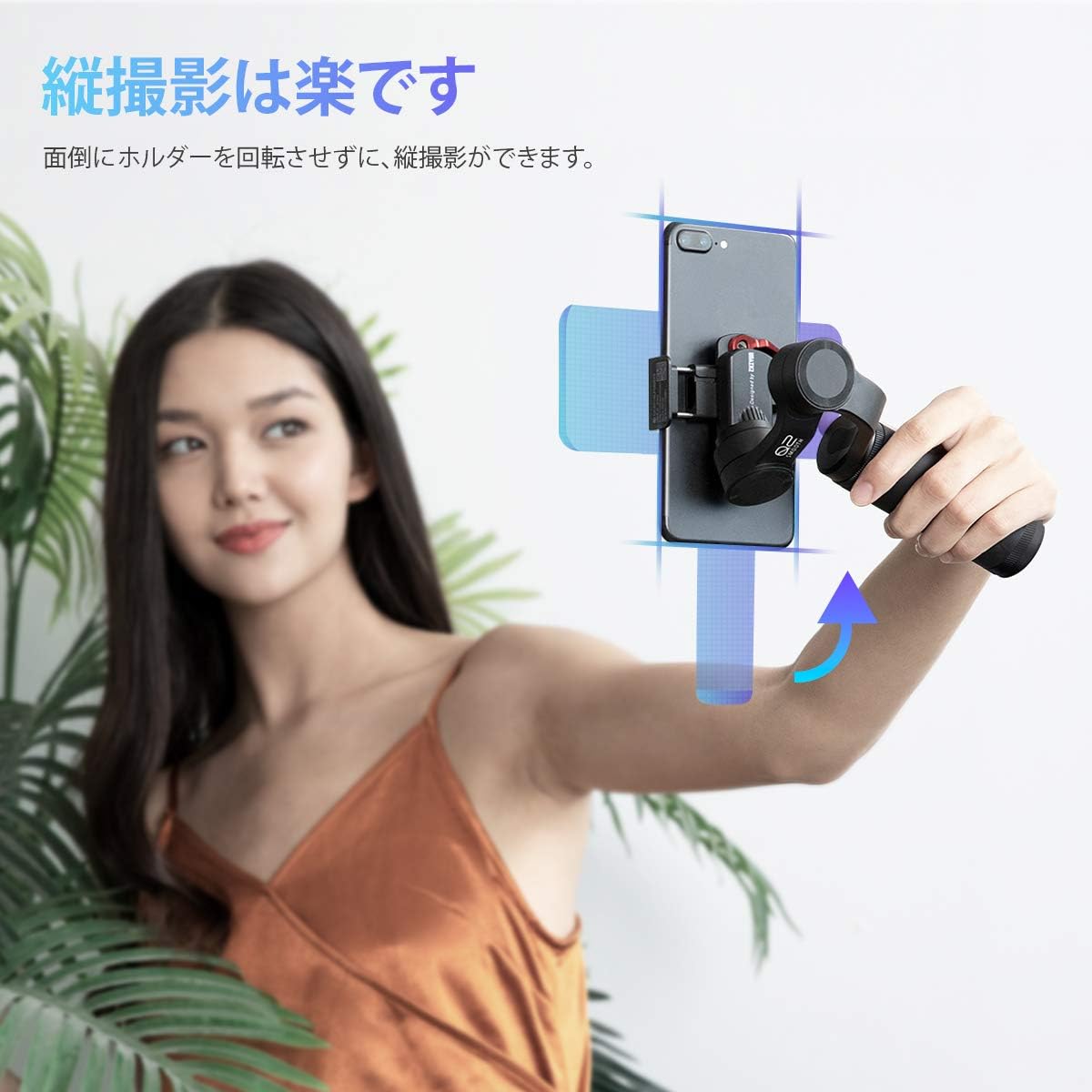
Image: A user demonstrating the Smooth Q2 in vertical shooting mode, illustrating how the gimbal can easily orient the smartphone for portrait-style video without complex adjustments.
4. Advanced Features
Through the ZY Play app, you can access advanced shooting features:
- Dolly Zoom: Creates a dramatic cinematic effect.
- Motion Timelapse: Captures dynamic time-lapse videos with programmed movement.
- Object Tracking: Automatically follows a selected subject.
- Panorama: Stitches multiple photos into a wide panoramic image.

Image: A visual representation of the Smooth Q2's advanced shooting capabilities, including Dolly Zoom, Motion Timelapse, Object Tracking, and Panorama mode, accessible via the ZY Play app.
5. Charging
The Smooth Q2 is equipped with a long-lasting battery and can also charge your smartphone.
- To charge the gimbal: Connect a USB-C cable to the charging port and a power source.
- To charge your smartphone: Connect your smartphone to the gimbal's USB-A port using an appropriate cable.

Image: This image highlights the Smooth Q2's impressive 17-hour battery life and its ability to act as a power bank to charge a connected smartphone, ensuring extended shooting sessions.
Maintenance
To ensure the longevity and optimal performance of your Smooth Q2, follow these maintenance guidelines:
- Cleaning: Use a soft, dry cloth to clean the gimbal. Avoid using liquid cleaners or solvents.
- Storage: Store the gimbal in a cool, dry place away from direct sunlight. When not in use for extended periods, ensure the battery is charged to about 50-60%.
- Portability: The Smooth Q2 is designed for convenient storage even with the phone attached, entering a sleep mode to save power.

Image: This visual demonstrates the Smooth Q2's ability to be folded and stored compactly with the smartphone still attached, entering a sleep mode for enhanced portability and quick deployment.
Troubleshooting
If you encounter issues with your Smooth Q2, refer to the following common problems and solutions:
- Gimbal not powering on: Ensure the battery is charged. Connect to a power source and try again.
- Gimbal vibrating or unstable: Re-balance your smartphone on the gimbal. Ensure the phone is securely mounted. Perform a gimbal calibration via the ZY Play app if necessary.
- Bluetooth connection issues: Ensure Bluetooth is enabled on your phone and the gimbal is powered on. Restart both devices and try connecting again.
- App not responding: Close and reopen the ZY Play app. Ensure the app is updated to the latest version.
Specifications
| Feature | Detail |
|---|---|
| Brand | Zhiyun |
| Model | Smooth Q2 |
| Compatible Devices | Smartphones |
| Maximum Recommended Payload | 260 grams |
| Item Weight (Gimbal only) | 260 grams |
| Battery Life | Up to 17 hours (approximate) |
| Connectivity | Bluetooth |
| ASIN | B073XCJXP5 |
| UPC / GTIN | 781903489665 |
Warranty and Support
Zhiyun provides comprehensive support for its products. For any inquiries or assistance, please refer to the following information:
Warranty Information
- Warranty Period: 1 year from the date of purchase.
- Within 3 Months: Free product exchange for manufacturing defects.
- After 3 Months (within 1 year): Paid product exchange for manufacturing defects.
Customer Support
For support, please contact Zhiyun's official representative, Changle. Support is available in Japanese via email, phone, video call, and live chat.
Please visit the official Zhiyun website or your point of purchase for specific contact details.


