
PDP 048-082-NA-CM01
PDP Gaming Wired Controller: White Camo - Xbox One
User Manual
Product Overview
Experience why PDP is #1 in 3rd party controllers with the PDP Wired Controller for Xbox One & Windows. With a sleek design, non-slip grips, and textured trigger and shoulder buttons, you'll easily crush the competition and look good doing it. Enhance gameplay with vibration feedback and the audio control button located directly on the front of the controller, so you can adjust game and chat audio levels without interruptions. Plug in your headset to the 3.5mm audio jack and you're ready to chat with friends. The 8 foot detachable cable gives you plenty of room to get comfortable.

Image: Front view of the PDP Gaming Wired Controller in White Camo.
Key Features:
- Stylish wired controller compatible with Xbox One, Xbox One S, Xbox One X, and Windows.
- Integrated 3.5mm audio jack with direct audio and chat volume controls on the controller.
- Sleek design featuring non-slip grips and textured trigger and shoulder buttons for enhanced control.
- Immersive vibration feedback for a more engaging gaming experience.
- Includes an 8-foot detachable Micro USB cable, providing ample reach and easy storage.
Setup Guide
- Unpack the Controller: Carefully remove the PDP Gaming Wired Controller and its detachable Micro USB cable from the packaging.
- Connect the Cable: Insert the smaller end of the Micro USB cable into the port located on the top of the controller. Ensure it is securely seated.
- Connect to Console/PC:
- For Xbox One: Plug the standard USB end of the cable into an available USB port on your Xbox One console.
- For Windows PC: Plug the standard USB end of the cable into an available USB port on your Windows computer. The necessary drivers should install automatically on Windows 10. For older Windows versions, you may need to visit the PDP support website for driver downloads.
- Power On: Once connected, the controller should automatically power on and be recognized by your console or PC. The Xbox button on the controller will illuminate.
- Headset Connection (Optional): If desired, plug your 3.5mm compatible gaming headset into the audio jack located at the bottom of the controller.
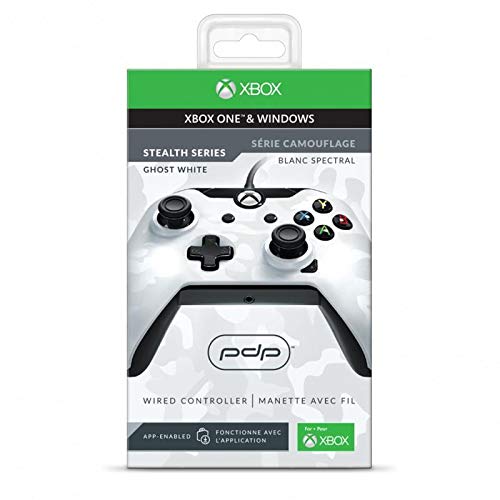
Image: Product packaging for the PDP Gaming Wired Controller.
Operating Instructions
Basic Controls:
- Analog Sticks: Use the left and right analog sticks for movement and camera control within games.
- D-Pad: The directional pad provides precise directional input, often used for menu navigation or specific in-game actions.
- Action Buttons (A, B, X, Y): Perform various in-game actions as assigned by the game.
- Shoulder Buttons (LB, RB) & Triggers (LT, RT): Used for actions like aiming, firing, or other contextual commands. The triggers offer analog input for precise control.
- Menu Button: Access in-game menus or pause the game.
- View Button: Provides additional in-game options or changes camera views.
- Xbox Button: Press to open the Xbox Guide on console or the Game Bar on Windows.
Audio Control:
The controller features an audio control button located on the front, below the Xbox button. This allows for quick adjustments of game and chat audio levels when a headset is connected to the 3.5mm jack.
- Game/Chat Balance: Use the audio control button in conjunction with the D-Pad to adjust the balance between game audio and chat audio.
- Volume Up/Down: Use the audio control button with the D-Pad to increase or decrease overall headset volume.
- Mute Microphone: A dedicated mute button or combination on the audio control allows you to quickly mute your microphone.
Vibration Feedback:
The controller provides haptic feedback through integrated vibration motors, enhancing immersion during gameplay. This feature is automatically enabled when supported by the game.
Maintenance
- Cleaning: To clean the controller, use a soft, dry cloth. For stubborn dirt, a slightly damp cloth with mild soap can be used, ensuring no liquid enters the controller's openings. Do not use harsh chemicals or abrasive cleaners.
- Cable Care: Always handle the detachable Micro USB cable by the connector, not the cable itself, when plugging or unplugging. Avoid sharp bends or kinks in the cable to prevent internal damage. Store the cable neatly when not in use.
- Storage: Store the controller in a cool, dry place away from direct sunlight and extreme temperatures.
- Avoid Drops: Protect the controller from drops and impacts, which can damage internal components.
Troubleshooting
- Controller Not Responding:
- Ensure the Micro USB cable is securely connected to both the controller and the console/PC.
- Try plugging the cable into a different USB port on your console or PC.
- If on PC, try restarting your computer.
- Audio Issues (No Sound/Mic Not Working):
- Verify your headset is fully plugged into the 3.5mm jack on the controller.
- Check the audio settings on your Xbox One or Windows PC to ensure the controller is selected as the audio output/input device.
- Adjust game/chat balance and volume using the audio control button on the controller.
- Test the headset with another device to confirm it is functioning correctly.
- Consider downloading the PDP Control Hub app from the Microsoft Store for advanced diagnostics and firmware updates.
- Buttons/Sticks Not Working Correctly:
- Ensure the controller's firmware is up to date using the PDP Control Hub app.
- Clean around the buttons and sticks to remove any debris that might be causing interference.
- If issues persist, the controller may require service.
Specifications
| Model Number: | 048-082-NA-CM01 |
| Compatibility: | Xbox One, Xbox One S, Xbox One X, Windows |
| Connectivity: | Wired (8-foot detachable Micro USB cable) |
| Audio Jack: | 3.5mm headset jack with audio controls |
| Dimensions (L x W x H): | 3.23 x 4.25 x 8.11 inches |
| Item Weight: | 2.82 ounces |
| Release Date: | November 1, 2017 |
Warranty and Support
For detailed warranty information and support, please refer to the official PDP website or the documentation included with your product. You can also contact PDP customer support directly for assistance with product issues or inquiries.
A digital version of the user manual may be available for download from the PDP support page or the product's Amazon listing.
Note: This product is subject to Proposition 65 warning.
Related documents048-082-NA-CM01


Ask a question about this manual
Ask about setup, troubleshooting, compatibility, parts, safety, or missing instructions. Manuals+ will review the question and use this page’s manual context to help answer it.