
1. Introduction
This manual provides essential information for the setup, operation, and maintenance of your PDP Gaming Wired Controller in Midnight Blue. Designed for use with Xbox One consoles and Windows PCs, this controller features a sleek design, non-slip grips, textured trigger and shoulder buttons, vibration feedback, and integrated audio controls for an enhanced gaming experience.

Figure 1: Front view of the PDP Gaming Wired Controller in Midnight Blue.
2. Package Contents
Ensure all items are present in the package:
- PDP Gaming Wired Controller (Midnight Blue)
- Detachable USB Cable (2.4 meters)
- Instruction Manual (this document)
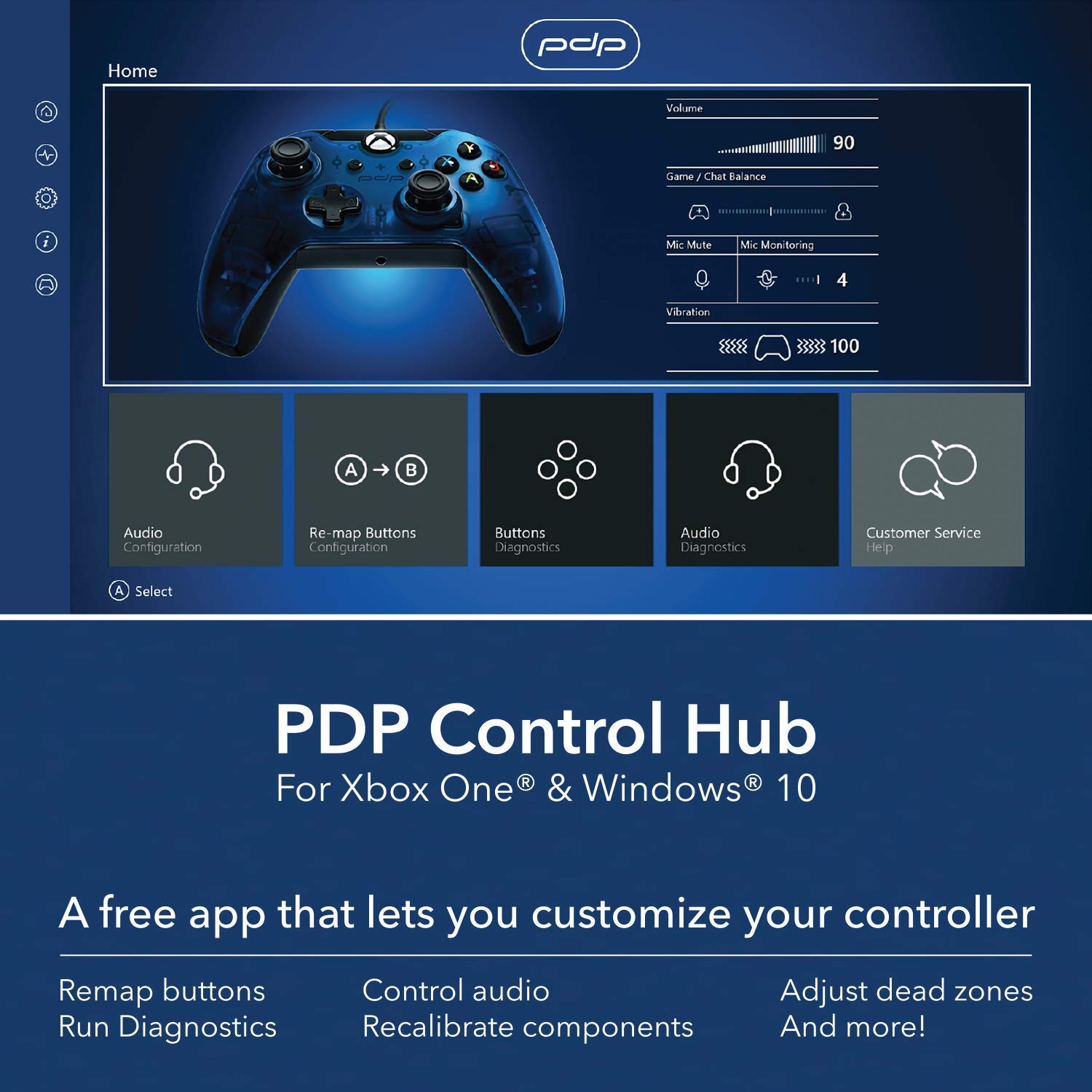
Figure 2: Controller, packaging, and detachable USB cable.
3. Setup
To begin using your PDP Gaming Wired Controller, follow these steps:
- Connect the Cable: Insert the smaller end of the detachable USB cable into the port on the top of the controller.
- Connect to Console/PC: Plug the larger end of the USB cable into an available USB port on your Xbox One console or Windows PC.
- Power On: The controller will automatically power on and connect to your device. The Xbox button on the controller will illuminate to indicate a successful connection.
- Driver Installation (Windows): For Windows PCs, the necessary drivers should install automatically. If issues arise, ensure your operating system is up to date or visit the PDP support website for manual driver installation.
The controller features non-slip grips and textured triggers for comfortable and precise control during gameplay.

Figure 3: Controller dimensions for reference.
4. Operating the Controller
4.1 Controller Layout
Familiarize yourself with the main components of your controller:
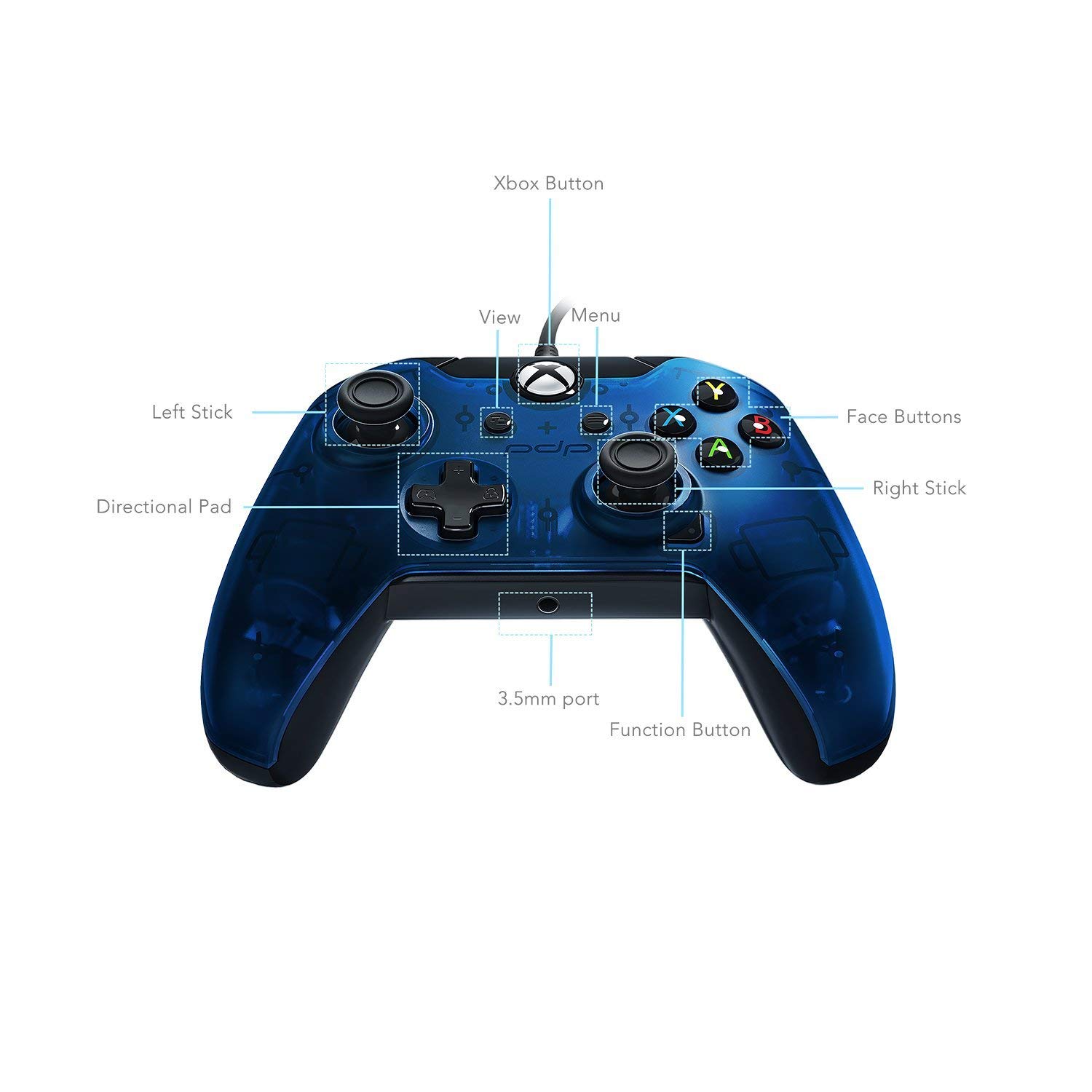
Figure 4: Key components of the PDP Gaming Wired Controller.
- Xbox Button: Powers on the console/PC, accesses the guide menu.
- View Button: Accesses in-game menus or system features.
- Menu Button: Accesses game or app menus.
- Left Stick: Primary movement control.
- Right Stick: Camera or aiming control.
- Directional Pad (D-Pad): Navigational input.
- Face Buttons (A, B, X, Y): Action buttons.
- 3.5mm Port: For connecting a headset.
- Function Button: Used in conjunction with the D-Pad for audio adjustments.
4.2 Audio Control
The controller features a 3.5mm audio jack and an audio control button for convenient adjustments:
- Connect Headset: Plug your compatible headset into the 3.5mm port located on the front of the controller.
- Adjust Volume: Press and hold the Function Button, then use the D-Pad Up/Down to adjust the overall volume.
- Adjust Game/Chat Balance: Press and hold the Function Button, then use the D-Pad Left/Right to balance game audio and chat audio.

Figure 5: Close-up of the audio control button and 3.5mm port.
4.3 Vibration Feedback
The controller includes dual rumble motors to provide immersive vibration feedback during gameplay, enhancing the overall experience.
Video 1: Overview of PDP Wired Controller features, including audio controls and vibration feedback.
5. PDP Control Hub (Software)
Enhance your controller's functionality with the free PDP Control Hub app, available for Xbox One and Windows 10. This application allows for advanced customization and diagnostics:
- Remap Buttons: Customize button assignments to suit your play style.
- Control Audio: Fine-tune audio settings beyond the on-controller controls.
- Adjust Dead Zones: Calibrate stick dead zones for precise input.
- Recalibrate Components: Run diagnostics and recalibrate sticks and triggers to maintain optimal performance.
- Update Firmware: Ensure your controller has the latest firmware for best compatibility and features.

Figure 6: Interface of the PDP Control Hub application.
6. Maintenance
To ensure the longevity and optimal performance of your controller, follow these maintenance guidelines:
- Cleaning: Use a soft, dry cloth to wipe down the controller. For stubborn dirt, a slightly damp cloth can be used, but ensure no moisture enters the ports or internal components.
- Cable Care: The detachable USB cable should be handled with care. Avoid sharp bends or excessive pulling, especially near the connectors, to prevent damage. The micro USB port on the controller is recessed; use only the provided cable or a compatible cable that fits correctly to avoid damaging the port.
- Storage: Store the controller in a clean, dry place away from extreme temperatures and direct sunlight when not in use.
7. Troubleshooting
If you encounter issues with your controller, refer to the following common solutions:
- Controller Not Responding:
- Ensure the USB cable is securely connected to both the controller and the Xbox One/PC.
- Try connecting the controller to a different USB port on your device.
- Restart your Xbox One console or PC.
- Audio Issues (No Sound/Distortion):
- Verify your headset is fully plugged into the 3.5mm port.
- Check the volume and game/chat balance settings using the Function Button and D-Pad.
- Test your headset with another device to confirm it is functioning correctly.
- Stick Drift or Inaccurate Input:
- Download and use the PDP Control Hub app to run diagnostics and recalibrate the analog sticks.
- Ensure the controller's firmware is up to date via the PDP Control Hub.
- Vibration Not Working:
- Check in-game settings to ensure vibration feedback is enabled.
- Use the PDP Control Hub app to check the vibration settings and run diagnostics.
For further assistance, please visit the official PDP support website.
8. Specifications
- Model Number: 048-082-NA-BL
- Compatibility: Xbox One, Windows
- Connectivity: Wired (Detachable USB Cable)
- Audio: 3.5mm Headset Jack, On-controller Audio Controls
- Feedback: Dual Rumble Motors
- Dimensions: 3.23 x 4.25 x 8.11 inches
- Weight: 2.82 ounces
- Manufacturer: Performance Design Products (PDP)
- First Available: September 14, 2017
9. Warranty and Support
For information regarding product warranty, technical support, or to explore additional accessories, please visit the official PDP website or contact their customer service department.
PDP offers various protection plans for your product, including:
- 2-Year Protection Plan
- 3-Year Protection Plan
- Complete Protect (covers multiple eligible purchases)
For more details, please refer to the specific terms and conditions of each protection plan.
Visit the PDP Store for additional products and support resources.


