
PDP 048-082-NA-RD
PDP Wired Controller for Xbox One & Windows User Manual
Model: 048-082-NA-RD
Product Overview
The PDP Wired Controller for Xbox One and Windows is designed to provide a reliable and immersive gaming experience. It features a sleek design, non-slip grips, and textured shoulder and trigger buttons for enhanced control. The controller includes vibration feedback and a convenient audio control button for adjusting game and chat audio levels. A 3.5mm audio jack allows for headset connection.

Image: Top view of the PDP Wired Controller in red, showcasing its translucent casing and button layout.
Setup Guide
Follow these steps to set up your PDP Wired Controller for use with your Xbox One console or Windows PC.
- Unpack the Controller: Carefully remove the controller and its detachable 2.4-meter cable from the packaging.
- Connect the Cable: Insert the smaller end of the detachable cable into the port on the top of the controller. Ensure it is securely connected.
- Connect to Console/PC:
- For Xbox One: Plug the USB end of the cable into an available USB port on your Xbox One console.
- For Windows PC: Plug the USB end of the cable into an available USB port on your Windows PC. The system should automatically detect and install the necessary drivers. If drivers are not automatically installed, please visit the official PDP support website for driver downloads.
- Power On: Once connected, the controller should power on automatically. The Xbox button on the controller will illuminate.
- Connect Headset (Optional): If desired, plug your 3.5mm compatible headset into the audio jack located at the bottom of the controller.
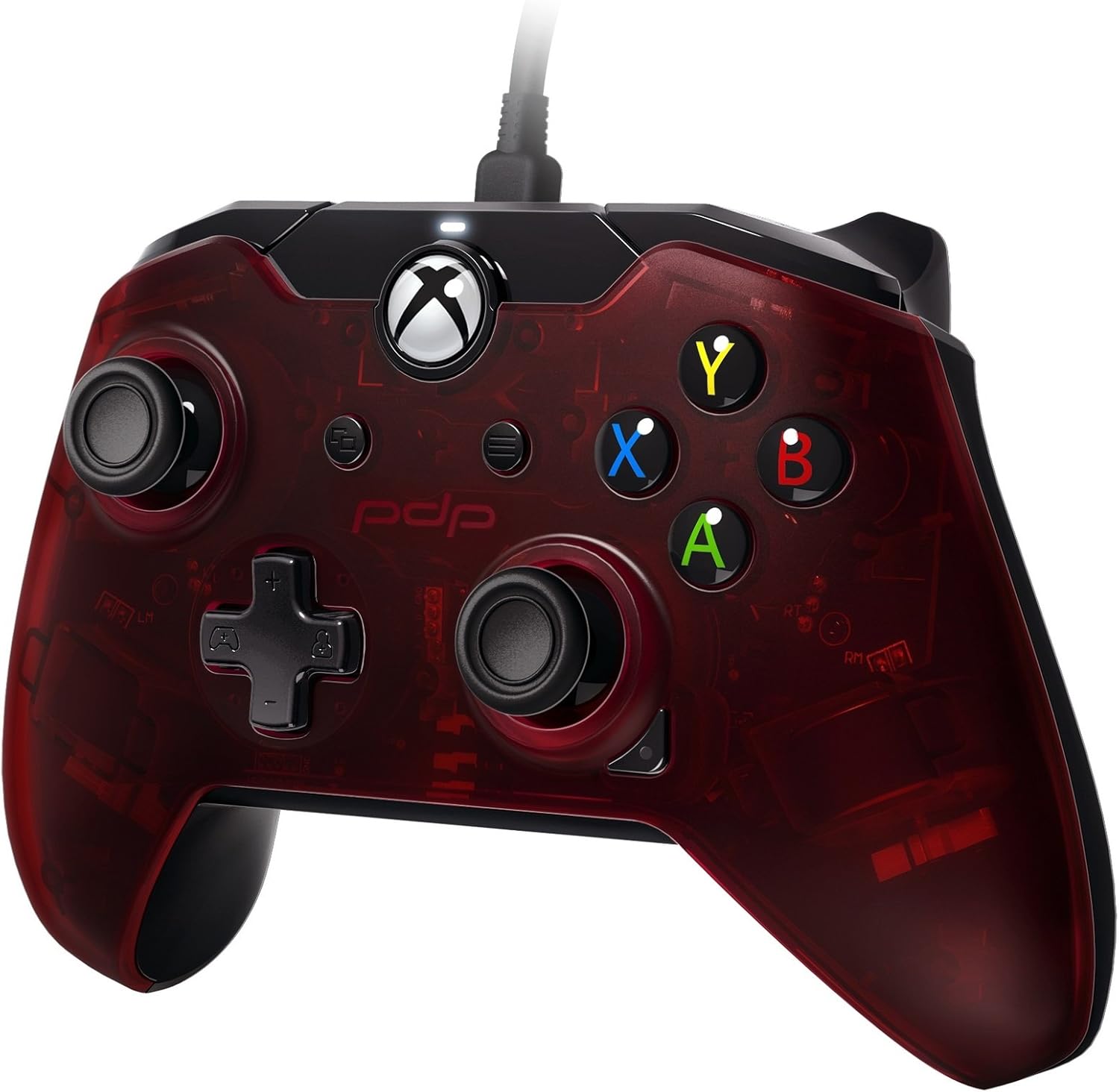
Image: Angled view of the PDP Wired Controller, highlighting the detachable cable connection and the textured surface of the grips.
Operating Instructions
This section details the primary functions and controls of your PDP Wired Controller.
- Standard Controls: The controller features standard Xbox One button layout including A, B, X, Y buttons, D-pad, Left and Right joysticks, Left and Right bumpers (LB, RB), and Left and Right triggers (LT, RT).
- Vibration Feedback: The controller provides vibration feedback to enhance your gaming immersion. This feature is automatically enabled when supported by the game.
- Audio Controls: Located on the front of the controller, there is an audio control button. This allows you to adjust game and chat audio levels directly from the controller without pausing your game. Refer to your game or console settings for specific audio mixing options.
- Textured Grips and Triggers: The non-slip grips and textured shoulder and trigger buttons are designed for comfort and improved control during extended gaming sessions.
Maintenance and Care
Proper maintenance will ensure the longevity and optimal performance of your controller.
- Cleaning: Use a soft, dry cloth to wipe down the controller. For stubborn dirt, slightly dampen the cloth with water. Avoid using harsh chemicals or abrasive cleaners, as these can damage the controller's finish.
- Cable Care: Always handle the detachable cable by the connector, not the cable itself, when plugging or unplugging. Avoid sharp bends or kinks in the cable to prevent internal damage. Store the cable neatly when not in use.
- Storage: Store the controller in a cool, dry place away from direct sunlight and extreme temperatures.
- Avoid Drops: While durable, repeated drops can damage internal components. Handle the controller with care.
Troubleshooting
If you encounter issues with your PDP Wired Controller, refer to the following common solutions.
- Controller Not Responding:
- Ensure the USB cable is securely plugged into both the controller and the console/PC.
- Try plugging the controller into a different USB port on your console or PC.
- Restart your Xbox One console or PC.
- No Audio Through Headset:
- Verify your headset is fully plugged into the 3.5mm audio jack on the controller.
- Check the audio settings on your Xbox One or PC to ensure the controller's audio output is selected and volume levels are adequate.
- Use the audio control button on the controller to adjust volume.
- Buttons/Joysticks Unresponsive or Drifting:
- Ensure the controller is clean and free of debris around the buttons and joysticks.
- For PC users, ensure you have the latest drivers installed from the official PDP support website.
- If the issue persists, contact PDP customer support for further assistance.
Specifications
| Feature | Detail |
|---|---|
| Model Number | 048-082-NA-RD |
| Compatibility | Xbox One, Windows PC |
| Connectivity | Wired USB |
| Cable Length | 2.4 meters (detachable) |
| Audio Jack | 3.5mm |
| Dimensions | 8.2 x 10.8 x 20.6 cm |
| Weight | 80 g |
| Language (Product Information) | Italiano, Inglés |
Warranty and Support
For warranty information, technical support, or to download the latest drivers, please visit the official PDP website or contact their customer support.
While specific warranty terms may vary by region, PDP products typically come with a manufacturer's warranty covering defects in materials and workmanship. Please retain your proof of purchase for warranty claims.
For additional assistance, you may also refer to the product's listing on Amazon for details regarding return policies and optional protection plans.
Related documents048-082-NA-RD


Ask a question about this manual
Ask about setup, troubleshooting, compatibility, parts, safety, or missing instructions. Manuals+ will review the question and use this page’s manual context to help answer it.