
1. Introduction
This manual provides detailed instructions for the installation, operation, and maintenance of your THINKWARE F100 Dash Cam. The F100 is designed to record high-quality video footage of your journeys, offering features such as Full HD 1080p recording, night vision, and a secure parking mode to enhance your driving safety and provide evidence in case of incidents.
Please read this manual thoroughly before using the product to ensure proper operation and to prevent damage.
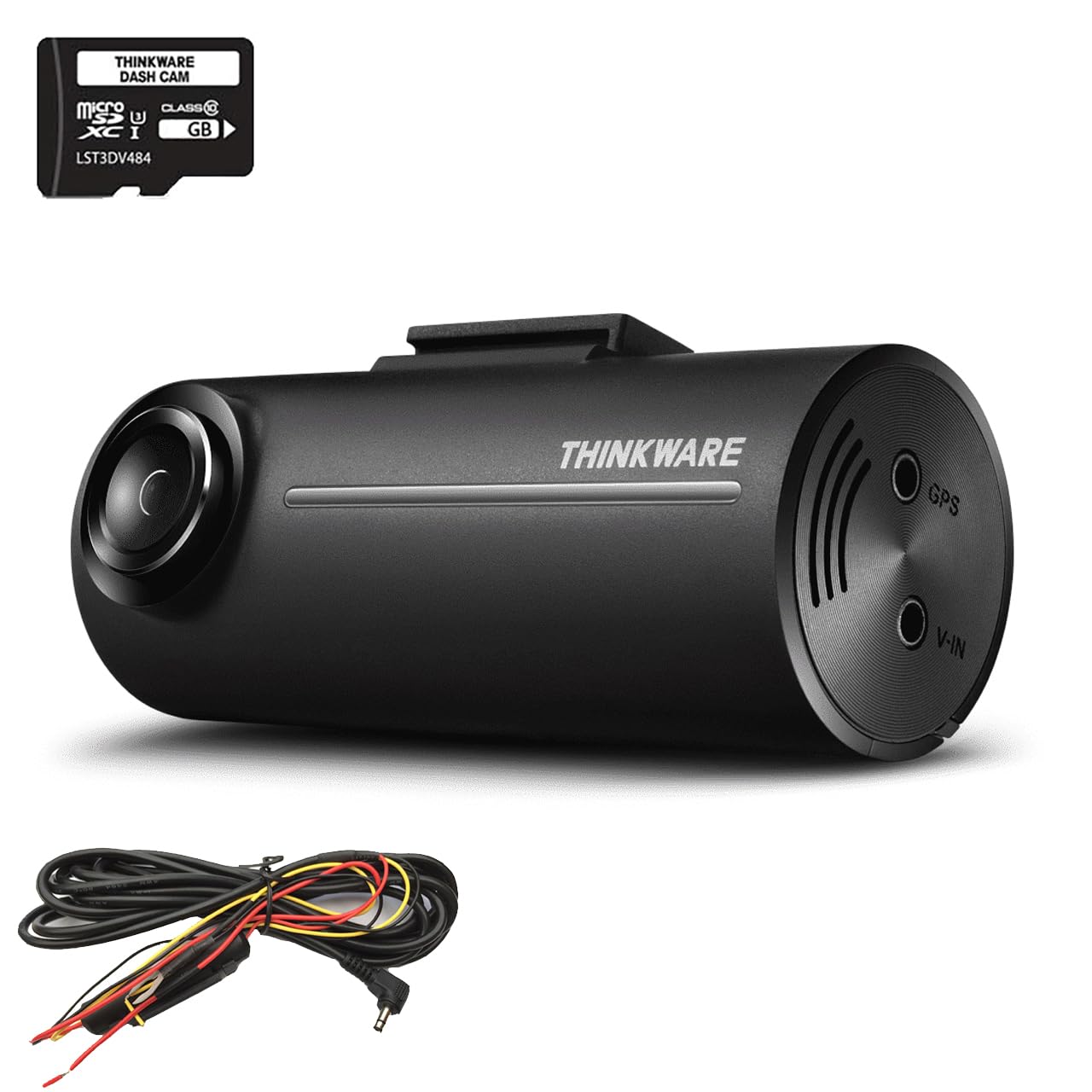
Image 1.1: The THINKWARE F100 Dash Cam recording in Full HD 1080p.
2. Package Contents
Verify that all components are present in the box before proceeding with installation.
- THINKWARE F100 Dash Cam Unit
- Hardwire Cable
- 16GB Micro SD Card
- Quick Start Guide & Warranty Information
- 3M Sticky Mounting Pad (2 included)

Image 2.1: All items included in the THINKWARE F100 Dash Cam package.
3. Product Overview
The THINKWARE F100 Dash Cam features a compact design for discreet installation and a wide-angle lens to capture a broad view of the road.

Image 3.1: The F100 Dash Cam mounted on a windshield.
Key Features:
- Full HD 1080p Recording: Captures clear video at 30 frames per second with a 135-degree wide-angle view.
- Night Enhancement Technology: Sony CMOS image sensors provide clearer images in low-light conditions.
- Parking Surveillance Mode: Monitors your vehicle when parked, preventing battery drain with its G-sensor system.
- Format Free Technology: Extends the life of your Micro SD card by eliminating the need for manual formatting.
- Driver Safety Features: Includes emergency recording via G-sensor accident detection and optional speed camera alerts (requires optional GPS antenna).

Image 3.2: Visual representation of F100 key features.
4. Installation
Proper installation is crucial for optimal performance. It is recommended to have the dash cam professionally installed, especially for hardwiring.
4.1 Mounting the Dash Cam
- Clean the area on your windshield where you intend to mount the dash cam. Ensure it does not obstruct your view.
- Attach one of the 3M sticky mounting pads to the dash cam mount.
- Firmly press the mount onto the cleaned windshield area. Hold for at least 30 seconds to ensure a secure bond.
- Adjust the camera angle to ensure it captures the road ahead clearly, with the horizon in the middle of the frame.
4.2 Power Connection (Hardwire)
The F100 includes a hardwire cable for secure parking mode installation, which connects directly to your vehicle's fuse box. This connection prevents battery drain while providing continuous power for parking surveillance.
- Connect the hardwire cable to the power input port on the dash cam.
- Route the cable along the windshield trim and down to your vehicle's fuse box. Use cable clips to secure the cable and keep it tidy.
- Connect the hardwire cable's ACC (Accessory) and BATT (Battery) wires to appropriate fuse slots in your vehicle's fuse box. Consult your vehicle's manual or a professional installer for correct fuse selection.
- Connect the GND (Ground) wire to a metal bolt or chassis point in your vehicle.
- Once connected, start your vehicle to ensure the dash cam powers on correctly.
5. Basic Operation
5.1 Powering On/Off
- When connected to your vehicle's power supply (either via cigarette lighter adapter or hardwire kit), the F100 will automatically power on and begin continuous recording when the vehicle starts.
- The dash cam will automatically power off when the vehicle's ignition is turned off, unless parking mode is enabled via hardwire installation.
5.2 Recording Modes
- Continuous Recording: The dash cam records continuously in 1-minute segments while driving. Older files are overwritten automatically when the SD card is full.
- Event Recording: In the event of an impact or sudden braking detected by the G-sensor, the dash cam will automatically save a 20-second video clip (10 seconds before and 10 seconds after the event) to a protected folder, preventing it from being overwritten.
- Manual Recording: Press the emergency recording button on the dash cam to manually save a 20-second video clip to the protected folder.
6. Advanced Features
6.1 Parking Surveillance Mode
With the hardwire installation, the F100 can monitor your vehicle even when parked. This mode uses the G-sensor to detect impacts and motion, recording events to provide security when you are away from your vehicle.
- The F100's parking mode system continuously monitors your car battery's health. If the battery voltage drops below a safe level, the dash cam will automatically shut down to prevent complete battery drain.
- Motion detection and impact detection are active in parking mode.

Image 6.1: Battery Saving Parking Mode functionality.
6.2 Driver Safety Features
- G-Sensor Accident Detection: Automatically detects impacts and saves footage to a protected folder.
- Speed Camera Alerts: The F100 supports a UK speed camera database (Cyclops) with free updates. This feature requires an optional GPS antenna to function.
6.3 Format Free Technology
The F100 utilizes an advanced file allocation table system that manages the Micro SD card efficiently, reducing the need for manual formatting and extending the lifespan of the memory card.
7. PC/Mac Viewer Software
The THINKWARE PC/Mac Viewer software allows you to manage your dash cam settings, view recorded footage, and download or delete files from your computer.
7.1 Downloading and Installing the Viewer
The viewer software can be downloaded for free from the official THINKWARE website. Follow the on-screen instructions to install it on your computer.
7.2 Using the Viewer
- Remove the Micro SD card from the dash cam.
- Insert the Micro SD card into your computer's card reader.
- Launch the THINKWARE PC/Mac Viewer software.
- You can now browse recorded videos, adjust dash cam settings, and update firmware if available.

Image 7.1: The THINKWARE PC/Mac Viewer software in use.
8. Maintenance
8.1 Micro SD Card Management
- Regularly back up important footage from your Micro SD card to a computer or external storage.
- Although the F100 features Format Free technology, it is still recommended to manually format the SD card every few months using the PC/Mac Viewer software to maintain optimal performance and prevent data corruption.
- Use only high-quality, genuine Micro SD cards from reputable brands.
8.2 Cleaning the Dash Cam
- Wipe the camera lens gently with a soft, lint-free cloth to ensure clear recordings.
- Clean the exterior of the dash cam with a dry or slightly damp cloth. Do not use harsh chemicals or abrasive cleaners.
9. Troubleshooting
If you encounter issues with your F100 Dash Cam, refer to the following common problems and solutions:
| Problem | Possible Cause | Solution |
|---|---|---|
| Dash cam does not power on. | No power supply; faulty cable; incorrect hardwire connection. | Check power cable connection. Ensure vehicle ignition is on (if not hardwired). Verify hardwire connections to fuse box. |
| Recording stops or freezes. | SD card error; full SD card; incompatible SD card. | Format the SD card using the PC/Mac Viewer. Replace with a new, high-quality SD card if issues persist. |
| Poor video quality. | Dirty lens; incorrect camera angle; low-light conditions. | Clean the camera lens. Adjust camera angle. Ensure sufficient lighting for optimal recording. |
| Parking mode not working. | Not hardwired; incorrect hardwire connection; battery voltage too low. | Ensure the dash cam is hardwired correctly. Check vehicle battery health. |
If the problem persists after trying these solutions, please contact THINKWARE customer support.
10. Specifications
Technical specifications for the THINKWARE F100 Dash Cam:
| Feature | Detail |
|---|---|
| Manufacturer | Thinkware |
| Model Number | F100 |
| Product Dimensions | 7.8 x 3.4 x 3.15 cm |
| Weight | 421.84 grams |
| Video Capture Resolution | 1080p Full HD |
| Optical Sensor Technology | CMOS (Sony) |
| Special Features | Night Vision, G-Sensor, Parking Mode, Format Free Technology |
| Mounting Type | Windshield Mount |
| Included Components | Dash Camera, Hardwire Cable, 16GB SD Card |
| Color | Black |
11. Warranty and Support
THINKWARE provides comprehensive support for its products. As a global dash cam brand, we offer a free technical helpline and professional national installation services.
For warranty information, please refer to the 'Quick Start Guide & Warranty Information' included in your product package. For technical assistance or further inquiries, please visit the official THINKWARE website or contact their customer support directly.


