
Lucky Star 4353163603
Luckystar 2-Device Universal Waterproof Remote Control User Manual
Model: 4353163603
Introduction
This manual provides comprehensive instructions for the Luckystar 2-Device Universal Waterproof Remote Control, Model 4353163603. This remote is designed for ease of use and compatibility with a wide range of entertainment devices, including Smart TVs, LED/LCD TVs, Apple TV, Vizio TV, LG, Samsung, Roku Player, BluRay DVD players, and Audio Systems. Its waterproof design ensures durability and easy cleaning.
Key features include:
- 2-Device Universal compatibility
- Extensive code database for major brands
- Learning ability for custom functions
- Large, easy-to-read buttons
- Smart keys for popular streaming services like NETFLIX and Amazon
- Ability to assign individual keys for punch-through functions
- Combine Power Off/On for multiple devices with a single button press
- Waterproof design for enhanced durability and easy cleaning

Figure 1: Luckystar 2-Device Universal Waterproof Remote Control
Setup
1. Battery Installation
The remote control requires two (2) AAA batteries (not included). An optional screw for the battery cover is included for added security.
- Locate the battery compartment on the back of the remote control.
- Open the battery cover by sliding it down or unscrewing the optional screw if installed.
- Insert two AAA batteries, ensuring the positive (+) and negative (-) terminals align with the markings inside the compartment.
- Close the battery cover securely. If using the optional screw, fasten it.

Figure 2: Battery Installation Steps
2. Device Programming (TV Device Setting)
This universal remote can be programmed to control various devices. For many common brands, an automatic search function is available. Follow these steps to program your TV:
- Press and hold the [TV] and [POWER] keys simultaneously for approximately 4 seconds. The LED light on the remote will illuminate, indicating it is in programming mode. Release the keys.
- Enter the 4-digit code for your TV brand. Refer to the code list provided with your remote or search online for compatible codes. If the code is correct, the LED light will turn off. If the LED light remains on, the code was incorrect; try entering the code again or a different code for your brand.
- After entering the code, test the remote's functions (e.g., Power, Volume, Channel) to ensure it controls your TV correctly.
- If the remote does not function correctly, repeat the process from step 1 with a different code.
Note: During the programming process, if no key is pressed within a 10-second time span, the remote will automatically exit the programming mode. You will need to restart the process from step 1.

Figure 3: TV Device Setting Instructions
3. Device Compatibility
The Luckystar universal remote is compatible with most major brands in the USA market, including but not limited to:
- LG
- Samsung
- Toshiba
- Sony
- Vizio
- Sharp
- Panasonic
- Zenith
- Philips
- RCA
- Roku Streaming Boxes
- Blu-Ray DVD Players
- Cable Boxes, Sat Boxes, Set-top-boxes
- Audio equipment

Figure 4: Compatible Device Brands
Operating Instructions
Button Functions
Familiarize yourself with the functions of each button on your Luckystar universal remote control:
| Button | Function |
|---|---|
| SAT/CABLE | Selects the Satellite/Cable box mode. |
| POWER (⑂) | Turns the TV or selected device on and off. Can be programmed for combined power off/on of multiple devices. |
| TV | Selects the TV mode directly. |
| Number Keys (0-9) | Used for direct channel entry and code input during programming. |
| BACK | Returns to the previous menu or screen. |
| VOL +/- | Adjusts the volume level. Master Volume Control feature allows control regardless of operating device. |
| CH +/- | Changes channels up or down. |
| CC | Controls the closed caption decoder. |
| MUTE | Cuts off the sound temporarily. |
| INFO | Displays information on the TV screen (e.g., program details). |
| GUIDE | Displays the Electronic Program Guide. |
| CRACKLE | Accesses the "CRACKLE" application. |
| MENU | Displays the main on-screen menu. |
| Input | Changes the input source on the TV. |
| amazon | Accesses the "Amazon" application (e.g., Amazon Prime Video). |
| MGO | Accesses the "MGO" application. |
| NETFLIX | Accesses the "NETFLIX" application. |
| BLOCKBUSTER | Accesses the "BLOCKBUSTER" application. |
| Navigation Arrows (Up, Down, Left, Right) | Used to navigate menus and selections. |
| OK | Confirms selections in menus. |
| Exit | Exits the current menu or application. |
| Playback Controls (Rewind, Play/Pause, Fast Forward, Stop) | Controls media playback for compatible devices. |
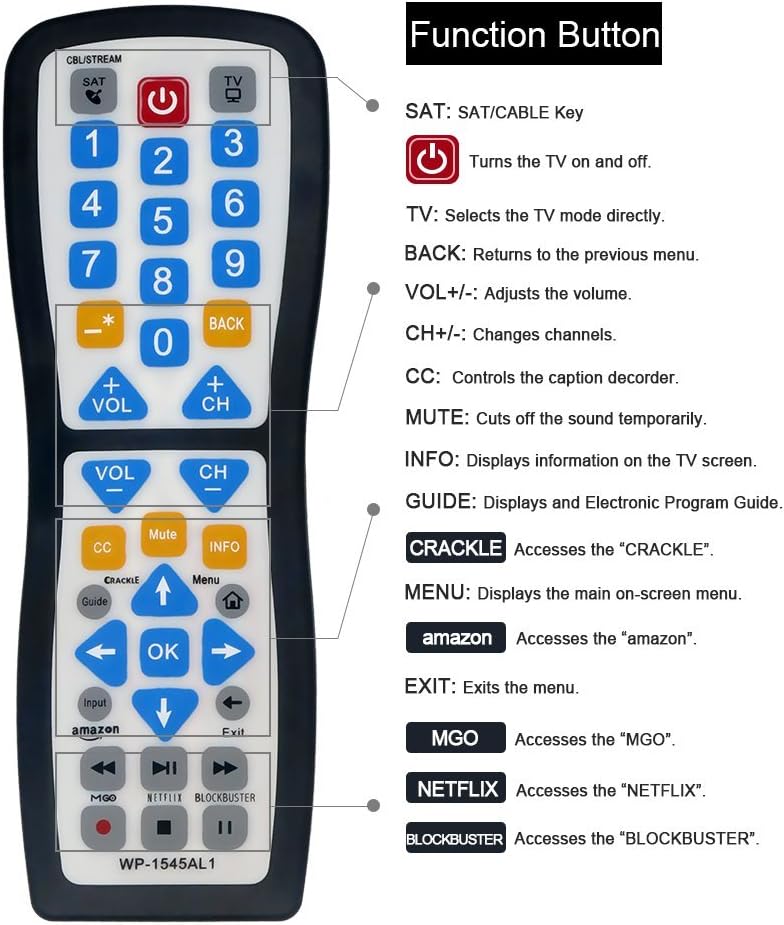
Figure 5: Remote Control Button Functions
Maintenance
Cleaning the Remote Control
The Luckystar remote control features a waterproof design, making it easy to clean and durable against splashes. To clean your remote:
- Wipe the surface with a soft, damp cloth.
- For stubborn dirt, a mild soap solution can be used.
- Ensure the battery compartment is securely closed before cleaning with moisture.
- Do not submerge the remote in water for extended periods, despite its waterproof nature.
- Allow the remote to air dry completely before use.
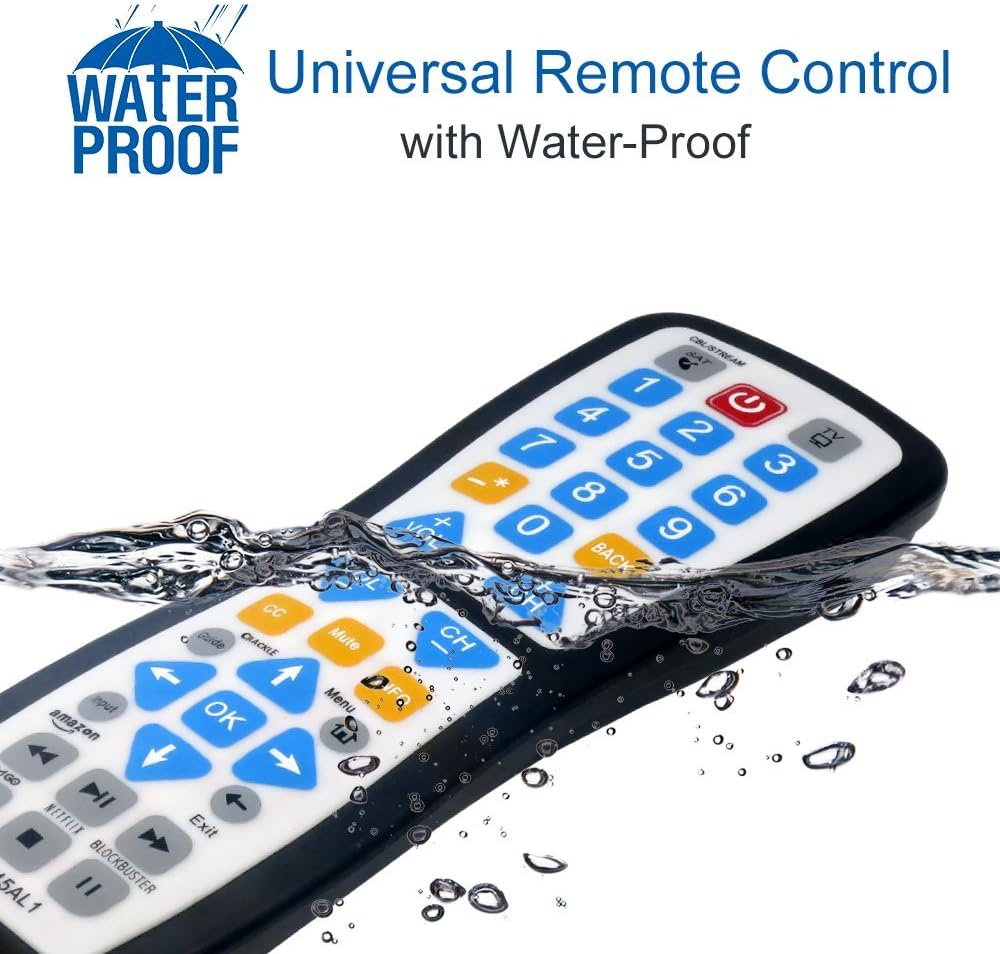
Figure 6: Waterproof Feature
Battery Replacement
When the remote's performance degrades or it stops responding, it is likely time to replace the batteries. Follow the battery installation steps outlined in the "Setup" section.
Troubleshooting
If you encounter issues with your Luckystar universal remote control, try the following troubleshooting steps:
- Remote Not Responding:
- Check if the batteries are inserted correctly with the correct polarity (+/-).
- Replace old batteries with new AAA batteries.
- Ensure there are no obstructions between the remote and the device you are trying to control.
- Verify that you are pointing the remote directly at the device's infrared receiver.
- Device Not Responding After Programming:
- The entered code might be incorrect. Try programming the remote again using a different code from the code list for your device brand.
- Ensure the device you are trying to control is powered on.
- Some Functions Not Working:
- Not all functions of your original remote may be supported by the universal remote.
- Ensure the remote is in the correct device mode (e.g., TV mode for TV functions).
- Consider using the learning ability feature if available, to program specific missing functions from your original remote.
- Remote Forgets Programming:
- This can sometimes happen with low batteries. Replace batteries and reprogram the remote.
- Ensure the battery compartment is secure.
Specifications
| Brand | Lucky Star |
| Model Number | 4353163603 |
| ASIN | B073V85248 |
| Item Weight | 3 ounces |
| Product Dimensions | 3 x 2 x 0.5 inches |
| Color | Black, Silver |
| Special Feature | Waterproof |
| Max Number of Supported Devices | 2 |
| Compatible Devices | Television, DVD Players, Cable Boxes, Sat Boxes, Set-top-boxes, Audio equipment, Roku |
| Batteries Required | 2 AAA (not included) |

Figure 7: Product Dimensions
Warranty and Support
Information regarding product warranty and customer support is not available in the provided product details. Please refer to the product packaging or the manufacturer's official website for warranty terms and contact information for support.
Ask a question about this manual
Ask about setup, troubleshooting, compatibility, parts, safety, or missing instructions. Manuals+ will review the question and use this page’s manual context to help answer it.