
1. Introduction
The SYMA X22W Mini Drone is a compact quadcopter designed for beginners and enthusiasts. It features a built-in camera for live video streaming, altitude hold for stable flight, and various control modes for an engaging flying experience. This manual provides essential information for safe operation and maintenance of your drone.
2. Package Contents
Ensure all items are present in your package:
- SYMA X22W Mini Drone
- Remote Controller
- Rechargeable LiPo Battery (2 included)
- USB Charging Cable
- Spare Propellers (4 pieces)
- Screwdriver
- User Manual
3. Setup Guide
3.1. Charging the Drone Battery
The drone is powered by a rechargeable LiPo battery. Before first use, fully charge the battery.
- Connect the USB charging cable to the battery.
- Plug the USB end into a compatible USB power source (e.g., computer USB port, USB wall adapter).
- The indicator light on the charging cable will show the charging status. Refer to the charging cable's specific instructions for light indications (usually red for charging, off or green for fully charged).
- Charging typically takes approximately 90 minutes. Do not overcharge.
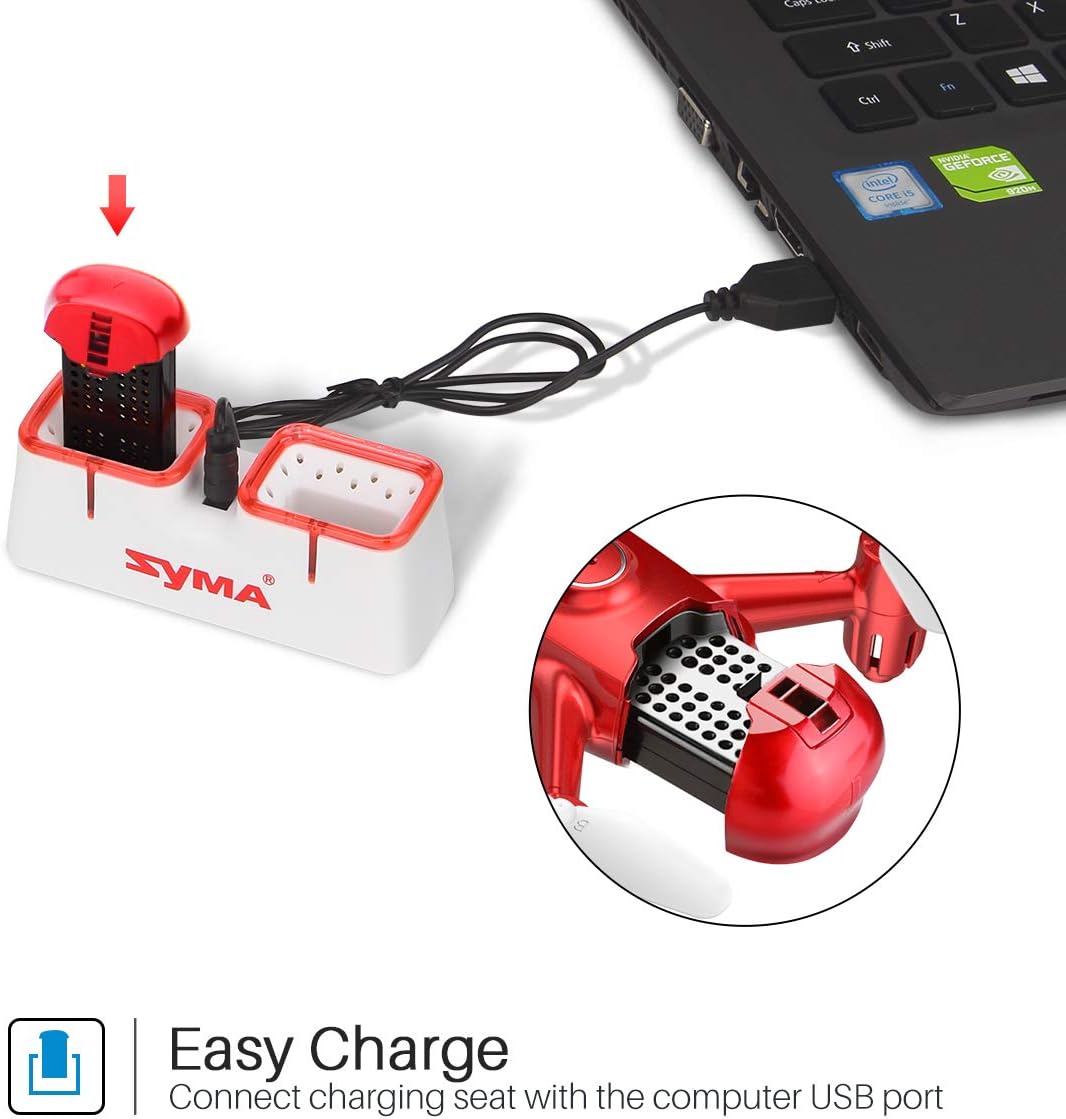
Figure 1: Drone battery charging via USB.
3.2. Installing Drone Battery
Once charged, install the battery into the drone.
- Locate the battery compartment on the drone.
- Carefully insert the charged battery into the compartment.
- Secure the battery compartment cover.
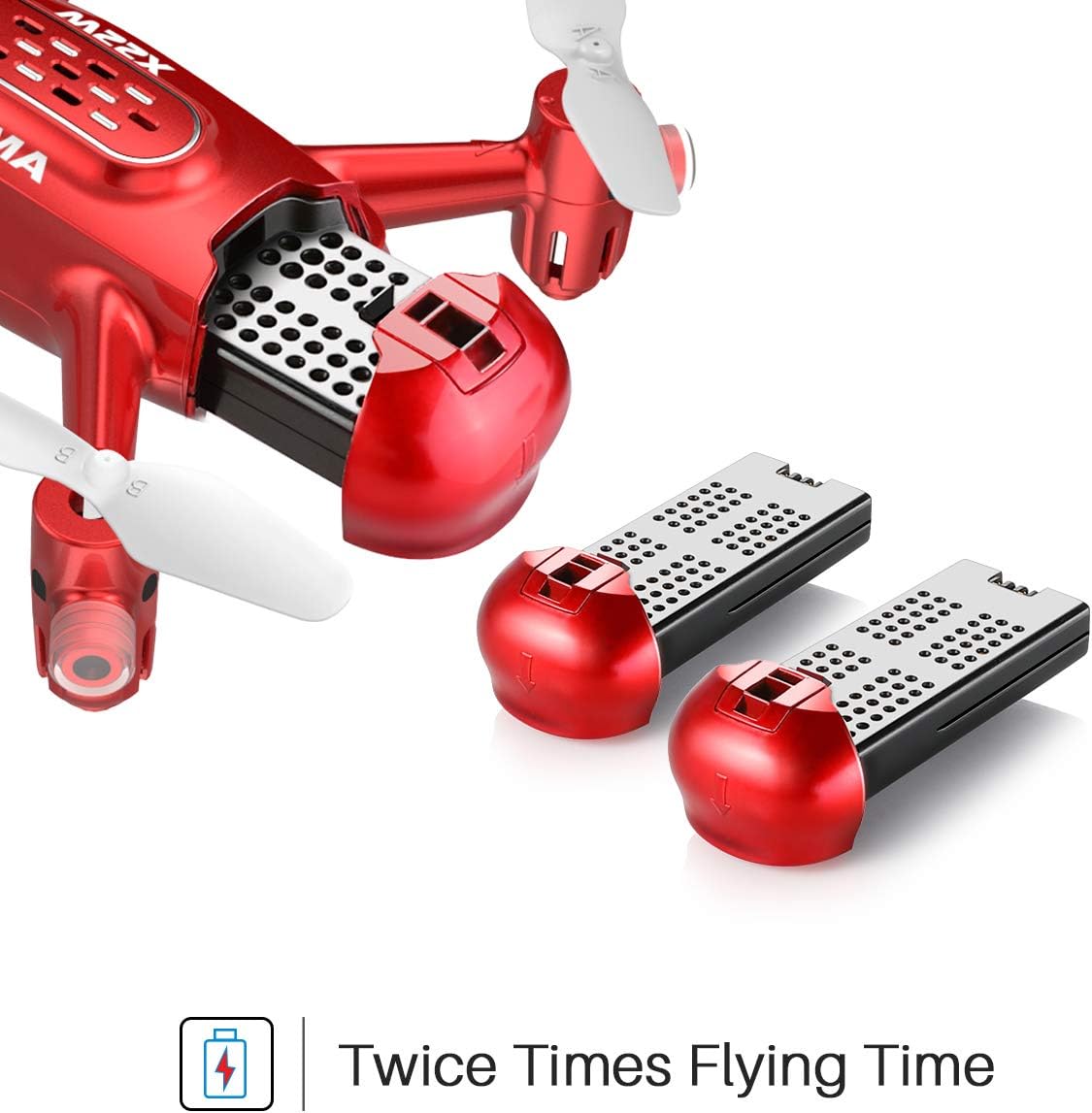
Figure 2: Drone battery installation. The drone comes with two batteries for extended flight time.
3.3. Remote Controller Setup
The remote controller requires 4 AA batteries (not included).
- Open the battery compartment on the back of the remote controller.
- Insert 4 AA batteries, ensuring correct polarity.
- Close the battery compartment.
3.4. Propeller Installation/Replacement
If propellers need to be replaced, ensure they are installed correctly.
- Each propeller is marked with 'A' or 'B'. Match the propeller type to the corresponding motor shaft on the drone.
- Gently push the propeller onto the motor shaft until it is secure.
4. Operating Instructions
4.1. Pairing the Drone and Remote Controller
- Place the drone on a flat, level surface.
- Turn on the drone's power switch. The drone's indicator lights will flash.
- Turn on the remote controller.
- Push the left joystick (throttle) all the way up, then all the way down. The drone's lights will stop flashing and remain solid, indicating successful pairing.
4.2. One-Key Take-off and Landing
This feature allows for simplified take-off and landing.
- After pairing, press the One-Key Take-off button on the remote controller. The drone will automatically ascend to a stable hovering height.
- To land, press the One-Key Landing button. The drone will slowly descend and land automatically.
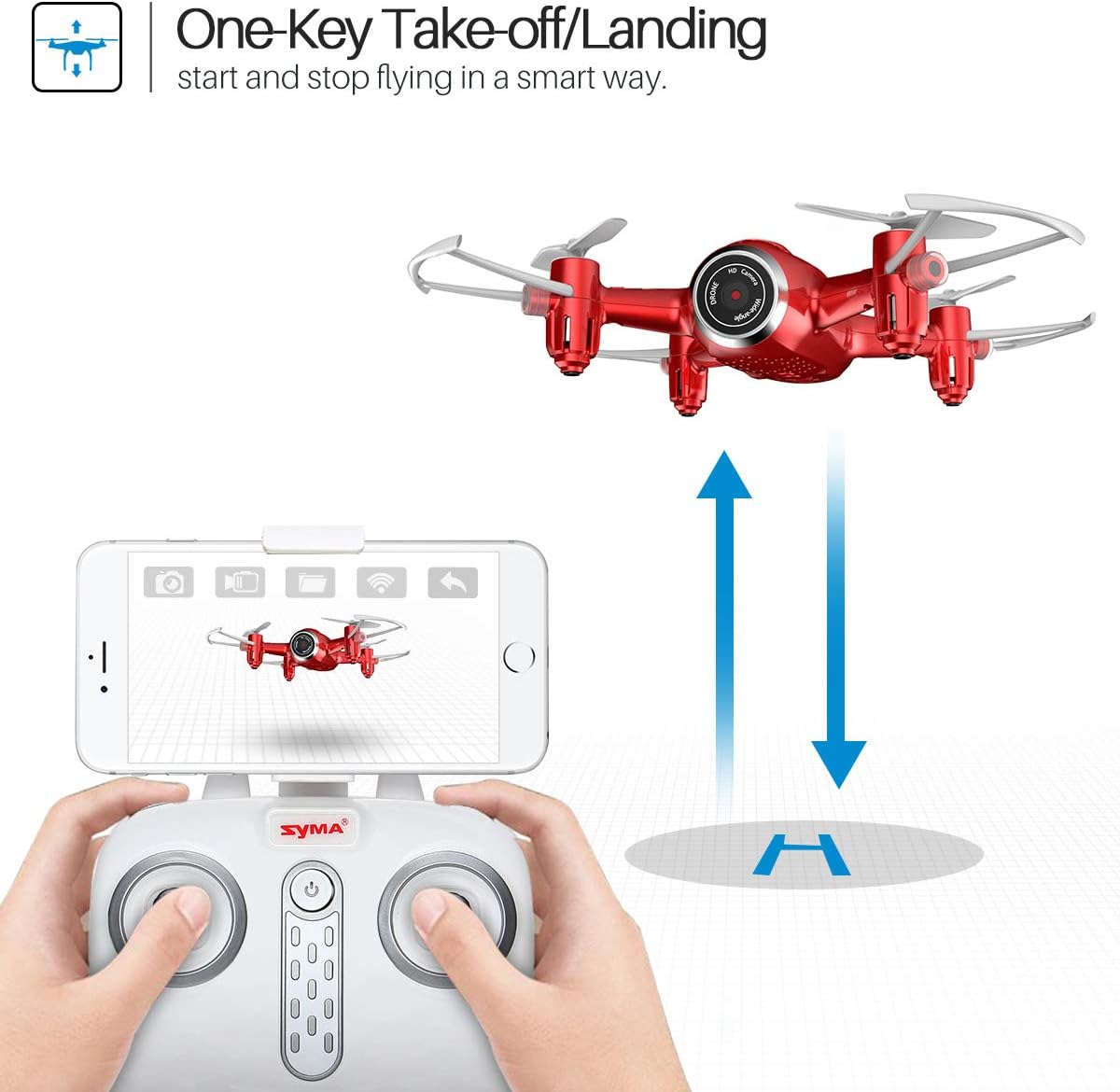
Figure 3: One-Key Take-off/Landing functionality.
4.3. Altitude Hold Function
The Altitude Hold feature allows the drone to maintain a consistent altitude, making it easier to control and capture stable photos/videos.
- Once the drone is airborne, release the throttle joystick. The drone will automatically hold its current altitude.
- Use the throttle joystick to adjust the altitude as needed.

Figure 4: Altitude Hold for stable flight and photography.
4.4. Headless Mode
Headless Mode simplifies flying by eliminating the need to distinguish the drone's front from its rear. The drone's orientation will be relative to the pilot.
- Before taking off, ensure the drone is facing forward relative to the pilot.
- Press the Headless Mode button on the remote controller. The drone's lights will flash to confirm activation.
- In Headless Mode, pushing the right joystick forward will always make the drone fly away from the pilot, regardless of the drone's actual orientation.
- Press the Headless Mode button again to exit this mode.

Figure 5: Headless Mode for easier drone control.
4.5. 3D Flips
Perform exciting aerial stunts with the 3D Flip function.
- Fly the drone to a height of at least 3 meters (10 feet).
- Press the 3D Flip button on the remote controller.
- Immediately push the right joystick in any direction (forward, backward, left, or right). The drone will perform a 360-degree flip in that direction.
4.6. App Control and FPV Live Video
Download the SYMA GO app to your smartphone for advanced control and live video streaming.
- Download and install the SYMA GO app from your smartphone's app store.
- Turn on the drone and connect your smartphone to the drone's Wi-Fi network (usually named 'SYMA-X22W-XXXX').
- Open the SYMA GO app. You should see the live video feed from the drone's camera.
- The app allows for touch control, gravity control, and flight-track drawing.
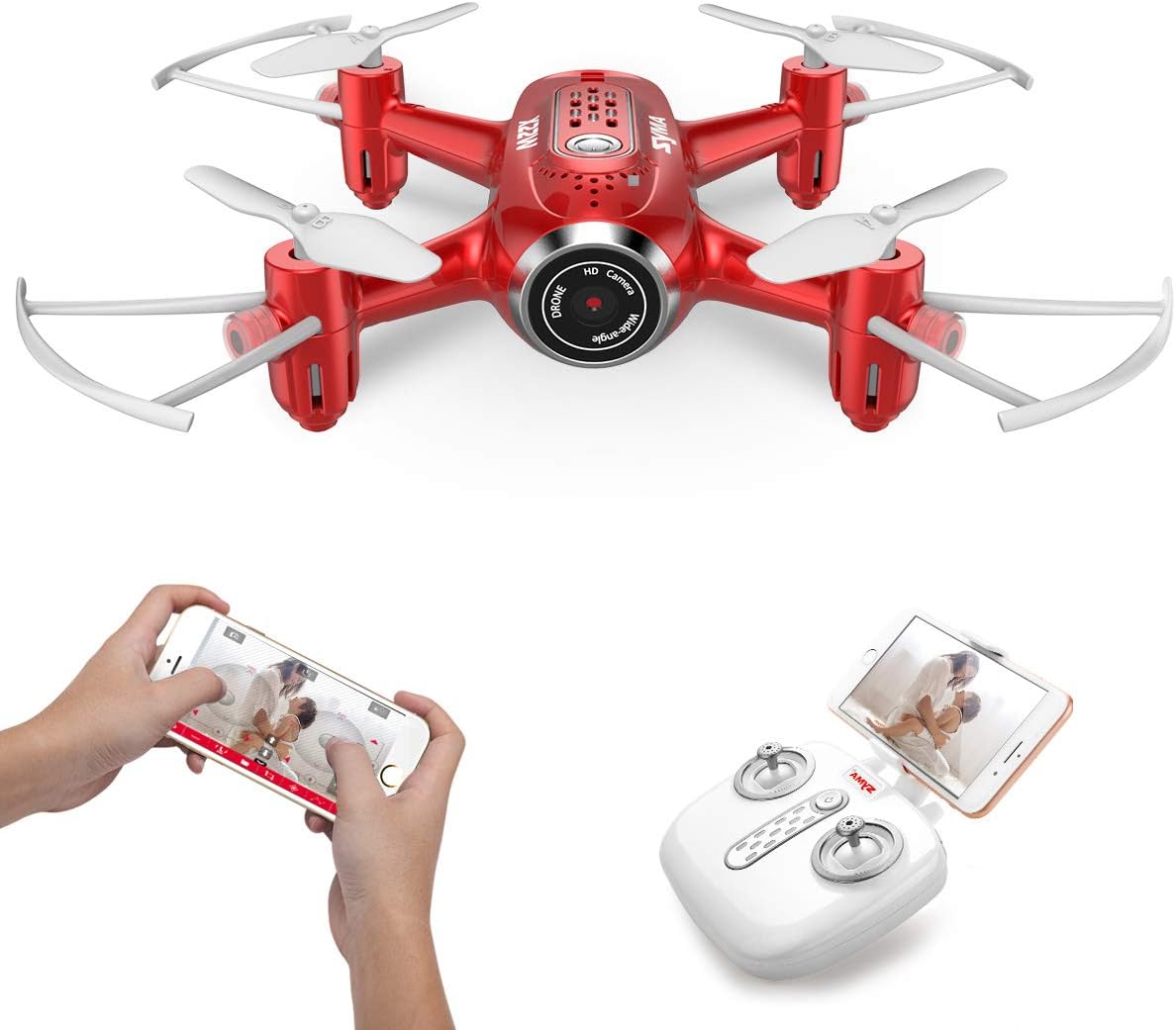
Figure 6: App control and FPV live video functionality.

Figure 7: Drone with finger flight path control via app.
4.7. HD Camera
The drone is equipped with a 720p HD camera for capturing photos and videos directly to your smartphone via the SYMA GO app.

Figure 8: Drone's HD camera.
5. Maintenance
- Cleaning: Use a soft, dry cloth to clean the drone. Do not use solvents or harsh chemicals.
- Propellers: Regularly check propellers for damage. Replace any bent or broken propellers immediately.
- Battery Care: Store batteries in a cool, dry place. Do not expose to extreme temperatures. Fully charge before storage and periodically during long storage periods.
- Storage: When not in use, store the drone and remote controller in a safe, dry environment away from direct sunlight.
6. Troubleshooting
| Problem | Possible Cause | Solution |
|---|---|---|
| Drone does not respond to remote. | Not paired; low battery (drone/remote). | Re-pair the drone and remote. Charge/replace batteries. |
| Drone drifts during flight. | Not calibrated; uneven surface during startup. | Ensure drone is on a flat surface during pairing. Perform gyroscope calibration (refer to app/manual for specific steps). |
| Poor video quality/no live feed. | Weak Wi-Fi signal; app not connected. | Ensure strong Wi-Fi connection to drone. Reconnect app. Fly closer to the drone. |
| Short flight time. | Battery not fully charged; old battery. | Fully charge battery. Consider replacing old batteries. |
7. Specifications
| Feature | Detail |
|---|---|
| Brand | SYMA |
| Model Name | X22W |
| Color | Red |
| Video Capture Resolution | 720p |
| Connectivity Technology | Wi-Fi |
| Skill Level | Beginner |
| Item Weight | 7 ounces |
| Battery Capacity | 3000 Milliamp Hours (total for both batteries, assuming 1500mAh each or similar) |
| Control Type | App Control |
| Material | ABS Plastic |
| Product Dimensions | 12.6 x 7.48 x 2.76 inches |
| Recommended Age | 14 years and up |
8. Warranty and Support
For warranty information and technical support, please refer to the official SYMA website or contact your retailer. Keep your purchase receipt as proof of purchase.


