
DIYSecuritycameraworld IPCX-B987W
DIYSecuritycameraworld Full HD 1080P WiFi PTZ Outdoor Security Camera User Manual
Model: IPCX-B987W
1. Introduction
This user manual provides detailed instructions for the installation, operation, and maintenance of your DIYSecuritycameraworld Full HD 1080P WiFi PTZ Outdoor Security Camera, Model IPCX-B987W. Please read this manual thoroughly before using the product to ensure proper functionality and safety. Keep this manual for future reference.
2. Package Contents
Verify that all items listed below are included in your package. If any items are missing or damaged, please contact customer support.
- 1x WiFi IP Camera
- 1x Power Supply (12VDC 2A)
- 1x CD & Manual
- 1x Screws Bag for mounting
- 1x Antenna
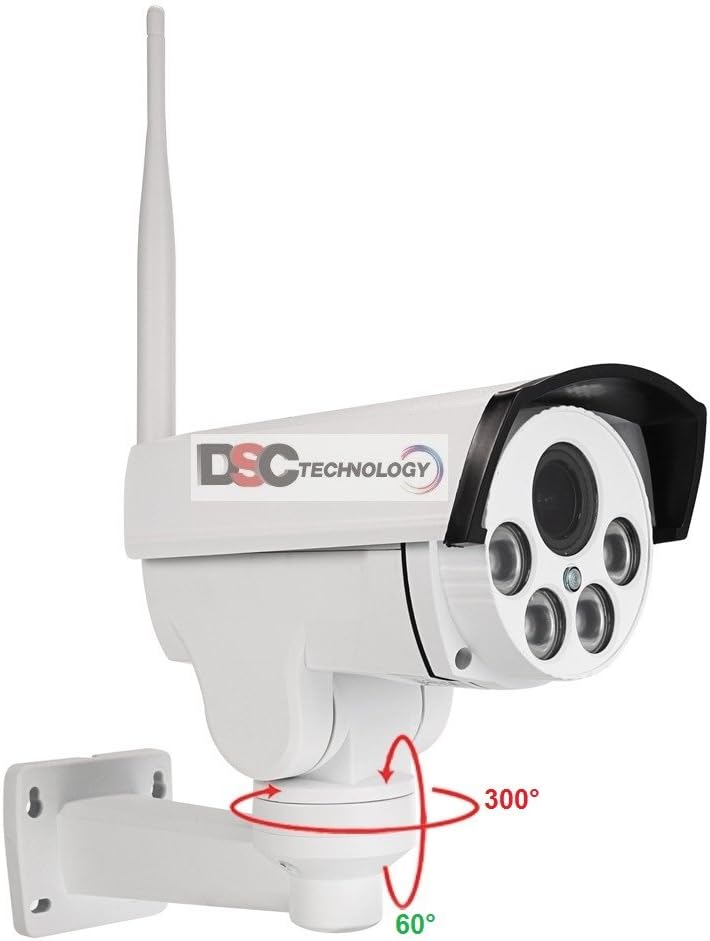
Image: Package contents of the DIYSecuritycameraworld IPCX-B987W camera.
3. Product Overview
The IPCX-B987W is a Full HD 1080P wireless IP security camera designed for outdoor use. It features Pan-Tilt-Zoom (PTZ) capabilities, night vision, and a built-in Micro SD card slot for local storage. Its robust metal housing ensures durability and an IP66 waterproof rating.

Image: Main view of the IPCX-B987W camera.

Image: Front view highlighting the lens and IR LEDs.

Image: Camera dimensions.
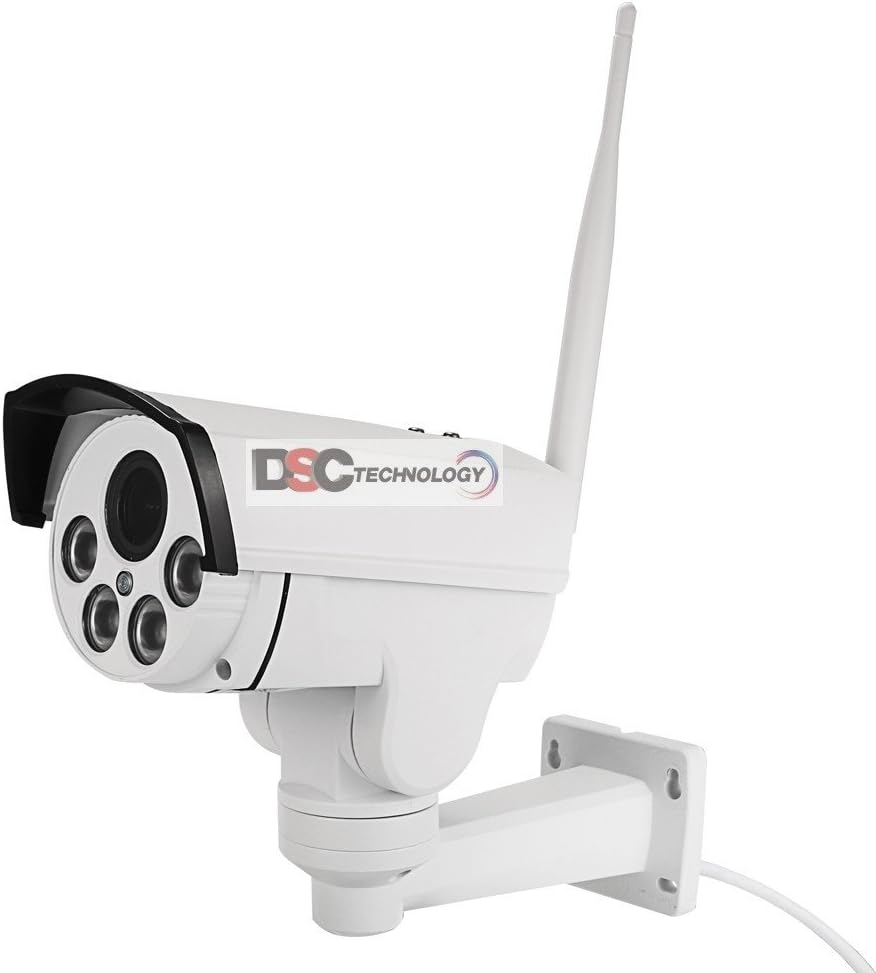
Image: Pan and Tilt rotation range.
4. Setup
4.1 Physical Installation
- Choose a Location: Select an outdoor location that provides the desired viewing angle and is within range of your WiFi network. The camera is waterproof (IP66 rated).
- Mounting: Use the provided screws and mounting bracket to securely attach the camera to a wall or suitable surface. Ensure the camera is positioned to avoid direct sunlight into the lens, which can affect image quality.
- Power Connection: Connect the included 12VDC 2A power supply to the camera and plug it into a power outlet.
- Antenna Installation: Screw the antenna firmly onto the designated port on the camera for optimal wireless signal reception.
4.2 Micro SD Card Installation
The camera supports a Micro SD card up to 128GB for local video storage (card not included).
- Locate the Micro SD card slot on the camera body. It may be protected by a cover.
- Carefully insert the Micro SD card into the slot until it clicks into place.
- Ensure the cover is securely closed to maintain the camera's waterproof integrity.

Image: Location of the Micro SD card slot.
4.3 Network Connection & App Configuration
The camera connects to your network via WiFi (IEEE802.11b/g/n, 2.4 GHz). Remote viewing and control are managed through the 'CamHi' mobile application or PC client software.
- Download the App: Search for 'CamHi' in your mobile app store (Android/iOS) or scan the QR code provided in the manual/packaging. An alternative Android download link is http://a.app.qq.com/o/simple.jsp?pkgname=com.hichip.
- Register/Login: Open the CamHi app and create an account or log in if you already have one.
- Add Camera: Follow the in-app instructions to add your camera. This typically involves scanning a QR code on the camera or manually entering its UID. Ensure your phone is connected to the same 2.4 GHz WiFi network as the camera during initial setup.
- Configure WiFi: Within the app, configure the camera's WiFi settings to connect it to your home network.
- PC Client Software: For Windows PC users, install the professional CMS client software from the included CD or manufacturer's website for remote viewing and management. (Mac OS is not supported).

Image: CamHi app interface for remote access.
5. Operation
5.1 Pan, Tilt, and Zoom Control
Utilize the CamHi app or PC client software to remotely control the camera's movement:
- Pan: Horizontal rotation up to 300 degrees.
- Tilt: Vertical rotation up to 60 degrees.
- Zoom: The camera features a 5X optical zoom with auto-focus (2.7-13.5mm lens) to adjust the field of view.
5.2 Night Vision
The camera is equipped with 4 array infrared LEDs, providing clear night vision up to 30 meters. The camera automatically switches between day and night modes based on ambient light conditions.
5.3 Micro SD Card Recording
When a Micro SD card is installed, the camera can record video footage. You can configure recording settings within the CamHi app, including:
- Continuous recording
- Motion-triggered recording: Set the camera to record only when motion is detected to save storage space.
- Scheduled recording
Recorded footage can be accessed and reviewed through the CamHi app or PC client software.
5.4 Remote Viewing
Access your camera's live feed and recorded videos from anywhere using:
- The 'CamHi' mobile application (Android/iOS)
- The professional CMS PC client software (Windows only)
- Web browsers (specific instructions may be found in the included CD manual)
6. Maintenance
- Cleaning: Periodically clean the camera lens and housing with a soft, damp cloth to remove dust and dirt. Do not use harsh chemicals.
- Firmware Updates: Check the CamHi app or manufacturer's website for available firmware updates to ensure optimal performance and security. Follow update instructions carefully.
- Power Supply: Ensure the power supply is protected from extreme weather conditions and physical damage.
- Network Stability: Maintain a stable WiFi connection for uninterrupted camera operation.
7. Troubleshooting
- Camera Not Connecting to Phone/App:
- Ensure your phone is connected to a 2.4 GHz WiFi network during initial setup.
- Verify the camera is powered on and within range of your WiFi router.
- Check your WiFi password for accuracy.
- Try resetting the camera (refer to the included CD manual for reset button location and procedure).
- Update the CamHi app to the latest version.
- Lost Connection / Unable to Reconnect:
- Check your internet connection and WiFi signal strength at the camera's location.
- Restart your WiFi router and the camera.
- If the issue persists, try re-adding the camera to the CamHi app.
- Poor Image Quality:
- Clean the camera lens.
- Ensure sufficient lighting during the day.
- Check network bandwidth if streaming is choppy.
- Micro SD Card Not Recording:
- Ensure the Micro SD card is correctly inserted and formatted (if prompted by the app).
- Check recording settings in the CamHi app.
- Verify the card is not full.
8. Specifications
| Feature | Specification |
|---|---|
| Model | IPCX-B987W |
| Resolution | Full HD 1080P (2.0MP) |
| Lens | 2.7-13.5mm, 5X Optical Zoom, Auto Focus |
| Pan/Tilt Range | Horizontal: 300°, Vertical: 60° |
| Night Vision | 4pcs Array Infrared LEDs, 30m Range |
| Connectivity | WiFi (IEEE802.11b/g/n, 2.4 GHz), RJ45 Ethernet, ONVIF 2.0 |
| Storage | Micro SD Card Slot (up to 128GB, not included) |
| Power Supply | 12VDC 2A |
| Power Consumption | Day: 3W; Night: 8W |
| Operating Temperature | -20°C to +60°C (-4°F to +140°F) |
| Operating Humidity | 10% to 95% (non-condensing) |
| Water Resistance | IP66 |
| Material | Metal Housing |
| Compatible Apps | CamHi (Android/iOS), CMS PC Client (Windows) |
| UPC | 780305855689 |
9. Warranty and Support
For warranty information, technical support, or service inquiries, please refer to the documentation included with your product or contact DIYSecuritycameraworld customer service directly. Keep your purchase receipt as proof of purchase.
Ask a question about this manual
Ask about setup, troubleshooting, compatibility, parts, safety, or missing instructions. Manuals+ will review the question and use this page’s manual context to help answer it.