
Introduction
This manual provides essential information for the proper installation, operation, and maintenance of your Fujitsu Scanner Accessory Kit. This kit is specifically designed to enhance the functionality of Fujitsu fi-7160, fi-7260, and fi-7180 document scanners, ensuring optimal performance and longevity of your equipment. Please read these instructions carefully before using the accessories.
Package Contents
Your Fujitsu Scanner Accessory Kit includes the following components:
- Document Feeder/Chute Tray
- Expandable Output Tray
- OEM AC Adapter
- Power Cord
- USB 3.0 Cable

Image: Overview of the Document Feeder/Chute Tray (left) and Expandable Output Tray (right) included in the kit.
Setup
Follow these steps to set up your scanner accessories:
- Attaching the Document Feeder/Chute Tray: Carefully align the Document Feeder/Chute Tray with the designated slots on the top of your Fujitsu fi-7160, fi-7260, or fi-7180 scanner. Gently push down until it clicks securely into place. Ensure it is firmly attached to prevent instability during operation.
- Attaching the Expandable Output Tray: Locate the output slot at the front of your scanner. Slide the Expandable Output Tray into the corresponding guides until it locks. This tray collects scanned documents and can be extended to accommodate longer paper sizes.
- Connecting the OEM AC Adapter and Power Cord: Connect the power cord to the OEM AC Adapter, then plug the adapter into the power input port on the back of the scanner. Plug the other end of the power cord into a standard electrical outlet.
- Connecting the USB 3.0 Cable: Insert one end of the USB 3.0 cable into the USB port on the back of the scanner and the other end into an available USB 3.0 port on your computer.
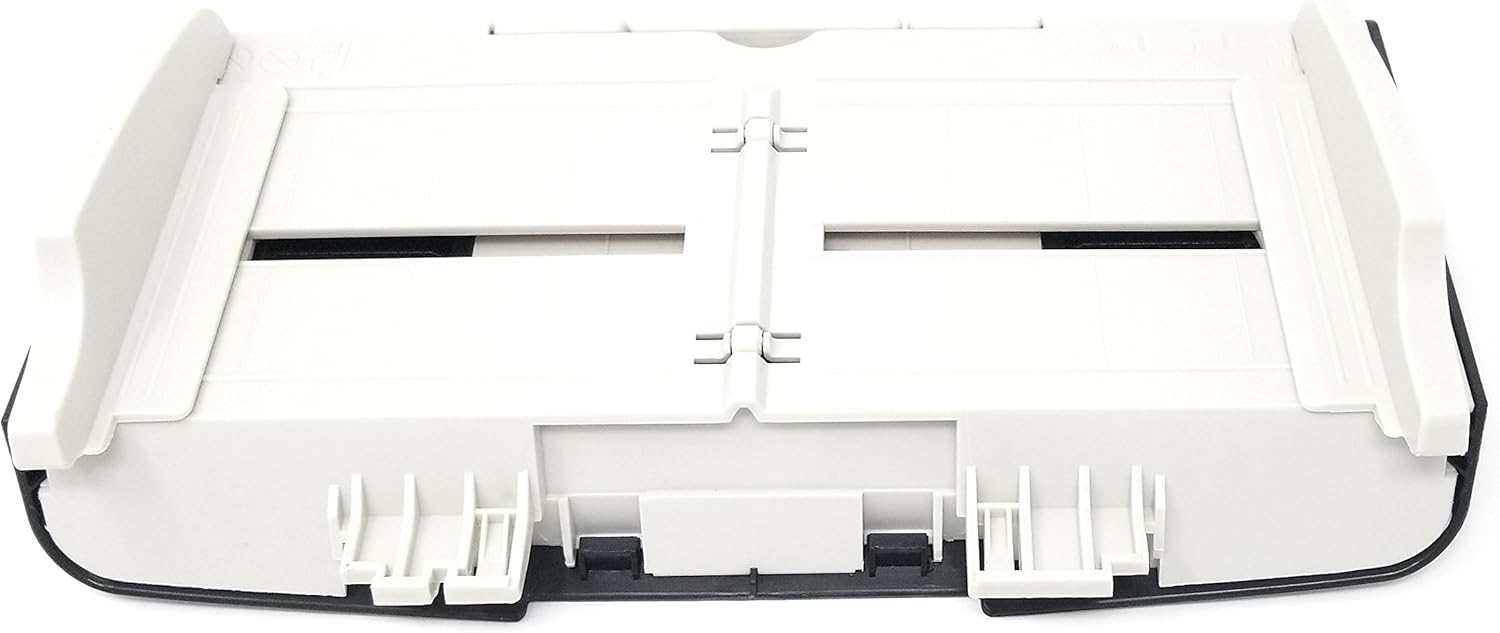
Image: Detailed view of the Document Feeder/Chute Tray, showing paper guides and adjustment mechanisms.
Operating
To ensure efficient scanning, follow these operating guidelines:
- Loading Documents: Place your documents face-down in the Document Feeder/Chute Tray. Ensure the edges are aligned neatly.
- Adjusting Paper Guides: Use the adjustable paper guides on the feeder tray to snugly fit the width of your documents. This prevents skewing and misfeeds during scanning.
- Utilizing the Output Tray: Extend the Expandable Output Tray to its appropriate length based on the size of the documents being scanned. This helps to neatly stack scanned pages and prevents them from falling off the scanner.
- Software Operation: Refer to your Fujitsu scanner's main user manual or software documentation for specific instructions on initiating scans, adjusting settings, and managing scanned files.
Maintenance
Regular maintenance helps prolong the life of your accessories and ensures consistent performance:
- Cleaning the Trays: Periodically wipe down the Document Feeder/Chute Tray and Expandable Output Tray with a soft, dry, lint-free cloth. For stubborn dirt, a slightly damp cloth can be used, followed by immediate drying.
- Avoid Harsh Chemicals: Do not use abrasive cleaners, solvents, or strong detergents, as these can damage the plastic surfaces of the accessories.
- Storage: When not in use, ensure the output tray is retracted and the feeder tray is free of dust and debris.
Troubleshooting
If you encounter issues with your accessory kit, consider the following:
- Accessories Not Fitting: Ensure you are using the accessory kit with compatible Fujitsu fi-7160, fi-7260, or fi-7180 scanner models. Verify correct alignment and firm attachment.
- Paper Jams: While the accessories themselves do not cause jams, improper paper loading in the feeder tray can lead to them. Ensure paper guides are correctly adjusted and documents are not creased or stapled. Refer to your scanner's main manual for paper jam clearance procedures.
- Connectivity Issues: If the scanner is not recognized, ensure the USB 3.0 cable is securely connected to both the scanner and the computer, and the AC adapter is providing power.
For scanner-specific issues or advanced troubleshooting, please consult the official Fujitsu fi-7160, fi-7260, or fi-7180 scanner user manual.
Specifications
| Feature | Detail |
|---|---|
| Compatible Scanner Models | Fujitsu fi-7160, fi-7260, fi-7180 |
| Included Components | Document Feeder/Chute Tray, Expandable Output Tray, OEM AC Adapter, Power Cord, USB 3.0 Cable |
| Connectivity Technology | USB 3.0 (for scanner connection) |
| Item Weight (approx.) | 1 Pound (for the kit components) |
| Manufacturer | FUJITSU |
Warranty and Support
For specific warranty information regarding your Fujitsu Scanner Accessory Kit, please refer to the documentation provided with your original scanner purchase or contact Fujitsu customer support directly. Support resources, including drivers and additional manuals, are typically available on the official Fujitsu website.


