
1. Product Overview
The School Smart Large LED Wall Clock (Model WC800E) is designed for high visibility in large spaces such as gyms or cafeterias. Featuring large 8-inch red LED digits, this digital clock provides clear time display, along with temperature and calendar functions. It includes a convenient remote control for easy adjustments and operates with an AC-DC power adapter, supported by a battery backup system.
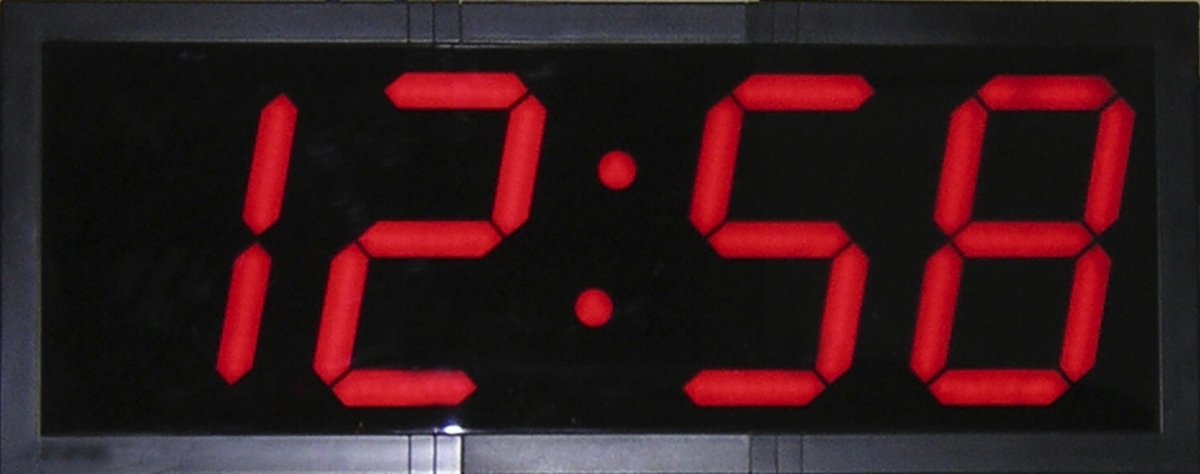
Image 1.1: The School Smart Large LED Wall Clock, showing its prominent red digital display.
Key Features:
- Large, bright red LED digits for enhanced visibility.
- Remote control for convenient setting and adjustments.
- Displays time, temperature, and calendar.
- AC-DC power adapter with battery backup capability (3 AAA batteries not included).
- Dimensions: 28 inches (width) x 11-1/4 inches (height) x 1-2/5 inches (depth).
2. Setup Instructions
2.1 Unpacking
Carefully remove the clock and all accessories from the packaging. Verify that all components are present: the LED wall clock, AC-DC power adapter, and remote control.
2.2 Power Connection
- Connect the AC-DC power adapter to the power input port on the back of the clock.
- Plug the power adapter into a standard electrical outlet. The clock display should illuminate.
2.3 Battery Backup Installation
For battery backup functionality, install 3 AAA batteries (not included) into the battery compartment located on the back of the clock. This feature ensures that time settings are retained during power outages, though the display will not be active without AC power.
2.4 Mounting
The clock is designed for wall mounting. Use appropriate hardware (not included) suitable for your wall type. Ensure the clock is securely fastened to prevent accidental falls. The clock can be mounted at various heights to suit environmental needs.
3. Operating Instructions
All settings and adjustments for the clock are performed using the included remote control.
3.1 Basic Time Setting
- Point the remote control at the clock.
- Press the 'SET' button on the remote. The hour digits will begin to flash.
- Use the 'UP' or 'DOWN' arrows to adjust the hour.
- Press 'SET' again to move to the minute digits. Use 'UP' or 'DOWN' to adjust the minutes.
- Press 'SET' a third time to confirm the time setting.
3.2 Date Setting
- While in time display mode, press the 'DATE' button on the remote. The year digits will flash.
- Use the 'UP' or 'DOWN' arrows to adjust the year.
- Press 'DATE' again to move to the month digits. Adjust with 'UP' or 'DOWN'.
- Press 'DATE' a third time to move to the day digits. Adjust with 'UP' or 'DOWN'.
- Press 'DATE' a fourth time to confirm the date setting.
3.3 Temperature Display
The clock automatically displays the ambient temperature. No manual setting is required for this feature. The temperature display will cycle with the time and date displays.
3.4 Display Mode Cycling
The clock cycles through time, date, and temperature displays automatically. There may be a dedicated 'MODE' button on the remote to manually cycle or hold a specific display, refer to the remote control's specific button layout if available.
4. Maintenance
4.1 Cleaning
To clean the clock, gently wipe the surface with a soft, dry cloth. Do not use abrasive cleaners, solvents, or excessive moisture, as these can damage the display or internal components.
4.2 Battery Replacement (Remote Control)
If the remote control becomes unresponsive, replace its batteries. Typically, remote controls use small button-cell batteries (e.g., CR2025 or CR2032). Refer to the remote control's battery compartment for the correct battery type and orientation.
5. Troubleshooting
5.1 Display Not Lighting Up
- Ensure the AC-DC power adapter is securely plugged into both the clock and a working electrical outlet.
- Check if the electrical outlet is functional by plugging in another device.
- Verify that the power cable is not damaged.
5.2 Incorrect Time/Date
- Follow the 'Basic Time Setting' and 'Date Setting' instructions in Section 3 to reset the time and date using the remote control.
- If the time consistently loses accuracy, ensure the battery backup (3 AAA batteries) is installed correctly and not depleted.
5.3 Remote Control Not Responding
- Ensure there are no obstructions between the remote control and the clock's sensor.
- Replace the batteries in the remote control (refer to Section 4.2).
- Ensure you are within the effective range of the remote control.
6. Specifications
| Brand | School Smart |
| Model Number | WC800E |
| Display Type | Digital LED |
| Color | Black with Red LED |
| Product Dimensions | 28" W x 11.25" H x 1.4" D (71.12 cm W x 28.57 cm H x 3.56 cm D) |
| Power Source | Corded Electric |
| Battery Backup | Requires 3 AAA batteries (not included) |
| Special Features | Calendar Display, Temperature Display, Remote Control |
| Mounting Type | Wall Mount |
| Material | Plastic |
| Item Weight | 1.46 pounds (0.66 kg) |
7. Safety Information
WARNING: This product can expose you to chemicals including Bisphenol A (BPA), which is known to the State of California to cause birth defects or other reproductive harm. For more information go to www.P65Warnings.ca.gov.
Always ensure the clock is securely mounted to prevent injury. Keep batteries out of reach of children. Do not expose the clock to extreme temperatures or moisture.
8. Warranty and Support
Specific warranty details and direct support contact information are not provided in the available product data. For warranty inquiries or technical support, please refer to the product packaging or contact School Smart customer service directly through their official website or authorized retailers.