
Lexmark XC4140
Lexmark XC4140 Multifunction Color Laser Printer User Manual
Model: XC4140 | Brand: Lexmark
1. Introduction
This manual provides detailed instructions for the setup, operation, maintenance, and troubleshooting of your Lexmark XC4140 Multifunction Color Laser Printer. Please read this manual thoroughly before using the device to ensure proper and safe operation.
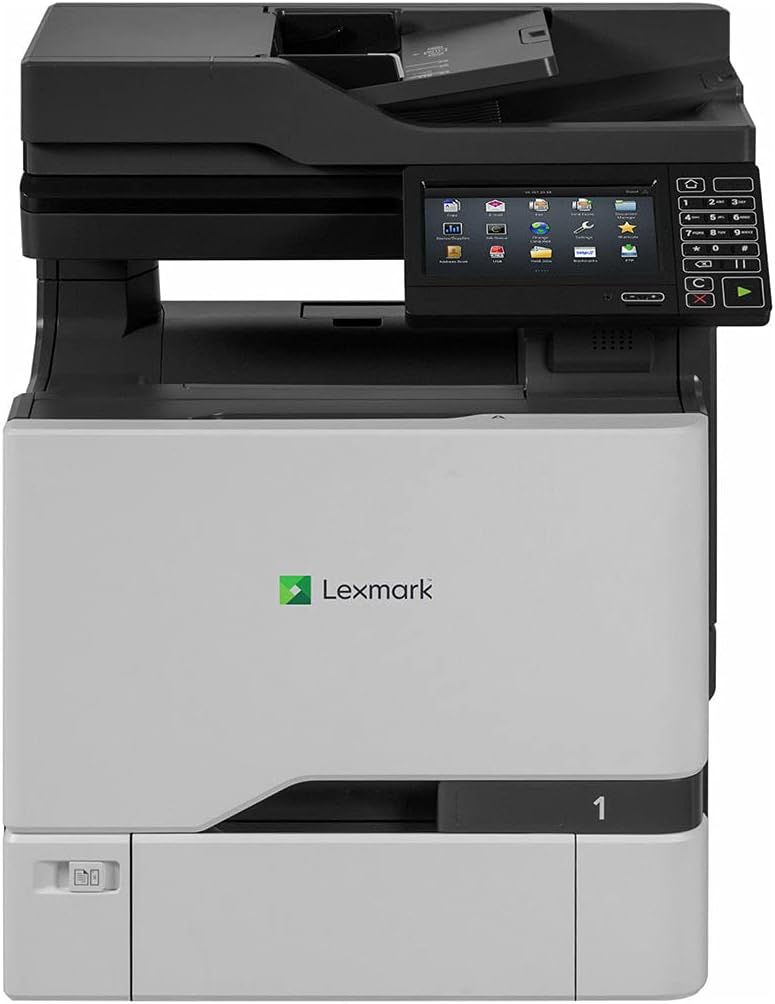
Figure 1: Front view of the Lexmark XC4140 Multifunction Color Laser Printer. This image shows the printer's main body, the control panel with a touchscreen display, and the paper output tray.
2. Setup
2.1 Unpacking and Placement
Carefully remove the printer from its packaging. Ensure all packing materials and protective tapes are removed. Place the printer on a stable, level surface with adequate ventilation. Avoid direct sunlight and areas with extreme temperature fluctuations.
2.2 Connecting Power
Connect the power cord to the printer's power input and then to a grounded electrical outlet. Do not use extension cords or power strips unless absolutely necessary and ensure they are rated for the printer's power requirements.
2.3 Installing Toner Cartridges
- Open the front access door of the printer.
- Remove the new toner cartridges from their packaging.
- Shake each cartridge gently to distribute the toner.
- Insert each cartridge into its corresponding slot until it clicks into place. Ensure the colors match the labels.
- Close the front access door.
2.4 Loading Paper
The Lexmark XC4140 supports various paper sizes, including up to 11x17 inches (A3). Open the paper tray and adjust the guides to fit the paper size. Load the paper stack face down, ensuring it does not exceed the maximum fill line.
2.5 Network and USB Connection
- Ethernet: Connect an Ethernet cable from the printer's Ethernet port to your network router or switch.
- USB: Connect a USB 2.0 cable from the printer's USB port to your computer.
After connecting, power on the printer. The control panel will guide you through initial setup, including language selection and network configuration.
3. Operating the Printer
3.1 Control Panel Overview
The Lexmark XC4140 features a color touchscreen display and a numeric keypad for navigation and input. Common functions like Copy, Scan, and Print are accessible directly from the main screen.
3.2 Printing Documents
- Ensure the printer is connected to your computer or network and drivers are installed.
- Open the document you wish to print on your computer.
- Select "Print" from the application's menu.
- Choose "Lexmark XC4140" as your printer.
- Adjust print settings (e.g., color/monochrome, duplex, paper size) as needed.
- Click "Print".
The printer supports duplex (two-sided) printing automatically. Print speeds are up to 40 pages per minute (ppm) for both black and color documents.
3.3 Scanning Documents
The XC4140 includes a flatbed scanner. You can scan documents to a computer, network folder, or email.
- Place the document face down on the scanner glass or use the automatic document feeder (ADF).
- On the printer's control panel, select the "Scan" function.
- Choose your scan destination (e.g., Scan to Network, Scan to Email, Scan to USB).
- Adjust scan settings such as resolution (up to 1200 x 1200 dpi), color mode, and file format.
- Press "Start Scan".
3.4 Copying Documents
To make copies using the Lexmark XC4140:
- Place the original document on the scanner glass or in the ADF.
- On the control panel, select the "Copy" function.
- Enter the number of copies desired using the numeric keypad.
- Adjust copy settings such as color/monochrome, reduction/enlargement, and duplex options.
- Press the "Start" button (green play icon).
Maximum copy speed for both black and white is 40 ppm.
4. Maintenance
4.1 Replacing Toner Cartridges
The printer will display a message when a toner cartridge is low or empty. To replace:
- Open the front access door.
- Grasp the handle of the empty cartridge and pull it out.
- Unpack a new Lexmark toner cartridge (Cyan, Magenta, Yellow, or Black).
- Shake the new cartridge gently.
- Insert the new cartridge into the correct slot until it locks into place.
- Close the front access door.
4.2 Cleaning the Printer
Regular cleaning helps maintain print quality and extends the life of your printer.
- Exterior: Wipe the exterior surfaces with a soft, damp, lint-free cloth. Do not use abrasive cleaners.
- Scanner Glass: Clean the scanner glass with a soft cloth moistened with glass cleaner.
- Internal Components: Refer to the printer's on-screen prompts or Lexmark support for specific internal cleaning procedures, such as cleaning the fuser or transfer roller.
5. Troubleshooting
This section addresses common issues you might encounter with your Lexmark XC4140 printer.
| Problem | Possible Cause | Solution |
|---|---|---|
| Printer not responding | Power cable disconnected, network issue, driver problem. | Check power connections. Verify network cable or USB connection. Reinstall printer drivers. |
| Poor print quality | Low toner, incorrect paper type, dirty components. | Replace low toner cartridges. Ensure correct paper settings. Clean internal components as per maintenance section. |
| Paper jams | Improperly loaded paper, foreign objects, worn rollers. | Remove jammed paper carefully. Reload paper correctly. Inspect for foreign objects. |
| Scanner not working | Software issue, connection problem. | Restart the printer and computer. Check network/USB connection. Ensure scanner drivers are installed. |
For more complex issues, refer to the Lexmark support website or contact customer service.
6. Specifications
Key technical specifications for the Lexmark XC4140 Multifunction Color Laser Printer:
- Model Name: XC4140
- Printing Technology: Laser
- Functions: Print, Copy, Scan
- Print Speed (Black & Color): Up to 40 ppm
- Print Resolution (Max): 1200 x 1200 dpi (Color & Black)
- Duplex Printing: Automatic
- Scanner Type: Flatbed
- Max Copy Speed (Black & White): 40 ppm
- Max Input Sheet Capacity: 500 sheets
- Supported Media Sizes: Up to 11x17 inches (A3)
- Connectivity: Gigabit Ethernet, USB 2.0
- Control Method: Touch (Touchscreen Display)
- Ink Color: Cyan, Magenta, Yellow, Black (Toner)
- Item Weight: 141 pounds
- Item Model Number: 40ZV9720
- UPC: 734646622974
7. Warranty Information
The Lexmark XC4140 Multifunction Color Laser Printer comes with a limited warranty. For specific terms, conditions, and duration of the warranty, please refer to the warranty card included with your product or visit the official Lexmark support website. Keep your proof of purchase for warranty claims.
8. Customer Support
For technical assistance, driver downloads, or further information regarding your Lexmark XC4140 printer, please visit the official Lexmark support website or contact their customer service department.
- Lexmark Official Website: www.lexmark.com
- Support Page: Refer to the support section on the Lexmark website for FAQs, troubleshooting guides, and contact options.
Related documentsXC4140


Ask a question about this manual
Ask about setup, troubleshooting, compatibility, parts, safety, or missing instructions. Manuals+ will review the question and use this page’s manual context to help answer it.