
Alarm.com ADC-V723x
Alarm.com ADC-V723 Outdoor Wi-Fi Camera User Manual
Model: ADC-V723x
1. Product Overview
The Alarm.com ADC-V723 is a high-definition 1080p outdoor Wi-Fi camera designed to provide reliable surveillance for your property. Featuring High Dynamic Range (HDR) and powerful Video Analytics, it can detect and alert you to people, vehicles, and animals. Its robust design ensures performance in various lighting conditions and environments. This manual provides comprehensive instructions for installation, operation, and maintenance.
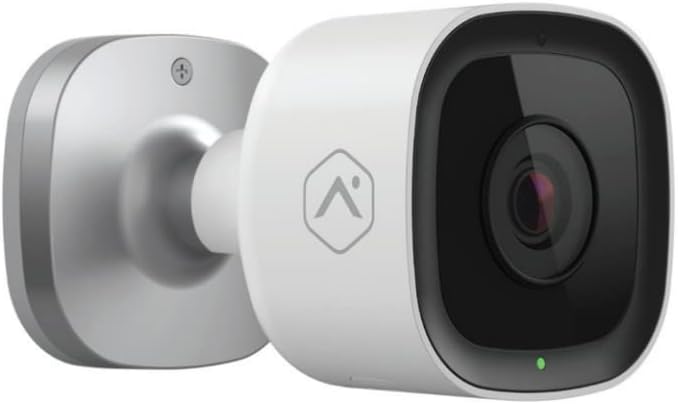
Image: Front view of the Alarm.com ADC-V723 Outdoor Wi-Fi Camera, showing its compact, bullet-style design and lens.
2. Safety Information
- Ensure the camera is installed in a location that complies with local building codes and regulations.
- Use only the power adapter supplied with the camera.
- Do not expose the camera to extreme temperatures outside its operating range.
- Avoid placing the camera near sources of strong electromagnetic interference.
- Disconnect power before cleaning or performing any maintenance.
3. Package Contents
Verify that all items are present in your package:
- Alarm.com ADC-V723 Outdoor Wi-Fi Camera
- Mounting Plate
- Mounting Screws and Wall Anchors
- Power Adapter
- Installation Guide (this document)
4. Setup and Installation
4.1 Choosing a Location
Select an outdoor location that provides the desired viewing angle and is within range of your Wi-Fi network. The camera is designed for outdoor use and is IP67 rated for weather resistance. Consider areas with good lighting or where the camera's night vision capabilities can be maximized.
4.2 Mounting the Camera
- Secure the mounting plate to the desired surface using the provided screws and wall anchors. Ensure the plate is level.
- Attach the camera to the mounting plate by aligning the camera with the plate and twisting until it locks securely.
- Adjust the camera's angle to achieve the optimal field of view.
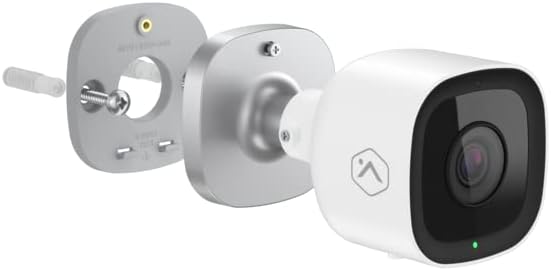
Image: Exploded view showing the Alarm.com ADC-V723 camera, its mounting plate, and a screw with wall anchor, illustrating the assembly process.
4.3 Powering On and Connecting to Wi-Fi
- Connect the power adapter to the camera and plug it into a suitable outdoor power outlet.
- Wait for the camera's LED indicator to show a specific status (refer to the LED status guide in Section 5.2).
- Download the Alarm.com mobile application from your device's app store.
- Follow the in-app instructions to add the ADC-V723 camera to your Alarm.com system and connect it to your Wi-Fi network. This typically involves scanning a QR code on the camera or entering its MAC address.
5. Operating the Camera
5.1 Live View and Recording
Access live video feeds and recorded clips through the Alarm.com mobile app or web portal. You can view real-time footage, initiate manual recordings, and review event-triggered clips.
5.2 LED Status Indicators
The camera features an LED indicator that communicates its current status:
- Solid Green: Connected to Wi-Fi and operating normally.
- Flashing Green: Attempting to connect to Wi-Fi.
- Solid Red: Not connected to Wi-Fi or an error has occurred.
- Flashing Red: Firmware update in progress or factory reset.
5.3 Video Analytics and Alerts
The ADC-V723 supports advanced Video Analytics. Configure detection zones and rules within the Alarm.com app to receive specific alerts for people, vehicles, or animals entering designated areas. Alerts can be customized to send notifications to your mobile device.
5.4 Night Vision and HDR
The camera is equipped with infrared night vision, allowing clear video capture up to 40 feet in low-light conditions. High Dynamic Range (HDR) technology enhances video quality by balancing bright and dark areas, providing clearer images in challenging lighting environments.
6. Maintenance
- Regularly clean the camera lens with a soft, damp cloth to ensure clear image quality. Do not use harsh chemicals.
- Periodically check the mounting hardware to ensure the camera remains securely fastened.
- Ensure the power cable is free from damage and properly secured.
- Keep the camera's firmware updated through the Alarm.com app to ensure optimal performance and access to new features.
7. Troubleshooting
| Problem | Possible Cause | Solution |
|---|---|---|
| Camera not powering on | No power, faulty adapter, loose connection. | Check power outlet, ensure connections are secure, try a different outlet. |
| Cannot connect to Wi-Fi | Incorrect Wi-Fi password, camera too far from router, network interference. | Verify Wi-Fi password, move camera closer to router, reduce interference, restart router. |
| Poor video quality | Dirty lens, low bandwidth, poor lighting. | Clean lens, check internet speed, ensure adequate lighting or rely on night vision. |
| No motion alerts | Incorrect Video Analytics settings, notifications disabled. | Review and adjust Video Analytics rules in the app, enable notifications for the camera. |
8. Specifications
| Feature | Detail |
|---|---|
| Model Number | ADC-V723x |
| Video Capture Resolution | 1080p (1920x1080) |
| Connectivity | Wi-Fi |
| Power Source | Corded Electric |
| Indoor/Outdoor Usage | Outdoor |
| Viewing Angle | 167 Degrees |
| Night Vision Range | 40 Feet |
| Material | Metal |
| Dimensions (L x W x H) | 2.5 x 2.5 x 4.5 inches |
| Item Weight | 1.32 pounds |
| International Protection Rating | IP67 |
| Special Feature | Motion Sensor, HDR |
9. Warranty and Support
For warranty information and technical support, please contact your Alarm.com service provider or visit the official Alarm.com website. Do not attempt to repair the device yourself, as this may void the warranty.
For additional resources and FAQs, please refer to the Alarm.com support portal.
Related documentsADC-V723x


Ask a question about this manual
Ask about setup, troubleshooting, compatibility, parts, safety, or missing instructions. Manuals+ will review the question and use this page’s manual context to help answer it.