
AJAZZ AK33 (K685T)
Ajazz AK33 Mechanical Keyboard User Manual
Model: K685T
1. Introduction
Thank you for choosing the Ajazz AK33 Mechanical Keyboard. This manual provides detailed instructions for setting up, operating, and maintaining your new keyboard. Designed for performance and durability, the AK33 features responsive mechanical switches, a compact layout, and customizable backlighting, making it ideal for both gaming and everyday use.
2. Product Overview
The Ajazz AK33 is a compact 82-key mechanical keyboard built with an aluminum structure for enhanced durability. It features black mechanical switches known for their linear feel and 60g actuation force, providing precise and rapid response, particularly beneficial for fast-paced applications like real-time strategy games. The keyboard also includes a vibrant white backlight system with multiple customizable effects.

Figure 2.1: Front view of the Ajazz AK33 Mechanical Keyboard, showcasing its compact layout and vibrant backlight.
Key features include:
- 82 Mechanical Keys: Each key features an individual mechanical switch for precise tactile feedback and extended lifespan.
- Black Switches: Linear switches with a 60g actuation force, optimized for rapid keystrokes and minimizing accidental presses.
- Enhanced Stability: Larger keys like Space, Shift, Enter, and Backspace are designed with two secondary axes for improved balance and stability.
- Compact Design: With a width of only 310.5 mm, the keyboard offers a space-saving layout, allowing for greater mouse movement and ergonomic posture.
- White Backlight: Features a white LED backlight system with various lighting effects to personalize your setup.
- Detachable USB Cable: For easy storage and portability, preventing cable damage.
- Hot-Swappable Keys: Supports hot-swapping for all keys, allowing users to easily change switches without soldering.
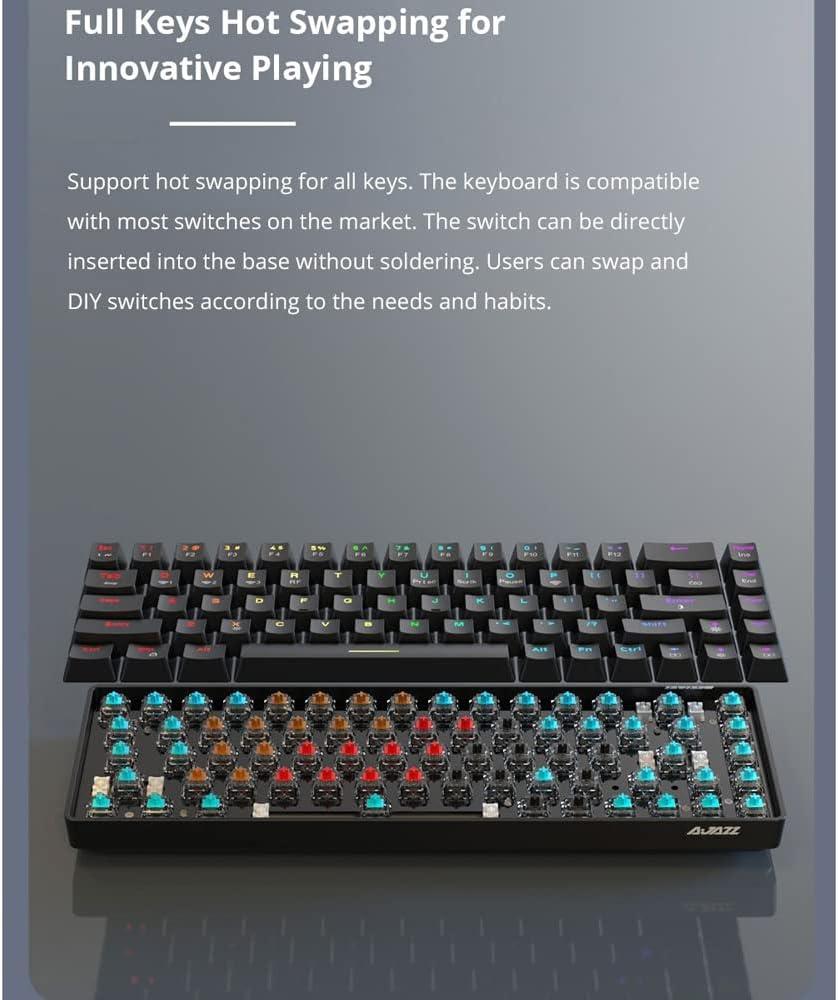
Figure 2.2: The Ajazz AK33 keyboard demonstrating its hot-swappable switch capability, allowing for easy customization and maintenance of individual key switches.
3. Setup Instructions
3.1 Package Contents
Please check the package contents upon unboxing:
- 1 x Ajazz AK33 Mechanical Keyboard (Black)
- 1 x Detachable USB Cable
- 1 x User Manual (This document)
3.2 System Requirements
The Ajazz AK33 Mechanical Keyboard is compatible with a wide range of operating systems:
- Windows 10 / 8 / 7 / XP / Vista
- Mac OS
- Linux
- Other compatible systems
3.3 Connecting the Keyboard
- Locate the USB port on your computer.
- Connect the smaller end of the detachable USB cable to the port on the back of the Ajazz AK33 keyboard.
- Connect the standard USB-A end of the cable to an available USB port on your computer.
- The keyboard will be automatically recognized by your operating system. No additional drivers are typically required.
4. Operating Instructions
4.1 Basic Usage
The Ajazz AK33 functions as a standard keyboard. Simply type as you normally would. The mechanical switches provide a distinct tactile and auditory feedback for each keystroke.
4.2 Backlight Control
The AK33 features a white backlight with multiple lighting effects. Use the Function (Fn) key in combination with specific keys to control the backlight.
- Fn + F9: Cycle through different backlight modes/effects.
- Fn + F10: Adjust backlight brightness (increase).
- Fn + F11: Adjust backlight brightness (decrease).
- Fn + F12: Turn backlight on/off.
- Note: Specific key combinations for backlight speed or direction may vary based on firmware version. Experiment with Fn + arrow keys or other function keys if available.

Figure 4.1: Close-up view of the Ajazz AK33 keyboard, highlighting the function keys (F9-F12) used for backlight control.
4.3 Multimedia and Shortcut Keys
The AK33 keyboard may include multimedia and shortcut functions accessible via the Fn key in combination with other keys (e.g., F1-F8). Refer to the keycap legends for specific functions.
- Fn + F1-F8: Typically control multimedia playback (play/pause, stop, previous, next, volume up/down, mute) or open common applications.
- Fn + Win: Lock/unlock the Windows key to prevent accidental presses during gaming.
5. Maintenance
5.1 Cleaning the Keyboard
To ensure the longevity and performance of your keyboard, regular cleaning is recommended.
- Disconnect the keyboard from your computer before cleaning.
- Use a can of compressed air to blow away dust and debris from between the keycaps.
- Wipe the keycaps and keyboard surface with a soft, slightly damp, lint-free cloth. Avoid excessive moisture.
- For stubborn stains, a small amount of mild soap solution can be used on the cloth, but ensure it is almost dry before wiping.
- Do not use harsh chemicals, abrasive cleaners, or solvents as they may damage the keyboard's finish or keycap legends.
5.2 Keycap and Switch Maintenance
The AK33 features hot-swappable switches, allowing for easy replacement or customization.
- To remove a keycap, gently pull it upwards using a keycap puller (not included, but recommended for safe removal).
- To remove a switch, use a switch puller (not included) to carefully unclip it from the PCB.
- When inserting a new switch, align the pins correctly with the sockets on the PCB and press down gently until it clicks into place. Do not force it.
- Ensure the keyboard is disconnected from power before performing any keycap or switch removal/installation.
6. Troubleshooting
If you encounter issues with your Ajazz AK33 keyboard, please refer to the following common troubleshooting steps:
- Keyboard Not Responding:
- Ensure the USB cable is securely connected to both the keyboard and the computer.
- Try connecting the keyboard to a different USB port on your computer.
- Test the keyboard on another computer to rule out system-specific issues.
- Restart your computer.
- Backlight Not Working or Incorrect:
- Press Fn + F12 to ensure the backlight is not turned off.
- Press Fn + F10 or Fn + F11 to adjust brightness.
- Press Fn + F9 to cycle through different lighting modes.
- Ensure your operating system's power settings are not interfering with USB device power.
- Specific Keys Not Working:
- Carefully remove the keycap and inspect the switch for any visible damage or debris.
- If you have spare switches, try replacing the faulty switch (refer to Section 5.2).
- Ensure the keycap is properly seated on the switch stem.
- Keyboard Input Lag or Disconnects:
- Ensure no other high-bandwidth USB devices are connected to the same USB hub.
- Try a different USB port, preferably a direct port on your motherboard (for desktop PCs).
- Check for any software conflicts or background processes consuming system resources.
If the problem persists after trying these steps, please contact Ajazz customer support for further assistance.
7. Specifications
| Feature | Detail |
|---|---|
| Brand | Ajazz |
| Model | AK33 (K685T) |
| Material | Aluminum + ABS |
| Color | Black (Keyboard), White (Backlight) |
| Number of Keys | 82 |
| Switch Type | Mechanical |
| Switch Color | Black |
| Actuation Force | 60 cN (61 g) |
| Actuation Distance | 2 mm |
| Backlight | Yes, White LED with multiple effects |
| Lifespan | 60 million keystrokes |
| Power Supply | Detachable USB cable |
| Cable Length | 1.6 m |
| Dimensions (L x W x H) | 310.5 x 120 x 36.8 mm |
| Weight | 607 g |
| Compatible Devices | Laptop, PC |
| Connectivity Technology | Micro USB |
| Recommended Use | Gaming |

Figure 7.1: Diagram showing the dimensions of the Ajazz AK33 keyboard (approx. 311mm x 102mm x 35mm) and some key specifications.
8. Warranty and Support
Ajazz products are designed and manufactured to the highest quality standards. For information regarding warranty coverage, please refer to the warranty card included with your purchase or visit the official Ajazz website.
If you require technical support or have any questions not covered in this manual, please contact Ajazz customer service through their official channels.
- Official Website: www.ajazz.com (Please check for regional variations)
- Customer Service Email: Refer to product packaging or official website.
Related documentsAK33 (K685T)


Ask a question about this manual
Ask about setup, troubleshooting, compatibility, parts, safety, or missing instructions. Manuals+ will review the question and use this page’s manual context to help answer it.