
1. Introduction
The COMPUTHERM Q7RF wireless room thermostat is designed for precise control of heating and air conditioning systems. This programmable device allows you to set individual temperature schedules for each day of the week, optimizing comfort and energy efficiency in your home or office. Its wireless design offers flexible placement of the thermostat unit, while the receiver unit connects directly to your boiler or air conditioning system, compatible with both 24V and 230V control circuits.
2. Package Contents
Verify that all components are present in your package:
- 4 x COMPUTHERM Q7RF Room Thermostat (Transmitter Unit)
- 4 x COMPUTHERM Q7RF Receiver Unit
- User Manual (this document)
- Mounting screws and wall plugs
3. Product Overview
The COMPUTHERM Q7RF system consists of two main components: the thermostat unit (transmitter) and the receiver unit. The thermostat unit measures the room temperature and allows you to set desired temperatures and programs. The receiver unit connects to your heating or cooling system and switches it on or off based on signals from the thermostat unit.

Figure 1: Overview of the COMPUTHERM Q7RF 4-piece set, showing multiple thermostat and receiver units.
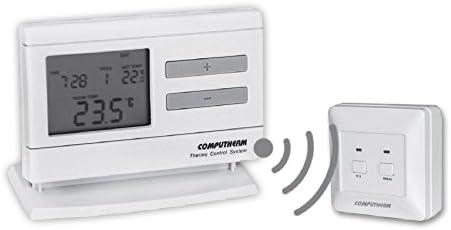
Figure 2: A single COMPUTHERM Q7RF thermostat unit communicating wirelessly with its receiver unit.
3.1 Thermostat Unit (Transmitter)
- LCD Display: Shows current temperature, set temperature, time, day, and program status.
- Control Buttons: For setting temperature, time, and programming schedules.
- Battery Compartment: For power supply.
3.2 Receiver Unit
- Wiring Terminals: For connection to the heating/cooling system.
- Status Indicators: LEDs to show power and relay status.
- Manual Override Buttons: For temporary manual control.
4. Specifications
| Feature | Specification |
|---|---|
| Brand | COMPUTHERM |
| Model | Q7RF |
| Switching Voltage | 24V AC/DC, ... 250V AC, 50Hz |
| Power Consumption | 6W |
| Temperature Measurement Range | 3 – 45°C (in 0.1°C increments) |
| Adjustable Temperature Range | 5 – 40°C (in 0.5°C increments) |
| Temperature Measurement Accuracy | ±0.5°C |
| Controller Type | Push button |
| Connectivity Technology | Wireless (Radio Frequency) |
| Special Features | Programmable, Compatible with various system voltages |
5. Setup and Installation
5.1 Thermostat Unit Placement and Battery Installation
- Choose a Location: Place the thermostat unit in a central area of the room where it can accurately measure the ambient temperature, away from direct sunlight, drafts, or heat sources.
- Install Batteries: Open the battery compartment on the back of the thermostat unit. Insert the required batteries (typically AA or AAA, refer to the unit's markings) ensuring correct polarity. Close the compartment.
- Power On: The display should light up, indicating the unit is powered.
5.2 Receiver Unit Wiring
WARNING: Electrical installation should only be performed by a qualified electrician. Disconnect power to the heating/cooling system before proceeding.
- Mount the Receiver: Secure the receiver unit near your boiler or air conditioning system using the provided screws and wall plugs.
- Access Wiring Terminals: Open the cover of the receiver unit to expose the wiring terminals.
- Connect to System: Connect the receiver unit to the two-wire room thermostat connection point of your boiler or AC system. Ensure connections are secure and follow the wiring diagram provided with your heating/cooling system and the receiver unit. The COMPUTHERM Q7RF is compatible with both 24V and 230V control circuits.
- Restore Power: Once wiring is complete and verified, close the receiver unit cover and restore power to your heating/cooling system.
5.3 Pairing the Units (If not pre-paired)
Refer to the specific instructions provided with your Q7RF set for pairing procedures. Typically, this involves pressing a pairing button on the receiver unit and then initiating a pairing sequence on the thermostat unit within a short timeframe. A successful pairing will usually be indicated by an LED on the receiver or a message on the thermostat display.
6. Operating Instructions
6.1 Understanding the LCD Display
The LCD display provides all necessary information about the thermostat's current status and settings.

Figure 3: Detailed view of the COMPUTHERM Q7RF LCD display, illustrating various indicators such as program number, manual modification symbol, weekdays, time, set temperature, actual room temperature, low battery symbol, boiler ON state, and timed control symbol.
- Weekdays: Indicates the current day of the week.
- Exact Time / Time Left: Displays the current time or time remaining for a manual modification.
- Program Number: Shows the active program segment.
- Set Temperature: The desired temperature set by the user.
- Actual Room Temperature: The current temperature measured by the thermostat.
- Symbol for Manual Modification: Indicates that the thermostat is currently operating under a temporary manual override.
- Temp. Modified until next manual intervention: Shows the duration of a temporary temperature change.
- Symbol for Low Battery Voltage: Appears when batteries need replacement.
- Symbol for Boiler ON State: Indicates when the heating/cooling system is active.
- Symbol for Timed Control: Indicates that a programmed schedule is active.
6.2 Setting Current Time and Day
- Press the TIME button.
- Use the + or - buttons to adjust the hour, then press TIME again to confirm.
- Repeat for minutes and day of the week.
6.3 Manual Temperature Adjustment
- In normal operating mode, press the + or - buttons to adjust the desired temperature.
- The new temperature will be maintained until the next programmed time slot or until manually overridden again.
6.4 Programming Daily/Weekly Schedules
The Q7RF allows for independent programming for each day of the week. You can typically set multiple time periods with different temperatures for each day.
- Press the PROG button to enter programming mode.
- Use the DAY button to select the day you wish to program (e.g., MON, TUE, etc.).
- Use the TIME and +/- buttons to set the start time for the first program period.
- Use the SET TEMP and +/- buttons to set the desired temperature for this period.
- Press PROG again to move to the next program period for the same day, or use DAY to move to the next day.
- Repeat until all desired periods and days are programmed.
- Press the RUN or EXIT button to save and exit programming mode.
7. Maintenance
7.1 Battery Replacement
When the low battery symbol appears on the LCD display, replace the batteries immediately to ensure continuous operation. Use new, high-quality alkaline batteries of the specified type.
- Open the battery compartment cover on the back of the thermostat unit.
- Remove the old batteries.
- Insert new batteries, observing correct polarity (+/-).
- Close the battery compartment cover.
7.2 Cleaning
Clean the thermostat and receiver units with a soft, dry cloth. Do not use abrasive cleaners, solvents, or spray directly onto the units, as this may damage the electronics or finish.
8. Troubleshooting
| Problem | Possible Cause | Solution |
|---|---|---|
| Thermostat display is blank | Dead batteries | Replace batteries with new ones. |
| Heating/Cooling system not responding | 1. Receiver unit not powered 2. Units not paired 3. Wiring issue 4. Out of range | 1. Check power supply to receiver. 2. Perform pairing procedure (Section 5.3). 3. Verify wiring connections (Section 5.2). 4. Move thermostat closer to receiver or check for obstructions. |
| Incorrect temperature reading | Thermostat placed in unsuitable location (direct sun, draft) | Relocate thermostat to a more central and stable temperature area. |
| Programmed schedule not active | Thermostat in manual override mode | Exit manual override mode (e.g., press RUN/AUTO button) to resume programmed operation. |
9. Warranty and Support
COMPUTHERM products are manufactured to high-quality standards. For warranty information, please refer to the warranty card included with your product or contact your retailer. For technical support, please reach out to the COMPUTHERM customer service or your local distributor. Keep your purchase receipt as proof of purchase.


