
Evertech SCFWS372V13001
Evertech 1080p HD Dome Security Camera User Manual
Model: SCFWS372V13001
Introduction
This manual provides detailed instructions for the installation, operation, and maintenance of your Evertech 1080p HD Dome Security Camera. This camera is designed for both indoor and outdoor surveillance, featuring 1080p high-definition video, 98ft night vision, and compatibility with AHD, TVI, CVI, and traditional Analog Digital Video Recorders (DVRs). Please read this manual thoroughly before installation and use to ensure proper functionality and longevity of your device.
What's Included
Carefully unpack the box and ensure all items listed below are present and in good condition. If any items are missing or damaged, please contact Evertech support.
- 1x Evertech 1080p HD Dome Security Camera (2.8-12mm Manual Zoom Lens)
- 1x Technical Specification Sheet
- 4x Mounting Screws
- 4x Plastic Wall Anchors
- 1x L-Key (for adjustments)
- 1x CCTV Warning Sign
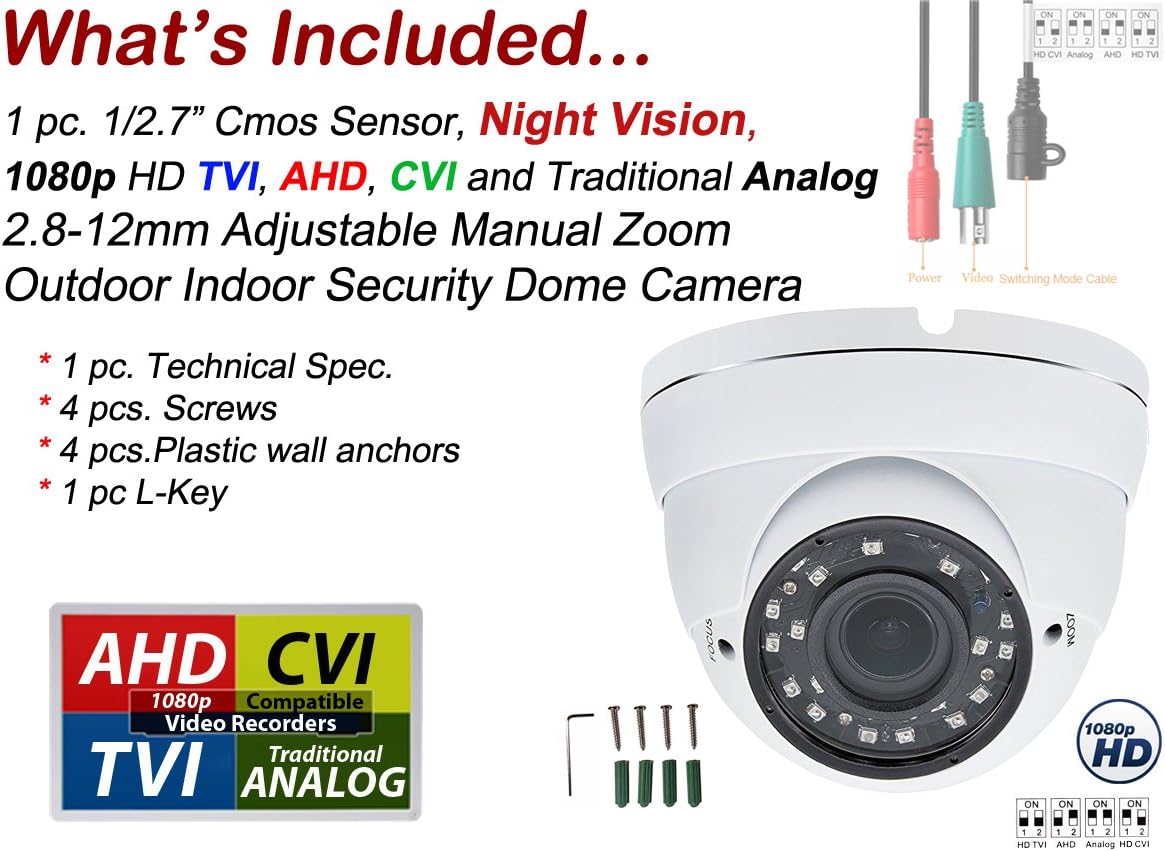
Figure 1: Contents of the Evertech 1080p HD Dome Security Camera package.
Specifications
The following table outlines the key technical specifications of the Evertech 1080p HD Dome Security Camera:
| Feature | Specification |
|---|---|
| Model Number | SCFWS372V13001 |
| Effective Pixels | 1920 x 1080 (1080p HD) |
| Image Sensor | 1/2.7" CMOS Sensor |
| Lens | 2.8mm - 12mm Manual Zoom Varifocal Lens |
| Night Vision Range | Up to 98 feet (with SMT IR LEDs) |
| Video Output Modes | AHD, HD TVI, HD CVI, Traditional Analog (CVBS) |
| Default Video Mode | 1080p AHD |
| Casing Material | Waterproof White Metal |
| Mounting Type | Wall or Ceiling Mount |
| Power Source | Corded Electric (12V DC) |
| Connectivity Technology | Wired |
| International Protection Rating | IP54 |
| UPC | 632317010337 |
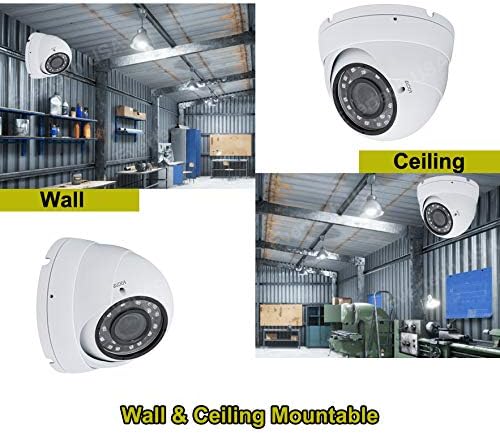
Figure 2: Detailed view of camera features and specifications.
Setup
1. Mounting the Camera
The Evertech dome camera can be mounted on either a wall or a ceiling. Choose a location that provides the desired field of view and is within reach of power and video cables.
- Mark Drilling Points: Use the camera base as a template to mark the positions for drilling holes.
- Drill Holes: Drill pilot holes at the marked positions. For drywall or masonry, insert the plastic wall anchors.
- Secure Camera: Align the camera base with the drilled holes and secure it using the provided mounting screws. Ensure the camera is firmly attached.

Figure 3: Examples of wall and ceiling mounting options.
2. Wiring Connections
Connect the camera to your Digital Video Recorder (DVR) and power supply.
- Video Cable: Connect the BNC connector of the camera's video cable to an available video input on your DVR.
- Power Cable: Connect the camera's power input to a 12V DC power adapter (not included). Ensure the power supply is compatible with the camera's requirements.
3. Video Mode Configuration (DIP Switches)
The camera's default video mode is 1080p AHD. If your DVR uses a different format (HD TVI, HD CVI, or Analog), you must adjust the DIP switches located on the camera's cable. Refer to the diagram below for the correct settings.

Figure 4: DIP switch settings for different video modes.
To change the video mode:
- Locate the small DIP switch module on the camera's cable.
- Using a small tool (like a pen tip or the provided L-key), adjust the switches according to the desired video format as shown in Figure 4.
- After adjusting, power cycle the camera for the new settings to take effect.
Operating the Camera
1. Adjusting Lens (Zoom and Focus)
This camera features a 2.8mm to 12mm varifocal lens, allowing you to manually adjust the angle of view and focus for optimal surveillance.
- Access Adjustment Screws: Gently rotate the outer dome or access the adjustment screws on the camera body.
- Adjust Zoom: Rotate the 'ZOOM' adjustment screw to change the focal length (angle of view) from wide (2.8mm) to narrow (12mm).
- Adjust Focus: Once the desired zoom level is set, rotate the 'FOCUS' adjustment screw until the image on your monitor is clear and sharp.
- Secure Adjustments: Ensure all screws are tightened after adjustment to prevent accidental changes.

Figure 5: Visual representation of different focal lengths.
2. Night Vision
The camera is equipped with SMT IR LEDs, providing automatic night vision up to 98 feet in low-light or no-light conditions. The camera will automatically switch between day (color) and night (black and white) modes based on ambient light levels.
Maintenance
Regular maintenance helps ensure optimal performance and extends the lifespan of your security camera.
- Lens Cleaning: Periodically clean the camera lens with a soft, lint-free cloth. For stubborn dirt, use a mild lens cleaning solution. Avoid abrasive materials that could scratch the lens.
- Casing Cleaning: Wipe the camera's metal casing with a damp cloth to remove dust and dirt.
- Cable Inspection: Regularly check all cables and connections for any signs of wear, damage, or corrosion. Ensure connections are secure.
- Environmental Check: Ensure the camera's mounting remains secure and that no obstructions are blocking its field of view.
Troubleshooting
If you encounter issues with your Evertech security camera, refer to the following common problems and solutions:
| Problem | Possible Cause | Solution |
|---|---|---|
| No video signal | Loose cable connection, incorrect video mode, no power. | Check all video and power cable connections. Verify the camera's video mode (AHD, TVI, CVI, Analog) matches your DVR's input using the DIP switches. Ensure the power adapter is functioning and connected. |
| Poor image quality (blurry, distorted) | Lens out of focus, dirty lens, incorrect video mode, cable interference. | Adjust the focus of the lens. Clean the camera lens. Confirm the video mode is correctly set for your DVR. Use high-quality coaxial cables and avoid running them near strong electrical interference. |
| Night vision not working | Insufficient power, IR LEDs malfunction. | Ensure the camera is receiving adequate power. If the issue persists, contact Evertech support. |
| Image is black and white during the day | Insufficient light, camera stuck in night mode. | Ensure the camera is not in a perpetually shaded area. Power cycle the camera. If the problem continues, contact support. |
Warranty and Support
Your Evertech 1080p HD Dome Security Camera comes with a One Year Warranty from EvertechUSA, covering defects in materials and workmanship under normal use.
For technical assistance, warranty claims, or further inquiries, please visit the official Evertech store or contact their customer support directly.
Evertech Store: https://www.amazon.com/stores/EVERTECH/page/B071A34F-C422-49CE-BAF1-CA8454821825

Figure 6: Example of the included CCTV Warning Sign.
Ask a question about this manual
Ask about setup, troubleshooting, compatibility, parts, safety, or missing instructions. Manuals+ will review the question and use this page’s manual context to help answer it.