
GigaBlue UHD-4K
GigaBlue UHD Quad 4K Receiver User Manual
Model: UHD-4K | Brand: GigaBlue
Introduction
The GigaBlue UHD Quad 4K receiver is a high-performance digital satellite receiver designed for an immersive viewing experience. It features two built-in DVB-S2 tuners for independent twin use and an additional tuner slot for expansion with DVB-T/T2 or DVB-C2 tuners. Powered by a strong processor, it delivers ultra-high resolution pictures and rapid channel change-over times. With an embedded Ethernet controller and optional WiFi USB dongle, it offers versatile connectivity to the internet and IPTV services. The powerful BCM7352s video processor supports playback from external USB/e-SATA drives, network files, and IPTV streams. It includes three high-speed USB 3.0 ports and two HDMI ports for extensive connectivity.
What's in the Box
Upon opening the package, please ensure all the following items are present:
- GigaBlue UHD Quad 4K Receiver
- Remote Control
- 2 x AAA Batteries (for remote control)
- Power Adapter
- Quick Start Guide (if applicable, not explicitly mentioned but common)

Image: The GigaBlue UHD Quad 4K receiver shown with its accompanying remote control, illustrating the main components included in the package.
Setup
1. Connecting the Receiver
Before powering on the device, ensure all necessary cables are securely connected.
- Satellite Dish Connection: Connect your satellite dish cable(s) to the "Tuner A" and "Tuner B" inputs on the rear panel of the receiver. If using an additional tuner, connect it to the "OPTION TUNER" slot.
- HDMI Connection: Connect one end of an HDMI cable to the "HDMI OUT" port on the receiver and the other end to an available HDMI input on your television or display.
- Network Connection: For internet access and IPTV services, connect an Ethernet cable from your router to the "GIGA ETHERNET" port on the receiver. Alternatively, an optional WiFi USB dongle can be used for wireless connectivity.
- USB/e-SATA Devices: If you plan to use external storage, connect your USB drives to the "USB 3.0" or "USB 2.0" ports, or an e-SATA drive to the "E-SATA" port.
- Power Connection: Connect the power adapter to the "DC POWER 12V === 5A" input on the receiver, then plug the adapter into a wall outlet.

Image: Detailed view of the rear panel of the GigaBlue UHD Quad 4K receiver, highlighting the various input and output ports including tuner inputs, HDMI, Ethernet, USB, and power connections.
2. Initial Configuration
After connecting all cables, switch on the receiver using the power button on the front panel or the remote control. The device will boot up and guide you through the initial setup wizard.
- Language Selection: Choose your preferred language for the on-screen display.
- Tuner Configuration: Configure your DVB-S2 tuners based on your satellite setup (e.g., single LNB, DiSEqC, motor).
- Network Setup: Configure your network connection (wired or wireless).
- Channel Scan: Perform a channel scan to find available television and radio channels from your selected satellites.
- Time and Date: Set the correct time zone and synchronize the time.

Image: The front of the GigaBlue UHD Quad 4K receiver, displaying a channel on its screen, indicating successful initial setup and operation.
Operating the Receiver
Basic Functions
The remote control is your primary interface for operating the GigaBlue UHD Quad 4K receiver. Familiarize yourself with its layout.

Image: The remote control for the GigaBlue UHD Quad 4K receiver, showing its various buttons for navigation, channel selection, volume, and special functions.
- Power Button: Located at the top left, turns the receiver on or off.
- Numeric Keypad: Used for direct channel entry.
- Navigation Buttons (Up/Down/Left/Right/OK): For menu navigation and selection.
- Volume (+/-): Adjusts the audio volume.
- Channel (CH +/-): Changes channels sequentially.
- MENU: Accesses the main system menu.
- EXIT: Returns to the previous screen or exits a menu.
- INFO: Displays program information.
- GUIDE: Opens the Electronic Program Guide (EPG).
- RECORD: Initiates recording of the current program.
- PLAY/PAUSE/STOP/FF/RW: Media playback controls.
Advanced Features
- FBC Tuners: The Full Band Capture (FBC) tuners allow for simultaneous recording of multiple channels from different transponders on the same satellite, provided your LNB supports it.
- Expandable Tuner Slots: The additional tuner slot allows for flexible expansion with DVB-T/T2 (terrestrial) or DVB-C2 (cable) tuners, enabling reception of various broadcast types.
- IPTV Integration: The receiver supports IPTV services, allowing you to stream content over your internet connection. Refer to specific IPTV provider instructions for setup.
- Media Playback: Connect external USB or e-SATA storage devices to play back various media files, including video (HEVC H.265), audio, and images. The powerful BCM7352s video processor ensures smooth playback.
- Common Interface (CI) Slot: The receiver includes a Common Interface slot for inserting CAM modules and smart cards, enabling access to encrypted pay-TV services.

Image: The GigaBlue UHD Quad 4K receiver with its front flap open, showing a Common Interface (CI) module being inserted into the dedicated slot, which is used for accessing encrypted content.
Maintenance
Proper maintenance ensures the longevity and optimal performance of your GigaBlue UHD Quad 4K receiver.
- Cleaning: Use a soft, dry cloth to clean the exterior of the receiver. Do not use liquid cleaners or abrasive materials. Ensure the device is powered off and unplugged before cleaning.
- Ventilation: Ensure the ventilation openings on the receiver are not blocked. Adequate airflow is crucial to prevent overheating. Do not place the receiver in an enclosed cabinet without proper ventilation.
- Software Updates: Periodically check for and install official software updates. Updates can improve performance, add new features, and fix bugs. Refer to the GigaBlue support website for the latest firmware.
- Power Management: For extended periods of non-use, it is recommended to switch off the receiver completely or unplug it from the power outlet.
Troubleshooting
This section addresses common issues you might encounter with your GigaBlue UHD Quad 4K receiver.
| Problem | Possible Cause | Solution |
|---|---|---|
| No picture or sound. | Loose HDMI cable, incorrect TV input, receiver not powered on. | Check HDMI cable connections. Ensure TV is on the correct HDMI input. Verify receiver is powered on. |
| "No Signal" message. | Loose satellite cable, dish misalignment, incorrect tuner settings. | Check satellite cable connections. Verify dish alignment. Re-check tuner configuration in settings. |
| Remote control not working. | Dead batteries, obstructed IR sensor, remote not paired (if applicable). | Replace batteries. Ensure clear line of sight to receiver's IR sensor. |
| Network connection issues. | Loose Ethernet cable, incorrect network settings, router issue. | Check Ethernet cable. Verify network settings (IP address, DNS). Restart router and receiver. |
| Receiver freezes or crashes. | Software bug, overheating, incompatible plugin. | Restart the receiver. Ensure proper ventilation. Check for and install latest software updates. If issue persists, consider a factory reset (backup settings first). |
Specifications
Key technical specifications for the GigaBlue UHD Quad 4K receiver:
- Model: UHD-4K
- Processor: 12K DMIPS Dual Core ARM processor
- Memory: DDR4 Memory 2GB / eMMC Flash 4GB
- Video Decoding: 4K/UHD, H.265/HEVC, VP9
- Tuners: 2x DVB-S2 FBC (Full Band Capture), 1x Plug & Play DVB-S2/C/T/T2 Tuner slot
- Display: 3" TFT Color LCD
- Card Reader: 2x Card Reader
- Common Interface: 2x Common Interface (CI) slots
- HDMI: 1x HDMI In / 1x HDMI Out (HDMI 2.0)
- USB Ports: 3x USB 3.0 / 3x USB 2.0
- Ethernet: 1x Gigabit Ethernet (10/100/1000)
- e-SATA: 1x e-SATA
- Dimensions: 30 x 24 x 6.3 cm
- Weight: 1 kg
- Power Consumption: Deep Standby (0.5W)
- Operating System: Linux System/Web Browser/IPTV/Plugin Services (Enigma2)
- Batteries: 2 AAA batteries (included for remote)
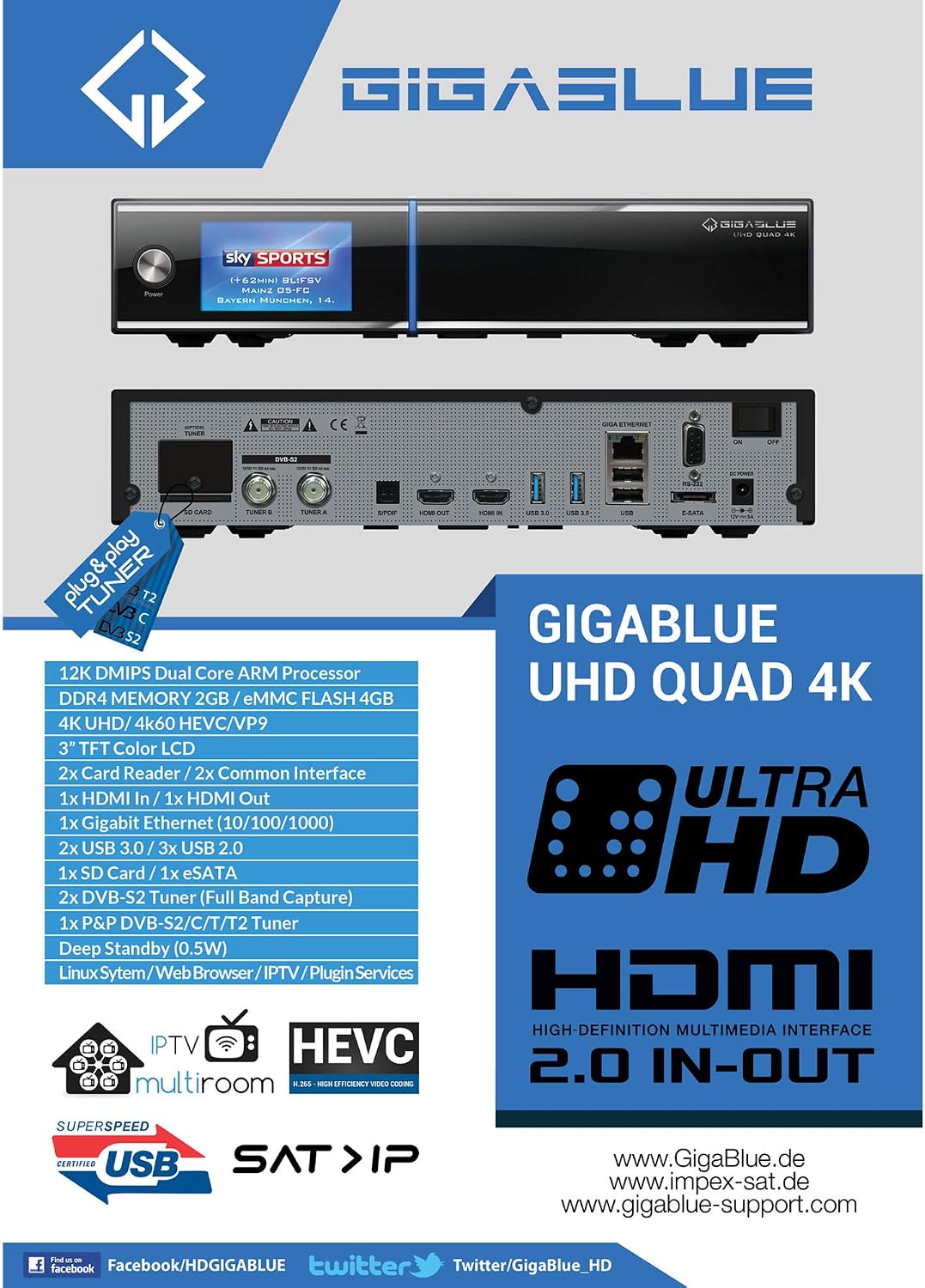
Image: A diagram illustrating the key features and specifications of the GigaBlue UHD Quad 4K receiver, including processor details, memory, tuner types, and connectivity options.
Warranty and Support
The GigaBlue UHD Quad 4K receiver comes with a 2-year warranty from the date of purchase. This warranty covers manufacturing defects and ensures reliable operation under normal use conditions.
For technical support, software updates, or warranty claims, please visit the official GigaBlue support website or contact your retailer. It is recommended to check the official website for the latest drivers, firmware, and troubleshooting guides.
Official GigaBlue Support: www.gigablue.de
Impex-Sat (Distributor/Support): www.impex-sat.de
GigaBlue Support Community: www.gigablue-support.com
Related documentsUHD-4K


Ask a question about this manual
Ask about setup, troubleshooting, compatibility, parts, safety, or missing instructions. Manuals+ will review the question and use this page’s manual context to help answer it.