
Philips 326M6FJSB
Philips Momentum 326M6FJSB 32-inch IPS LED Monitor User Manual
Model: 326M6FJSB
Introduction
This manual provides essential information for the safe and efficient operation of your Philips Momentum 326M6FJSB 32-inch IPS LED Monitor. Please read these instructions carefully before using your monitor and retain them for future reference.
The Philips Momentum 326M6FJSB monitor features a 32-inch (31.5-inch viewable) IPS panel with a 2560 x 1440 resolution, offering a wide viewing experience and vibrant colors. Key features include FreeSync technology for smooth gaming, Low Blue Mode and Flicker-Free technology for eye comfort, and Ambiglow for an immersive viewing experience. It supports multiple inputs including VGA, DisplayPort, and two HDMI ports.
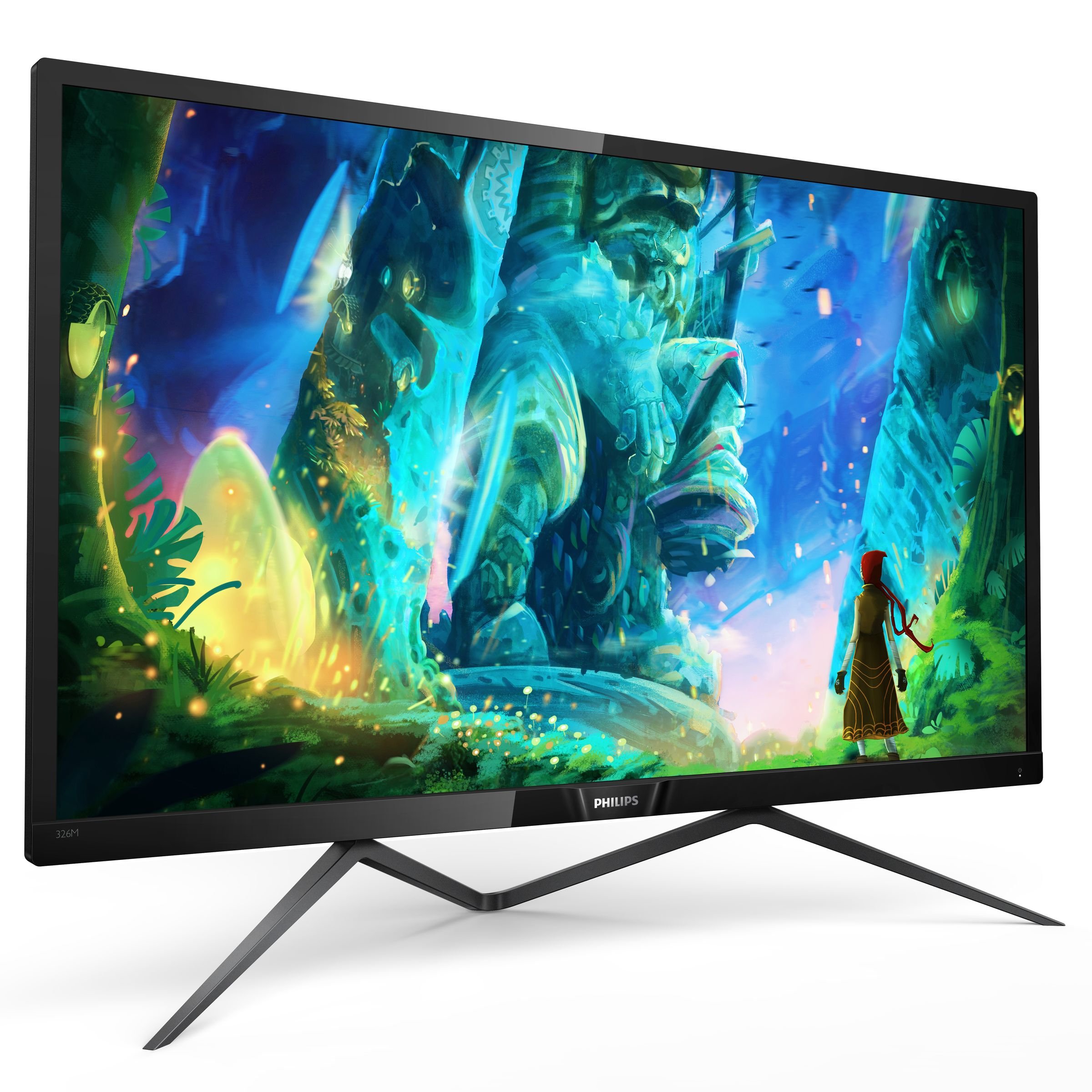
This image displays the Philips Momentum 326M6FJSB monitor from an angled perspective, showcasing its slim bezels and the distinctive stand design. The screen displays a vibrant, futuristic scene.
Setup
1. Unpacking the Monitor
Carefully remove all components from the packaging. Ensure all items listed in the 'What's in the Box' section are present and undamaged.
- Philips 326M6FJSB 32-inch Class IPS Slim LED Monitor
- Stand
- Power Cable
- HDMI Cable
- DisplayPort Cable
2. Assembling the Stand
- Place the monitor face down on a soft, clean surface to prevent scratches.
- Attach the stand neck to the monitor panel.
- Secure the base to the stand neck using the provided screws.

This image provides a visual guide for attaching the monitor stand to the display panel, showing the connection points and the overall structure of the assembled unit.
3. Connecting to a Computer
Connect the monitor to your computer using one of the following methods:
- DisplayPort Connection: Use the provided DisplayPort cable to connect the monitor's DisplayPort input to your computer's DisplayPort output. This connection supports the monitor's maximum resolution of 2560x1440.
- HDMI Connection: Use an HDMI cable to connect the monitor's HDMI input to your computer's HDMI output. The monitor has two HDMI inputs.
- VGA Connection: Use a VGA cable to connect the monitor's VGA input to your computer's VGA output. Note that VGA may not support the monitor's highest resolutions or refresh rates.

This image shows the back panel of the Philips monitor, highlighting the locations of the VGA, DisplayPort, and HDMI input connectors, as well as the audio input/output ports.
4. Power Connection
Connect the power cable to the monitor's power input, then plug the other end into a grounded electrical outlet.
5. Powering On
Press the power button (often integrated with the joystick control) located on the back of the monitor to turn it on. The monitor will automatically detect the active input source.
Operating Instructions
1. On-Screen Display (OSD) Menu
The monitor's settings are adjusted using a joystick control located on the back of the monitor. Press the joystick to access the OSD menu. Move the joystick up, down, left, or right to navigate through menu options and adjust settings.
2. Picture Settings
- Brightness/Contrast: Adjust these settings to optimize the display's luminance and contrast levels.
- Color Settings: Modify color temperature, gamma, and individual RGB levels to achieve desired color accuracy.
- SmartImage: Select from various preset modes (e.g., Game, Movie, Office) for optimized display settings based on content.
3. Eye Care Features
- Low Blue Mode: Reduces harmful blue light emissions to minimize eye strain during prolonged use. This monitor offers multiple levels of blue light reduction.
- Flicker-Free Technology: Regulates brightness and reduces flicker for more comfortable viewing.
4. Ambiglow
The Ambiglow feature projects a halo of light from the bottom of the monitor onto the surrounding wall, matching the on-screen content. This enhances immersion and reduces eye strain in dark environments.
- Ambiglow Modes: Select from various modes, including static colors or dynamic modes that adapt to screen content.
- Brightness Adjustment: Adjust the intensity of the Ambiglow lighting.

This image illustrates the Philips Momentum 326M6FJSB monitor from a front-on perspective, with the Ambiglow lighting feature active, casting a soft glow beneath the display.
5. FreeSync Technology
This monitor supports AMD FreeSync technology, which synchronizes the monitor's refresh rate with your graphics card's frame rate to eliminate screen tearing and stuttering during gaming. Ensure FreeSync is enabled in both the monitor's OSD and your graphics card settings.
Maintenance
1. Cleaning the Monitor
- Screen: Gently wipe the screen with a soft, lint-free cloth. For stubborn marks, lightly dampen the cloth with water or a specialized screen cleaner. Do not spray liquid directly onto the screen.
- Casing: Use a soft, dry cloth to clean the monitor casing. Avoid using abrasive cleaners or solvents.
2. General Care
- Avoid placing the monitor in direct sunlight or near heat sources.
- Ensure adequate ventilation around the monitor.
- Do not block ventilation openings.
- Unplug the monitor from the power outlet during lightning storms or when unused for extended periods.
Troubleshooting
If you encounter issues with your monitor, refer to the following common problems and solutions:
| Problem | Possible Cause | Solution |
|---|---|---|
| No image on screen | Power cable not connected; Video cable not connected; Incorrect input source selected. | Ensure power and video cables are securely connected. Select the correct input source via the OSD menu. |
| Image is blurry or distorted | Incorrect resolution; Video cable issue. | Set the display resolution to 2560x1440. Check video cable for damage or replace if necessary. |
| "No Input" message loops when computer sleeps (e.g., Mac) | Monitor's automatic input detection behavior. | Manually turn off the monitor by pressing and holding the joystick button for 3 seconds when the computer enters sleep mode. |
| Image shrinks horizontally (Aspect mode) | SmartSize setting automatically changed. | Access the OSD menu, navigate to SmartSize, and select '1:1' or 'Full Screen' to restore the correct aspect ratio. |
| Ambiglow not working or inconsistent | Ambiglow setting incorrect; Delay in auto-color feature. | Check Ambiglow settings in the OSD menu. If using 'Auto' mode, be aware of potential slight delays in color adaptation. |
Specifications
| Feature | Specification |
|---|---|
| Model Number | 326M6FJSB |
| Screen Size | 32 Inches (31.5" Viewable) |
| Panel Type | IPS LED |
| Resolution | 2560 x 1440 (QHD Wide 1440p) |
| Aspect Ratio | 16:9 |
| Response Time | 5ms |
| Brightness | 250 cd/m² |
| Dynamic Contrast Ratio (DCR) | 50M:1 |
| Connectivity | 1x VGA, 1x DisplayPort, 2x HDMI, Audio In/Out |
| Special Features | FreeSync, Low Blue Mode, Flicker-Free, Ambiglow, Ultra Wide Color Gamut, Xbox Ready |
| Mounting | VESA Mountable |
| Dimensions (LxWxH) | 28.7 x 9.6 x 20.4 inches |
| Item Weight | 14.52 pounds |
Warranty and Support
Warranty Information
Your Philips Momentum 326M6FJSB monitor is covered by a limited warranty. Please refer to the warranty card included in your product packaging or visit the official Philips website for detailed warranty terms and conditions specific to your region.
Customer Support
For technical assistance, product registration, or further information, please visit the official Philips support website or contact Philips customer service in your region. Contact details can typically be found on the Philips website or in the documentation provided with your monitor.
Related documents326M6FJSB


Ask a question about this manual
Ask about setup, troubleshooting, compatibility, parts, safety, or missing instructions. Manuals+ will review the question and use this page’s manual context to help answer it.