
AudioCodes UC405HDEG
AudioCodes 405HD IP Phone User Manual
Model: UC405HDEG
Introduction
This manual provides comprehensive instructions for the setup, operation, maintenance, and troubleshooting of your AudioCodes 405HD IP Phone. Please read this manual carefully before using the device to ensure proper functionality and to avoid potential issues.
The AudioCodes 405HD is a cost-effective IP phone designed for Voice over IP (VoIP) communication, offering essential features for business and office environments.
Package Contents
Before proceeding with the setup, verify that all components are present in the package. The standard package for the AudioCodes 405HD IP Phone typically includes:
- AudioCodes 405HD IP Phone Base Unit
- Handset
- Handset Cord
- Ethernet Cable
- Desk Stand
Note: A power adapter is typically not included with this model. The phone is designed to be powered via Power over Ethernet (PoE) or a compatible external power supply (sold separately).
Setup
1. Physical Connections
Follow these steps to connect your AudioCodes 405HD IP Phone:
- Attach the Desk Stand: Align the tabs on the desk stand with the slots on the back of the phone base unit and slide it into place until it clicks securely.
- Connect the Handset: Plug one end of the coiled handset cord into the handset and the other end into the port labeled with a handset icon on the side of the phone base unit.
- Connect to Network (PoE): If using Power over Ethernet, connect one end of the Ethernet cable to the LAN port on the back of the phone and the other end to a PoE-enabled network switch or router. The phone will power on automatically.
- Connect to Network (Non-PoE with Power Adapter): If not using PoE, connect one end of the Ethernet cable to the LAN port on the back of the phone and the other end to your network switch or router. Then, connect a compatible external power adapter (not included) to the power port on the back of the phone and plug it into a power outlet.
- Connect to PC (Optional): If you wish to connect a computer through the phone, connect an Ethernet cable from your PC to the PC port on the back of the phone.
2. Initial Boot-up
Once connected to power and network, the phone will begin its boot-up sequence. This process may take a few minutes as the phone obtains an IP address and registers with your VoIP service provider. The display will show progress messages. Upon successful boot-up, the display will show the current date, time, and line status.
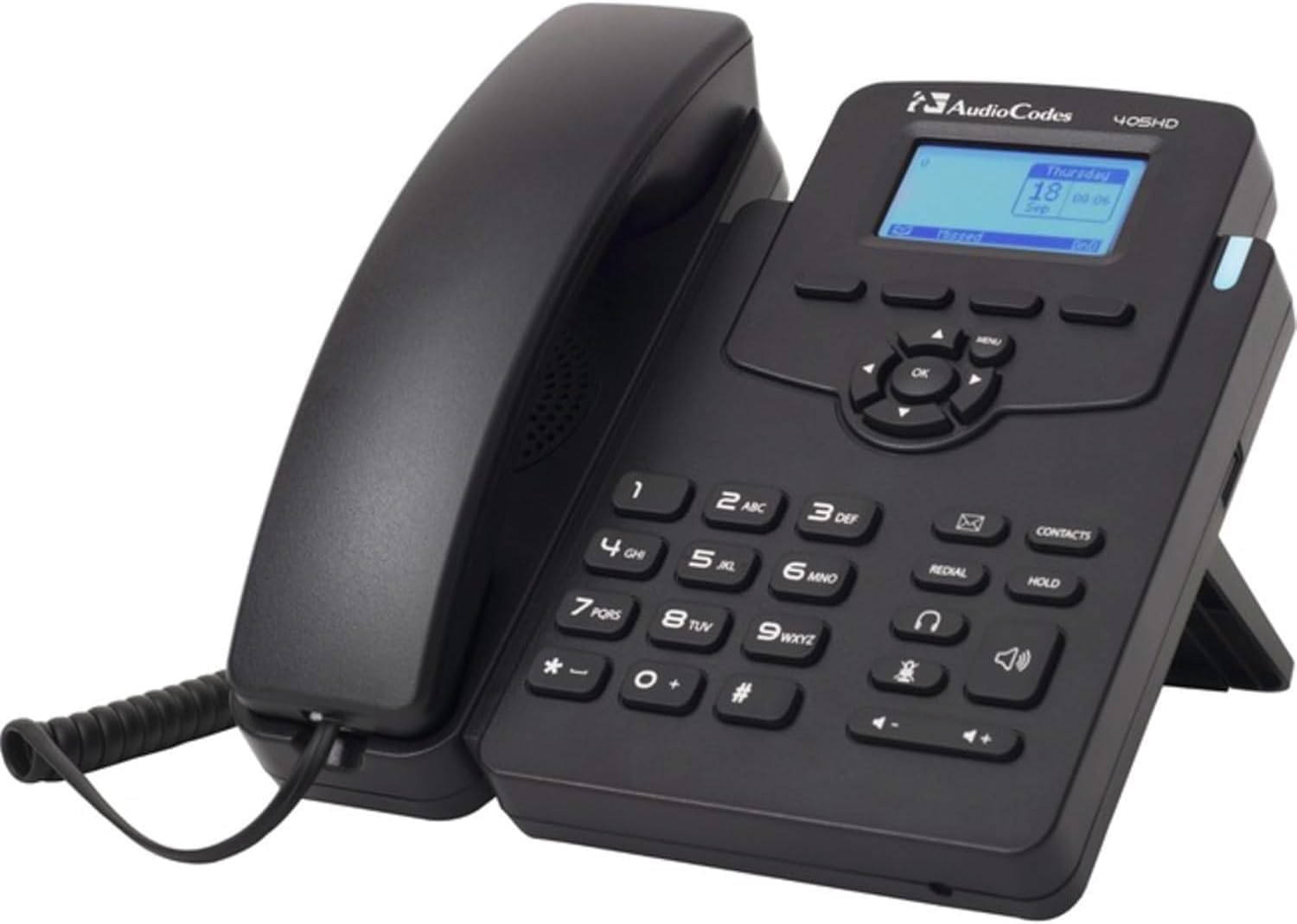
This image displays the AudioCodes 405HD IP Phone, a black corded VoIP phone. The handset is cradled on the left side of the base unit. The base features a numeric keypad, function buttons for redial, hold, contacts, speakerphone, and headset, and a central navigation cluster with an 'OK' button. A small blue-backlit LCD screen shows 'Thursday 18 Sep 00:06'. The phone is designed to stand upright with a built-in kickstand.
Operating Instructions
Basic Call Functions
- Making a Call:
- Pick up the handset or press the Speakerphone button.
- Dial the desired phone number using the keypad.
- Press the Dial soft key (if displayed) or wait for the call to connect automatically.
- Answering a Call:
- When the phone rings, pick up the handset or press the Speakerphone button.
- Alternatively, press the Answer soft key (if displayed).
- Ending a Call:
- Place the handset back in the cradle.
- If using speakerphone or headset, press the End Call soft key or the Speakerphone button again.
Keypad and Navigation
- Numeric Keypad (0-9, *, #): Used for dialing numbers and entering text.
- Navigation Cluster (Up, Down, Left, Right, OK): Used to navigate menus and confirm selections on the display.
- Menu Button: Accesses the phone's main menu for settings and features.
- Redial Button: Dials the last number called.
- Hold Button: Places an active call on hold.
- Contacts Button: Accesses the phone's contact directory.
- Speakerphone Button: Toggles speakerphone mode on/off.
- Headset Button: Toggles headset mode on/off (if a headset is connected).
- Volume Buttons (+/-): Adjusts handset, speakerphone, or ringer volume.
Maintenance
Proper maintenance ensures the longevity and optimal performance of your AudioCodes 405HD IP Phone.
- Cleaning:
- Disconnect the phone from power before cleaning.
- Use a soft, slightly damp, lint-free cloth to wipe the phone's surfaces.
- Do not use harsh chemicals, abrasive cleaners, or aerosol sprays directly on the phone.
- Avoid getting moisture into any openings.
- General Care:
- Keep the phone away from direct sunlight, heat sources, and excessive moisture.
- Avoid dropping the phone or subjecting it to strong vibrations.
- Ensure proper ventilation around the device.
Troubleshooting
This section addresses common issues you might encounter with your AudioCodes 405HD IP Phone.
| Problem | Possible Cause | Solution |
|---|---|---|
| Phone does not power on. | No power from PoE switch or power adapter. Defective power adapter or phone unit. |
|
| No dial tone. | Phone not registered with VoIP service. Network connectivity issue. |
|
| Cannot make or receive calls. | No dial tone (see above). Incorrect dialing procedure. Service provider issue. |
|
| Display is blank or unreadable. | No power. Display settings. |
|
Specifications
| Feature | Detail |
|---|---|
| Brand | AudioCodes |
| Model Number | UC405HDEG |
| Item Weight | 2.08 pounds |
| Color | Black |
| Telephone Type | Corded |
| Power Source | Corded Electric (requires external adapter or PoE) |
| Dialer Type | Single Keypad |
| Answering System Type | Digital |
| Compatible Devices | VoIP services, multi-line systems |
| Conference Call Capability | Basic |
| Multiline Operation | Multi-Line Operation |
Warranty and Support
Information regarding product warranty and technical support for the AudioCodes 405HD IP Phone is typically provided by the original reseller or your VoIP service provider. Please refer to your purchase documentation or contact your vendor for specific details on warranty coverage and support options.
Related documentsUC405HDEG


Ask a question about this manual
Ask about setup, troubleshooting, compatibility, parts, safety, or missing instructions. Manuals+ will review the question and use this page’s manual context to help answer it.