
Introduction
The Harman Kardon Omni 20 Plus is a wireless HD speaker designed to provide high-quality audio streaming throughout your home. It supports 24-bit/192kHz HD audio, offering a rich listening experience. This speaker integrates seamlessly with various music services and connectivity options, including Spotify Connect, Chromecast built-in, Bluetooth, and a 3.5mm auxiliary input.
This manual provides essential information for setting up, operating, and maintaining your Omni 20 Plus speaker to ensure optimal performance and longevity.
What's in the Box
- Omni 20+ Wireless HD Speaker
- Quick-start guide
- Power Supply
- Regional power cord(s)
- Safety & Warranty Sheet
Product Overview
Familiarize yourself with the key components of your Harman Kardon Omni 20 Plus speaker.

Figure 1: Front view of the Harman Kardon Omni 20 Plus speaker, showcasing the speaker grille.
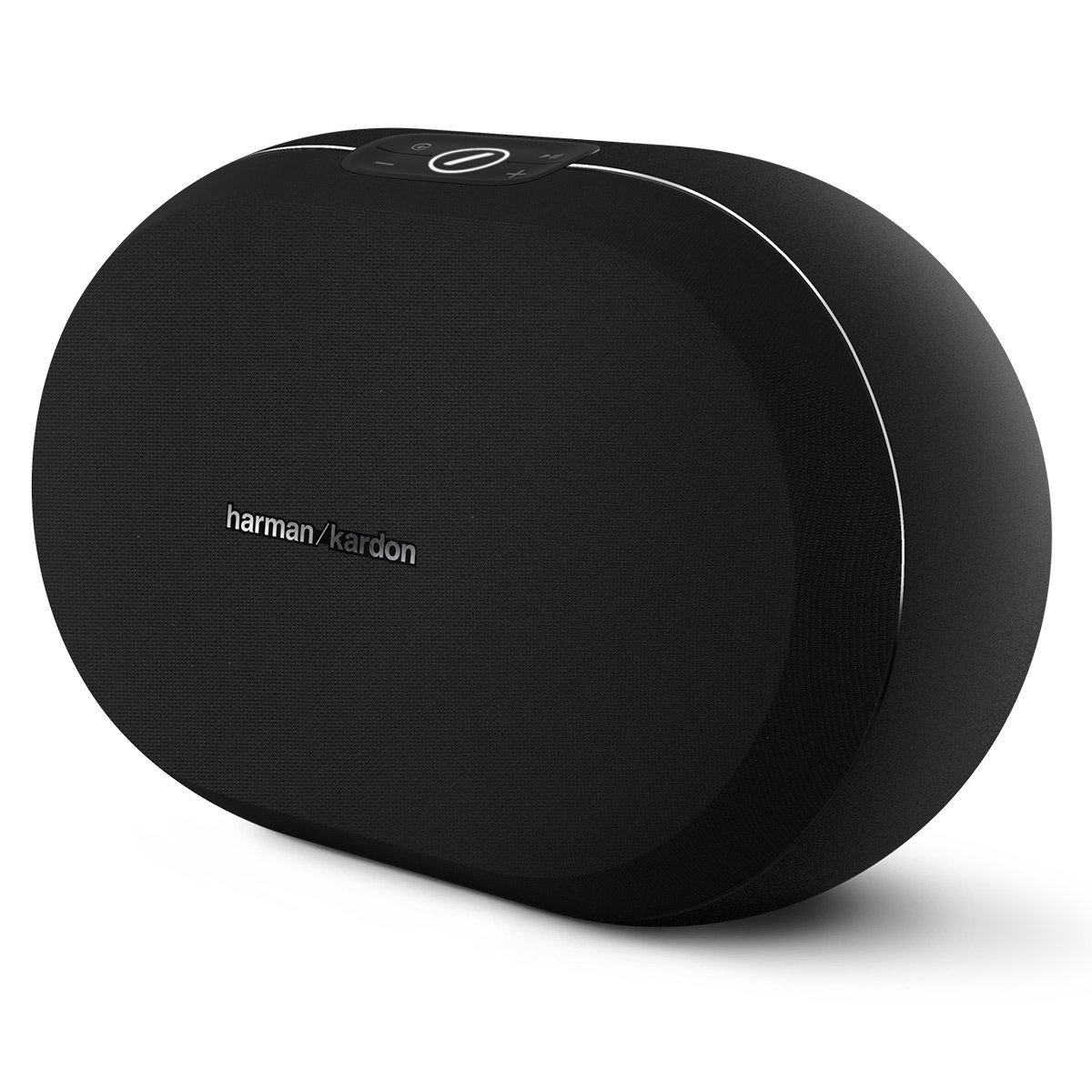
Figure 2: Front view of the Harman Kardon Omni 20 Plus speaker, highlighting the Harman Kardon logo on the metallic plate.

Figure 3: Top view of the Harman Kardon Omni 20 Plus, showing the control panel with power, play/pause, volume, and Link buttons.
Setup
Follow these steps to set up your Harman Kardon Omni 20 Plus speaker for the first time.
1. Power Connection
- Connect the power supply to the speaker's power input.
- Plug the power cord into a wall outlet. The speaker will automatically power on.
2. Initial Configuration (Harman Kardon Controller App)
For full functionality, including Wi-Fi setup, multi-room audio, and access to streaming services, download the Harman Kardon Controller app on your smartphone or tablet.
- Download the "Harman Kardon Controller" app from your device's app store (iOS or Android).
- Open the app and follow the on-screen instructions to connect your Omni 20 Plus to your home Wi-Fi network. This process typically involves selecting your speaker from a list and entering your Wi-Fi password.
- Once connected to Wi-Fi, the app will guide you through any necessary firmware updates and allow you to configure streaming services like Spotify Connect and Chromecast built-in.
3. Bluetooth Pairing (Alternative Connection)
If you prefer to use Bluetooth, or if Wi-Fi is not available, you can pair your device directly with the Omni 20 Plus.
- Press and hold the Bluetooth button on the top of the speaker until the LED indicator starts flashing, indicating pairing mode.
- On your smartphone or tablet, go to Bluetooth settings and select "Harman Kardon Omni 20 Plus" from the list of available devices.
- Once paired, the LED indicator will turn solid, and you can begin streaming audio.
Operating Instructions
Learn how to use your Harman Kardon Omni 20 Plus speaker for various audio playback options.
Basic Controls
- Power Button: Press to turn the speaker on or off.
- Play/Pause Button: Press to play or pause audio playback.
- Volume Buttons (+/-): Press to increase or decrease the volume.
- Link Button: Used for multi-room audio setup (see "Multi-Room Audio" below).
Streaming Audio
- Wi-Fi Streaming (Harman Kardon Controller App): Use the app to select music sources, manage playlists, and control playback over your Wi-Fi network for the highest audio quality.
- Spotify Connect: Open the Spotify app on your device, play a song, and select the Omni 20 Plus as the playback device from the "Devices Available" menu.
- Chromecast built-in: From any Chromecast-enabled audio app (e.g., Google Play Music, Pandora), tap the Cast icon and select your Omni 20 Plus speaker.
- Bluetooth: Once paired, simply play audio from your Bluetooth-enabled device.
- 3.5mm Auxiliary Input: Connect an audio device directly to the speaker using a 3.5mm audio cable (not included). The speaker will automatically switch to auxiliary input when a connection is detected.
Multi-Room Audio (Follow Me Audio)
The Omni 20 Plus supports multi-room audio, allowing you to play the same music across multiple Harman Kardon Omni speakers or different music in each room.
- One-Touch Link Button: To instantly move music from one Omni speaker to another, simply press the "Link" button on the speaker you wish to transfer the audio to.
- App Control: For advanced multi-room configurations, such as grouping speakers or playing different music in different rooms, use the Harman Kardon Controller app.
Maintenance
Proper care and maintenance will ensure the longevity and optimal performance of your Omni 20 Plus speaker.
Cleaning
- Always disconnect the power supply before cleaning.
- Use a soft, dry cloth to wipe the exterior surfaces of the speaker.
- Do not use abrasive cleaners, waxes, or solvents, as these can damage the finish.
- Avoid getting moisture into any openings.
Battery Care
The Omni 20 Plus contains a rechargeable Lithium Ion battery. Follow these guidelines for battery safety and disposal:
- Avoid exposure to liquids and extreme temperatures (both hot and cold).
- Do not attempt to replace the battery yourself. Contact qualified service personnel.
- Follow proper battery disposal guidelines according to local regulations. Do not dispose of batteries with household waste.
Troubleshooting
If you encounter issues with your Harman Kardon Omni 20 Plus, refer to the following common problems and solutions.
| Problem | Possible Solution |
|---|---|
| No power |
|
| No sound |
|
| Bluetooth pairing issues |
|
| Wi-Fi connectivity problems |
|
| Music stops sporadically (Chromecast/Spotify) |
|
For more detailed troubleshooting or persistent issues, consult the Harman Kardon Controller app or visit the official Harman Kardon support website.
Specifications
| Feature | Detail |
|---|---|
| Model Number | Omni 20 Plus |
| Product Dimensions | 8.58 x 7.87 x 8.58 inches |
| Item Weight | 7.35 pounds (3.34 Kilograms) |
| Connectivity Technology | Bluetooth, Wi-Fi, Wireless |
| Power Source | Battery Powered |
| Special Feature | Built-In Microphone |
| Batteries | 1 Lithium Ion battery required |
| Manufacturer | Harman Kardon |
| Date First Available | June 10, 2017 |
Warranty and Support
Your Harman Kardon Omni 20 Plus speaker comes with a limited warranty. Please refer to the "Safety & Warranty Sheet" included in your product packaging for detailed terms and conditions, including warranty period and coverage.
For technical support, service, or further inquiries, please visit the official Harman Kardon website or contact their customer service department. Contact information can typically be found on the Harman Kardon website or in your product documentation.
Online Support: www.harmankardon.com/support


