
BEVA F5
BEVA F5 Cable USB Laser Barcode Scanner User Manual
Model: F5
Introduction
This manual provides comprehensive instructions for the BEVA F5 Cable USB Laser Barcode Scanner. It covers product features, setup, operation, maintenance, and troubleshooting to ensure optimal performance and longevity of your device. The BEVA F5 is a handheld, wired 1D laser barcode scanner designed for various applications including POS systems, supermarkets, logistics, libraries, and banking.
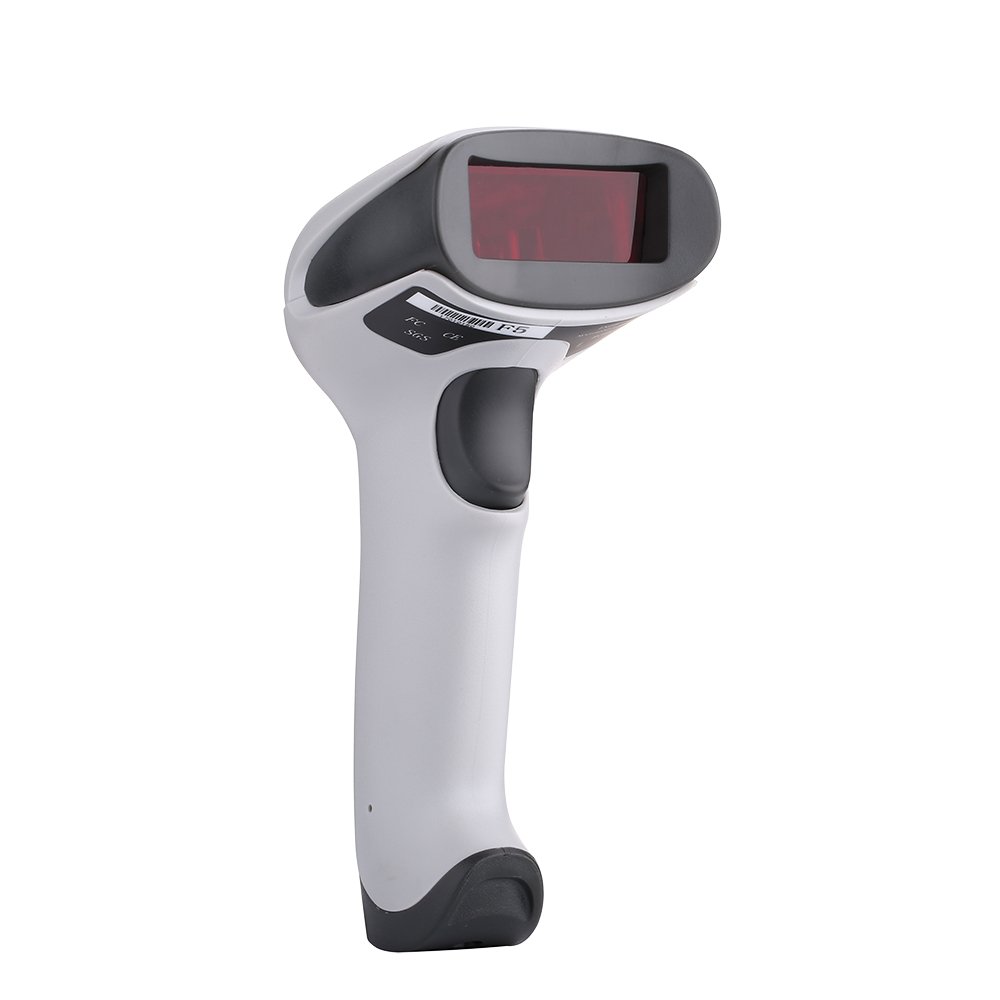
Figure 1: BEVA F5 Cable USB Laser Barcode Scanner. This image shows the overall design of the scanner, highlighting its ergonomic shape.
Package Contents
Upon unpacking, please verify that all items are present and in good condition:
- BEVA F5 Laser Barcode Scanner
- Integrated USB Cable
- User Manual (this document)
Product Overview
The BEVA F5 scanner features a robust design and high-quality components for reliable performance. Familiarize yourself with the key parts of the device:

Figure 2: Labeled components of the BEVA F5 scanner. This image points out the scan window, buzzer, indicator light, anti-drop silicone, and USB port.
- Scan Window: Emits the laser beam for reading barcodes.
- Buzzer & Indicator Light: Provides audible and visual feedback for successful scans and operational status.
- Anti-drop Silicone: Integrated into the design for enhanced durability and shock resistance.
- USB Port: Connects the scanner to your computer or POS system.
Key features include:
- Plug and Play: No software or driver installation required.
- 1D Barcode Scanning: Capable of reading linear (1D) barcodes.
- Robust Design: Engineered to withstand drops from 1.5 meters and features IP41 water and dust resistance.
- High-Speed Scanning: Equipped with a high-quality laser head for fast and sensitive scanning.
- Durable Window: Features a high-quality quartz window for good reflection and wear resistance.
Setup
The BEVA F5 scanner is designed for simple, plug-and-play operation. Follow these steps to set up your scanner:
- Locate an available USB port on your computer or POS system.
- Connect the USB cable from the BEVA F5 scanner into the USB port.
- The system will automatically detect and install the necessary drivers. This process usually takes a few seconds.
- Once installed, the scanner is ready for use. You may hear a beep or see an indicator light flash to confirm readiness.

Figure 3: Connecting the BEVA F5 scanner via USB. This image illustrates the simple plug-and-play connection of the scanner to a device.
Operating Instructions
The BEVA F5 scanner supports various scanning modes for different operational needs.
Basic Scanning
- Ensure the scanner is connected and powered on.
- Point the scan window towards the barcode you wish to read.
- Press and hold the trigger button. A red laser line will appear.
- Align the laser line across the entire barcode.
- Upon a successful scan, the scanner will emit a beep and the indicator light will flash. The barcode data will be transmitted to your connected device as if typed.

Figure 4: Demonstrating the BEVA F5 scanner in operation. A hand holds the scanner, aiming its laser at a barcode on a package in a warehouse setting.
Scanning Modes
The BEVA F5 supports the following scanning modes:
- Manual Trigger Mode: Press the trigger button to activate the laser and scan a barcode. Release the button after a successful scan.
- Continuous Scan Mode: The laser remains active, continuously scanning for barcodes. This mode is suitable for high-volume scanning. (Refer to advanced configuration guide for activation, if applicable).
- Automatic Scan Mode: The scanner automatically detects a barcode within its field of view and scans it without needing to press the trigger. (Refer to advanced configuration guide for activation, if applicable).
For specific configuration of scanning modes or other advanced settings, please refer to the detailed programming guide, which typically involves scanning specific configuration barcodes.
Maintenance
Proper maintenance ensures the longevity and optimal performance of your BEVA F5 scanner.
Cleaning
- Ensure the scanner is disconnected from its power source before cleaning.
- Use a soft, clean, damp cloth to wipe the exterior of the scanner.
- For the scan window, use a lint-free cloth and a mild, non-abrasive cleaner (e.g., lens cleaner) to avoid scratching.
- Do not use harsh chemicals, solvents, or abrasive materials, as these can damage the scanner's surface or internal components.
Storage
- Store the scanner in a cool, dry place away from direct sunlight and extreme temperatures.
- Avoid storing in environments with high humidity or excessive dust.
Durability
The BEVA F5 is designed with robust features, including anti-drop silicone and IP41 rating for water and dust resistance. While durable, avoid intentional drops or exposure to excessive moisture to prevent damage.
Troubleshooting
If you encounter issues with your BEVA F5 scanner, refer to the following common problems and solutions:
| Problem | Possible Cause | Solution |
|---|---|---|
| Scanner does not power on or respond. | Loose USB connection, faulty USB port, or cable damage. |
|
| Scanner does not read barcodes. | Barcode damage, incorrect scanning angle, dirty scan window, or unsupported barcode type. |
|
| Scanned data is incorrect or incomplete. | Partial scan, incorrect keyboard layout settings on the computer. |
|
If the problem persists after trying these solutions, please contact customer support.
Specifications
Detailed technical specifications for the BEVA F5 Cable USB Laser Barcode Scanner:
| Model Number | F5 |
| Brand | BEVA |
| Scanning Mode | Laser |
| Pixel | 2500 |
| Reading Precision | ≥ 5mil |
| Data Interface | USB |
| Connectivity Technology | Wired (USB Cable) |
| Cable Length | 175 cm |
| Dimensions (L*W*H) | 160 x 65 x 90 mm (approximately 6.3 x 2.56 x 3.54 inches) |
| Weight | 0.2 KG (approximately 0.44 lbs) |
| Water and Dust Resistance | IP41 |
| Electrical Safety | EN60950-1 |
| Batteries Included | No |
| Batteries Required | No |
| UPC | 759981325618 |

Figure 5: Dimensional view of the BEVA F5 scanner. This image provides measurements for the scanner's length, width, and height.
Warranty and Support
For warranty information and technical support, please refer to the documentation provided at the time of purchase or contact BEVA customer service through their official website or authorized retailers. Keep your purchase receipt as proof of purchase for warranty claims.
Ask a question about this manual
Ask about setup, troubleshooting, compatibility, parts, safety, or missing instructions. Manuals+ will review the question and use this page’s manual context to help answer it.